---
title: ARMS Bicycle Registration - Setup
description: ARMS Bicycle Registration - Setup
---
[Skip to content](https://kb.arms.com/arms/arms-bicycle-registration-setup#main-content)
English
Show submenu for translations

Open main navigation
Close main navigation
- English
Show submenu for translations
- [Customer Portal](https://helpdesk.arms.com/tickets)
[Customer Portal](https://helpdesk.arms.com/tickets?hsLang=en)
How can we help you?
- There are no suggestions because the search field is empty.
1. [ARMS](https://kb.arms.com/arms?hsLang=en)
2. [Online Bicycle Registration](https://kb.arms.com/arms/online-bicycle-registration?hsLang=en)
3. [Bicycle Registration Workbook](https://kb.arms.com/arms/online-bicycle-registration?hsLang=en#bicycle-registration-workbook)
# ARMS Bicycle Registration - Setup
#### **Settings – User Roles**
The Bicycle Registration website is a way for students to register their bicycle for the campus. Department Users can verify bicycles and see if there is a report of stolen bicycles.
To create User Roles, go to Settings \> User Roles.
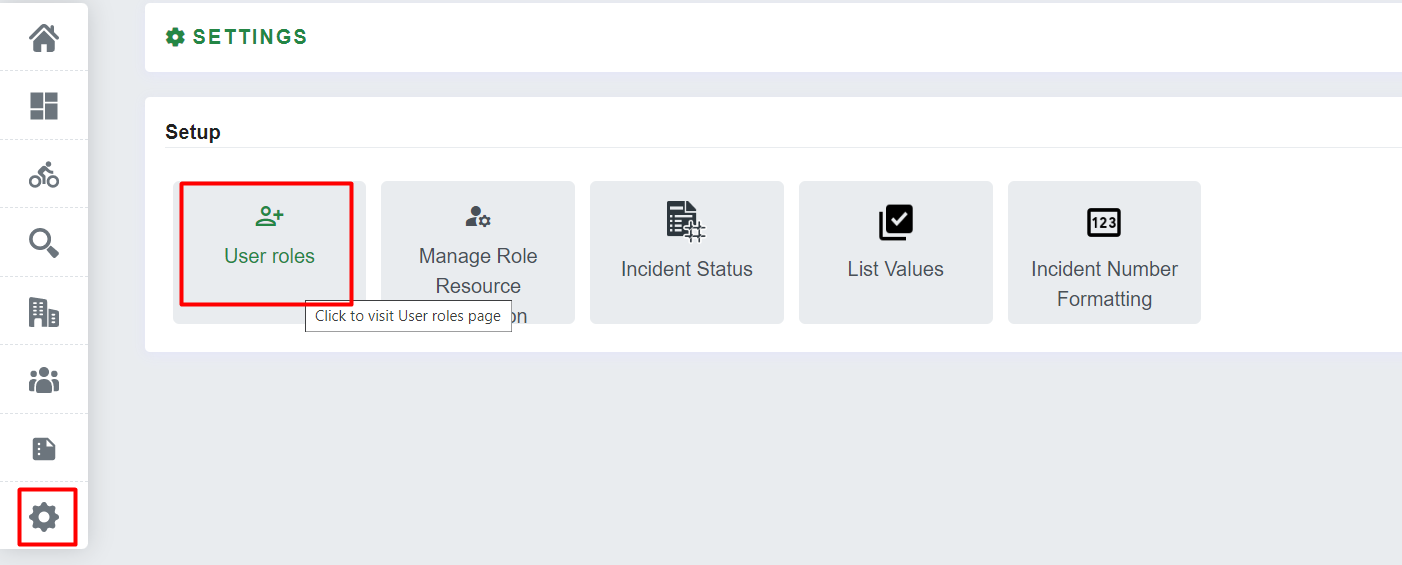
The default roles created are Agency Admin, Agency User, and Student/Faculty/Staff.
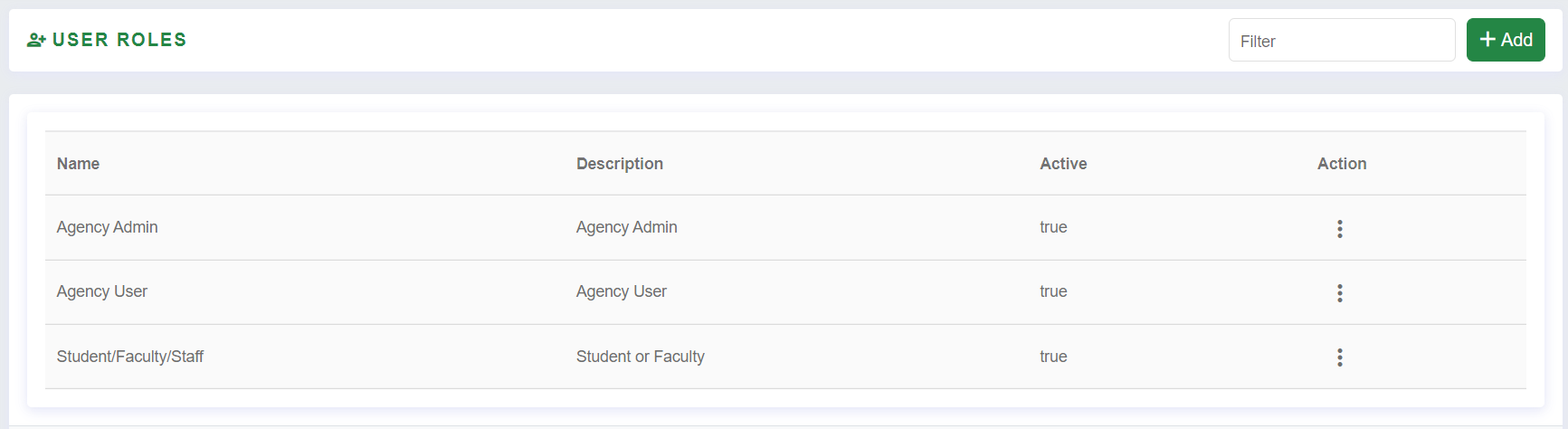
These roles can be modified as per the Department’s requirements by clicking on the three dots in the Action column. When clicked, the Agency Admin will see the edit option.

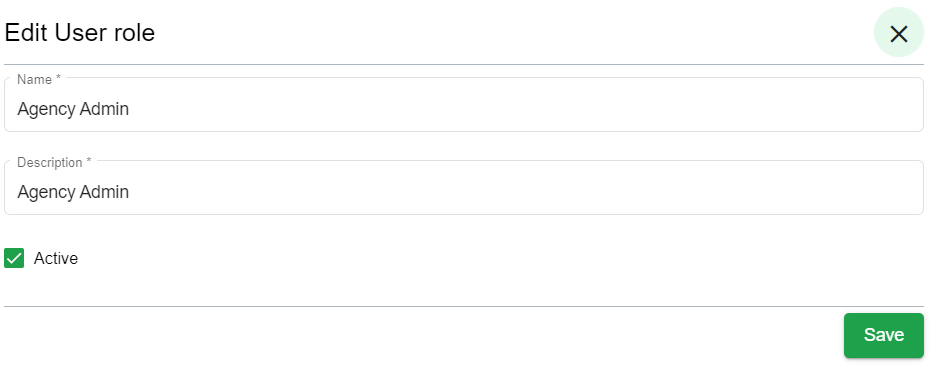
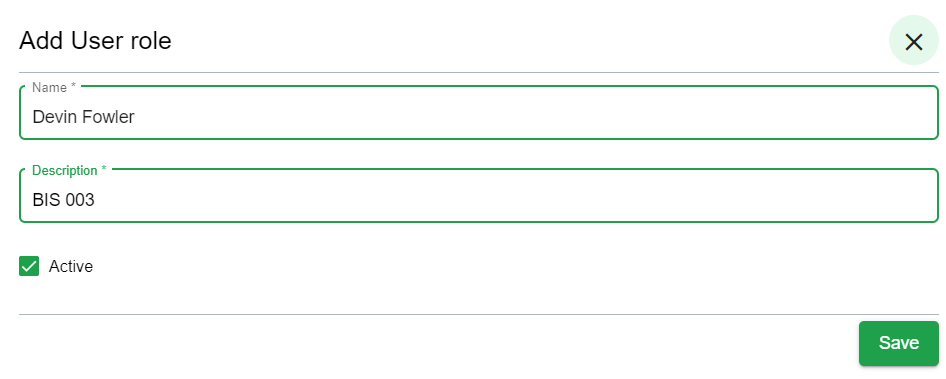
Editing the User Roles allows the Agency Admin to edit the name and description of the role, they can also mark it as Active or uncheck it to make it Inactive.
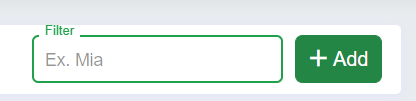
Typing in the Filter field and clicking Add will allow the User to add a new User Role.
To create a new role, the only required fields are Name, Description and whether Agency Admin wants to mark it as Active or not.
#### **Settings – Manage Role Resource Permissions**
To set permissions for User Roles go to Settings \> Manage Role Resource Permission
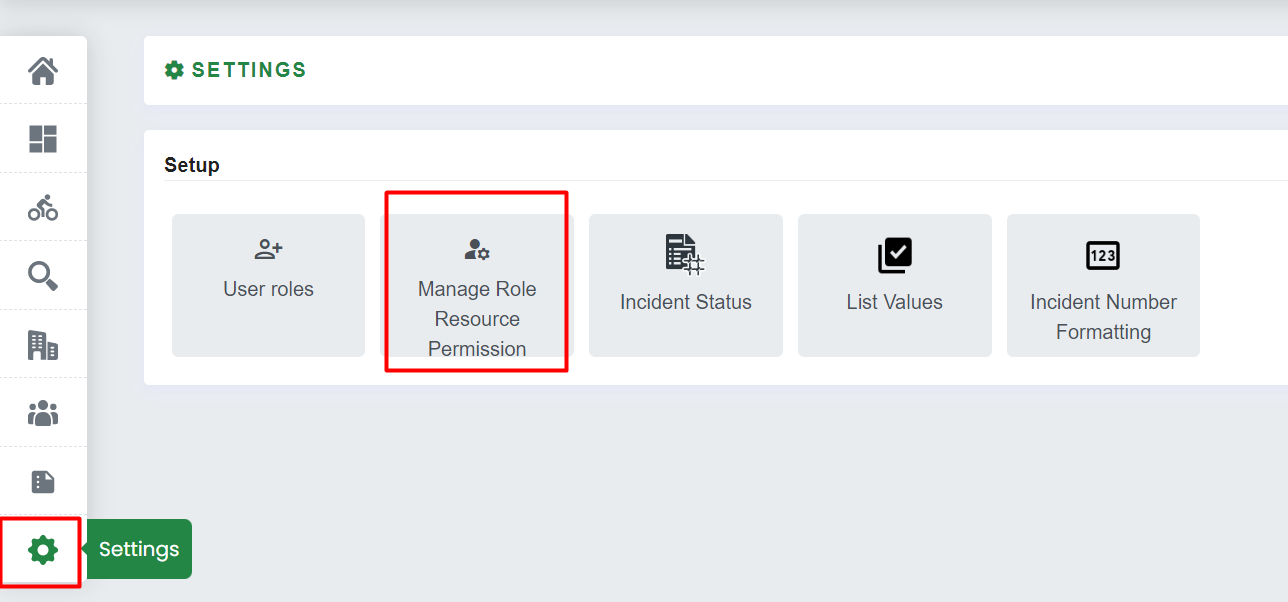
From this screen, select from the User Role dropdown menu the role you wish to modify. This drop down contains all User Roles added in the Bicycle module.
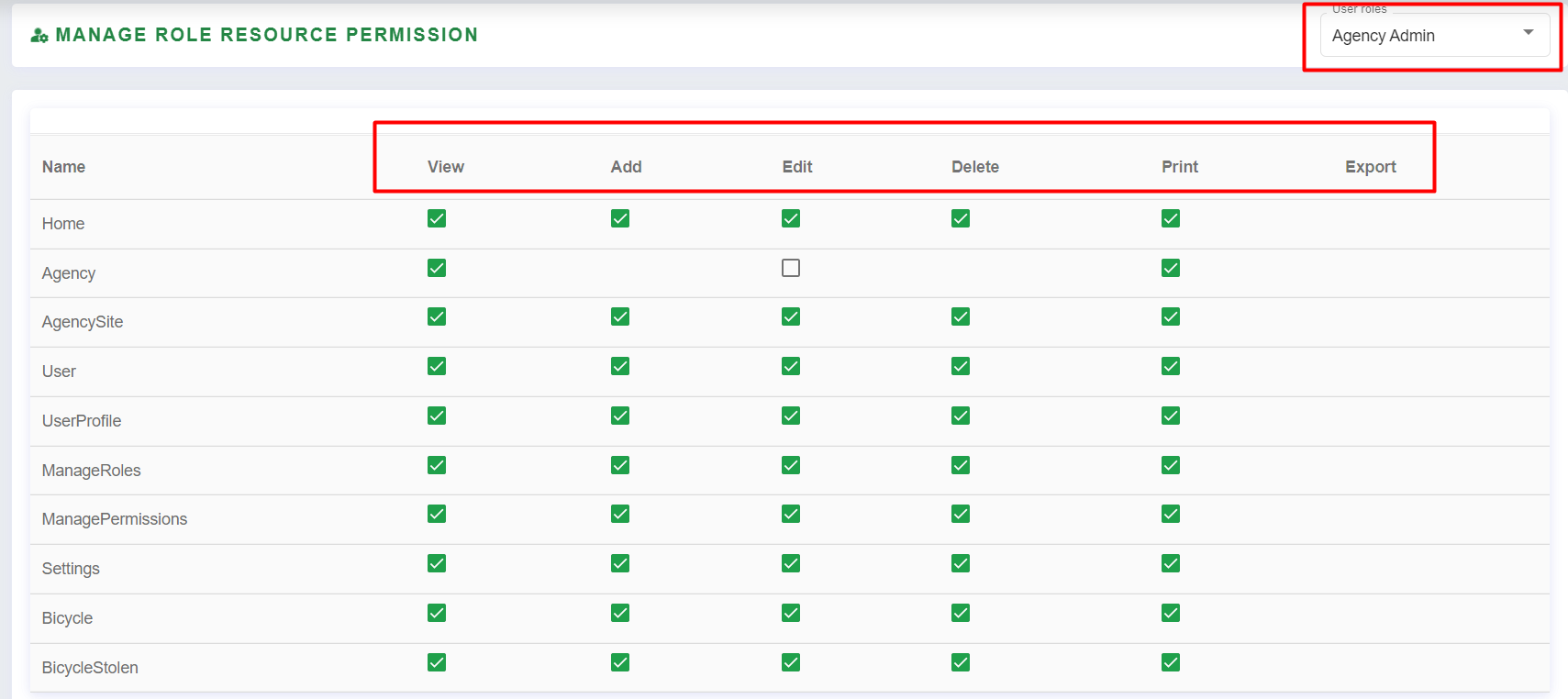
After selecting the User Role, add or remove permissions according to the department's need or role selected. The Agency Admin can select each property to allow/ disallow permissions for View, Add, Edit, Delete, Print and Export.
#### **Settings – Incident Status**
The status for each Incident is predefined in this section. To navigate to this section, go to Settings \> Incident Status.
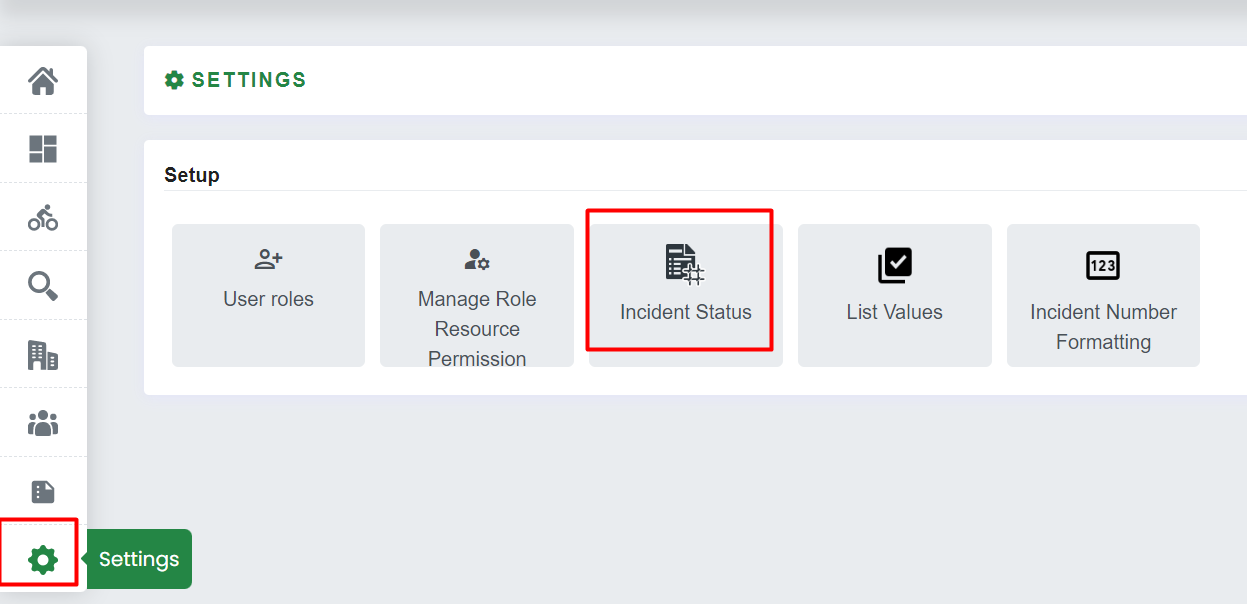
Incident Status can be edited, or new ones can be added by an Agency Admin. It can be searched by Status Name and by Description.
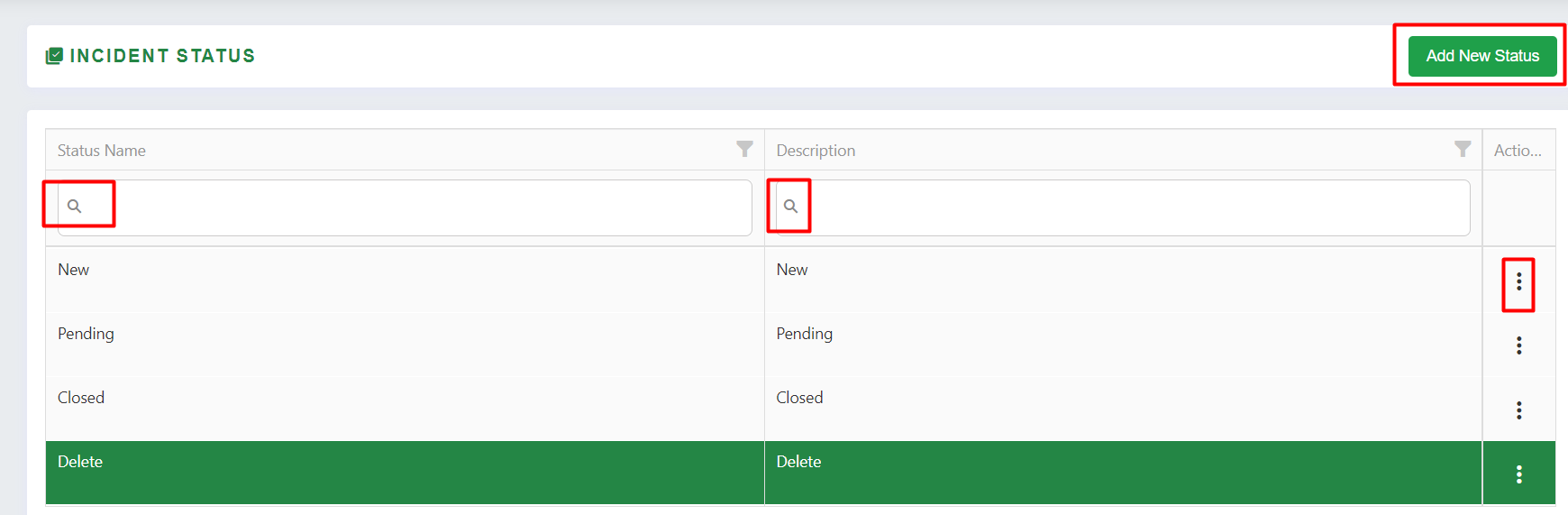
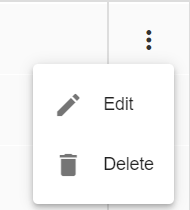
To Edit or Delete an Incident Status click on the three dots in the Action column.
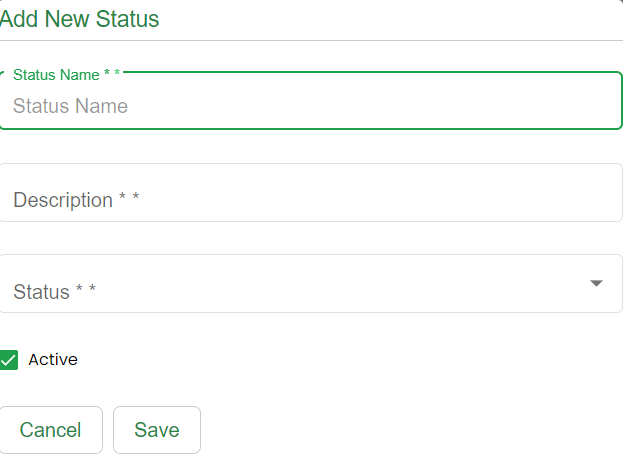
To create a new Incident Status, click on the Add New Status button in the upper right corner.
Here, the required fields are Status Name (Name of the new status that the Agency Admin needs to add), Description (Description for the new Status), Status (parent status name to be selected from existing Status), and Active checkbox (Agency Admin needs to mark it as active or not).
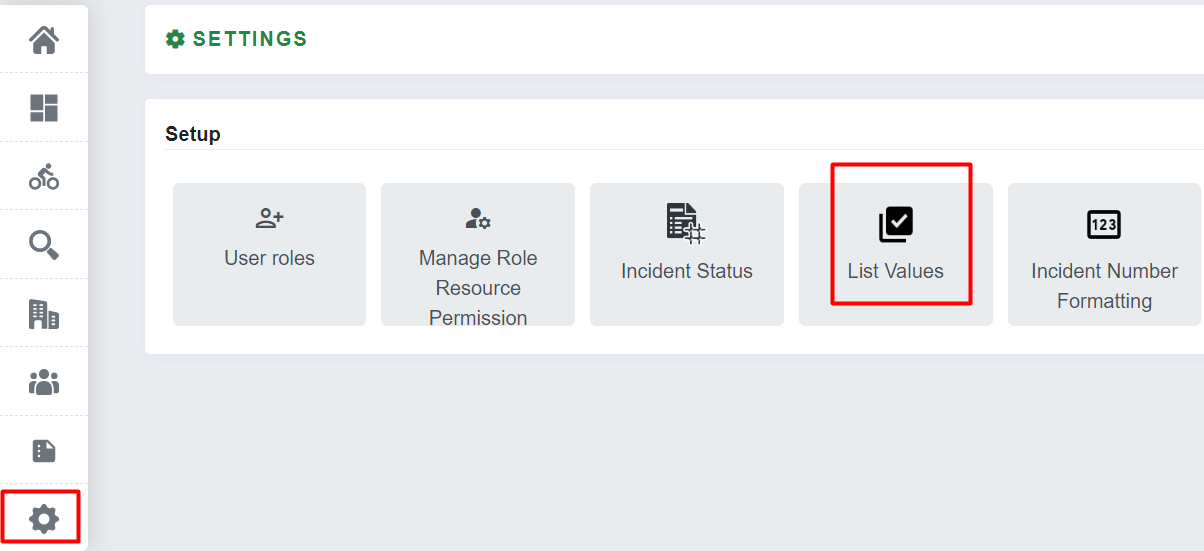
#### **Settings - List Values**
Go to Settings \> List Values.
To view a list of values, there are options to view it category-wise and status-wise. If Category is selected to be Brand Name, then it will show a list of all Brand Names of Bicycles, and if Status is selected as active then all active Brand Names will be shown in the list.
You can sort
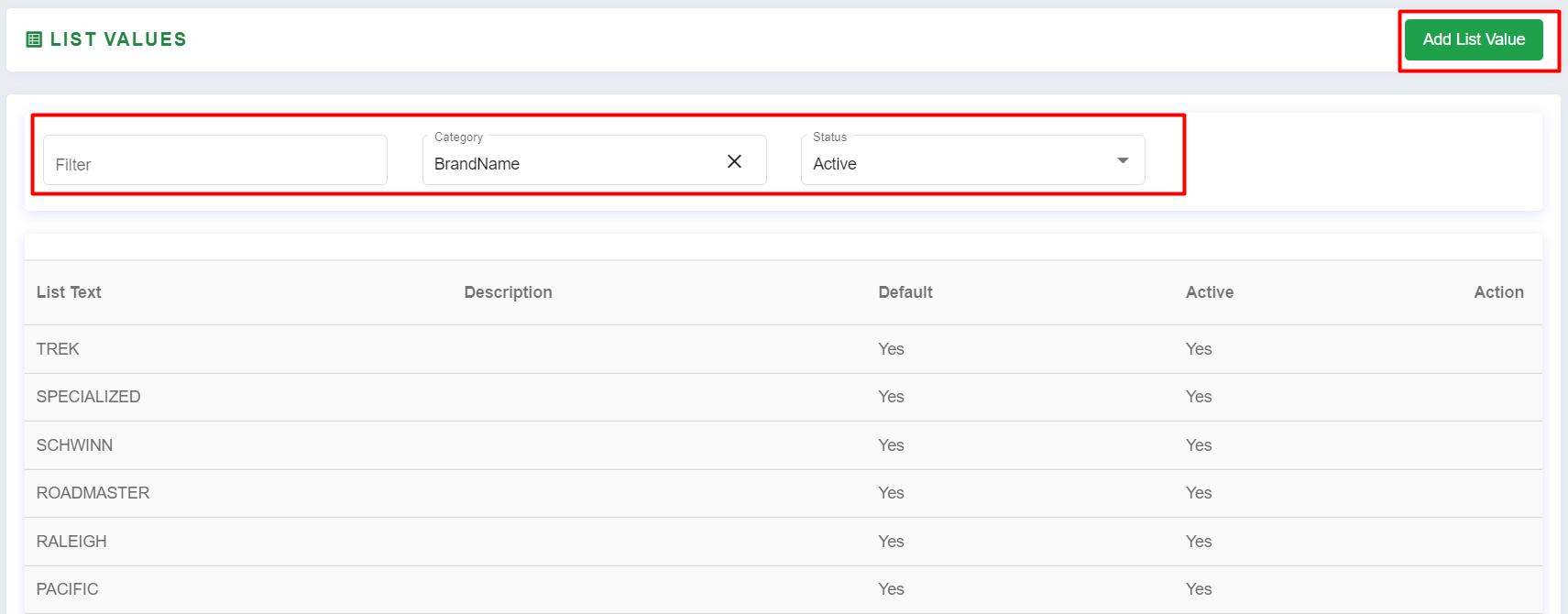
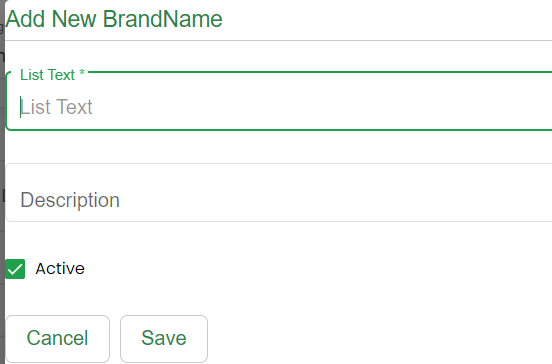
To add list values, click on the Add List Value button in the page's upper right corner. Before clicking Add List Value, Agency Admin must first select the Category to which they are wanting to add a Value.
If the Agency Admin selects “Brand Name” and chooses to Add List Value, the List Text that they enter will be added under Brand Name.
#### **Settings – Incident Number Formatting**
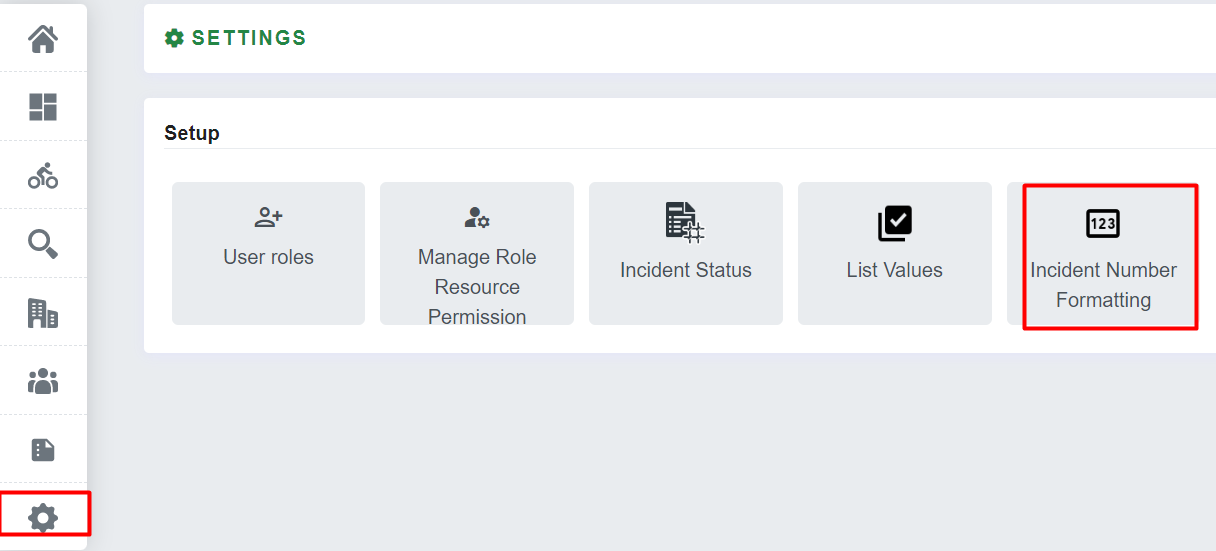
To set the default format of Incident Number and Bicycle Registration Number, the Agency Admin should navigate to Settings \> Incident Number Formatting.
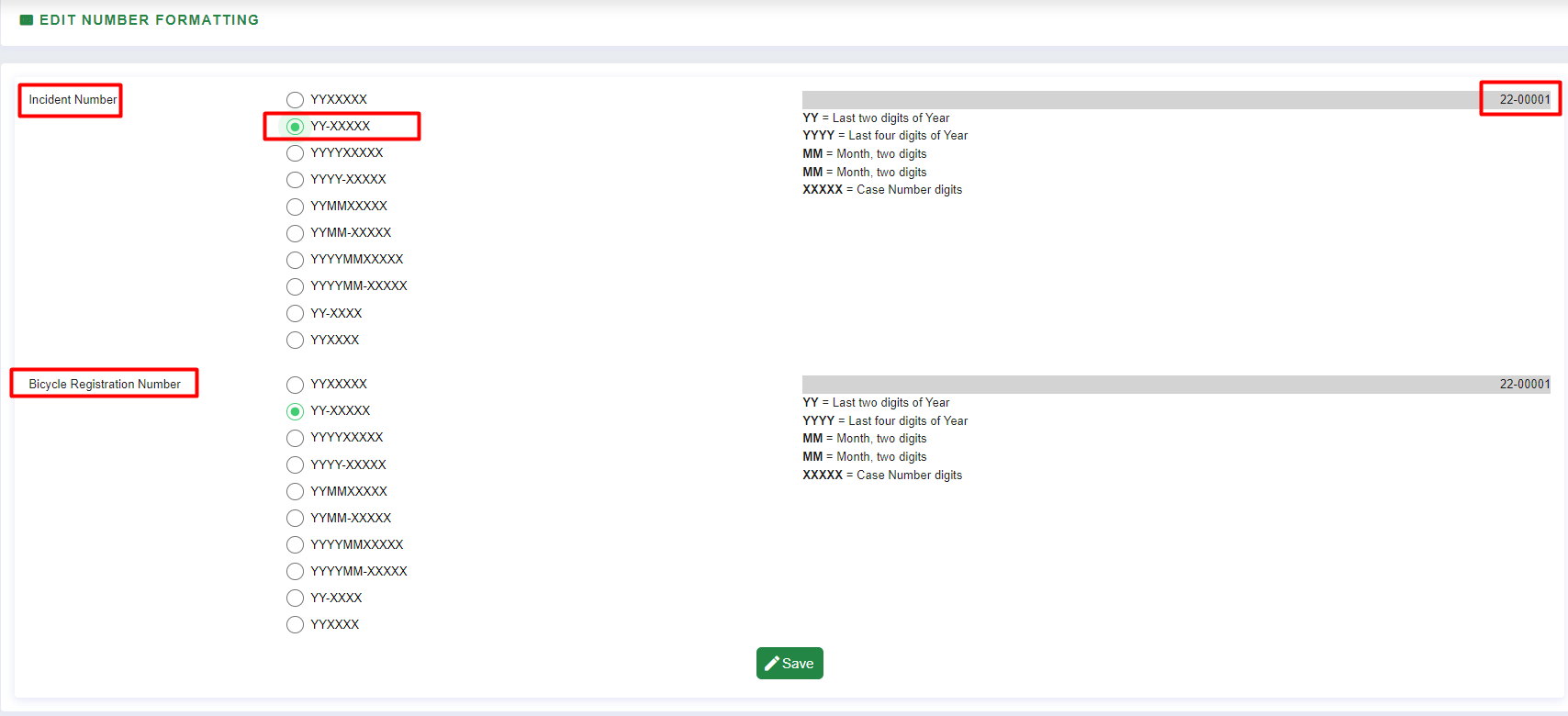
Here, Agency Admin can choose from multiple formats. An example of each selection will be displayed in the upper right corner with a grey background. This will give the Agency Admin an idea about how the format will display.
#### **Users**
Select Users from the side menu. From this screen all the users within the agency will display in list form. It will show the Name, User Role & Email. New users can be added, and user roles can be changed in this module.
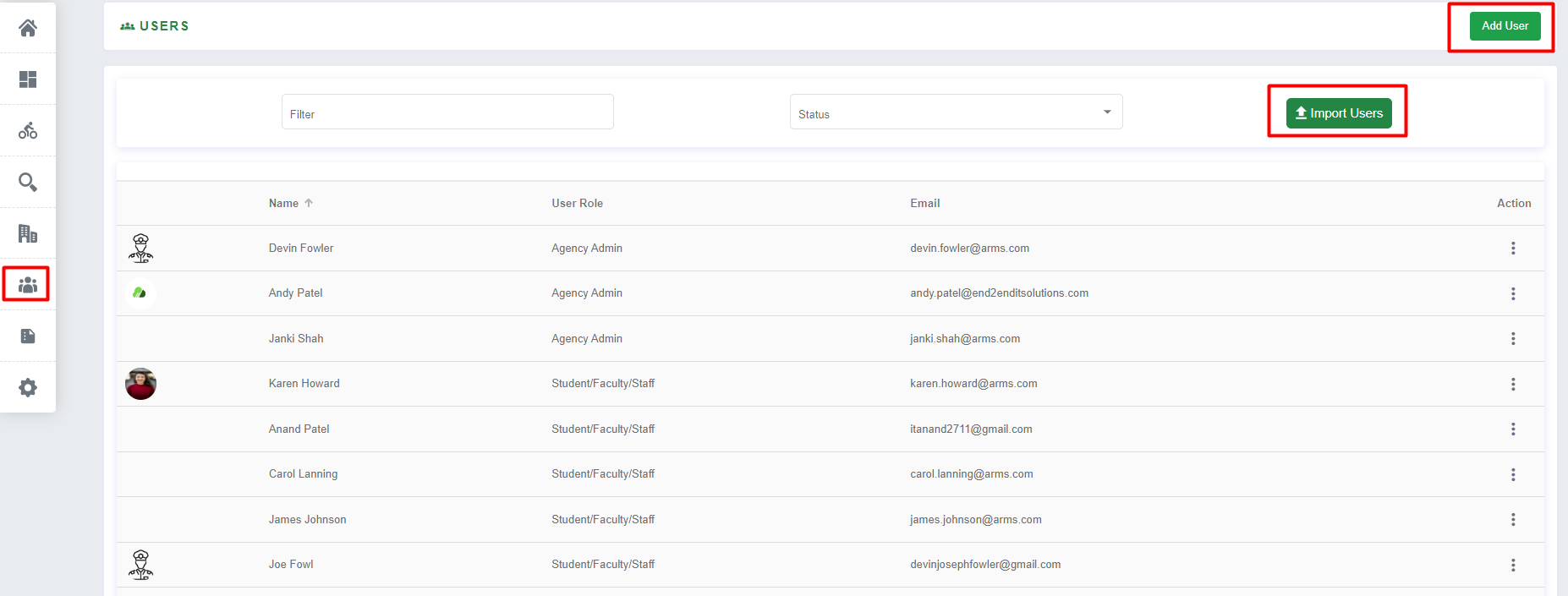
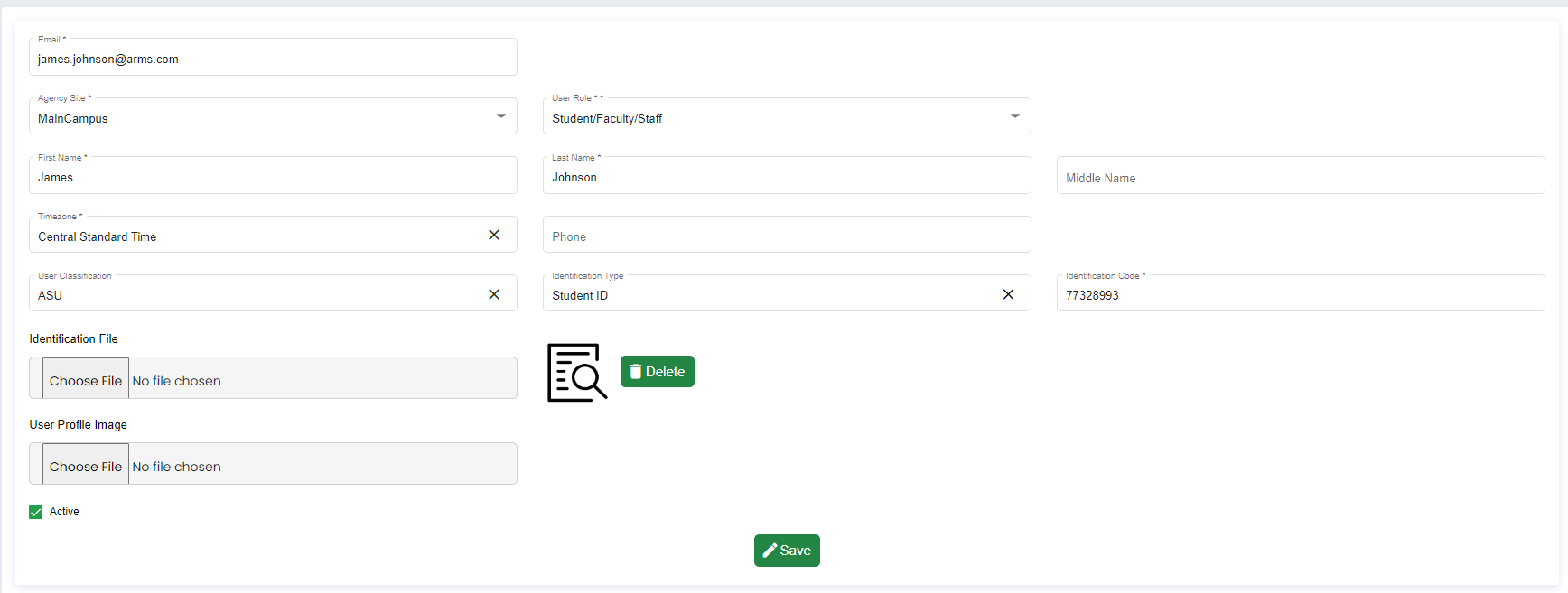
Users can be manually added by an administrator to the system by going to User \> Add User.
Multiple users can be imported to the system using Import Users. With a click of the Import Users’ button, two options are available:
Upload - to upload a file
Download Template - to download a CSV template.
This .CSV template shows fields that will be required to fill out for adding or importing a user:
Email ID – Email Address of the User.
First Name -First Name of the User.
Middle Name – Middle Name of the User.
Last Name – Last Name of the User.
Agency Site Name – Agency Site Name of the User.
User Classification - Categorizes the user as Student, Faculty, Committee member, etc.
Identification Type - Type of identification document i.e., Driver’s License, Employee ID, State ID, or Student ID. These are predefined by ARMS, but an Agency can create new ones in List Values if needed.
Identification Code – A unique code of the document the User has provided. If Driver’s License is provided, then here they need to fill Driver’s License number.
Phone – Phone Number of the User.
#### **Agency Details**
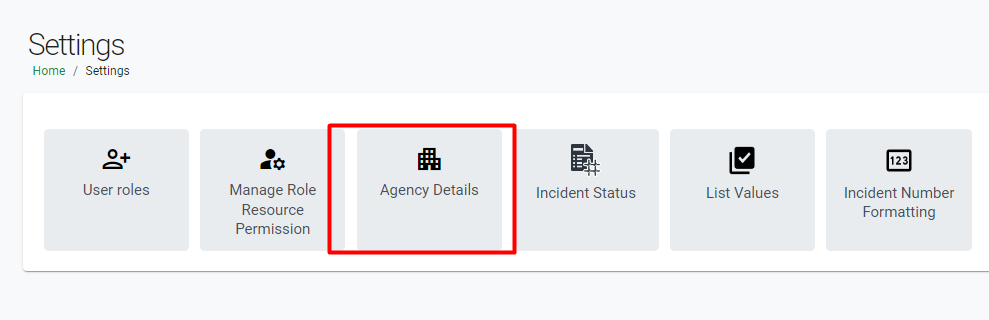
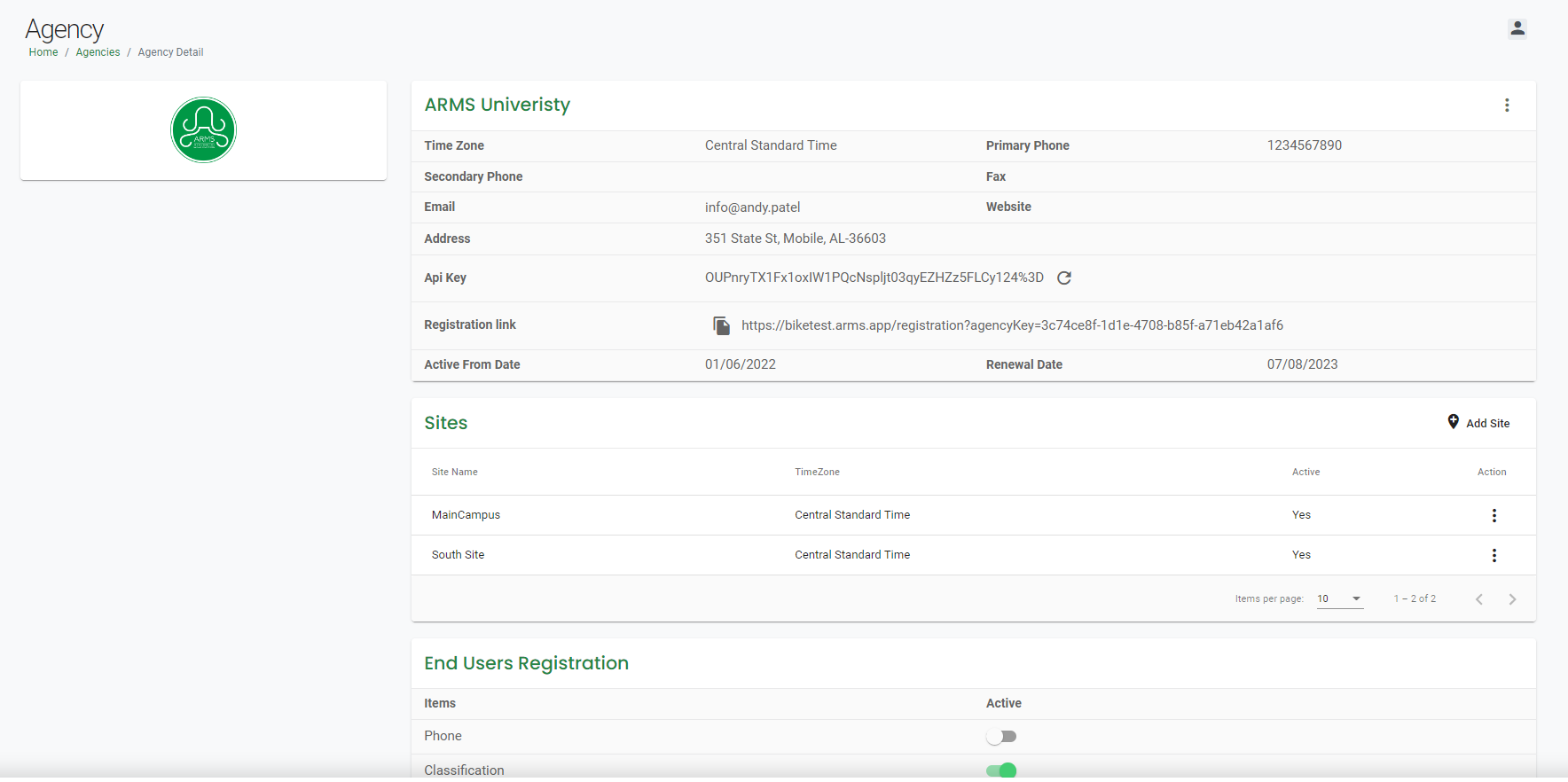
Go to Agency Details from the Settings to set up department Agency Details, Logo, and Sites. Using this module, you can also configure what information is required for end-user registration.
- [Administrator](https://kb.arms.com/arms/administrator?hsLang=en#main-content)
- [Administrator Documents](https://kb.arms.com/arms/administrator?hsLang=en#administrator-documents)
- [Administrator FAQs - Error Messages/Troubleshooting](https://kb.arms.com/arms/administrator?hsLang=en#administrator-faqs-error-messages-troubleshooting)
- [Administrator FAQs - Feature Questions](https://kb.arms.com/arms/administrator?hsLang=en#administrator-faqs-feature-questions)
- [Administrator FAQs - Setup](https://kb.arms.com/arms/administrator?hsLang=en#administrator-faqs-setup)
- [Dispatcher](https://kb.arms.com/arms/dispatcher?hsLang=en#main-content)
- [ARMS WebCAD Workbook](https://kb.arms.com/arms/dispatcher?hsLang=en#arms-webcad-workbook)
- [ARMS CAD Workbook](https://kb.arms.com/arms/dispatcher?hsLang=en#arms-cad-workbook)
- [Dispatcher Documents](https://kb.arms.com/arms/dispatcher?hsLang=en#dispatcher-documents)
- [Dispatcher FAQs - Error Messages/Troubleshooting](https://kb.arms.com/arms/dispatcher?hsLang=en#dispatcher-faqs-error-messages-troubleshooting)
- [Dispatcher FAQs - Feature Questions](https://kb.arms.com/arms/dispatcher?hsLang=en#dispatcher-faqs-feature-questions)
- [Officer](https://kb.arms.com/arms/officer?hsLang=en#main-content)
- [ARMS Mobile - CAD Workbook](https://kb.arms.com/arms/officer?hsLang=en#arms-mobile-cad-workbook)
- [ARMS Mobile - Case Management Workbook](https://kb.arms.com/arms/officer?hsLang=en#arms-mobile-case-management-workbook)
- [ARMS Mobile - Home Screen Workbook](https://kb.arms.com/arms/officer?hsLang=en#arms-mobile-home-screen-workbook)
- [ARMS Mobile Admin Workbook](https://kb.arms.com/arms/officer?hsLang=en#arms-mobile-admin-workbook)
- [Officer Documents](https://kb.arms.com/arms/officer?hsLang=en#officer-documents)
- [Officer FAQs - Case Management](https://kb.arms.com/arms/officer?hsLang=en#officer-faqs-case-management)
- [Officer FAQs - Photos and Media](https://kb.arms.com/arms/officer?hsLang=en#officer-faqs-photos-and-media)
- [NIBRS](https://kb.arms.com/arms/nibrs?hsLang=en#main-content)
- [NIBRS Documents](https://kb.arms.com/arms/nibrs?hsLang=en#nibrs-documents)
- [NIBRS FAQs - Error Messages/Troubleshooting](https://kb.arms.com/arms/nibrs?hsLang=en#nibrs-faqs-error-messages-troubleshooting)
- [NIBRS Videos](https://kb.arms.com/arms/nibrs?hsLang=en#nibrs-videos)
- [NIBRS Workbook](https://kb.arms.com/arms/nibrs?hsLang=en#nibrs-workbook)
- [Clery](https://kb.arms.com/arms/clery?hsLang=en#main-content)
- [Clery Workbook](https://kb.arms.com/arms/clery?hsLang=en#clery-workbook)
- [Statistical Reporting](https://kb.arms.com/arms/statistical-reporting?hsLang=en#main-content)
- [Dashboard Workbook](https://kb.arms.com/arms/statistical-reporting?hsLang=en#dashboard-workbook)
- [Maxient Workbook](https://kb.arms.com/arms/statistical-reporting?hsLang=en#maxient-workbook)
- [Notification Manager FAQs](https://kb.arms.com/arms/statistical-reporting?hsLang=en#notification-manager-faqs)
- [Notification Manager Workbook](https://kb.arms.com/arms/statistical-reporting?hsLang=en#notification-manager-workbook)
- [Profile Data FAQs](https://kb.arms.com/arms/statistical-reporting?hsLang=en#profile-data-faqs)
- [Profile Data Workbook](https://kb.arms.com/arms/statistical-reporting?hsLang=en#profile-data-workbook)
- [Property/Evidence FAQs](https://kb.arms.com/arms/statistical-reporting?hsLang=en#property-evidence-faqs)
- [Property/Evidence Workbook](https://kb.arms.com/arms/statistical-reporting?hsLang=en#property-evidence-workbook)
- [Report Center Documents](https://kb.arms.com/arms/statistical-reporting?hsLang=en#report-center-documents)
- [Report Center FAQs](https://kb.arms.com/arms/statistical-reporting?hsLang=en#report-center-faqs)
- [UCR Documents](https://kb.arms.com/arms/statistical-reporting?hsLang=en#ucr-documents)
- [Vehicle Maintenance Workbook](https://kb.arms.com/arms/statistical-reporting?hsLang=en#vehicle-maintenance-workbook)
- [Parking](https://kb.arms.com/arms/parking?hsLang=en#main-content)
- [Internal Parking Documents](https://kb.arms.com/arms/parking?hsLang=en#internal-parking-documents)
- [Parking Administrator Document](https://kb.arms.com/arms/parking?hsLang=en#parking-administrator-document)
- [Parking Documents](https://kb.arms.com/arms/parking?hsLang=en#parking-documents)
- [Parking End User Documents](https://kb.arms.com/arms/parking?hsLang=en#parking-end-user-documents)
- [Parking FAQs](https://kb.arms.com/arms/parking?hsLang=en#parking-faqs)
- [Release Notes](https://kb.arms.com/arms/parking?hsLang=en#release-notes)
- [Webinars](https://kb.arms.com/arms/webinars?hsLang=en#main-content)
- [Administrator](https://kb.arms.com/arms/webinars?hsLang=en#administrator)
- [Clery](https://kb.arms.com/arms/webinars?hsLang=en#clery)
- [Dispatcher](https://kb.arms.com/arms/webinars?hsLang=en#dispatcher)
- [IT Support](https://kb.arms.com/arms/webinars?hsLang=en#it-support)
- [Miscellaneous](https://kb.arms.com/arms/webinars?hsLang=en#miscellaneous)
- [NIBRS](https://kb.arms.com/arms/webinars?hsLang=en#nibrs)
- [Officer](https://kb.arms.com/arms/webinars?hsLang=en#officer)
- [Parking](https://kb.arms.com/arms/webinars?hsLang=en#parking)
- [Statistical Reporting](https://kb.arms.com/arms/webinars?hsLang=en#statistical-reporting)
- [Miscellaneous](https://kb.arms.com/arms/miscellaneous?hsLang=en#main-content)
- [Release Notes](https://kb.arms.com/arms/miscellaneous?hsLang=en#release-notes)
- [ARMS User Training Conferences](https://kb.arms.com/arms/miscellaneous?hsLang=en#arms-user-training-conferences)
- [Internal](https://kb.arms.com/arms/miscellaneous?hsLang=en#internal)
- [Support Docs](https://kb.arms.com/arms/miscellaneous?hsLang=en#support-docs)
- [IT Support](https://kb.arms.com/arms/it-support?hsLang=en#main-content)
- [Internal IT Support Documents](https://kb.arms.com/arms/it-support?hsLang=en#internal-it-support-documents)
- [IT Support Documents](https://kb.arms.com/arms/it-support?hsLang=en#it-support-documents)
- [Internal](https://kb.arms.com/arms/internal?hsLang=en#main-content)
- [Jira Escalation Process and Documents](https://kb.arms.com/arms/internal?hsLang=en#jira-escalation-process-and-documents)
- [Parking Workflows](https://kb.arms.com/arms/internal?hsLang=en#parking-workflows)
- [Administration](https://kb.arms.com/arms/administration?hsLang=en#main-content)
- [Personnel Card](https://kb.arms.com/arms/administration?hsLang=en#personnel-card)
- [Online Bicycle Registration](https://kb.arms.com/arms/online-bicycle-registration?hsLang=en#main-content)
- [Bicycle Registration Workbook](https://kb.arms.com/arms/online-bicycle-registration?hsLang=en#bicycle-registration-workbook)
- [Courtyard - Public Incident Reporting](https://kb.arms.com/arms/courtyard-public-incident-reporting?hsLang=en#main-content)
- [Courtyard Manual](https://kb.arms.com/arms/courtyard-public-incident-reporting?hsLang=en#courtyard-manual)
[mailto:support@arms.com](mailto:support@arms.com)
Copyright © 2026, End2End Public Safety