---
title: ARMS - Mobile CAD - Overview
description: ARMS - Mobile CAD - Overview
---
[Skip to content](https://kb.arms.com/arms/arms-mobile-cad-overview#main-content)
English
Show submenu for translations

Open main navigation
Close main navigation
- English
Show submenu for translations
- [Customer Portal](https://helpdesk.arms.com/tickets)
[Customer Portal](https://helpdesk.arms.com/tickets?hsLang=en)
How can we help you?
- There are no suggestions because the search field is empty.
1. [ARMS](https://kb.arms.com/arms?hsLang=en)
2. [Officer](https://kb.arms.com/arms/officer?hsLang=en)
3. [ARMS Mobile - CAD Workbook](https://kb.arms.com/arms/officer?hsLang=en#arms-mobile-cad-workbook)
# ARMS - Mobile CAD - Overview
#### **ARMS CAD Overview**
ARMS Mobile CAD is a way for officers be able to view their call or add their calls as per the permissions they have. If an officer might be using a vehicle, then they can specify that vehicle and starting mileage for that vehicle.
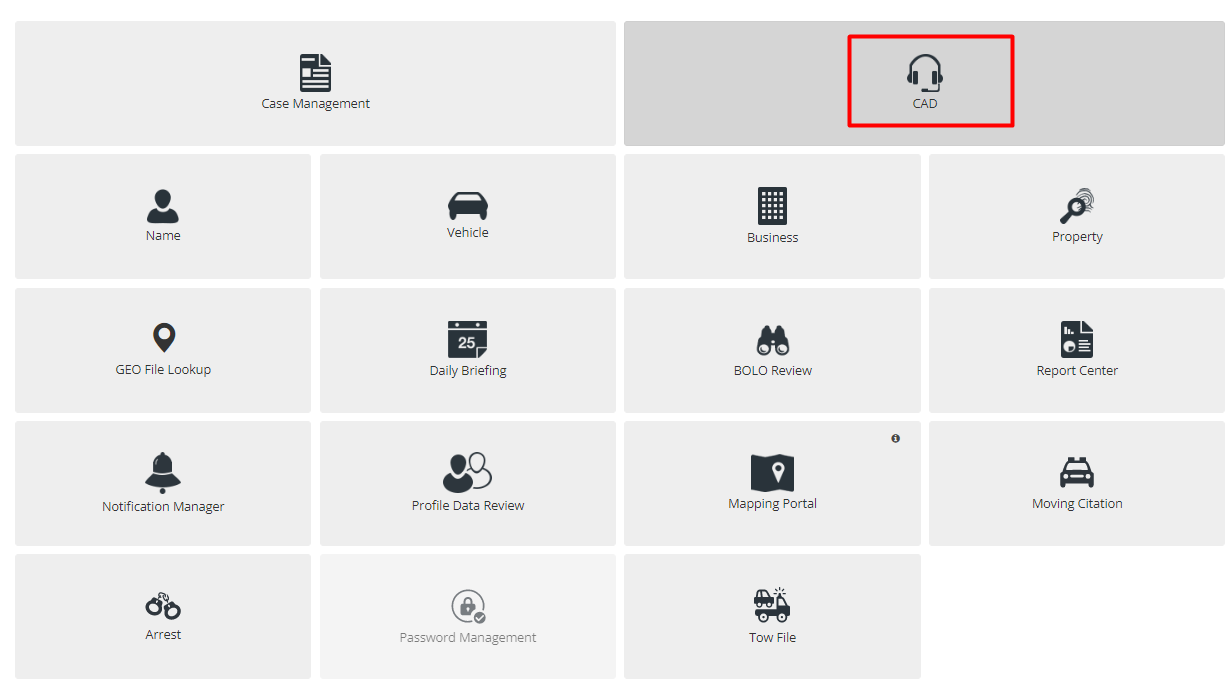
Officers can see the Call List, Log-On Units, Log Me In and Log Me Out, check the Radio Log and add Patrol Activity.
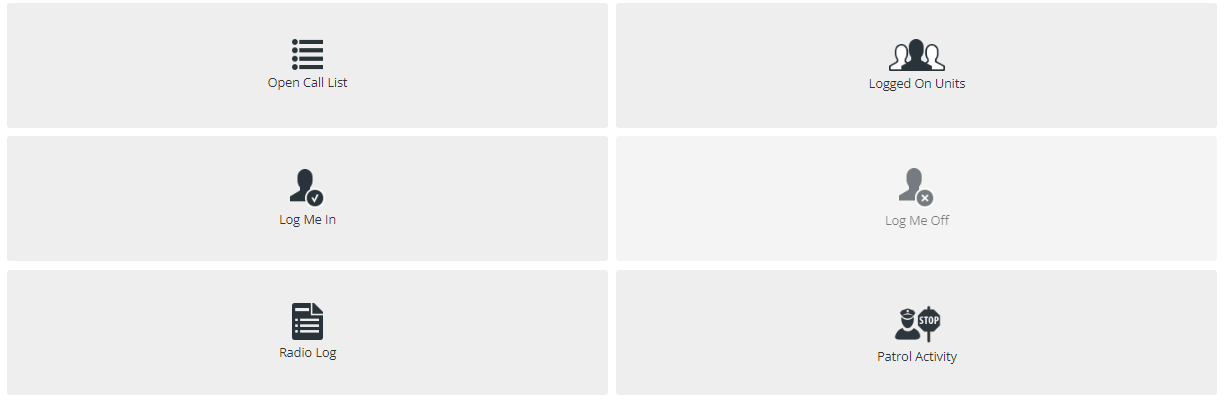
#### **Radio Log**
The Radio Log allows Officers to search and browse through CAD events from the convenience of the Mobile CAD dashboard.
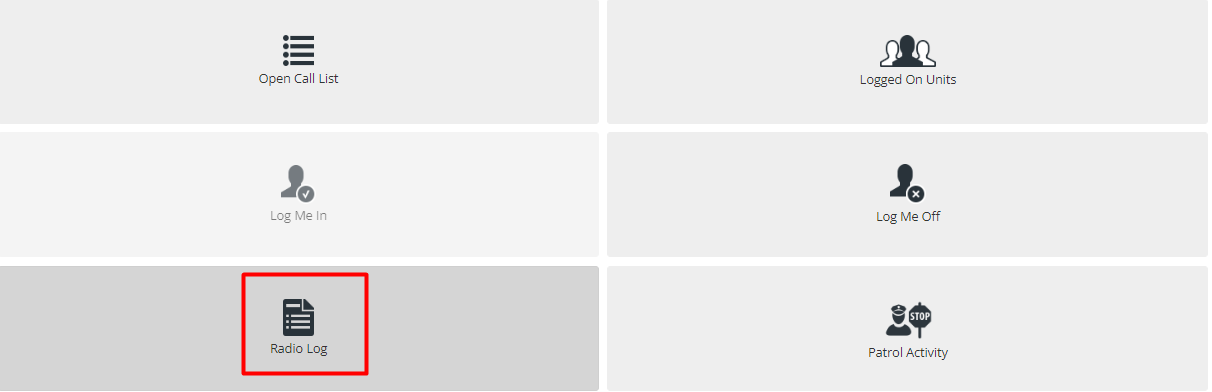
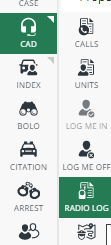
Users can also get to this Menu from the Side Bar menu.
This will open the Radio Log Search screen, allowing Officer to browse through your CAD events using various fields and filters.
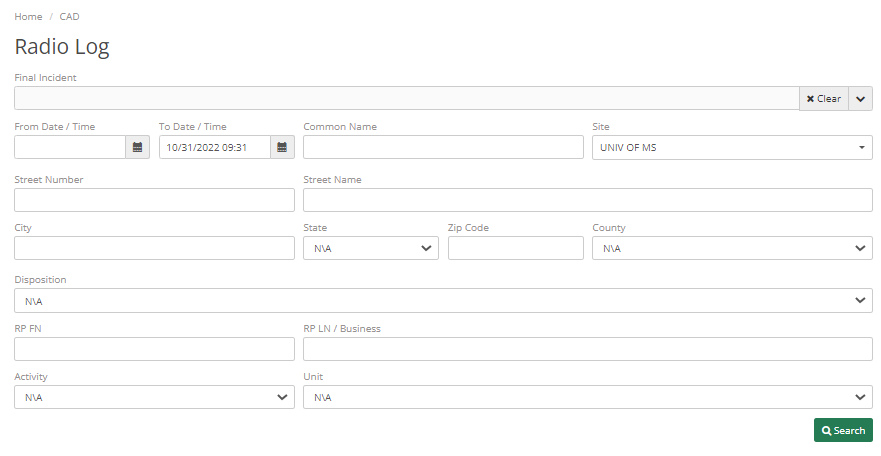
Final Incident allows the officer to search for CAD events with their chosen Final Incident(s). They can also use the drop-down arrow to select incidents via the checkbox. If they want to remove their previous selections, they can select the Clear button. Leaving the Final Incident field empty will return all incidents.
Officers can select a Date range using Date and time filters and if they want to search for events that occurred in a specific location, use the Common Name, Street Number, Street Name, City, State, Zip Code, and Country fields. Again, anything left blank will return all records.
Officers can filter CAD events by their disposition. Use the drop-down arrow to select which disposition they want to pull back. Selecting N\\A will again return all records regardless of disposition.
The next available filter allows the officer to search by the Reporting Party of the CAD event. Enter their first and last name, or business if applicable.
The last two fields are Activity and Unit. Just as it says, the officer can search using the drop-down menu to select the desired Unit and unit Activity. This will return all CAD events of the same Unit/activity.
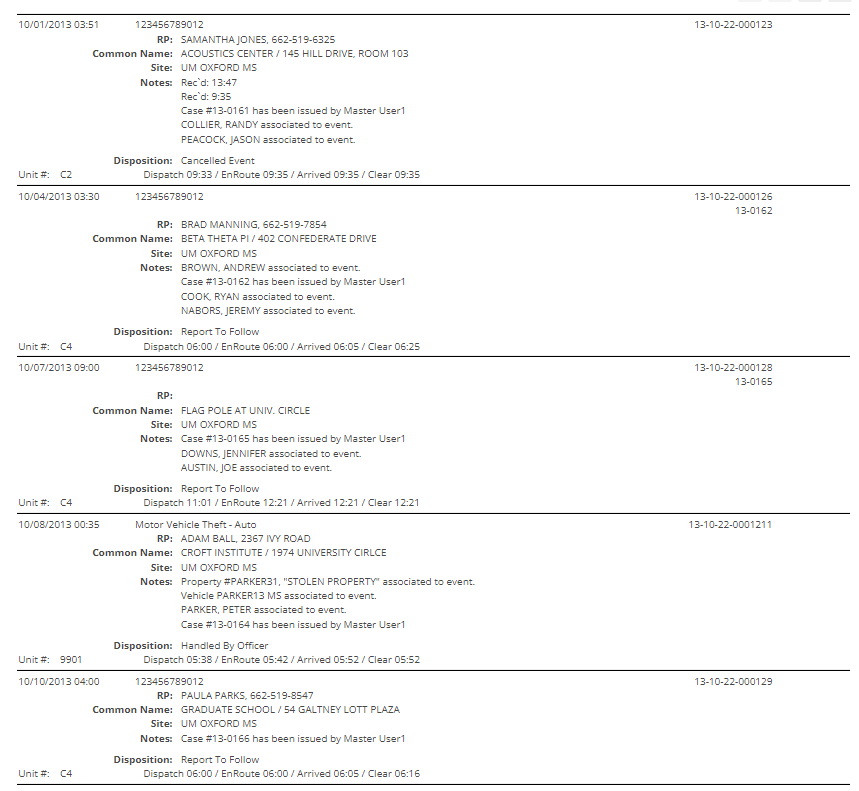
Once officers have their desired search criteria entered, they can click on the Search button at the bottom to pull their records. They can view the basic information of the event like date, disposition, and incident as well as the Case number if one was issued. Use the arrow key to page through your results.
#### **Patrol Activities**
This feature helps the officer record any kind of Patrol Activity that officer does. They can record after the patrol is done or before.
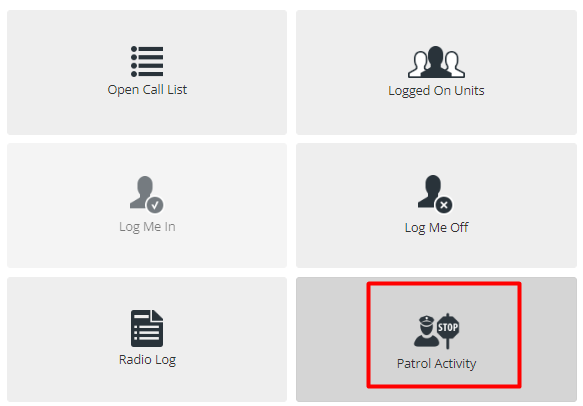
Once officer clicks on this tab, they are navigated to a screen with a list of records.
There are two buttons on the top right corner of the screen.
The Print Search Result button allows the officer to print their search result and Add button allows them to add new patrol activity.
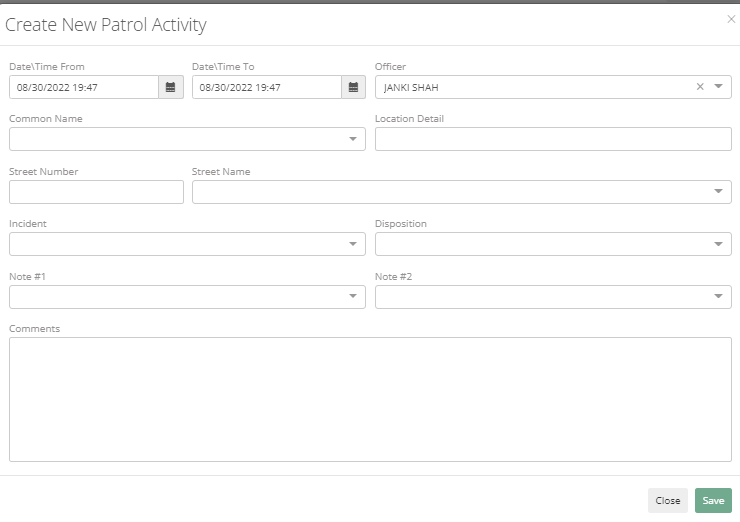
They can put a future date range for any patrol activity they would be doing. They can fill in other details like Common Name, Location Detail, Street Number, Street Name, Incident, Disposition, and Notes and comments if any.
After filling in the data click on Save and it will show the list. Once officer completes patrolling, they can edit disposition from not completed to completed for this activity.
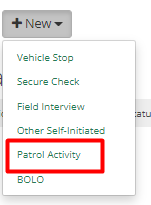
They can also access patrol activity from CAD\>Open Call List\>New\> Patrol Activity.
#### **Log Me In**
This tab allows officers to log in/log off through CAD mobile, this takes a lot of load from the dispatcher. A dispatcher can still log them in and log them off. Log Me off is greyed out until Officer has logged in, as they can't log off until they are not logged in.
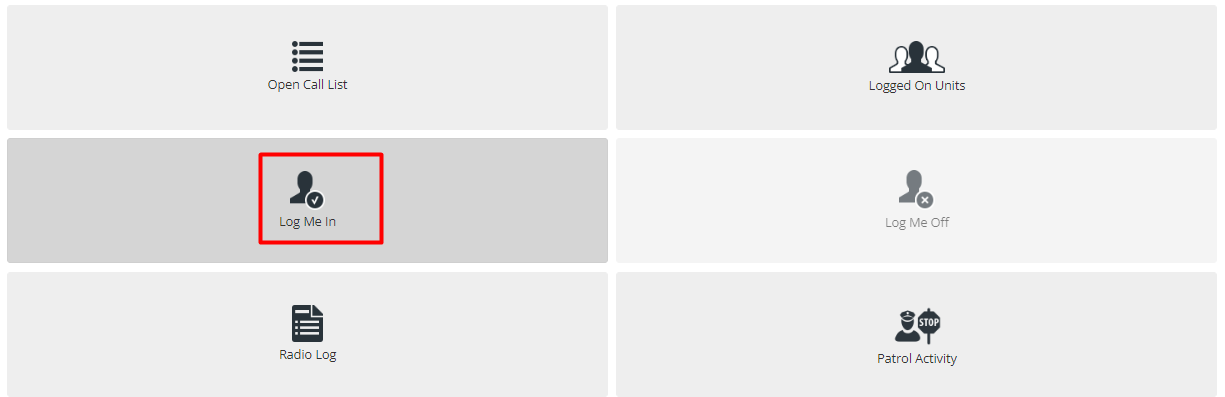
This will open a new screen where officers can select their CAD Unit, Shift, Beat, and Vehicle from the drop-down menus. Only the fields marked with a red asterisk are required for logging in, just like the desktop version of ARMS, but the officer can fill in data to other fields such as Site, Beat, Location, Vehicle, and Staring Mileage.
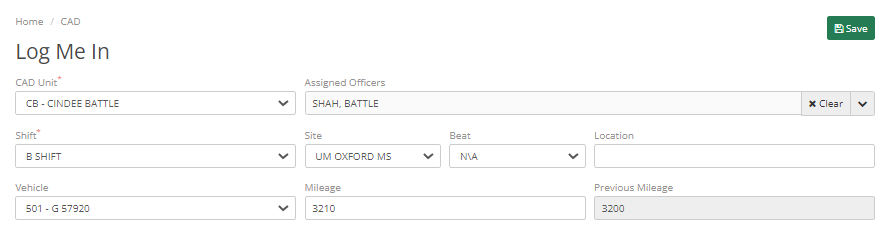
Once they are finished entering their information, click the Save button found on the bottom right of the Log in the menu. The officer should get a Success notification pop-up and be returned to the CAD Dashboard.
#### **Log Me Off**
This tab allows officers to log off from ARMS CAD Mobile. This will open the Log Me Off page.
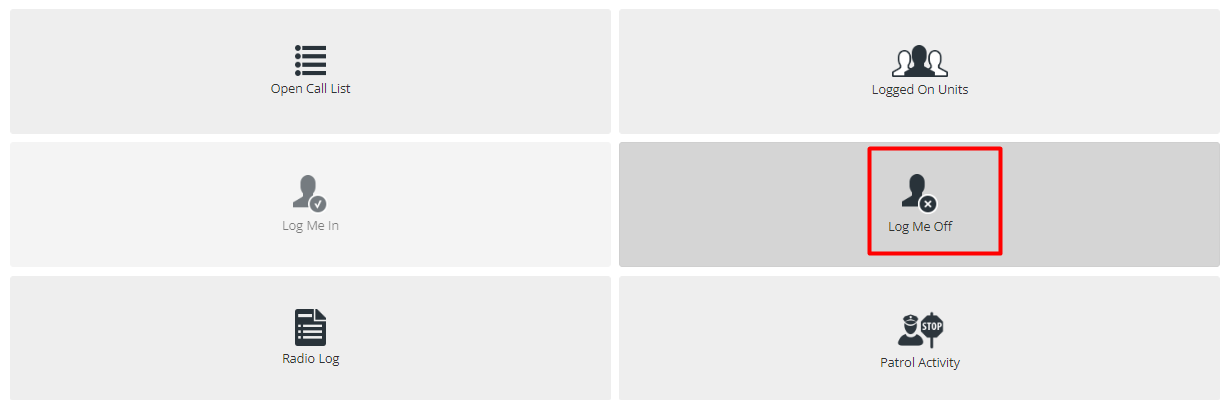
Officers can select checkboxes next to their respective call numbers to choose the officer they want to log off. The Select All button will allow the officer to log everyone off with one click, while Clear allows them to start over if they have selected an officer by accident.
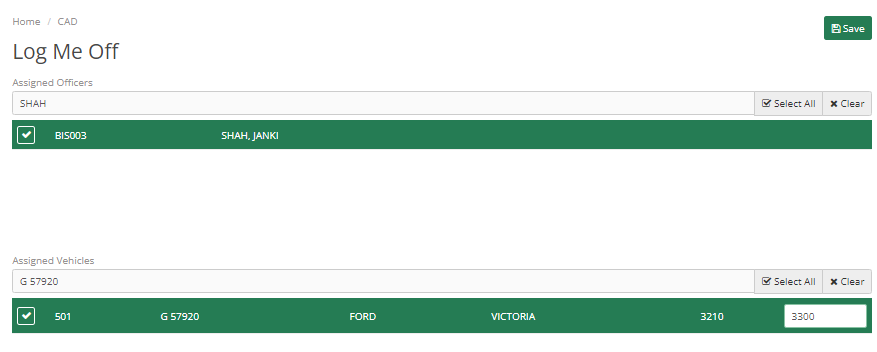
If any vehicles are assigned to the unit, they must be logged off as well. Officer will require to put in the new mileage as well.
Click the Save button found in the bottom right-hand corner of the page when finished. Officer will be logged off and returned to the CAD dashboard.
#### **Open Call List**
If any officer has permission to add a call. The officer can go to this section and can add calls.
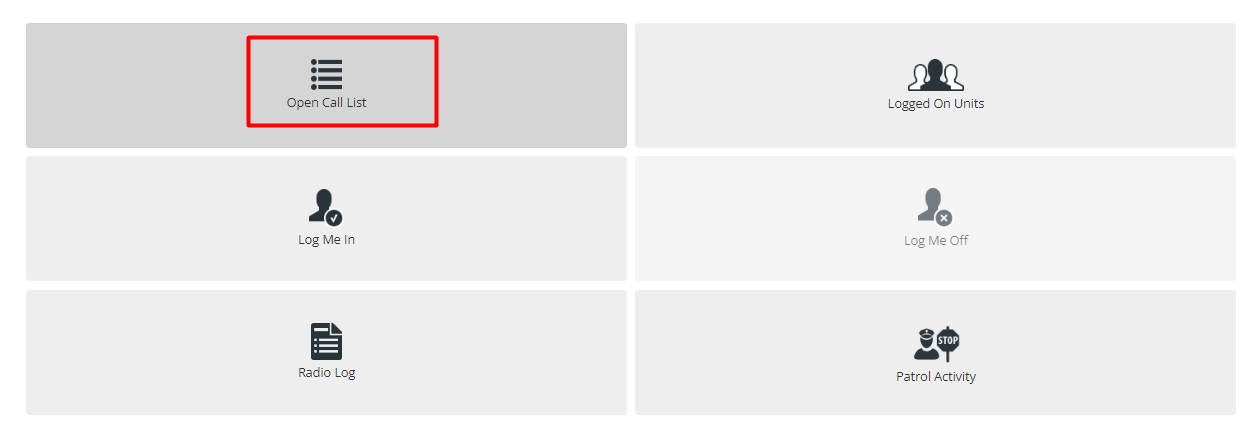
Here the Officers can view the history of the calls that have taken place over the past 12 hours, view the current open calls, or view all open calls. Officers can also filter it site-wise. Officers can add themselves to any active call to show that they are acting as a backup unit. Once an Officer has been dispatched to a call, they will see it in the My Open Calls list.
Officers can modify the calls and update the time to show enroute and arrival times, add involved parties, vehicles, and property, and enter police information that the dispatcher can see and interact with.
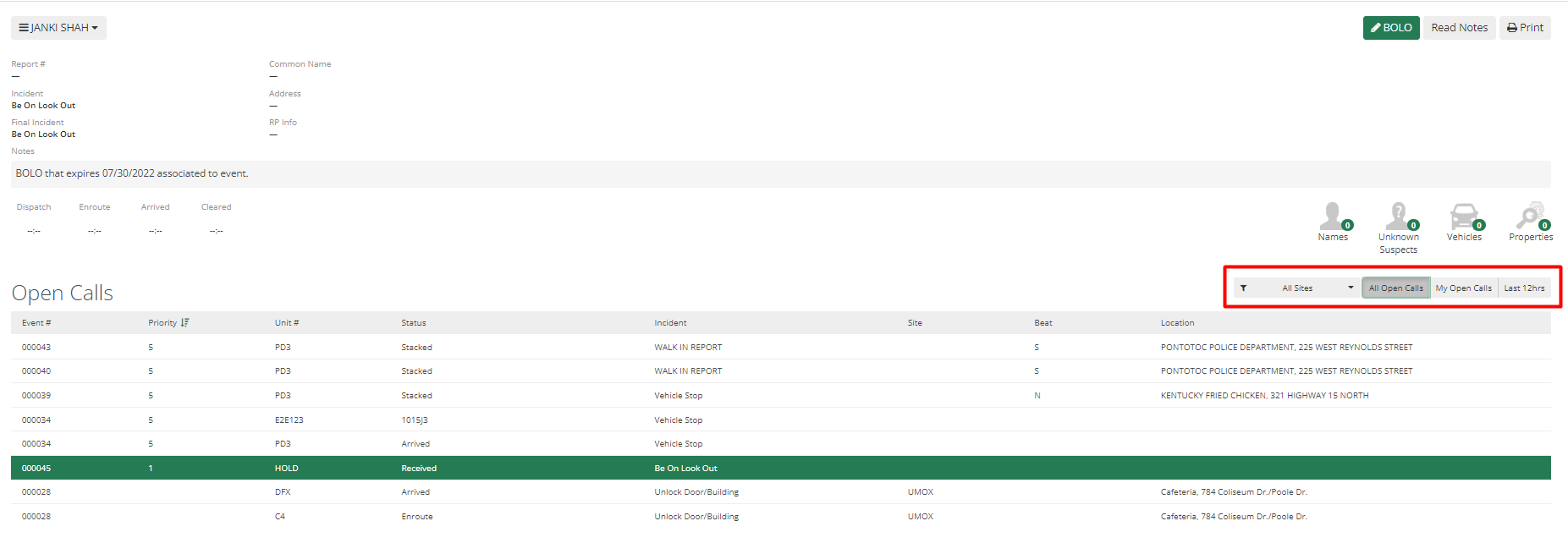
From the top left corner, clicking on your name will show a small menu. Officers can view the call on the map, see the vehicle history, and log themselves on the call.
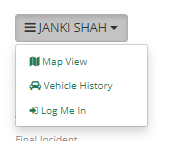
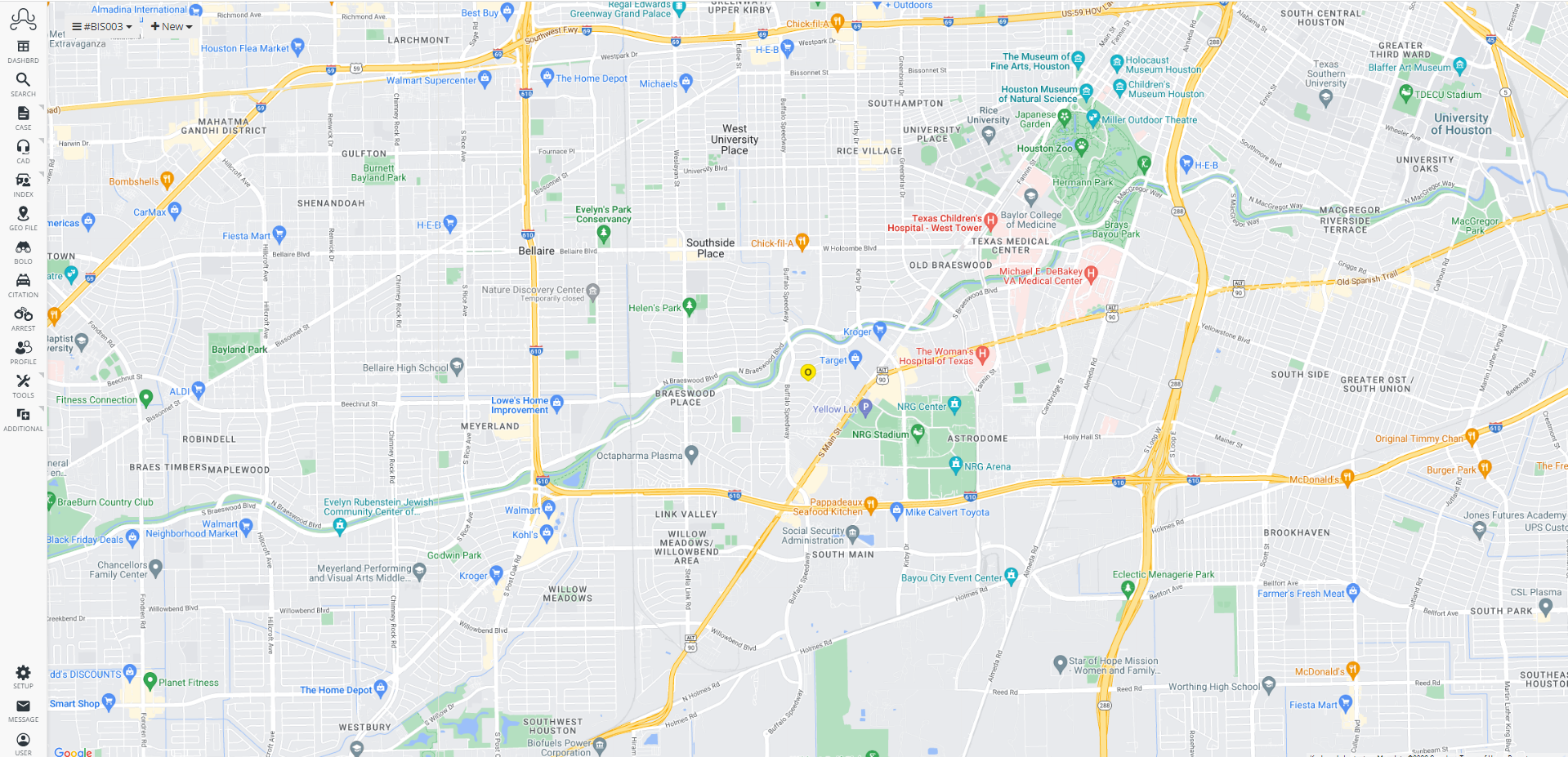
The map view will show locations on the map if officers have them mapped in their geo file.
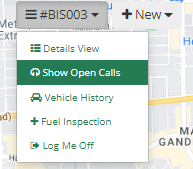
Officers can also add in an open call using show open calls. The officer can also sort calls and filter them as all calls and My calls.
#### **Logged on Units**
This mobile CAD module allows officers to view all logged-on units.
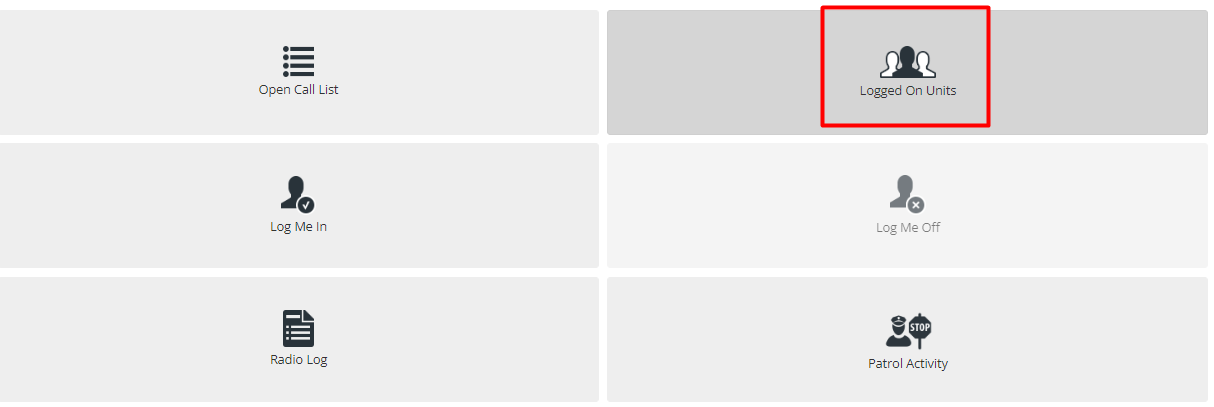
Through this screen, officers can see who is currently logged in, what vehicles they are using, what sites they are at, what their last known location was and what was their last status. Cleared status indicates that they are not on call right now.
Officers can click on the field to sort the results in ascending or descending order. Officers can sort any of the fields with this method.
Information such as the unit's code, Description, Employee Name, Vehicle, Site, Last known Location, and Last known Status of logged-on units can be viewed.
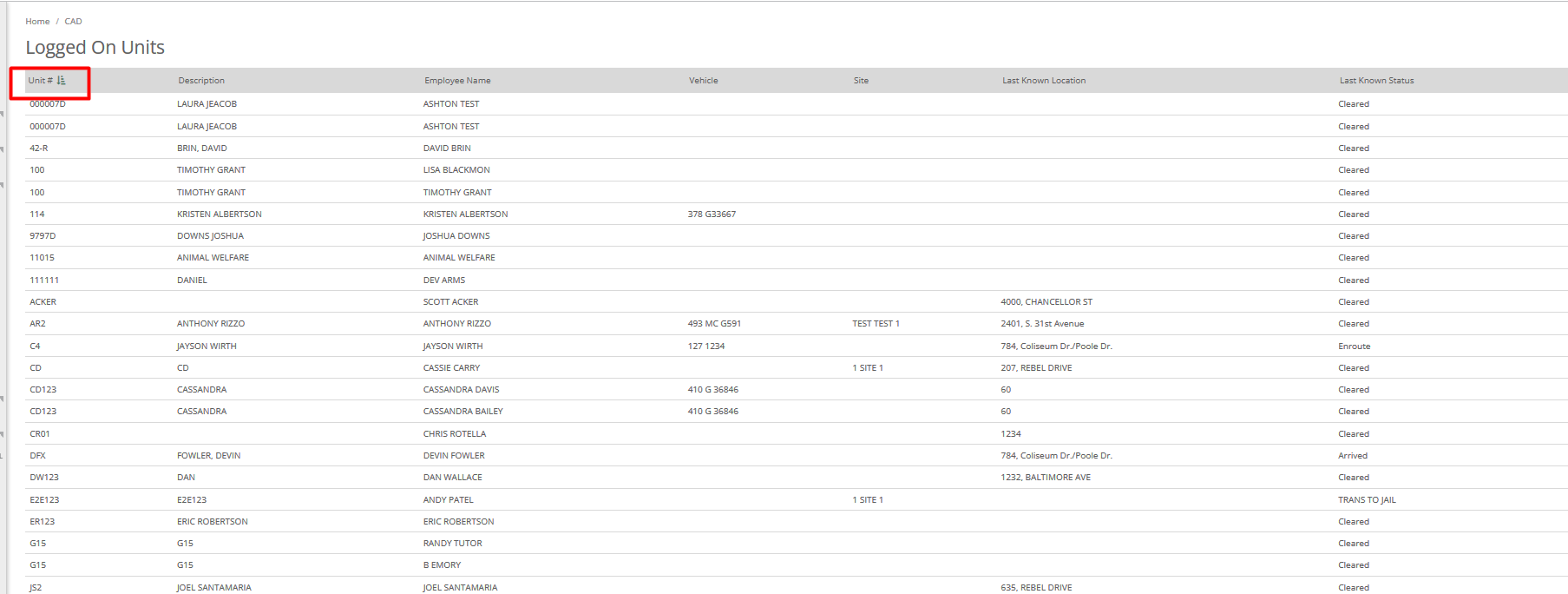
The Unit# field returns the unit number set up in the CAD unit menu.
The description of the Unit can be anything from call signs to attached officer names.
Employee name as the name suggests displays the name associated with the Unit.
Vehicles show the vehicle attached to the unit.
Logged On Units also display the Last Known location and Last Know Status of the unit. This allows Officers to check on the status and location of all logged-on officers at once.
- [Administrator](https://kb.arms.com/arms/administrator?hsLang=en#main-content)
- [Administrator Documents](https://kb.arms.com/arms/administrator?hsLang=en#administrator-documents)
- [Administrator FAQs - Error Messages/Troubleshooting](https://kb.arms.com/arms/administrator?hsLang=en#administrator-faqs-error-messages-troubleshooting)
- [Administrator FAQs - Feature Questions](https://kb.arms.com/arms/administrator?hsLang=en#administrator-faqs-feature-questions)
- [Administrator FAQs - Setup](https://kb.arms.com/arms/administrator?hsLang=en#administrator-faqs-setup)
- [Dispatcher](https://kb.arms.com/arms/dispatcher?hsLang=en#main-content)
- [ARMS WebCAD Workbook](https://kb.arms.com/arms/dispatcher?hsLang=en#arms-webcad-workbook)
- [ARMS CAD Workbook](https://kb.arms.com/arms/dispatcher?hsLang=en#arms-cad-workbook)
- [Dispatcher Documents](https://kb.arms.com/arms/dispatcher?hsLang=en#dispatcher-documents)
- [Dispatcher FAQs - Error Messages/Troubleshooting](https://kb.arms.com/arms/dispatcher?hsLang=en#dispatcher-faqs-error-messages-troubleshooting)
- [Dispatcher FAQs - Feature Questions](https://kb.arms.com/arms/dispatcher?hsLang=en#dispatcher-faqs-feature-questions)
- [Officer](https://kb.arms.com/arms/officer?hsLang=en#main-content)
- [ARMS Mobile - CAD Workbook](https://kb.arms.com/arms/officer?hsLang=en#arms-mobile-cad-workbook)
- [ARMS Mobile - Case Management Workbook](https://kb.arms.com/arms/officer?hsLang=en#arms-mobile-case-management-workbook)
- [ARMS Mobile - Home Screen Workbook](https://kb.arms.com/arms/officer?hsLang=en#arms-mobile-home-screen-workbook)
- [ARMS Mobile Admin Workbook](https://kb.arms.com/arms/officer?hsLang=en#arms-mobile-admin-workbook)
- [Officer Documents](https://kb.arms.com/arms/officer?hsLang=en#officer-documents)
- [Officer FAQs - Case Management](https://kb.arms.com/arms/officer?hsLang=en#officer-faqs-case-management)
- [Officer FAQs - Photos and Media](https://kb.arms.com/arms/officer?hsLang=en#officer-faqs-photos-and-media)
- [NIBRS](https://kb.arms.com/arms/nibrs?hsLang=en#main-content)
- [NIBRS Documents](https://kb.arms.com/arms/nibrs?hsLang=en#nibrs-documents)
- [NIBRS FAQs - Error Messages/Troubleshooting](https://kb.arms.com/arms/nibrs?hsLang=en#nibrs-faqs-error-messages-troubleshooting)
- [NIBRS Videos](https://kb.arms.com/arms/nibrs?hsLang=en#nibrs-videos)
- [NIBRS Workbook](https://kb.arms.com/arms/nibrs?hsLang=en#nibrs-workbook)
- [Clery](https://kb.arms.com/arms/clery?hsLang=en#main-content)
- [Clery Workbook](https://kb.arms.com/arms/clery?hsLang=en#clery-workbook)
- [Statistical Reporting](https://kb.arms.com/arms/statistical-reporting?hsLang=en#main-content)
- [Dashboard Workbook](https://kb.arms.com/arms/statistical-reporting?hsLang=en#dashboard-workbook)
- [Maxient Workbook](https://kb.arms.com/arms/statistical-reporting?hsLang=en#maxient-workbook)
- [Notification Manager FAQs](https://kb.arms.com/arms/statistical-reporting?hsLang=en#notification-manager-faqs)
- [Notification Manager Workbook](https://kb.arms.com/arms/statistical-reporting?hsLang=en#notification-manager-workbook)
- [Profile Data FAQs](https://kb.arms.com/arms/statistical-reporting?hsLang=en#profile-data-faqs)
- [Profile Data Workbook](https://kb.arms.com/arms/statistical-reporting?hsLang=en#profile-data-workbook)
- [Property/Evidence FAQs](https://kb.arms.com/arms/statistical-reporting?hsLang=en#property-evidence-faqs)
- [Property/Evidence Workbook](https://kb.arms.com/arms/statistical-reporting?hsLang=en#property-evidence-workbook)
- [Report Center Documents](https://kb.arms.com/arms/statistical-reporting?hsLang=en#report-center-documents)
- [Report Center FAQs](https://kb.arms.com/arms/statistical-reporting?hsLang=en#report-center-faqs)
- [UCR Documents](https://kb.arms.com/arms/statistical-reporting?hsLang=en#ucr-documents)
- [Vehicle Maintenance Workbook](https://kb.arms.com/arms/statistical-reporting?hsLang=en#vehicle-maintenance-workbook)
- [Parking](https://kb.arms.com/arms/parking?hsLang=en#main-content)
- [Internal Parking Documents](https://kb.arms.com/arms/parking?hsLang=en#internal-parking-documents)
- [Parking Administrator Document](https://kb.arms.com/arms/parking?hsLang=en#parking-administrator-document)
- [Parking Documents](https://kb.arms.com/arms/parking?hsLang=en#parking-documents)
- [Parking End User Documents](https://kb.arms.com/arms/parking?hsLang=en#parking-end-user-documents)
- [Parking FAQs](https://kb.arms.com/arms/parking?hsLang=en#parking-faqs)
- [Release Notes](https://kb.arms.com/arms/parking?hsLang=en#release-notes)
- [Webinars](https://kb.arms.com/arms/webinars?hsLang=en#main-content)
- [Administrator](https://kb.arms.com/arms/webinars?hsLang=en#administrator)
- [Clery](https://kb.arms.com/arms/webinars?hsLang=en#clery)
- [Dispatcher](https://kb.arms.com/arms/webinars?hsLang=en#dispatcher)
- [IT Support](https://kb.arms.com/arms/webinars?hsLang=en#it-support)
- [Miscellaneous](https://kb.arms.com/arms/webinars?hsLang=en#miscellaneous)
- [NIBRS](https://kb.arms.com/arms/webinars?hsLang=en#nibrs)
- [Officer](https://kb.arms.com/arms/webinars?hsLang=en#officer)
- [Parking](https://kb.arms.com/arms/webinars?hsLang=en#parking)
- [Statistical Reporting](https://kb.arms.com/arms/webinars?hsLang=en#statistical-reporting)
- [Miscellaneous](https://kb.arms.com/arms/miscellaneous?hsLang=en#main-content)
- [Release Notes](https://kb.arms.com/arms/miscellaneous?hsLang=en#release-notes)
- [ARMS User Training Conferences](https://kb.arms.com/arms/miscellaneous?hsLang=en#arms-user-training-conferences)
- [Internal](https://kb.arms.com/arms/miscellaneous?hsLang=en#internal)
- [Support Docs](https://kb.arms.com/arms/miscellaneous?hsLang=en#support-docs)
- [IT Support](https://kb.arms.com/arms/it-support?hsLang=en#main-content)
- [Internal IT Support Documents](https://kb.arms.com/arms/it-support?hsLang=en#internal-it-support-documents)
- [IT Support Documents](https://kb.arms.com/arms/it-support?hsLang=en#it-support-documents)
- [Internal](https://kb.arms.com/arms/internal?hsLang=en#main-content)
- [Jira Escalation Process and Documents](https://kb.arms.com/arms/internal?hsLang=en#jira-escalation-process-and-documents)
- [Parking Workflows](https://kb.arms.com/arms/internal?hsLang=en#parking-workflows)
- [Administration](https://kb.arms.com/arms/administration?hsLang=en#main-content)
- [Personnel Card](https://kb.arms.com/arms/administration?hsLang=en#personnel-card)
- [Online Bicycle Registration](https://kb.arms.com/arms/online-bicycle-registration?hsLang=en#main-content)
- [Bicycle Registration Workbook](https://kb.arms.com/arms/online-bicycle-registration?hsLang=en#bicycle-registration-workbook)
- [Courtyard - Public Incident Reporting](https://kb.arms.com/arms/courtyard-public-incident-reporting?hsLang=en#main-content)
- [Courtyard Manual](https://kb.arms.com/arms/courtyard-public-incident-reporting?hsLang=en#courtyard-manual)
[mailto:support@arms.com](mailto:support@arms.com)
Copyright © 2026, End2End Public Safety