---
title: Dashboard Workbook
description: Dashboard Workbook
---
[Skip to content](https://kb.arms.com/arms/dashboard-workbook#main-content)
English
Show submenu for translations

Open main navigation
Close main navigation
- English
Show submenu for translations
- [Customer Portal](https://helpdesk.arms.com/tickets)
[Customer Portal](https://helpdesk.arms.com/tickets?hsLang=en)
How can we help you?
- There are no suggestions because the search field is empty.
1. [ARMS](https://kb.arms.com/arms?hsLang=en)
2. [Statistical Reporting](https://kb.arms.com/arms/statistical-reporting?hsLang=en)
3. [Dashboard Workbook](https://kb.arms.com/arms/statistical-reporting?hsLang=en#dashboard-workbook)
# Dashboard Workbook
### Setup
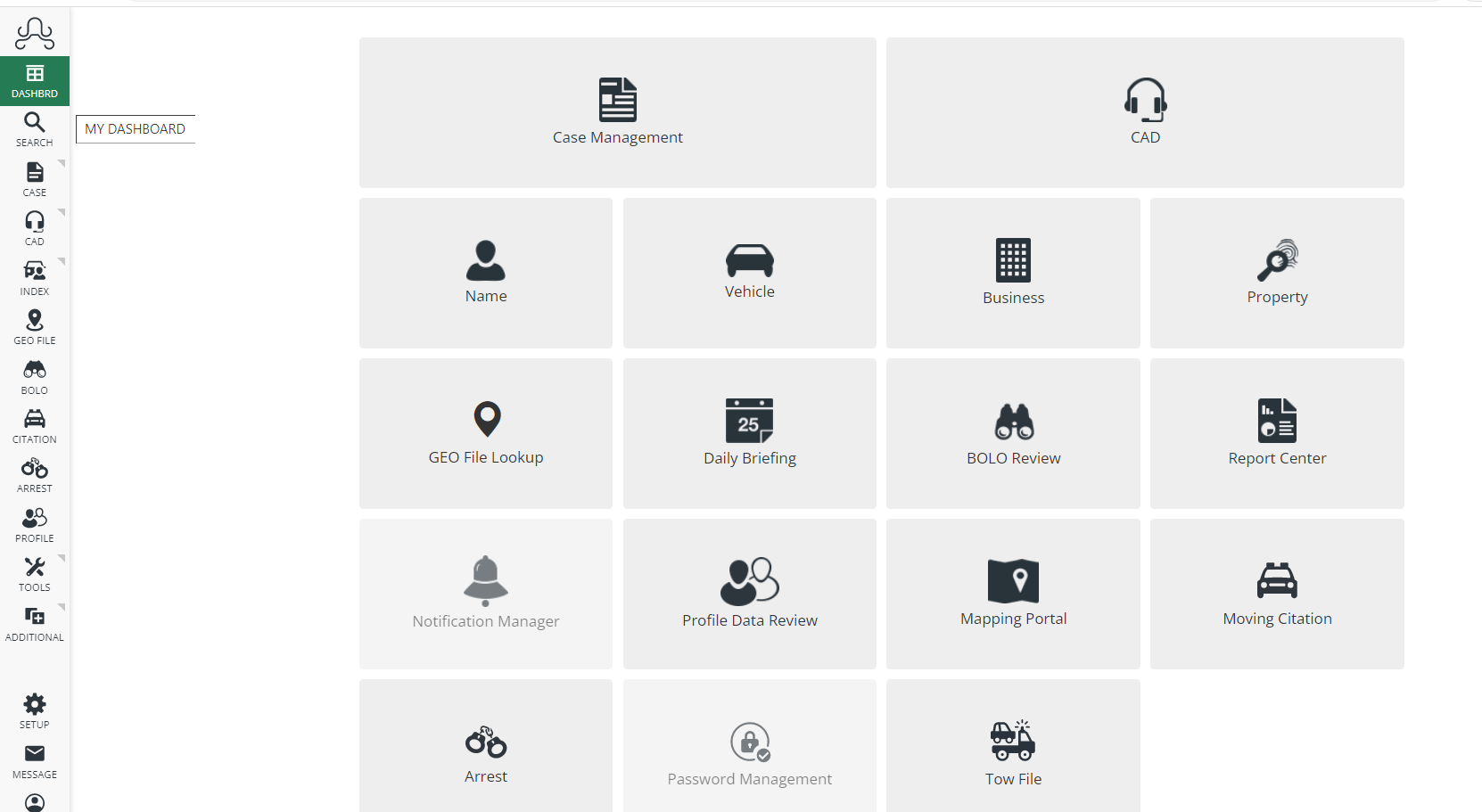
To view the Dashboard, go to the Side menu of the ARMS Home screen and click on Dashboard.
#### Dashboard
The dashboard is remarkably simple and effective. It is different for each user. Each user can customize their view to the data that they need or want to see. An administrator might want to look at the information that might be different from an Officer or Dispatcher, so this module allows them to set widgets as per their needs.
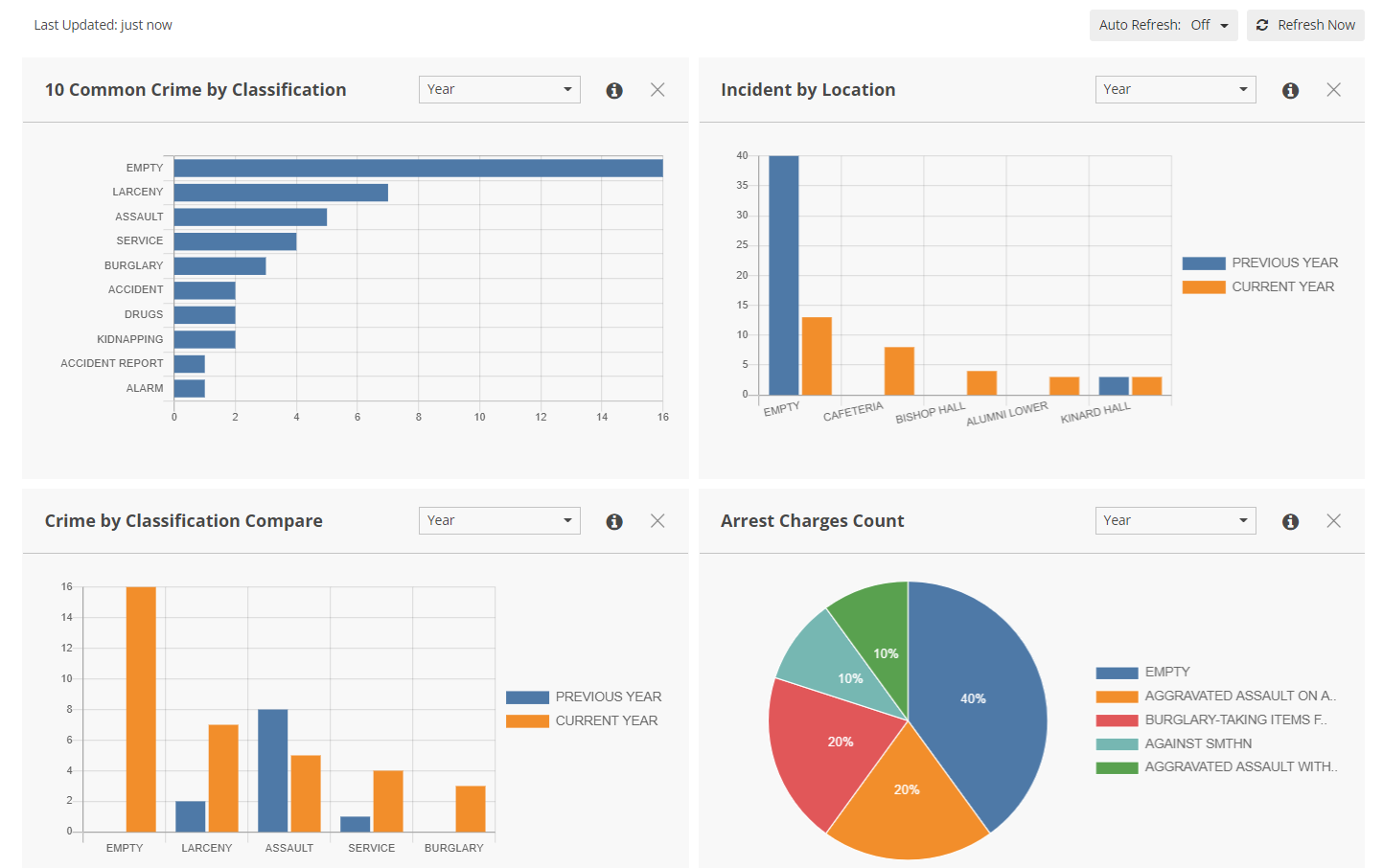
A predefined set of options are available to customize the view of widgets. These do not include all reports but are a collection of frequently used reports. It sets four pieces by default and can be changed/removed at any time by clicking on the close button on the right of each widget.
#### Add Widget
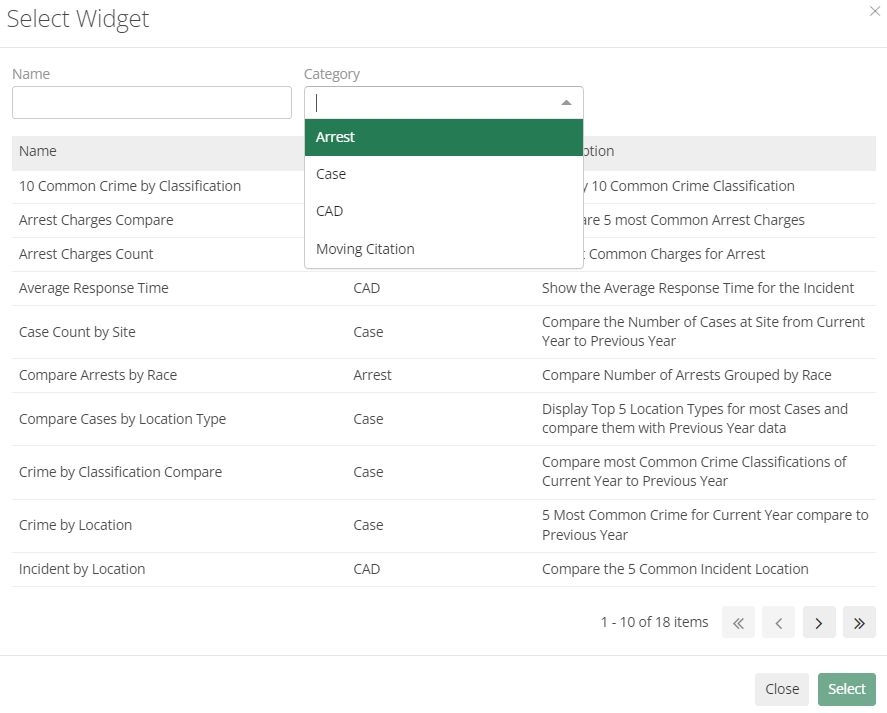
Users can select from set widgets from the available options and can be viewed as per the date range required. It has Name and Category options to search from. As of now, the Category includes four types to choose from: Arrest, Case, CAD, and Moving Citation.
After setting up a widget, the user can further view data as per different date ranges. It can be viewed as per last 7 days, last 30 days, year to date (January 1st to the current date), or year (a full 365 days). There is an auto-refresh option available that refreshes data every 5 mins,10 mins, 15 mins, or 30 mins, and it can be turned on and off. If auto refresh is turned off, then you can refresh anytime as per your need by clicking on the “Refresh now” button. You can also hover over a specific area in a chart to get the exact value for that type of data.
[Dashboard Workbook](https://kb.arms.com/hubfs/Dashboard%20Workbook.pdf?hsLang=en)
- [Administrator](https://kb.arms.com/arms/administrator?hsLang=en#main-content)
- [Administrator Documents](https://kb.arms.com/arms/administrator?hsLang=en#administrator-documents)
- [Administrator FAQs - Error Messages/Troubleshooting](https://kb.arms.com/arms/administrator?hsLang=en#administrator-faqs-error-messages-troubleshooting)
- [Administrator FAQs - Feature Questions](https://kb.arms.com/arms/administrator?hsLang=en#administrator-faqs-feature-questions)
- [Administrator FAQs - Setup](https://kb.arms.com/arms/administrator?hsLang=en#administrator-faqs-setup)
- [Dispatcher](https://kb.arms.com/arms/dispatcher?hsLang=en#main-content)
- [ARMS WebCAD Workbook](https://kb.arms.com/arms/dispatcher?hsLang=en#arms-webcad-workbook)
- [ARMS CAD Workbook](https://kb.arms.com/arms/dispatcher?hsLang=en#arms-cad-workbook)
- [Dispatcher Documents](https://kb.arms.com/arms/dispatcher?hsLang=en#dispatcher-documents)
- [Dispatcher FAQs - Error Messages/Troubleshooting](https://kb.arms.com/arms/dispatcher?hsLang=en#dispatcher-faqs-error-messages-troubleshooting)
- [Dispatcher FAQs - Feature Questions](https://kb.arms.com/arms/dispatcher?hsLang=en#dispatcher-faqs-feature-questions)
- [Officer](https://kb.arms.com/arms/officer?hsLang=en#main-content)
- [ARMS Mobile - CAD Workbook](https://kb.arms.com/arms/officer?hsLang=en#arms-mobile-cad-workbook)
- [ARMS Mobile - Case Management Workbook](https://kb.arms.com/arms/officer?hsLang=en#arms-mobile-case-management-workbook)
- [ARMS Mobile - Home Screen Workbook](https://kb.arms.com/arms/officer?hsLang=en#arms-mobile-home-screen-workbook)
- [ARMS Mobile Admin Workbook](https://kb.arms.com/arms/officer?hsLang=en#arms-mobile-admin-workbook)
- [Officer Documents](https://kb.arms.com/arms/officer?hsLang=en#officer-documents)
- [Officer FAQs - Case Management](https://kb.arms.com/arms/officer?hsLang=en#officer-faqs-case-management)
- [Officer FAQs - Photos and Media](https://kb.arms.com/arms/officer?hsLang=en#officer-faqs-photos-and-media)
- [NIBRS](https://kb.arms.com/arms/nibrs?hsLang=en#main-content)
- [NIBRS Documents](https://kb.arms.com/arms/nibrs?hsLang=en#nibrs-documents)
- [NIBRS FAQs - Error Messages/Troubleshooting](https://kb.arms.com/arms/nibrs?hsLang=en#nibrs-faqs-error-messages-troubleshooting)
- [NIBRS Videos](https://kb.arms.com/arms/nibrs?hsLang=en#nibrs-videos)
- [NIBRS Workbook](https://kb.arms.com/arms/nibrs?hsLang=en#nibrs-workbook)
- [Clery](https://kb.arms.com/arms/clery?hsLang=en#main-content)
- [Clery Workbook](https://kb.arms.com/arms/clery?hsLang=en#clery-workbook)
- [Statistical Reporting](https://kb.arms.com/arms/statistical-reporting?hsLang=en#main-content)
- [Dashboard Workbook](https://kb.arms.com/arms/statistical-reporting?hsLang=en#dashboard-workbook)
- [Maxient Workbook](https://kb.arms.com/arms/statistical-reporting?hsLang=en#maxient-workbook)
- [Notification Manager FAQs](https://kb.arms.com/arms/statistical-reporting?hsLang=en#notification-manager-faqs)
- [Notification Manager Workbook](https://kb.arms.com/arms/statistical-reporting?hsLang=en#notification-manager-workbook)
- [Profile Data FAQs](https://kb.arms.com/arms/statistical-reporting?hsLang=en#profile-data-faqs)
- [Profile Data Workbook](https://kb.arms.com/arms/statistical-reporting?hsLang=en#profile-data-workbook)
- [Property/Evidence FAQs](https://kb.arms.com/arms/statistical-reporting?hsLang=en#property-evidence-faqs)
- [Property/Evidence Workbook](https://kb.arms.com/arms/statistical-reporting?hsLang=en#property-evidence-workbook)
- [Report Center Documents](https://kb.arms.com/arms/statistical-reporting?hsLang=en#report-center-documents)
- [Report Center FAQs](https://kb.arms.com/arms/statistical-reporting?hsLang=en#report-center-faqs)
- [UCR Documents](https://kb.arms.com/arms/statistical-reporting?hsLang=en#ucr-documents)
- [Vehicle Maintenance Workbook](https://kb.arms.com/arms/statistical-reporting?hsLang=en#vehicle-maintenance-workbook)
- [Parking](https://kb.arms.com/arms/parking?hsLang=en#main-content)
- [Internal Parking Documents](https://kb.arms.com/arms/parking?hsLang=en#internal-parking-documents)
- [Parking Administrator Document](https://kb.arms.com/arms/parking?hsLang=en#parking-administrator-document)
- [Parking Documents](https://kb.arms.com/arms/parking?hsLang=en#parking-documents)
- [Parking End User Documents](https://kb.arms.com/arms/parking?hsLang=en#parking-end-user-documents)
- [Parking FAQs](https://kb.arms.com/arms/parking?hsLang=en#parking-faqs)
- [Release Notes](https://kb.arms.com/arms/parking?hsLang=en#release-notes)
- [Webinars](https://kb.arms.com/arms/webinars?hsLang=en#main-content)
- [Administrator](https://kb.arms.com/arms/webinars?hsLang=en#administrator)
- [Clery](https://kb.arms.com/arms/webinars?hsLang=en#clery)
- [Dispatcher](https://kb.arms.com/arms/webinars?hsLang=en#dispatcher)
- [IT Support](https://kb.arms.com/arms/webinars?hsLang=en#it-support)
- [Miscellaneous](https://kb.arms.com/arms/webinars?hsLang=en#miscellaneous)
- [NIBRS](https://kb.arms.com/arms/webinars?hsLang=en#nibrs)
- [Officer](https://kb.arms.com/arms/webinars?hsLang=en#officer)
- [Parking](https://kb.arms.com/arms/webinars?hsLang=en#parking)
- [Statistical Reporting](https://kb.arms.com/arms/webinars?hsLang=en#statistical-reporting)
- [Miscellaneous](https://kb.arms.com/arms/miscellaneous?hsLang=en#main-content)
- [Release Notes](https://kb.arms.com/arms/miscellaneous?hsLang=en#release-notes)
- [ARMS User Training Conferences](https://kb.arms.com/arms/miscellaneous?hsLang=en#arms-user-training-conferences)
- [Internal](https://kb.arms.com/arms/miscellaneous?hsLang=en#internal)
- [Support Docs](https://kb.arms.com/arms/miscellaneous?hsLang=en#support-docs)
- [IT Support](https://kb.arms.com/arms/it-support?hsLang=en#main-content)
- [Internal IT Support Documents](https://kb.arms.com/arms/it-support?hsLang=en#internal-it-support-documents)
- [IT Support Documents](https://kb.arms.com/arms/it-support?hsLang=en#it-support-documents)
- [Internal](https://kb.arms.com/arms/internal?hsLang=en#main-content)
- [Jira Escalation Process and Documents](https://kb.arms.com/arms/internal?hsLang=en#jira-escalation-process-and-documents)
- [Parking Workflows](https://kb.arms.com/arms/internal?hsLang=en#parking-workflows)
- [Administration](https://kb.arms.com/arms/administration?hsLang=en#main-content)
- [Personnel Card](https://kb.arms.com/arms/administration?hsLang=en#personnel-card)
- [Online Bicycle Registration](https://kb.arms.com/arms/online-bicycle-registration?hsLang=en#main-content)
- [Bicycle Registration Workbook](https://kb.arms.com/arms/online-bicycle-registration?hsLang=en#bicycle-registration-workbook)
- [Courtyard - Public Incident Reporting](https://kb.arms.com/arms/courtyard-public-incident-reporting?hsLang=en#main-content)
- [Courtyard Manual](https://kb.arms.com/arms/courtyard-public-incident-reporting?hsLang=en#courtyard-manual)
[mailto:support@arms.com](mailto:support@arms.com)
Copyright © 2026, End2End Public Safety