---
title: How do I manage departmental vehicles (mileage/fuel)?
description: How do I manage departmental vehicles (mileage/fuel)?
---
[Skip to content](https://kb.arms.com/arms/how-do-i-manage-departmental-vehicles-mileage/fuel#main-content)
English
Show submenu for translations

Open main navigation
Close main navigation
- English
Show submenu for translations
- [Customer Portal](https://helpdesk.arms.com/tickets)
[Customer Portal](https://helpdesk.arms.com/tickets?hsLang=en)
How can we help you?
- There are no suggestions because the search field is empty.
1. [ARMS](https://kb.arms.com/arms?hsLang=en)
2. [Dispatcher](https://kb.arms.com/arms/dispatcher?hsLang=en)
3. [Dispatcher FAQs - Feature Questions](https://kb.arms.com/arms/dispatcher?hsLang=en#dispatcher-faqs-feature-questions)
# How do I manage departmental vehicles (mileage/fuel)?
#### **ARMS V2 CAD Vehicle Mileage** The vehicle mileage in ARMS V2 CAD can be entered and corrected by completing the following steps.
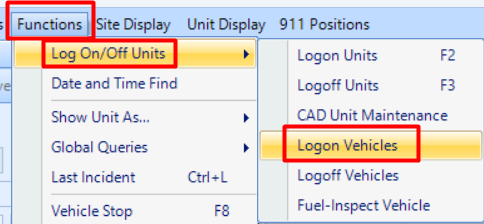
1\. When logging vehicles on the CAD Screen, click on Functions\>Log ON/OFF Units\>Logon Vehicles
2\. Select which officer will be assigned to what vehicle. Also fill out the “Shift,” “Vehicle,” and “Mileage” boxes and when completed, click on “Save.”
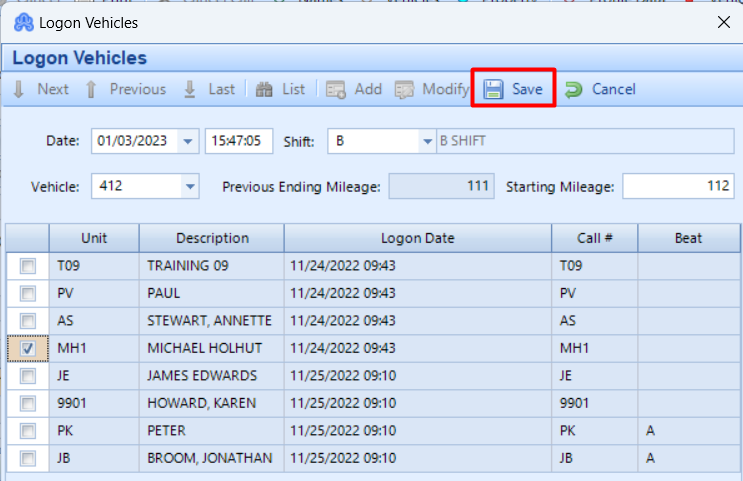
The “Previous Ending Mileage” will be predetermined by the last mileage entered when the unit was logged off. You **CANNOT** adjust this number from this log on screen.
**In Mobile ARMS:**
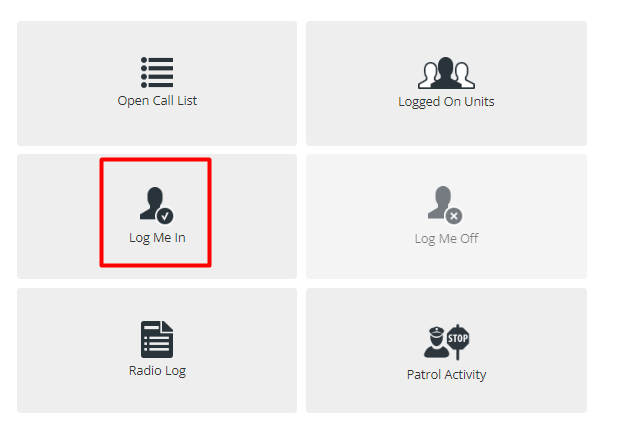
1\. Navigate to CAD\> Log Me In
2\. Fill out the “Shift,” “Vehicle,” and “Mileage” boxes and when completed, click on “Save.”
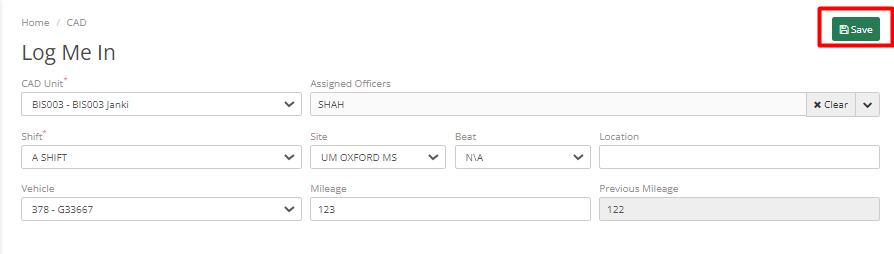
The “Previous Mileage” will be predetermined by the last mileage entered when the unit was logged off. You **CANNOT** adjust this number from this log on screen.
**Entering Gas/Fuel on Vehicles**
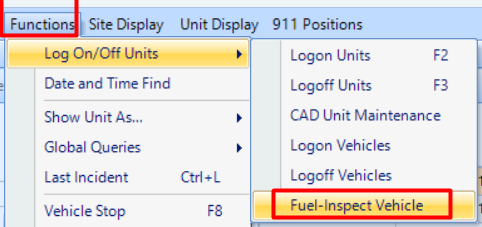
1\. From the CAD Screen, click on CAD Functions\>Log On/Off Units\>Fuel-Inspect Vehicle.
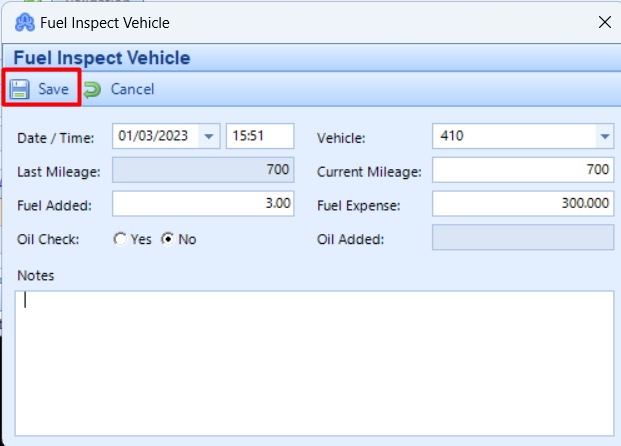
2\. As shown in the screenshot below, you can enter the mileage when fuel was added (Mileage), the gallons of gas added (Fuel), Oil Check/Oil Added (if any), Notes (notes about the vehicle during shift—whatever that maybe), and date and time these were completed. When completed click on “Save” and the window will disappear.
**Logging Off Vehicles**
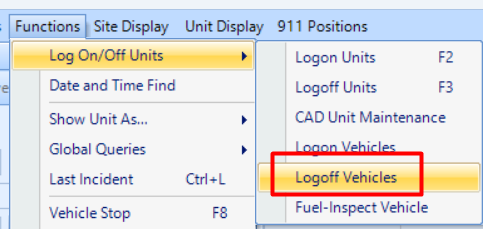
1\. Again from the CAD screen, click on CAD Functions\>Log On/Off Units\>Logoff Vehicles:
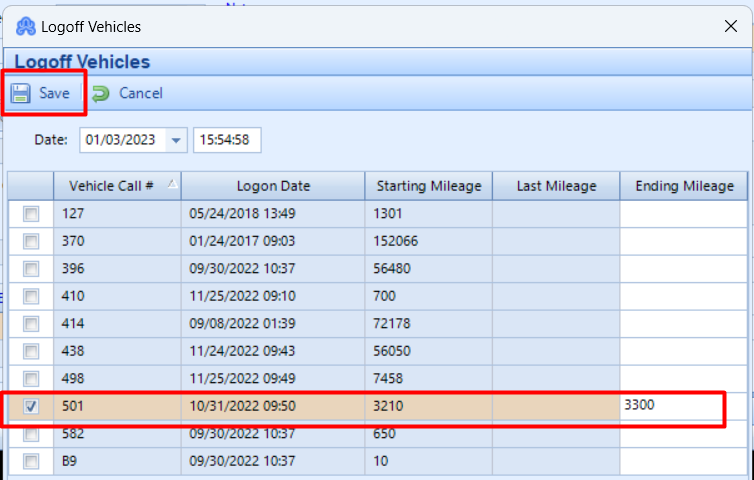
2\. Input the log off date and time. Check the box (or boxes as necessary) of the vehicle(s) being logged off and enter the ending miles. When completed click on “Save” and close the window.
**How to correct data entered wrong for Log On Vehicles**
1\. From the Vehicle Log On window, you can simply click the “Modify” button and modify mileage or officers as needed:
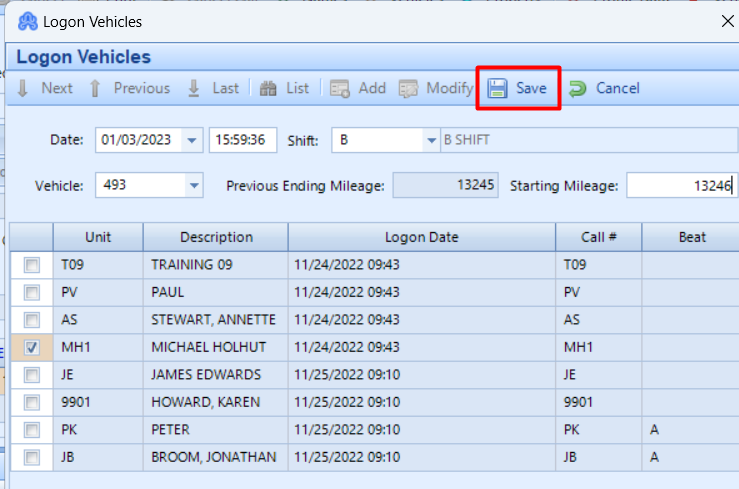
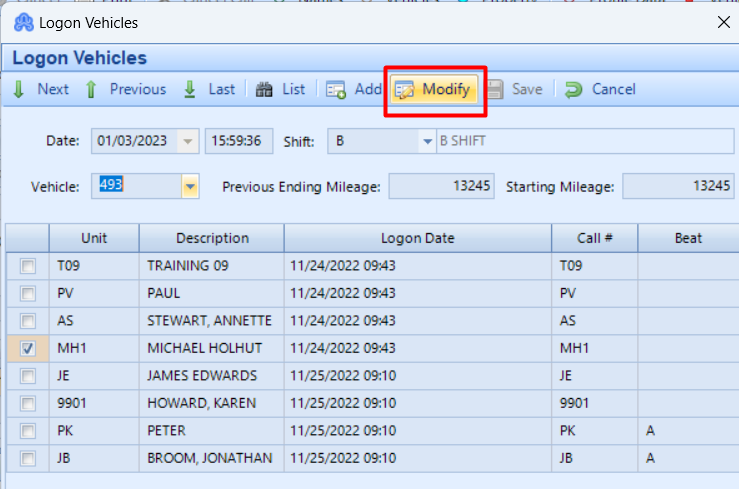2. If a previous vehicle was entered, you can scroll through your already entered vehicles using the “Next” and “Previous” buttons. Make adjustments as necessary to that entry and save it.
**When needing to make corrections for Logged Off Vehicles**
When necessary to make corrections for vehicle log off information (and anything totally related to vehicle information), you must use the “Modify Vehicle Records” module.
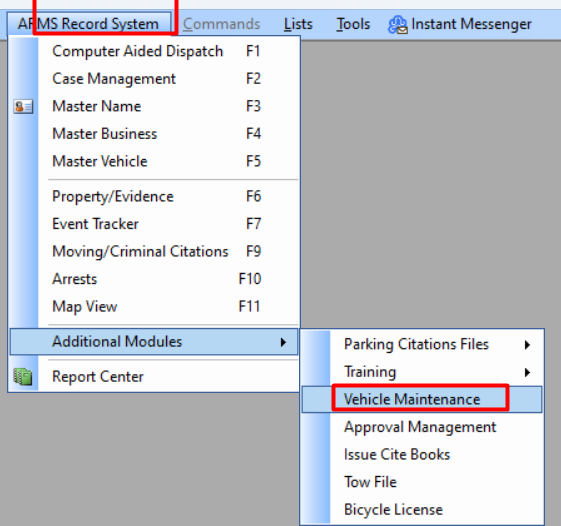
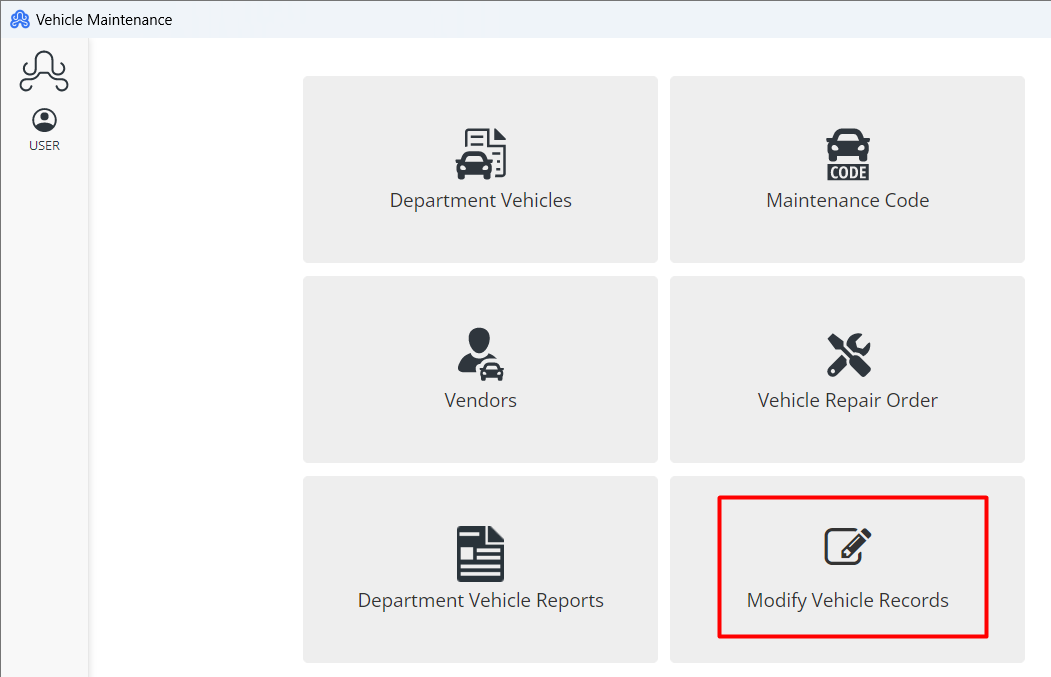
1\. From the CAD screen, click on ARMS Record System\>Additional Modules\>Vehicle Maintenance\> Modify Vehicle Records
2\. Enter the date of when the vehicle was logged out for usage and click on “Search.” The date entered in "Date out" field will return the vehicles that were logged out on that date and the date entered in "Date In" field will return the vehicles that were logged in on that date.
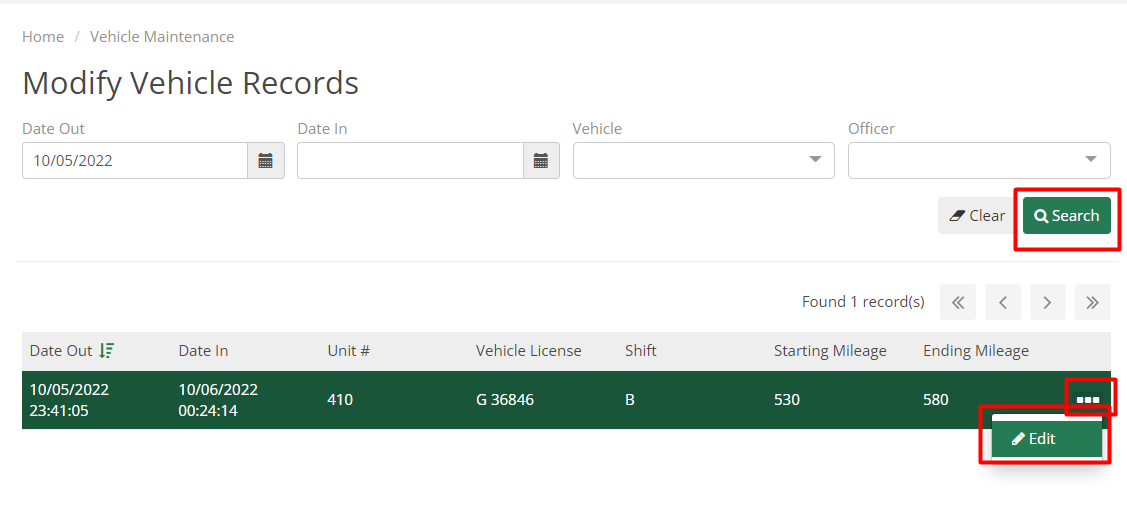
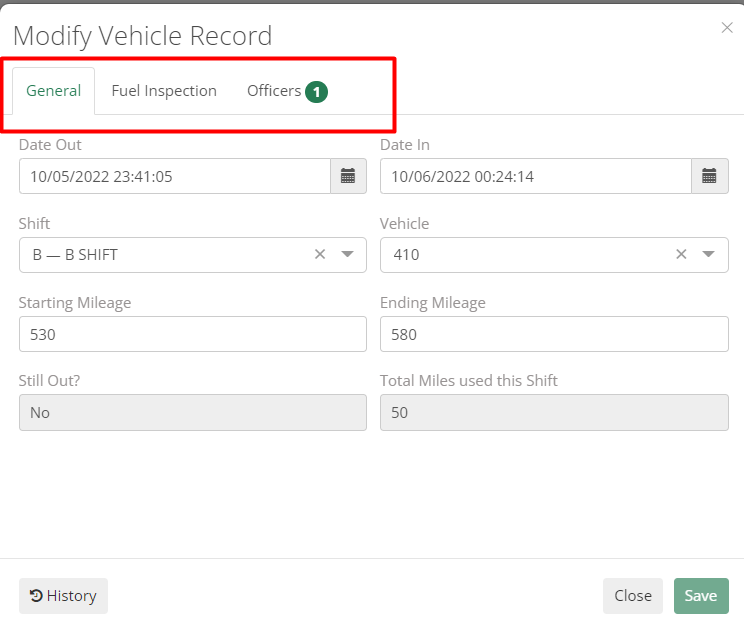
3\. Find the errand entry and click on “Edit” and make adjustments (you can adjust ending mileage, fuel, oil, add an extra officer to the car, etc.), and when completed save the entry.
- [Administrator](https://kb.arms.com/arms/administrator?hsLang=en#main-content)
- [Administrator Documents](https://kb.arms.com/arms/administrator?hsLang=en#administrator-documents)
- [Administrator FAQs - Error Messages/Troubleshooting](https://kb.arms.com/arms/administrator?hsLang=en#administrator-faqs-error-messages-troubleshooting)
- [Administrator FAQs - Feature Questions](https://kb.arms.com/arms/administrator?hsLang=en#administrator-faqs-feature-questions)
- [Administrator FAQs - Setup](https://kb.arms.com/arms/administrator?hsLang=en#administrator-faqs-setup)
- [Dispatcher](https://kb.arms.com/arms/dispatcher?hsLang=en#main-content)
- [ARMS WebCAD Workbook](https://kb.arms.com/arms/dispatcher?hsLang=en#arms-webcad-workbook)
- [ARMS CAD Workbook](https://kb.arms.com/arms/dispatcher?hsLang=en#arms-cad-workbook)
- [Dispatcher Documents](https://kb.arms.com/arms/dispatcher?hsLang=en#dispatcher-documents)
- [Dispatcher FAQs - Error Messages/Troubleshooting](https://kb.arms.com/arms/dispatcher?hsLang=en#dispatcher-faqs-error-messages-troubleshooting)
- [Dispatcher FAQs - Feature Questions](https://kb.arms.com/arms/dispatcher?hsLang=en#dispatcher-faqs-feature-questions)
- [Officer](https://kb.arms.com/arms/officer?hsLang=en#main-content)
- [ARMS Mobile - CAD Workbook](https://kb.arms.com/arms/officer?hsLang=en#arms-mobile-cad-workbook)
- [ARMS Mobile - Case Management Workbook](https://kb.arms.com/arms/officer?hsLang=en#arms-mobile-case-management-workbook)
- [ARMS Mobile - Home Screen Workbook](https://kb.arms.com/arms/officer?hsLang=en#arms-mobile-home-screen-workbook)
- [ARMS Mobile Admin Workbook](https://kb.arms.com/arms/officer?hsLang=en#arms-mobile-admin-workbook)
- [Officer Documents](https://kb.arms.com/arms/officer?hsLang=en#officer-documents)
- [Officer FAQs - Case Management](https://kb.arms.com/arms/officer?hsLang=en#officer-faqs-case-management)
- [Officer FAQs - Photos and Media](https://kb.arms.com/arms/officer?hsLang=en#officer-faqs-photos-and-media)
- [NIBRS](https://kb.arms.com/arms/nibrs?hsLang=en#main-content)
- [NIBRS Documents](https://kb.arms.com/arms/nibrs?hsLang=en#nibrs-documents)
- [NIBRS FAQs - Error Messages/Troubleshooting](https://kb.arms.com/arms/nibrs?hsLang=en#nibrs-faqs-error-messages-troubleshooting)
- [NIBRS Videos](https://kb.arms.com/arms/nibrs?hsLang=en#nibrs-videos)
- [NIBRS Workbook](https://kb.arms.com/arms/nibrs?hsLang=en#nibrs-workbook)
- [Clery](https://kb.arms.com/arms/clery?hsLang=en#main-content)
- [Clery Workbook](https://kb.arms.com/arms/clery?hsLang=en#clery-workbook)
- [Statistical Reporting](https://kb.arms.com/arms/statistical-reporting?hsLang=en#main-content)
- [Dashboard Workbook](https://kb.arms.com/arms/statistical-reporting?hsLang=en#dashboard-workbook)
- [Maxient Workbook](https://kb.arms.com/arms/statistical-reporting?hsLang=en#maxient-workbook)
- [Notification Manager FAQs](https://kb.arms.com/arms/statistical-reporting?hsLang=en#notification-manager-faqs)
- [Notification Manager Workbook](https://kb.arms.com/arms/statistical-reporting?hsLang=en#notification-manager-workbook)
- [Profile Data FAQs](https://kb.arms.com/arms/statistical-reporting?hsLang=en#profile-data-faqs)
- [Profile Data Workbook](https://kb.arms.com/arms/statistical-reporting?hsLang=en#profile-data-workbook)
- [Property/Evidence FAQs](https://kb.arms.com/arms/statistical-reporting?hsLang=en#property-evidence-faqs)
- [Property/Evidence Workbook](https://kb.arms.com/arms/statistical-reporting?hsLang=en#property-evidence-workbook)
- [Report Center Documents](https://kb.arms.com/arms/statistical-reporting?hsLang=en#report-center-documents)
- [Report Center FAQs](https://kb.arms.com/arms/statistical-reporting?hsLang=en#report-center-faqs)
- [UCR Documents](https://kb.arms.com/arms/statistical-reporting?hsLang=en#ucr-documents)
- [Vehicle Maintenance Workbook](https://kb.arms.com/arms/statistical-reporting?hsLang=en#vehicle-maintenance-workbook)
- [Parking](https://kb.arms.com/arms/parking?hsLang=en#main-content)
- [Internal Parking Documents](https://kb.arms.com/arms/parking?hsLang=en#internal-parking-documents)
- [Parking Administrator Document](https://kb.arms.com/arms/parking?hsLang=en#parking-administrator-document)
- [Parking Documents](https://kb.arms.com/arms/parking?hsLang=en#parking-documents)
- [Parking End User Documents](https://kb.arms.com/arms/parking?hsLang=en#parking-end-user-documents)
- [Parking FAQs](https://kb.arms.com/arms/parking?hsLang=en#parking-faqs)
- [Release Notes](https://kb.arms.com/arms/parking?hsLang=en#release-notes)
- [Webinars](https://kb.arms.com/arms/webinars?hsLang=en#main-content)
- [Administrator](https://kb.arms.com/arms/webinars?hsLang=en#administrator)
- [Clery](https://kb.arms.com/arms/webinars?hsLang=en#clery)
- [Dispatcher](https://kb.arms.com/arms/webinars?hsLang=en#dispatcher)
- [IT Support](https://kb.arms.com/arms/webinars?hsLang=en#it-support)
- [Miscellaneous](https://kb.arms.com/arms/webinars?hsLang=en#miscellaneous)
- [NIBRS](https://kb.arms.com/arms/webinars?hsLang=en#nibrs)
- [Officer](https://kb.arms.com/arms/webinars?hsLang=en#officer)
- [Parking](https://kb.arms.com/arms/webinars?hsLang=en#parking)
- [Statistical Reporting](https://kb.arms.com/arms/webinars?hsLang=en#statistical-reporting)
- [Miscellaneous](https://kb.arms.com/arms/miscellaneous?hsLang=en#main-content)
- [Release Notes](https://kb.arms.com/arms/miscellaneous?hsLang=en#release-notes)
- [ARMS User Training Conferences](https://kb.arms.com/arms/miscellaneous?hsLang=en#arms-user-training-conferences)
- [Internal](https://kb.arms.com/arms/miscellaneous?hsLang=en#internal)
- [Support Docs](https://kb.arms.com/arms/miscellaneous?hsLang=en#support-docs)
- [IT Support](https://kb.arms.com/arms/it-support?hsLang=en#main-content)
- [Internal IT Support Documents](https://kb.arms.com/arms/it-support?hsLang=en#internal-it-support-documents)
- [IT Support Documents](https://kb.arms.com/arms/it-support?hsLang=en#it-support-documents)
- [Internal](https://kb.arms.com/arms/internal?hsLang=en#main-content)
- [Jira Escalation Process and Documents](https://kb.arms.com/arms/internal?hsLang=en#jira-escalation-process-and-documents)
- [Parking Workflows](https://kb.arms.com/arms/internal?hsLang=en#parking-workflows)
- [Administration](https://kb.arms.com/arms/administration?hsLang=en#main-content)
- [Personnel Card](https://kb.arms.com/arms/administration?hsLang=en#personnel-card)
- [Online Bicycle Registration](https://kb.arms.com/arms/online-bicycle-registration?hsLang=en#main-content)
- [Bicycle Registration Workbook](https://kb.arms.com/arms/online-bicycle-registration?hsLang=en#bicycle-registration-workbook)
- [Courtyard - Public Incident Reporting](https://kb.arms.com/arms/courtyard-public-incident-reporting?hsLang=en#main-content)
- [Courtyard Manual](https://kb.arms.com/arms/courtyard-public-incident-reporting?hsLang=en#courtyard-manual)
[mailto:support@arms.com](mailto:support@arms.com)
Copyright © 2026, End2End Public Safety