Table of contents
- Add Shift Master
- Add Shift Types
- Add Shift Colors for Schedule
- Setup Shift’s Time (Start Date & End Date)
- Save Officer Profile
- Add Time Types
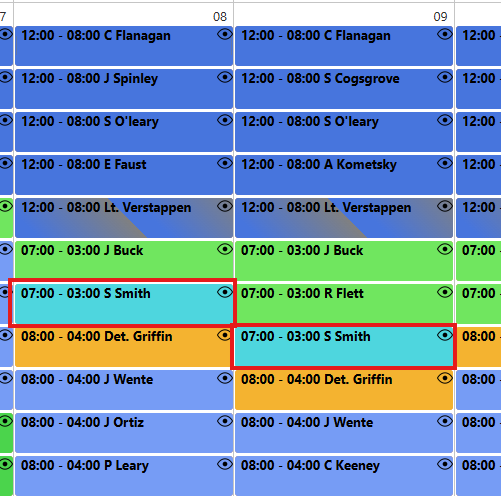
- Populate Officer Schedule
1. Add Shift Master
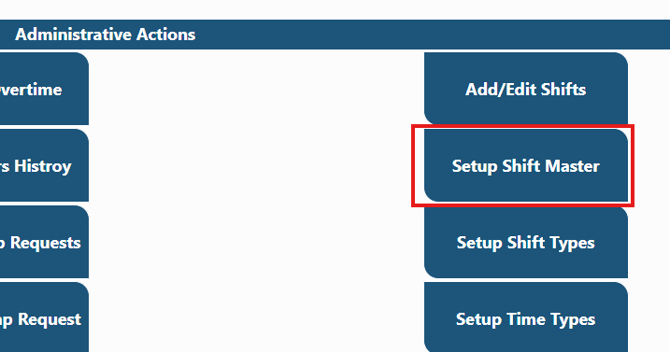
On DHQ site, navigate to the schedule subsite and select "Schedule Admin Action", then select "Setup Shift Master"
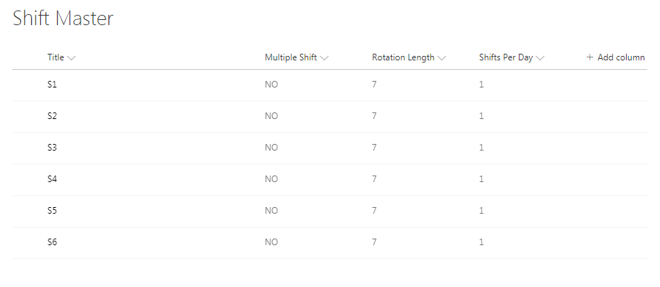
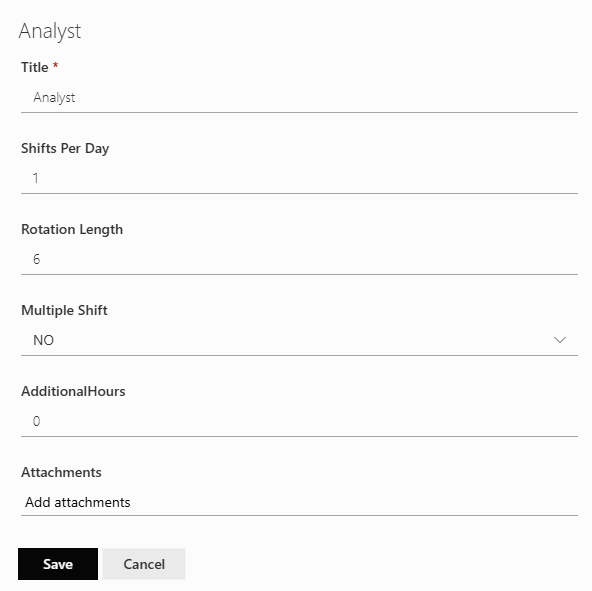
Click on "New" to add a new Shift, when you hit add latest item link you will see a form where you can type the Shift Title like s1, s2....
Enter Rotation Length for that shift.
Select Multiple shifts or not. Multiple shifts are used to account for a split shift and is rarely used.
Enter the number of shifts per day value like 1, 2...
Hit save your new shift will be saved and display over.
Note you can change the saved Master records by just clicking edit.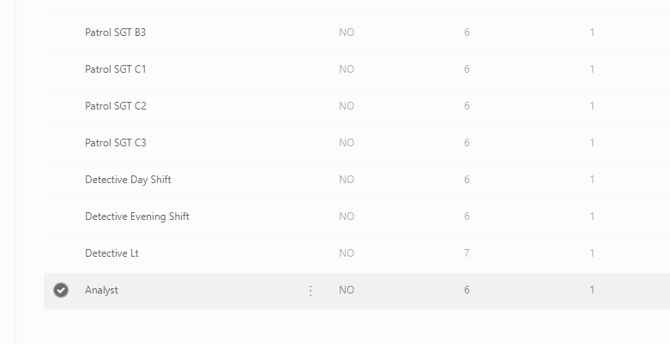
2. Add Shift Types
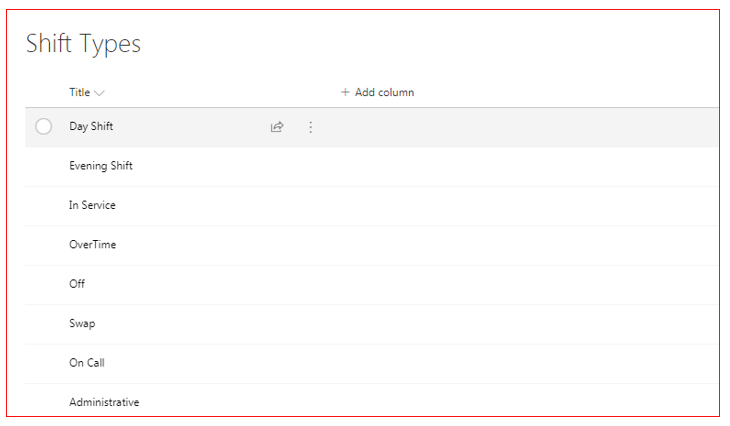
This form is used to create/Add Shift Types like Morning shift, Day Shift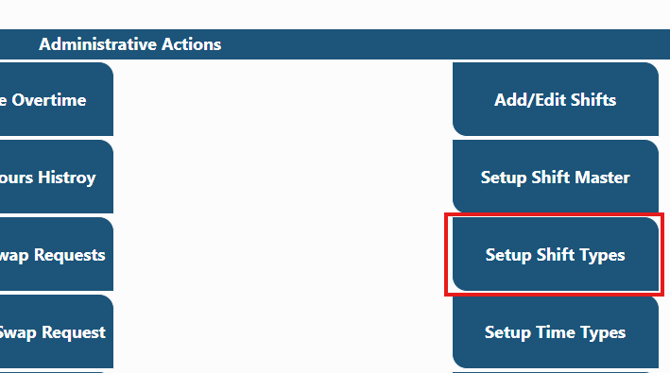
Click on that and hit "New" and enter the shift type Title.
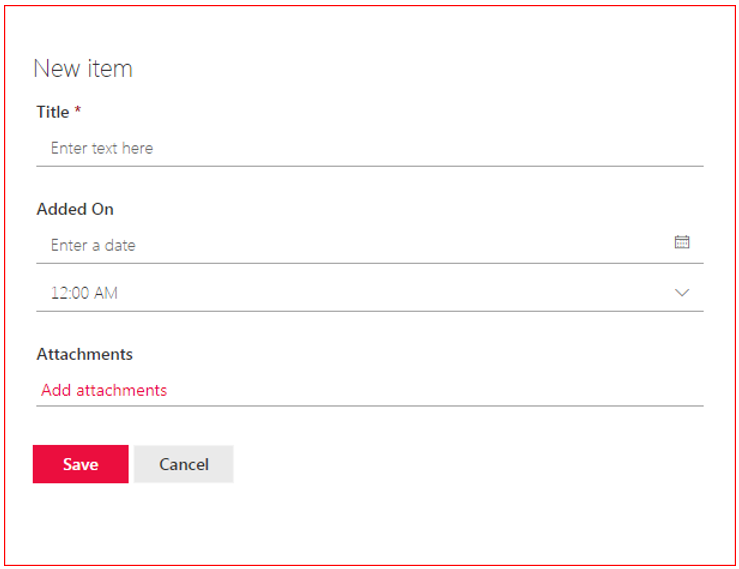
Save the form (Note: 1 shift can be added only one time)
3. Add Shift Colors for Schedule
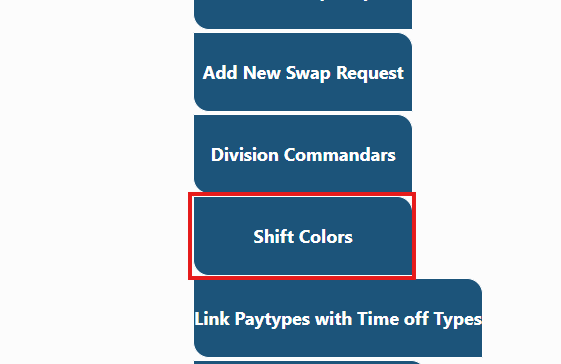
From the Schedule Admin Action menu, select "Shift Colors" and click "New"
Select shift from shift type dropdown and add the color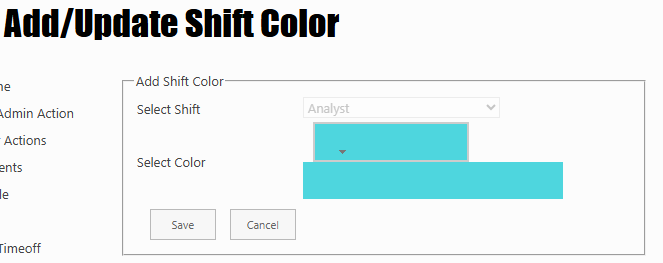
Click on the color box once and then choose color and hit OK
Now click Save
One color can be added once throughout the system.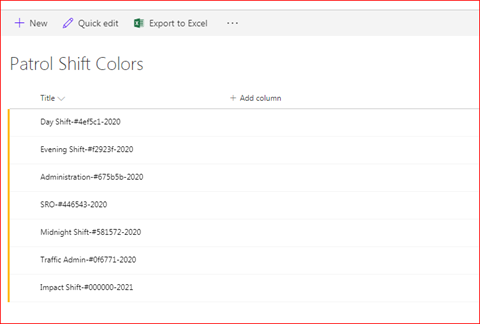
Note: 1. You can change/update shift type color any time 2. If you delete any shift color,or it will be visible with NO COLOR.
4. Setup Shift Start Time and End Time
Go to Add/Edit Shift link 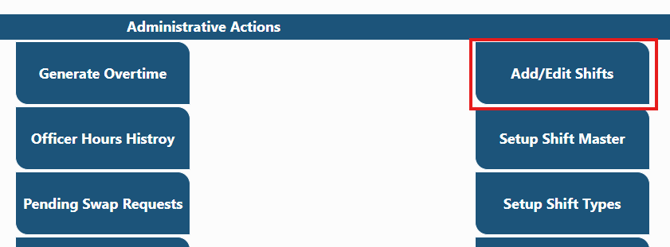
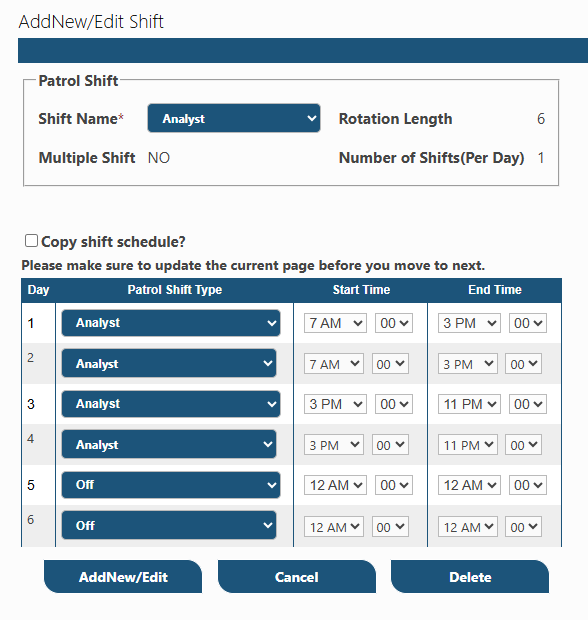
Select the Shift name from the dropdown
Select shift and start & end time for that shift
Save it for the total rotations.
Note: you can edit and delete it any time
Shift types are directly coming from the shift Type list that we recently added above.
5. Save Officer Profile
Go to "Officer Personnel Form"
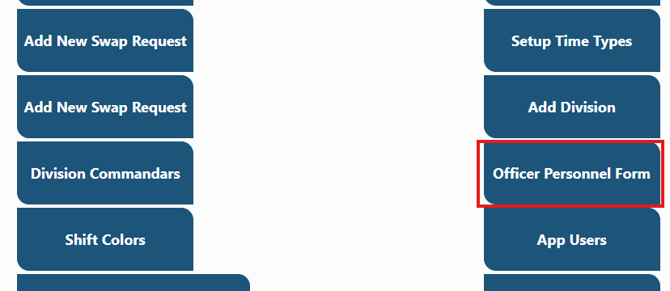
Find employee on the list, select them and click edit. When form opens, scroll to the "Schedule/Shift Details" section and expand it. 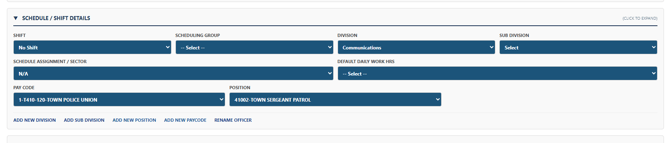
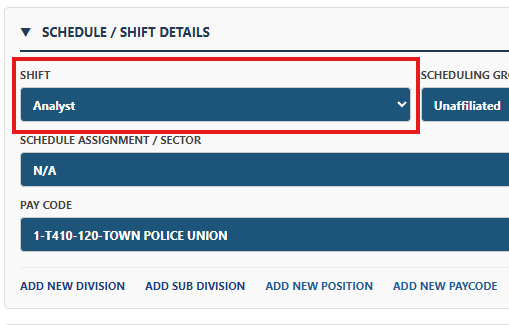
Select the employee's shift
6. Add Time Type
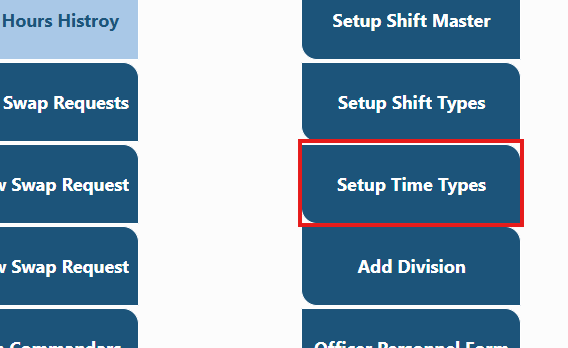
Click on "Setup Time Types"
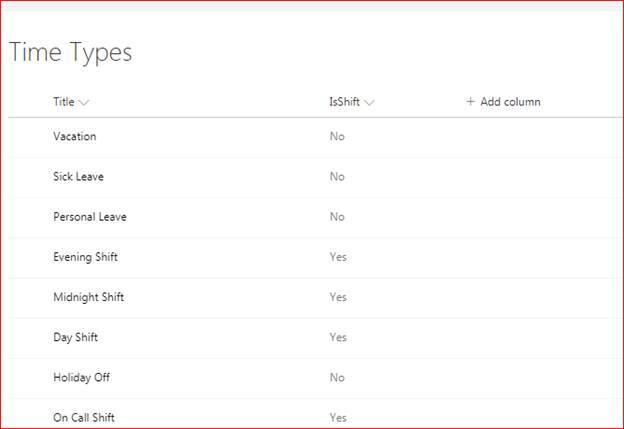
Click on Add new Item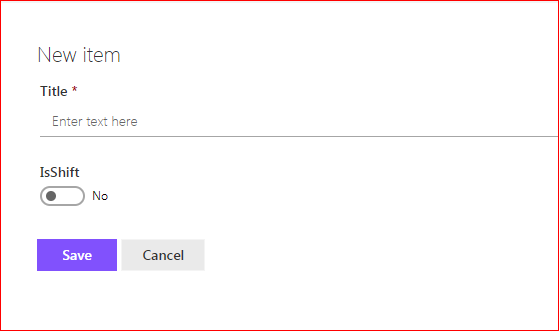
Enter the Time type name and check the checkbox if it is shift. hit save.
7. Populate Schedule for Officers
Click on "Repopulate Schedule"
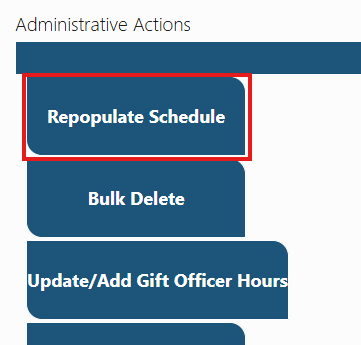
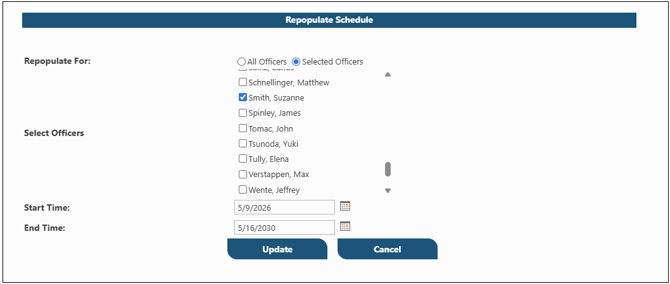
Enter the Date to start populating schedule and end date and hit update.