
AWA Admin Suite
Created by Greg Katz, Modified on Fri, 14 Nov, 2025 at 10:08 AM by Greg Katz

Table Of Contents
- Login
- Setup New Departments -
- Edit/Delete Departments
- Set Up Department AWA Access
- Edit Departments Credentials -
- Share Department Credentials
- Set Up Near By Departments -
- View Near By Departments
- View Shared AWA Items
- Logout
1. Login -
Navigate to the link https://awa.policedhq.com/
A login page will be displayed as below.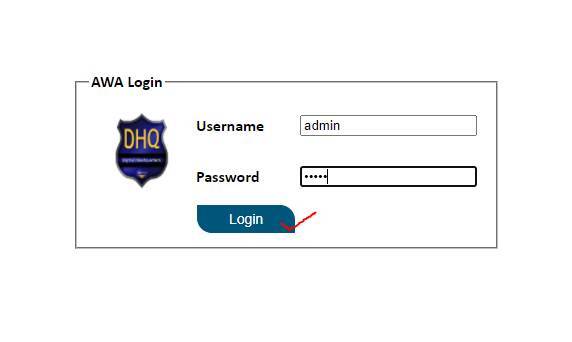
Enter the ‘Username’ and ‘Password’ issued by ARMS support and hit the login button. If Username and password are correct you will be entered to the system.
2. Setup New Departments -
For setting up a new department click on “Setup New Department” link inside left navigation as below.
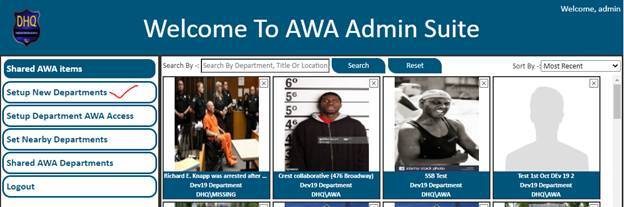
A new screen will appear like below
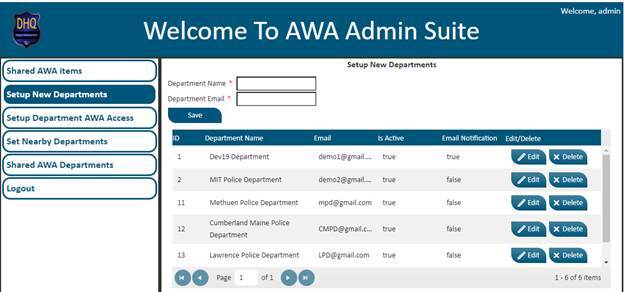
Now enter the new Department Name and Email and hit the Save button.
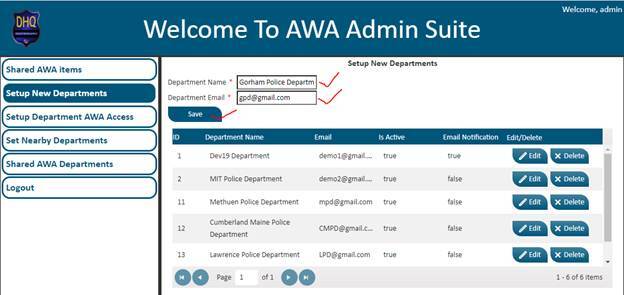
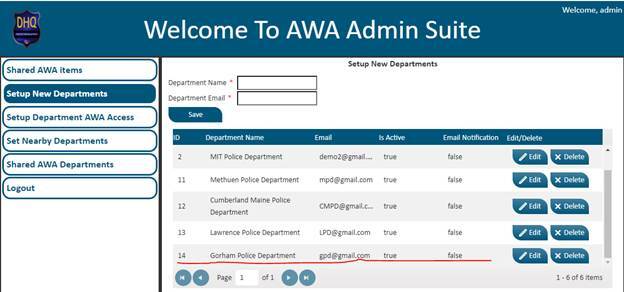
New department will be added successfully. You can see newly added department inside the grid as below.
3. Edit/Delete Departments -
For Edit or Delete a department click on “Setup New Department” link inside left navigation as below.
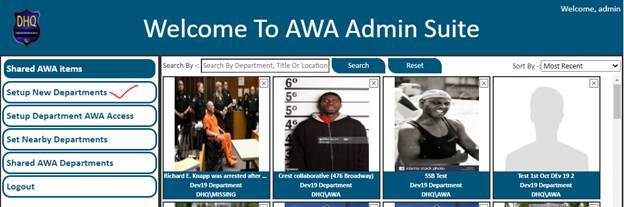
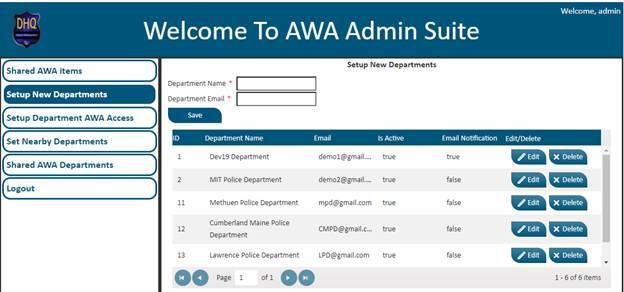
A new screen appear like below
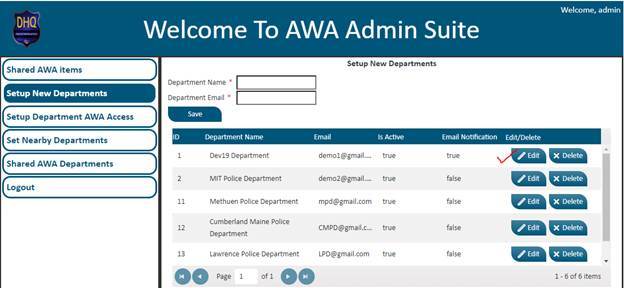
Now if you want to edit a department then click on Edit button on that Department row as below.
Now that department will be opened in Edit mode as below
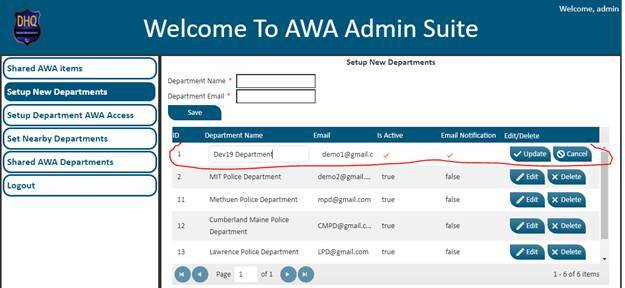
Here you can edit following things of selected department -
- Department Name
- Active/De-active Department
- Email Notification Setting
Now edit the required things and hit the update button as below.
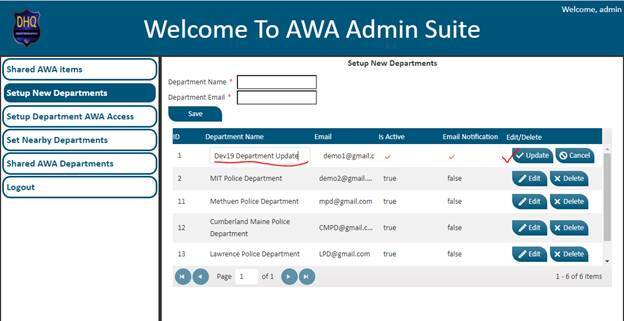
Department will be successfully updated as below:
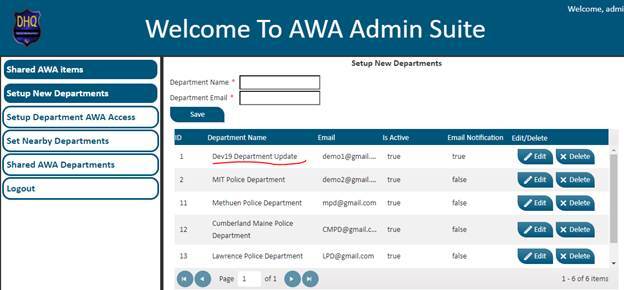
4. Set Up Department AWA Access -
Here we can setup the Department login credentials to connect Department site to this system.
Click on ‘Setup Department AWA Access’ as below
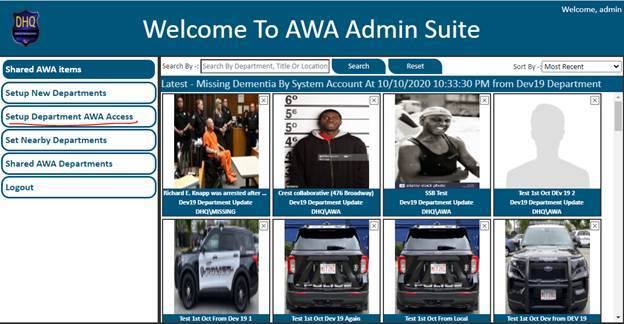
A new screen appear as below
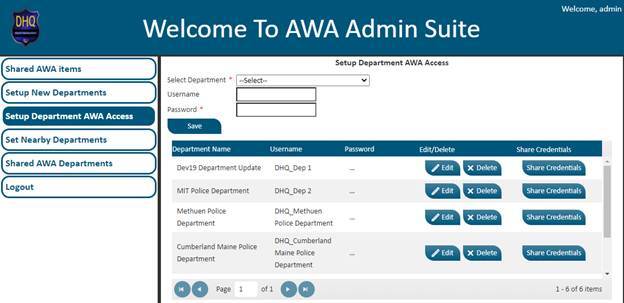
Now enter the new Department Name and Email and hit the Save button.
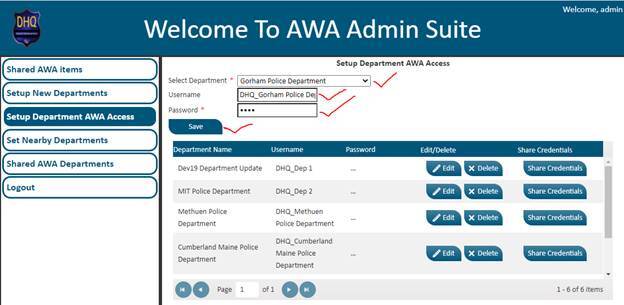
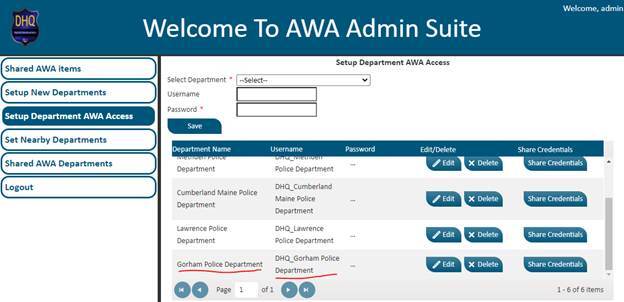
After entering the password click on save button. Department login credentials will be successfully added as below.
Now select the department for which you want add login credentials. After selecting the department Username will be auto populated, you just need to enter desired password inside the textbox as below.
5. Edit Departments Credentials -
Click on ‘Setup Department AWA Access’ as below
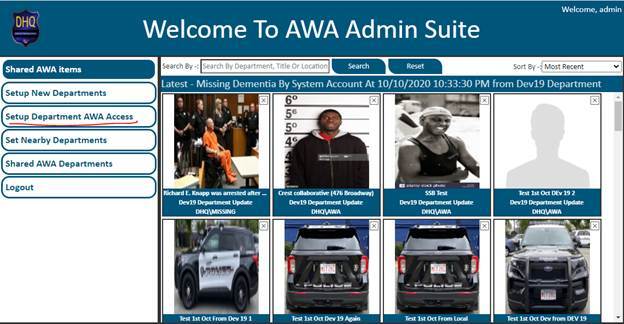
A new screen appear as below
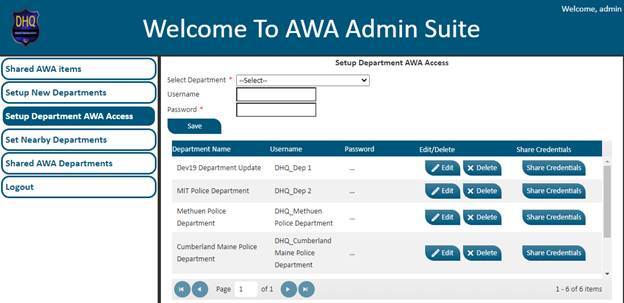
Now if you want to edit department credentials then click on Edit button on that Department row as below.
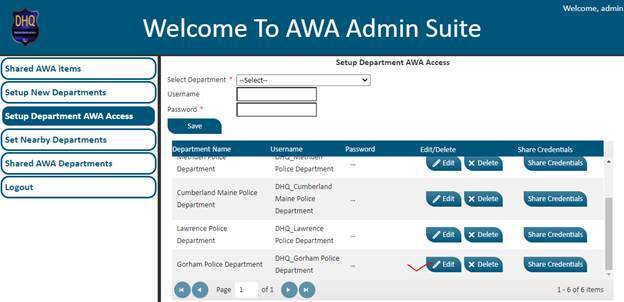
Now that department will be opened in Edit mode as below
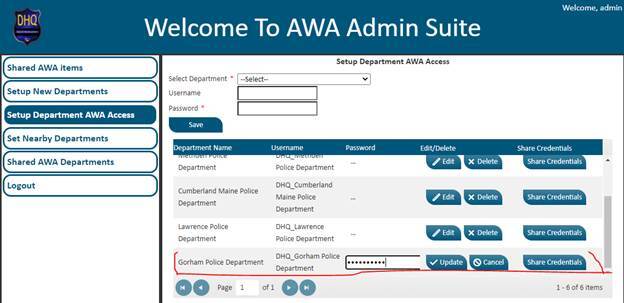
Now enter the new desired password and hit the update button as below.
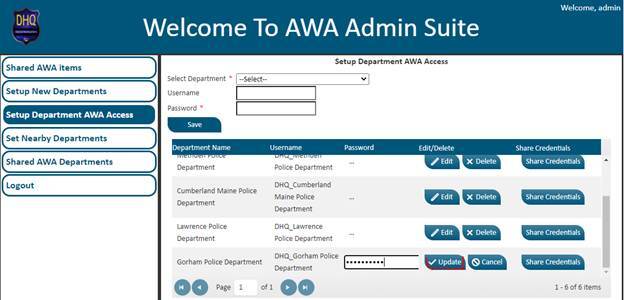
Department credential will be successfully updated.
6. Share Department Credentials -
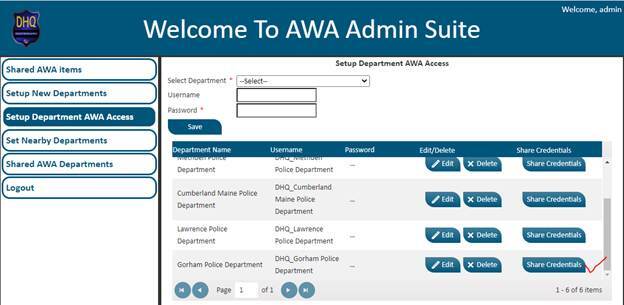
For security reasons department password is not visible inside the AWA system. So, if any department requests their credentials, you can only send them by email. For sending that email ...
Click on ‘Setup Department AWA Access’ as below
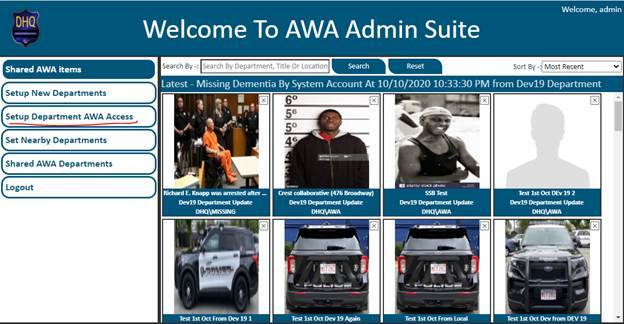
A new screen will be appeared as below
Department credentials will be successfully sent to department configured email address.
Now if you want to send Department credentials then click on “Share Credentials” button on that Department row as below.
A new screen will be appeared as below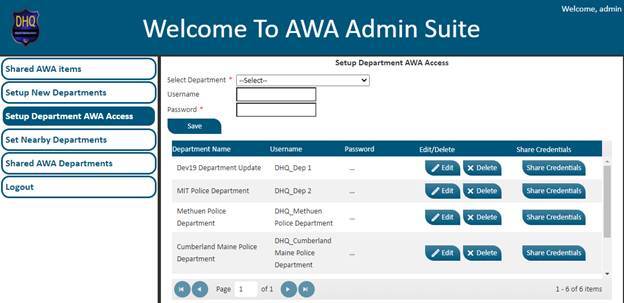
7. Set Up Nearby Departments -
Click on ‘Set Nearby Department’ as below
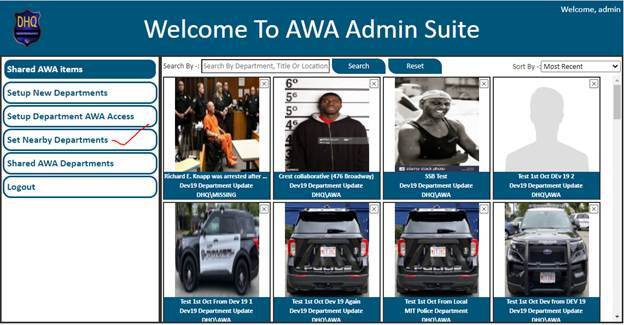
A new screen will be appeared as below
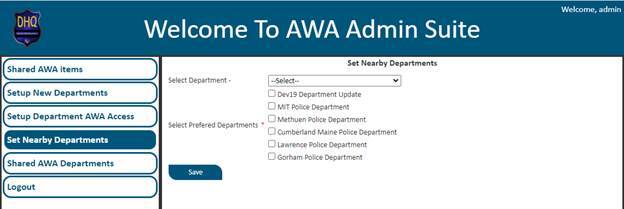
Now select the department from the dropdown for which you want to set nearby Departments as below.
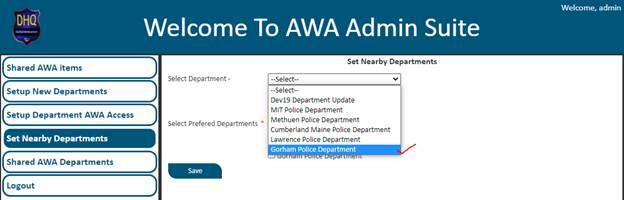
Now select the departments by check/uncheck department checkboxes as below.
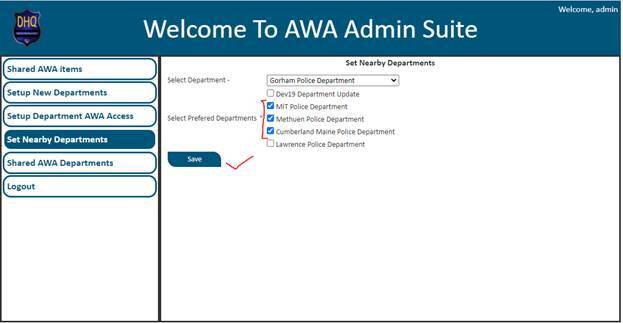
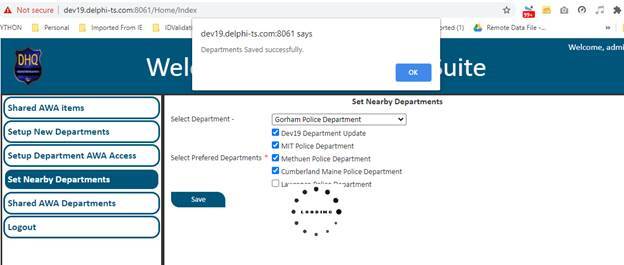
Now hit the ‘Save’ button. Nearby departments will be saved successfully as below
8. View Nearby Departments -
Click on “Shared AWA Items” from the left navigation.
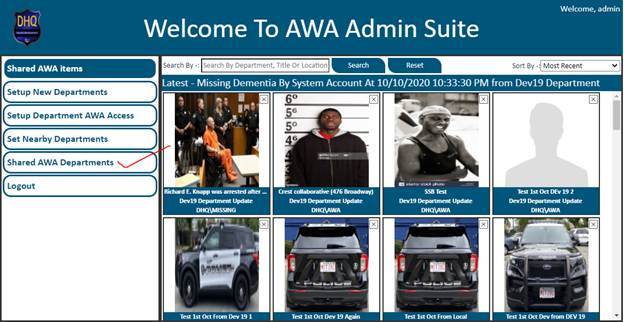
A new screen will be appeared as below.
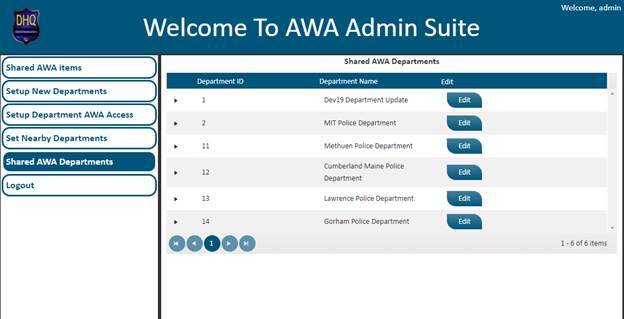
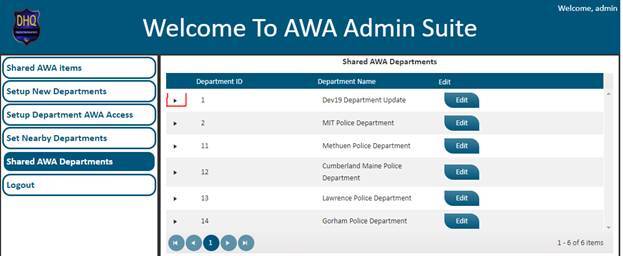
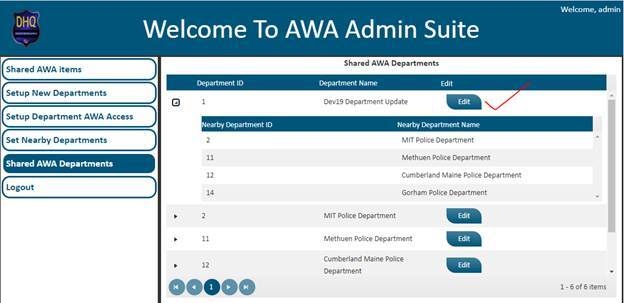
Here you can see the list of all departments. To see the associated nearby departments click on expand icon as below.
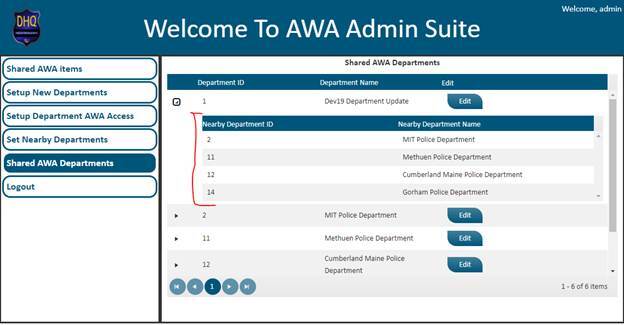
After clicking on expanding the department row will be expanded and you can see the list of all nearby departments of that selected department as below.
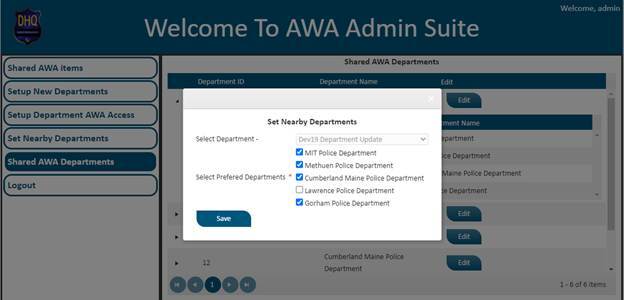
Here you can also add/remove nearby departments. For doing same click on edit button as below
After clicking on edit button a new pop window will be appeared as below.
9. View Shared AWA Items -
Click on ‘Shares AWA Items’ from the left navigation.
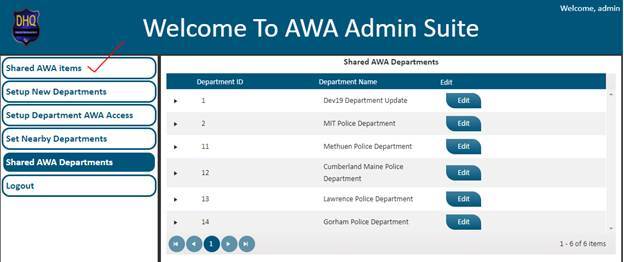
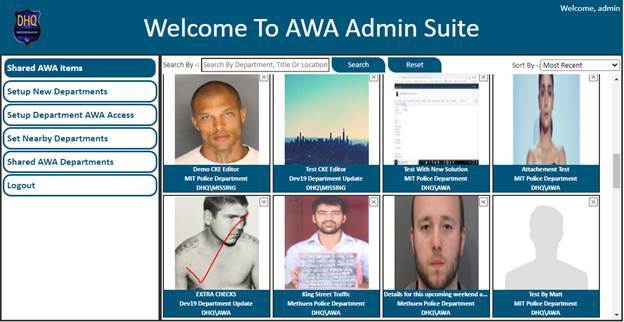
Now a new screen will appear as below.
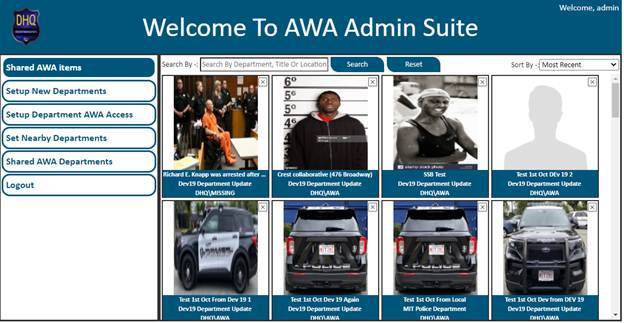
Here you can see the different-2 AWA items which are shared by different-2 departments. You can also search for any AWA item by their title, location or shared by department. For search just enter the search text inside textbox and hit the Search button. Your search result will be displayed as below
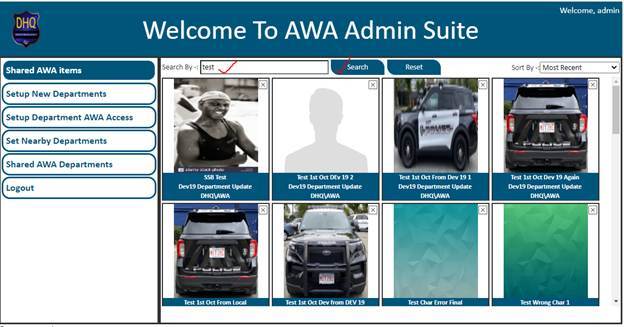
To reset your search just click on reset button. Your search will be rest and all AWA items will be displayed again as below.
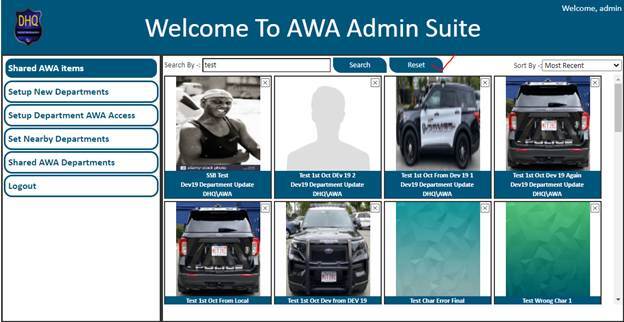
You can also sort all AWA items by selecting Sort By option from the dropdown as below.
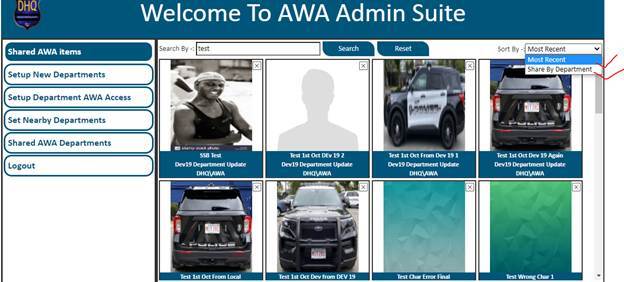
Once you select option from Sorted By dropdown items will be sorted as below.
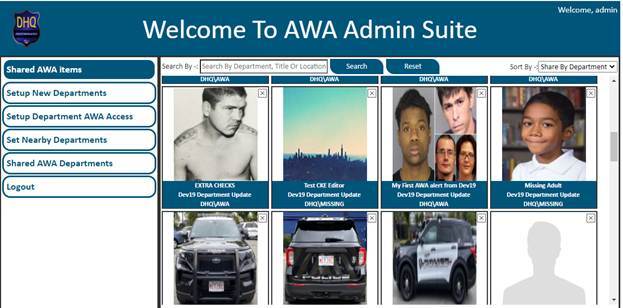
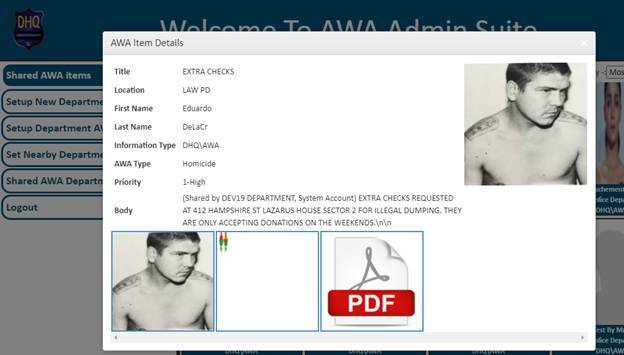
If you want to see the details of any AWA item just click on that item (square box) as below.
A new pop window will be appeared which holds all the information of that AWA item as below.
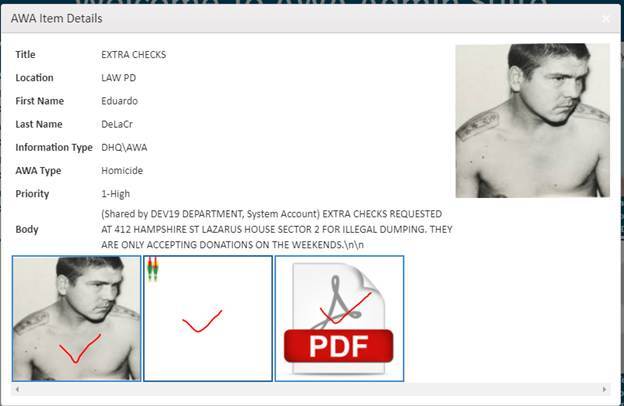
Here you can also preview/download the AWA item attachments. For preview/download any attachments, just click on any attachment (square box) available inside bottom of pop up as below.
After clicking on any attachment, that attachment will be downloaded or preview as below.
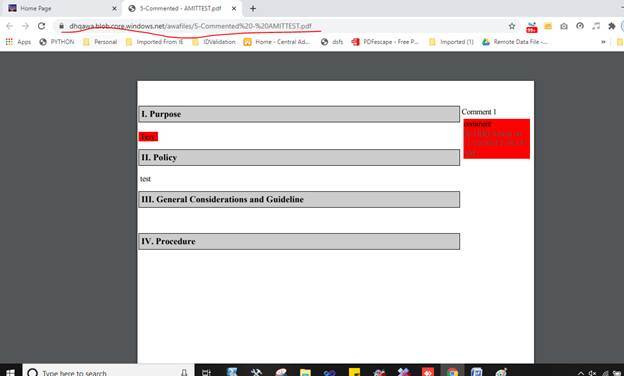
Here you can also preview/download the AWA item attachments. For preview/download any attachments, just click on any attachment (square box) available inside bottom of pop up as below.
10. Logout -
For logging out from the system just click on ‘Logout’ button inside the left navigation.
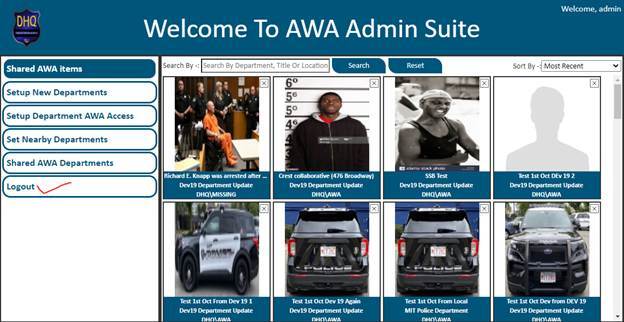
You will be logged out successfully.