
AWA Rollcall Admin Guide
Created by Greg Katz, Modified on Fri, 4 Apr, 2025 at 8:04 AM by Greg Katz
There are a few pages or settings where admin can view and export the reports.
- Re-share rollcall items
- Export AWA versions history
- AWA attachment history
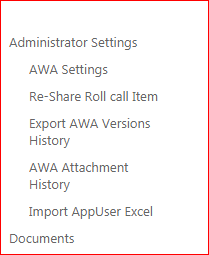
- Re-share rollcall items: This link is used to re-share local item to AWA (mobile users and nearby departments).

Now hit share button to edit if required before sharing it to AWA.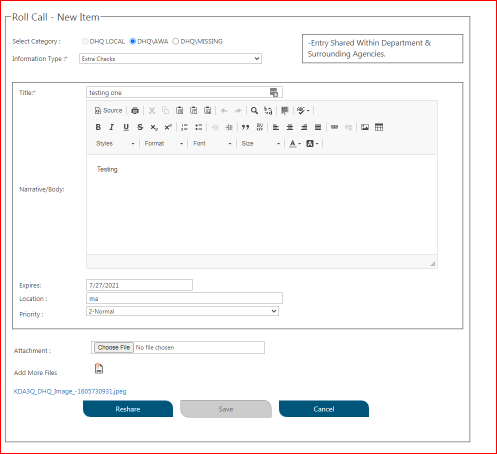
- Export AWA versions history: AWA version history is used to see history of AWA item (all the changes done over the time).

- AWA attachment history: This page is to export all the attachment logs for AWA items only where you could see/export how has done and what.
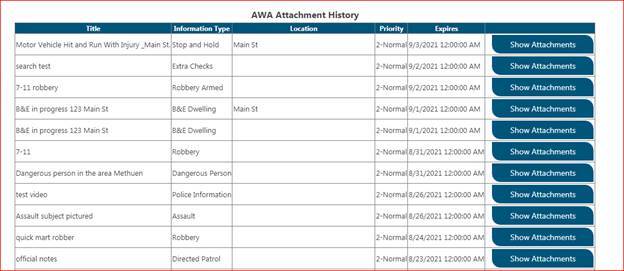
AWA App User Setup:
In left nav, you can see Setup AWA app users link which will redirect you to app existing app users detail screen
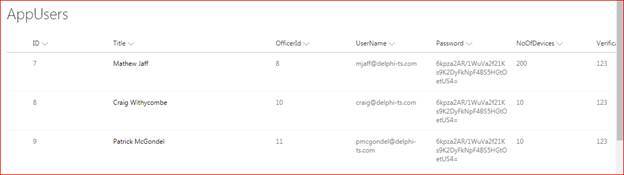
Add New User:
To add new users for mobile app just click new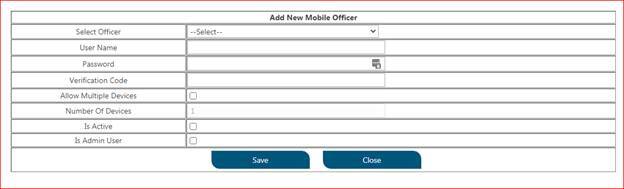
Now select officer name from dropdown then username(email) would be auto populated, fill out other details as required.
Edit user account: If admin needs to update mobile user detail back to system just select the officer row and then hit edit.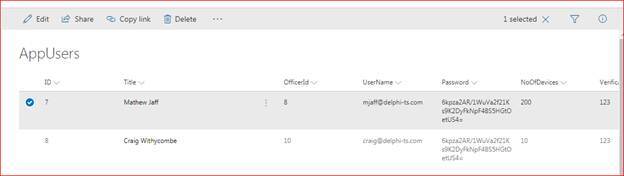
Here admin can perform a few more things other than edit the record.
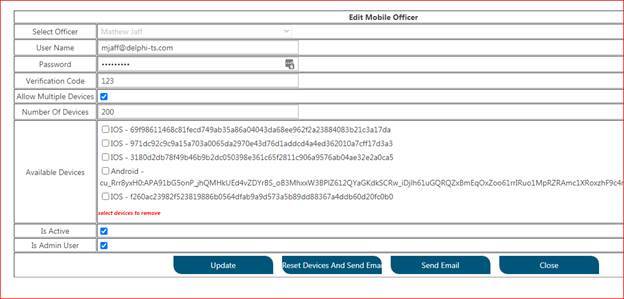
Admin can reset the device/mobile list from there, also admin can send email for updated details after update.
Admin can set users inactive from there too. If in a case officer mobile compromised/stolen, then admin even can reset from remote location
Reset/disabled AWA account stolen device
E.g., User currently used three devices, and all the devices unique number will be displayed on officer profile screen (see above) here you can see mobile type (IOS or Android).
When one device/mobile is stolen out of three devices, officer needs to open their AWA app in the remaining two devices and go to the settings section in the mobile app.
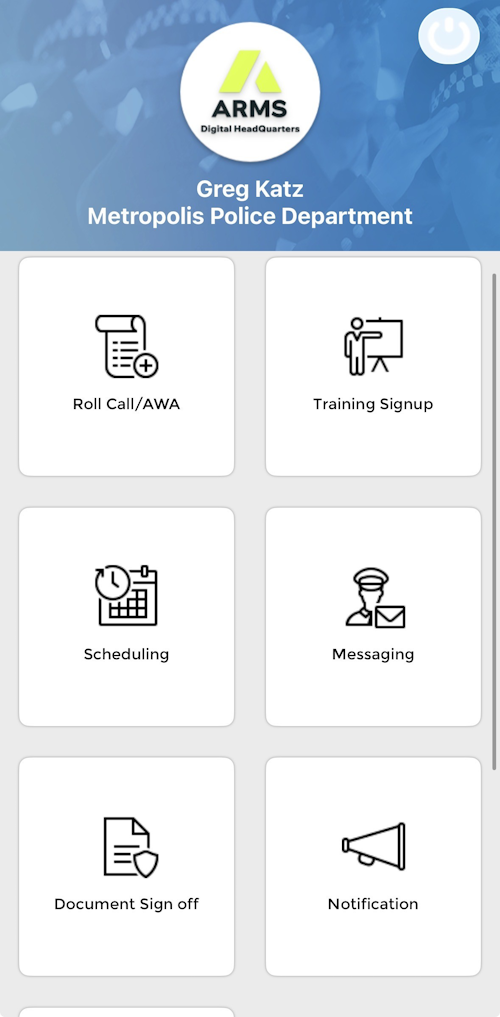
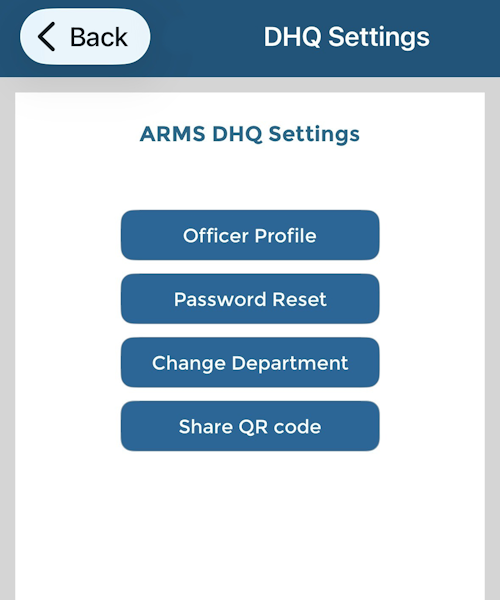
Hit share QR code, officer can share it or copy it and send it to admin over text or email.
Then Admin needs to scan the QR code and after scan admin can see what the active device unique numbers are.
Then stolen device’s ID can be eliminated from user detail screen.