
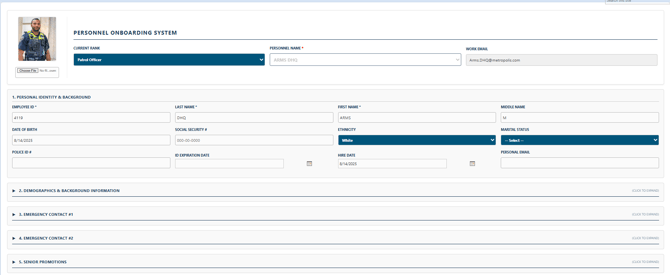
The Personnel Card is DHQ's "Employee File." In order for DHQ to function as designed, every employee requires a Personnel Card. The Personnel Card is integrated with most DHQ modules, and without it, the system will not function properly.
This document explains how administrators can update Officer Hours in the Personnel Data Card. These hours are used throughout DHQ, including:
- Schedule Management
- Training Programs
- Time-Off Requests
- Details/Overtime System.
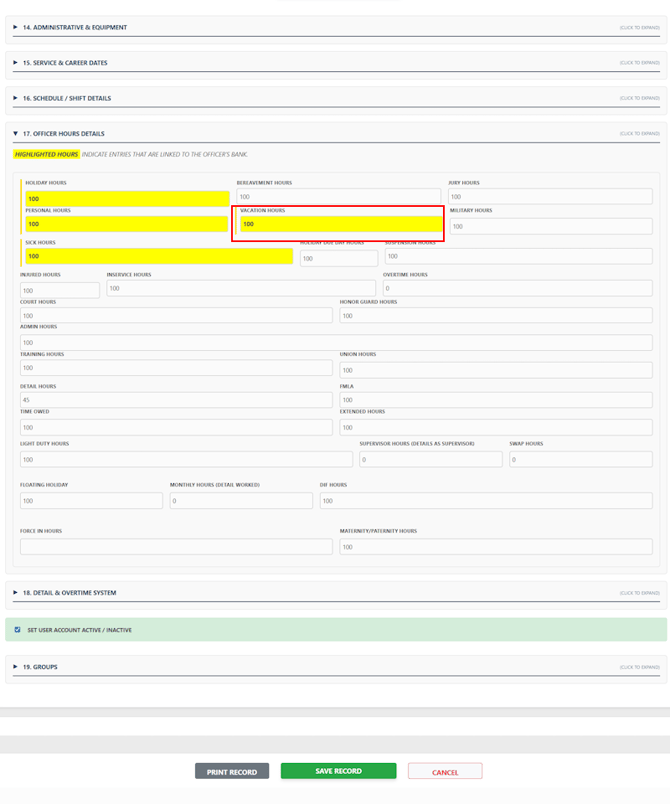
Hours that are configured as Bank Categories are highlighted with a yellow background. These categories are used by the Time-Off Request module to track and deduct available balances.
Note: Bank categories can be configured by administrators through the Bank Setup page. Any hour category configured as a bank will automatically be highlighted in yellow within the Personnel Data Card.
Accessing the Personnel Data Card
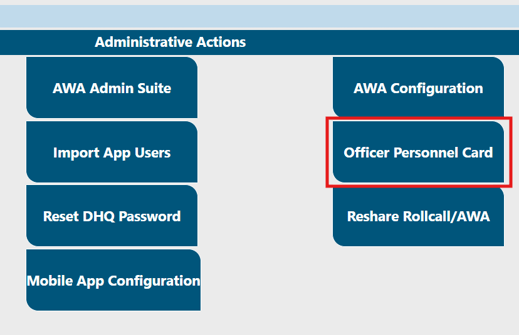
To begin, access the Administrative Links page on your DHQ site.
This page is often available from a link on your DHQ home page, or you can browse directly to:
https://yoursite.policedhq.com/SitePages/AdministrativeLinks.aspxFrom the Administrative Links page, click on Officer Personnel Card.
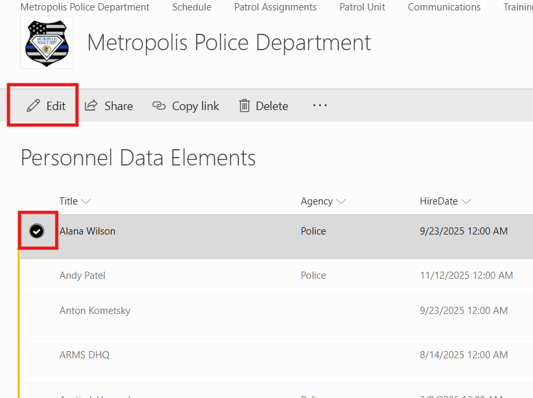
Opening the Officer Hours Section- Search for and open the desired officer's Personnel Data Card.
- Expand the Officer Hours Details section.
- Review the available hour categories.
The Officer Hours section contains various categories such as:
- Admin Hours
- Bereavement Hours
- Court Hours
- Detail Hours
- FMLA Hours
- Holiday Hours
- Honor Guard Hours
- Injured Hours
- In-Service Hours
- Jury Hours
- Light Duty Hours
- Military Hours
- Overtime Hours
- Personal Hours
- Sick Hours
- Suspension Hours
- Training Hours
- Union Hours
- Vacation Hours
- And other department-specific categories
The system displays Bank Categories with a yellow background.
Examples from the screenshot below include:
- Holiday Hours
- Personal Hours
- Sick Hours
- Vacation Hours
These balances are used when officers submit Time-Off Requests and are automatically referenced by the scheduling and leave management modules.
Important: Updating a bank category directly changes the officer's available balance for that leave type.- Updating Officer Hours
To update an officer's hours:
- Open the officer's Personnel Data Card.
- Navigate to the Officer Hours Details section.
- Locate the desired hour category.
- Enter the appropriate number of hours.
- Verify the value entered is accurate.
- Click Save to update the Personnel Data Card.
Example
If an officer is awarded additional vacation time:
- Locate Vacation Hours.
- Enter the new available balance.
- Save the Personnel Data Card.
The updated balance will immediately be available for Time-Off Requests and related scheduling functions.