
Creating a Personnel Card
Created by Greg Katz, Modified on Tue, 8 Jul, 2025 at 11:50 AM by Greg Katz
The Personnel Card is DHQ's "Employee File". In order for DHQ to function as designed, every employee requires a card. The Personnel Card is integral with most of the DHQ modules, and, without it, the system will not function properly.
Prior to creating a personnel card, the employee must exist in the root directory. Depending how your site is setup this can mean Office 365, DHQ Active Directory or Forms Based Authentication. Once they are added to the root directory you can create the personnel card.
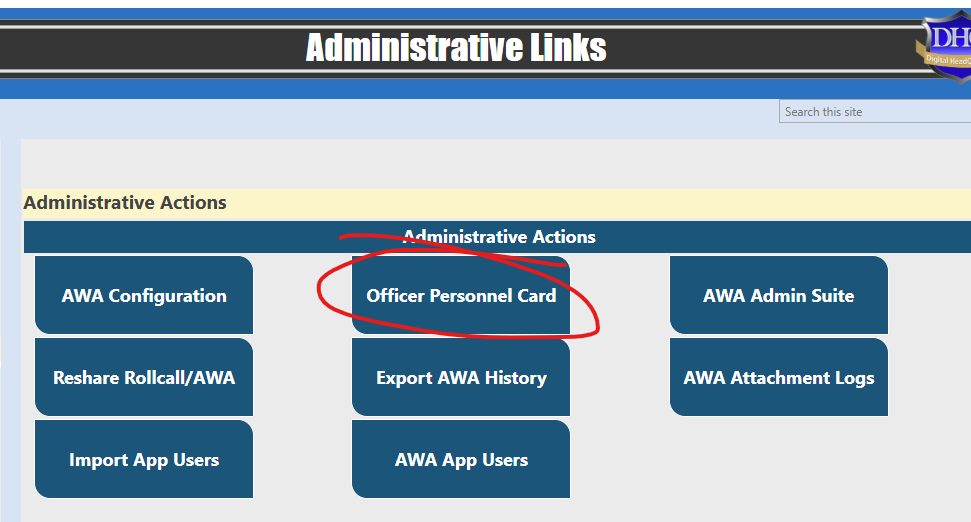
To begin, access the "Administrative Links" page on your DHQ site. This is often accessed from a link on your home page, or you can add the following to your DHQ site URL https://yoursite.policedhq.com
/SitePages/AdministrativeLinks.aspxThen, click on "Officer Personnel Card":
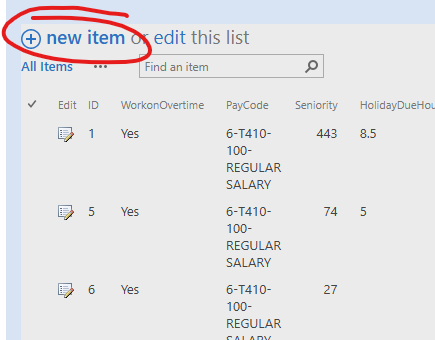
Click on "new Item" to create a new card:
Connect the employee to the personnel card by picking them from the "Officer" drop down menu. All employees in the directory will appear on this list:
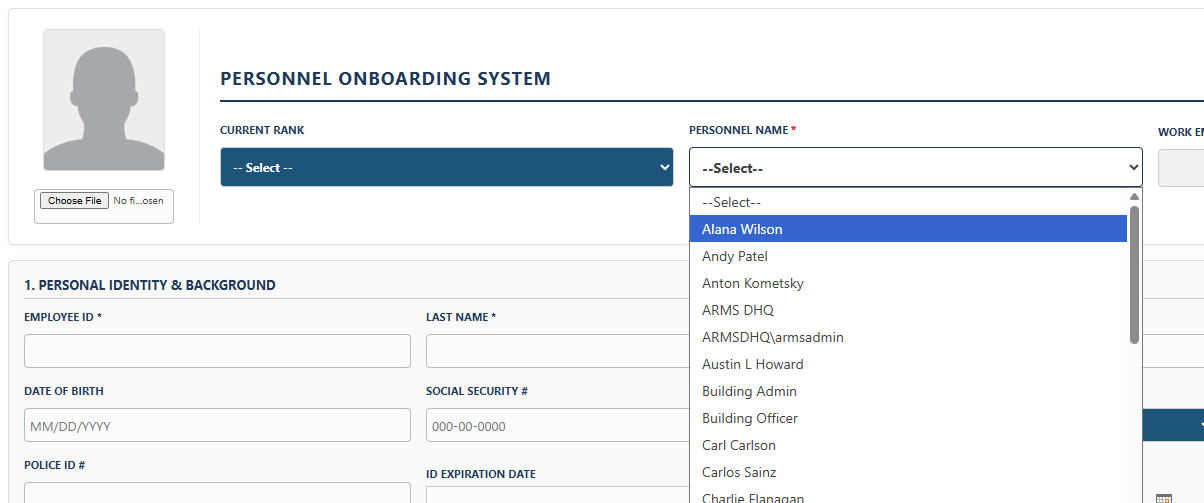
Once the employee is picked off of the list the user's email address will backfill to the "Work Email" field:

Complete the Employee ID, Last name and First Name fields at the top. Employee ID can be a unique number that your agency already uses for its employees or something unique to the DHQ system.
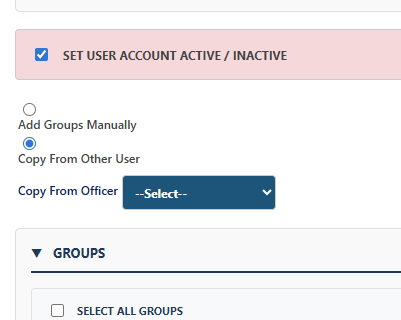
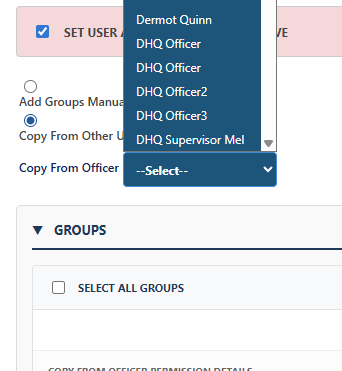
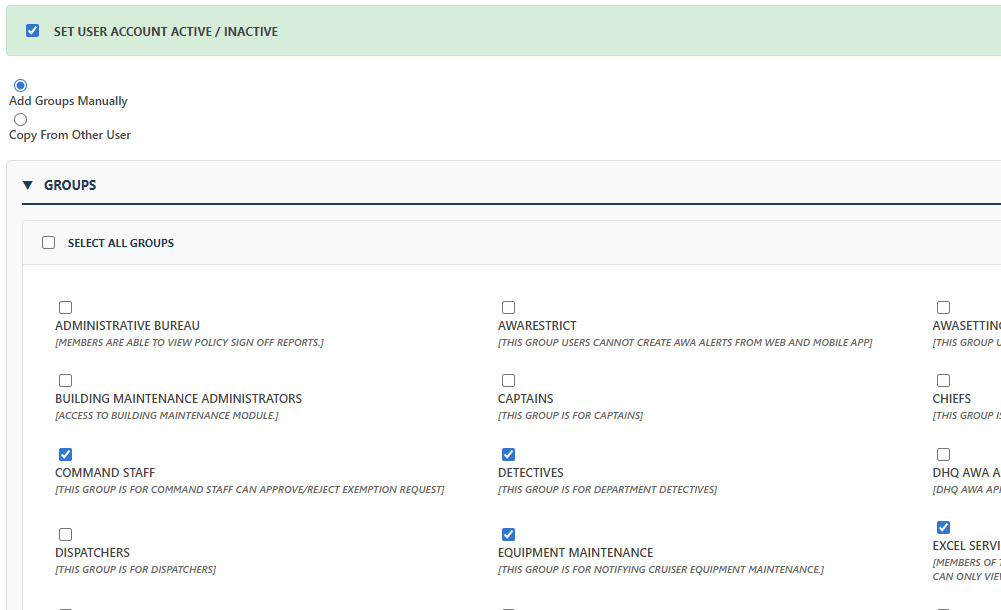
Lastly, you may assign user permission details at the bottom of the card by clicking the appropriate groups or by copying permissions of an existing user.
To copy permissions, go to the top of the "Group Permission Details" section and click the radio button titled "Copy from Other User" and select the user to copy from:
Click "Save Record" to complete the record.
For more information about DHQ permissions please see the DHQ 5.0 Permissions (Full Guide)