---
title: DHQ Message Module
description: Message Module
---
[Skip to content](https://kb.arms.com/dhq/dhq-message-module#main-content)
English
Show submenu for translations

Open main navigation
Close main navigation
- English
Show submenu for translations
- Contact us
Contact us
How can we help you?
- There are no suggestions because the search field is empty.
1. [DHQ](https://kb.arms.com/dhq?hsLang=en)
2. [User Guides](https://kb.arms.com/dhq/user-guides?hsLang=en)
3. [Messaging](https://kb.arms.com/dhq/user-guides?hsLang=en#messaging)
# DHQ Message Module
**DHQ Message Module**
Created by Greg Katz, Modified on Fri, 7 Nov, 2025 at 9:25 AM by Greg Katz
The DHQ Message module sends push notifications to DHQ APP users and tracks them; it is primarily used for paging purposes.
**Feature:**
1. Administrators can create groups to share information, such as a department Patrol Officer, Sgt., and Lt. You can form groups.
2. However, regular users can also send messages to individual users.
3. The administrator can track the messages sent by users.
**Add New User/Group**: The administrator can add new users or groups for message purposes; these users are the same as personnel data cards, but we used to create a separate list for the Messaging app and limit users' access to these features.
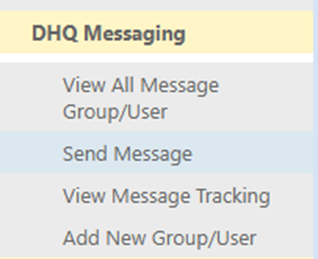
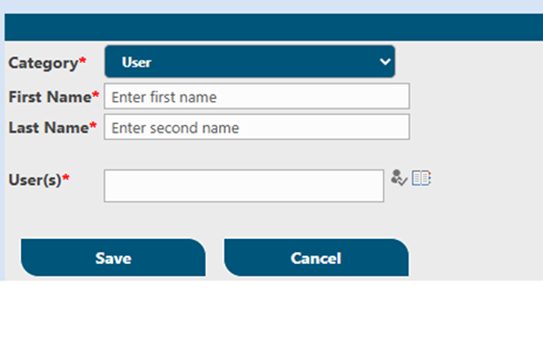

Select the category User, the user's first and last name, and then load the users from your Active Directory.
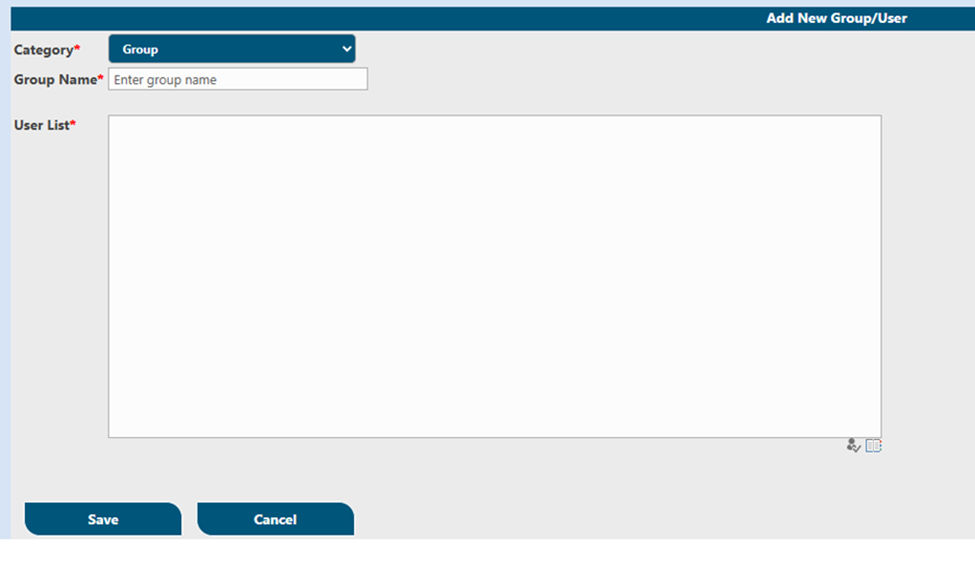
For Groups: Select the category and enter a group name such as IT Support.
Load the users you want to add to this group and save them.
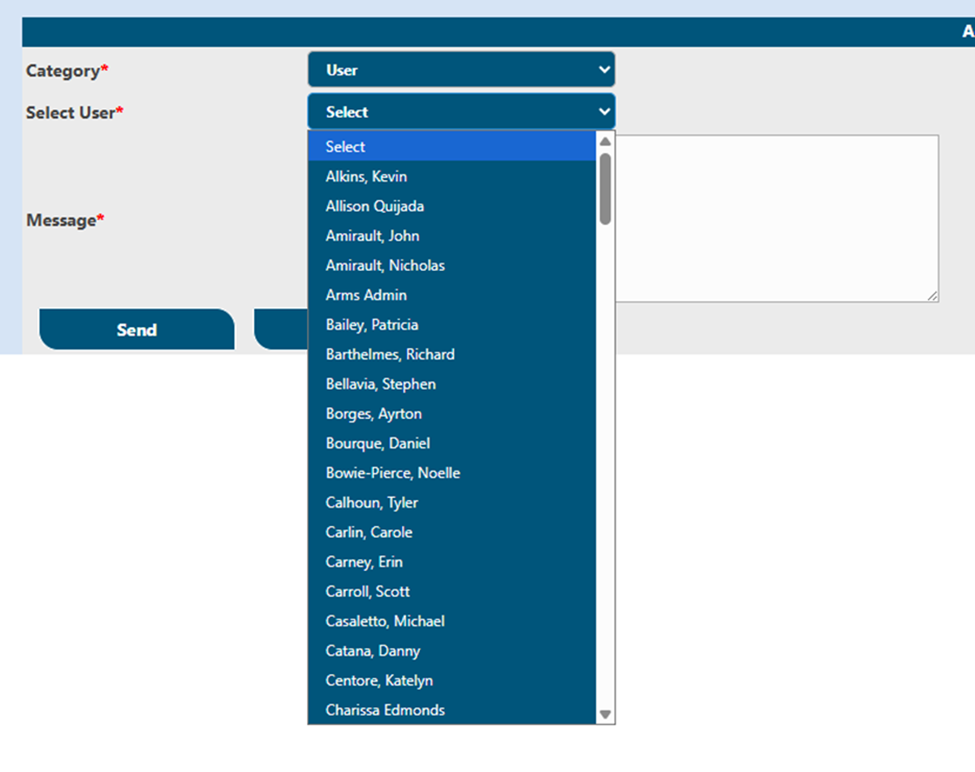
Messages can be sent from both the web and apps.
You can click on the Send Message link and see the following: Select the category as User, select the user you want to send message to, and type your message (message body can be up to 250 characters). Hit the send button.
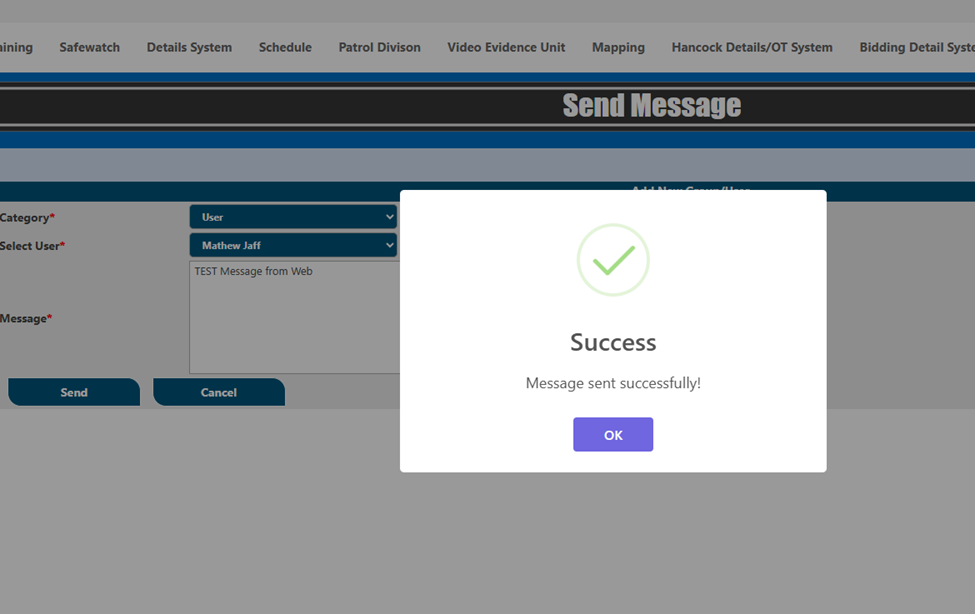
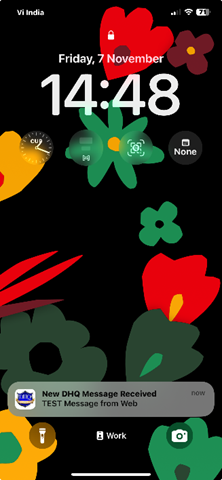
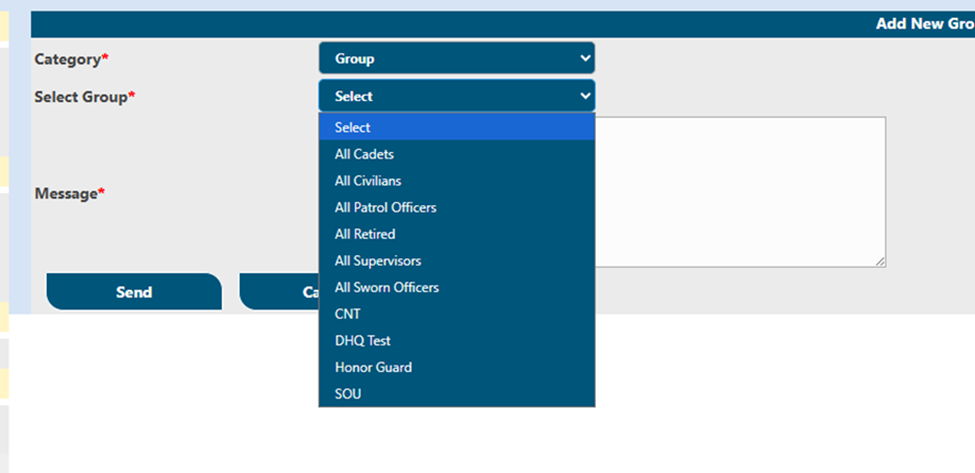
**For Group message**: Everything is the same except the Category should be Group and select your group to which you want to send message.
Once message is sent to user OR Group can see it on the web and App as well.When you click on View Message Tracking, you will see the screen shown below.
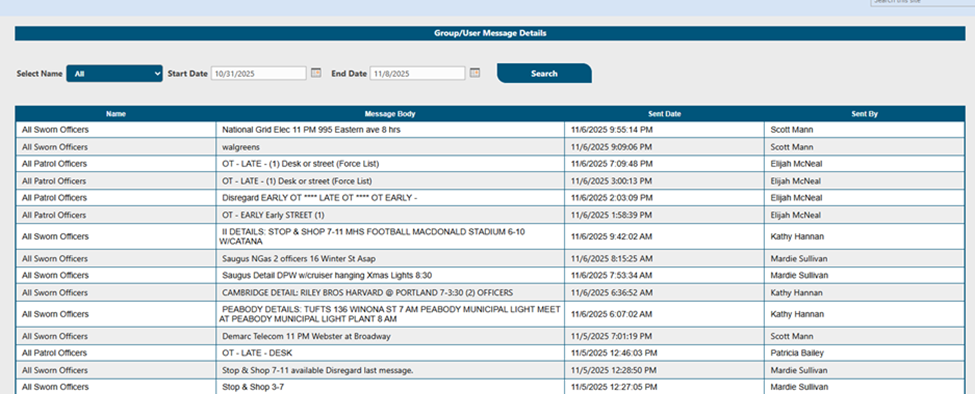
You can use filters to narrow down your search results based on a specific date range.
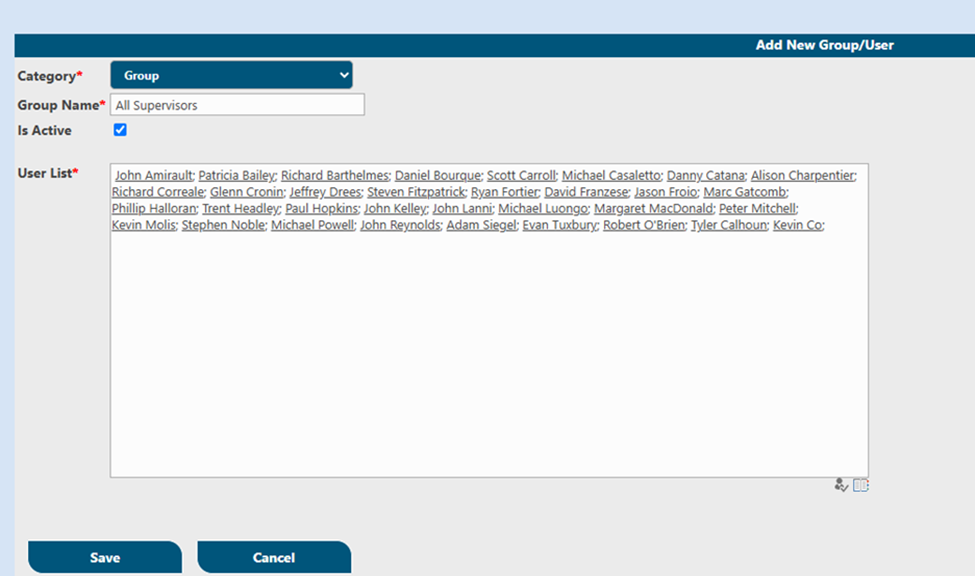
Admin can add and remove users from groups in the Message module, so clicking View all Message Group/User will display the screen below**.**
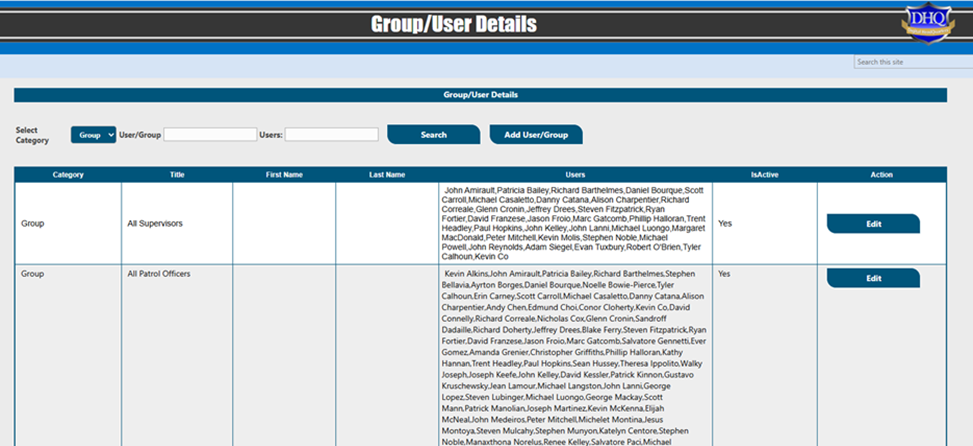
Here, you can set the filters for groups or users and hit edit to add or remove anyexisting. Administrators can even archive the record if it is no longer required.
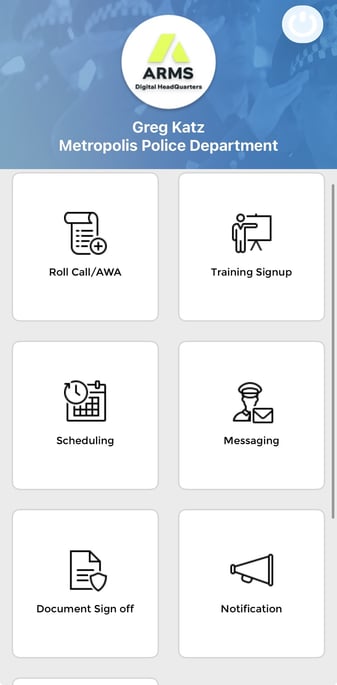
On DHQ App you will see following menu on the mobile app home page.
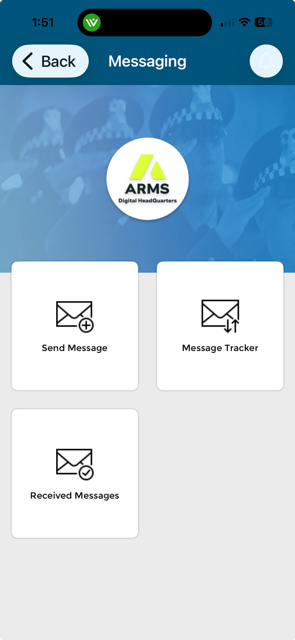
Click on Messaging-you will see three options to use this module- Send message to send messages, Message tacking to view all sent messages and Received Message will show you all the messages login you have received.
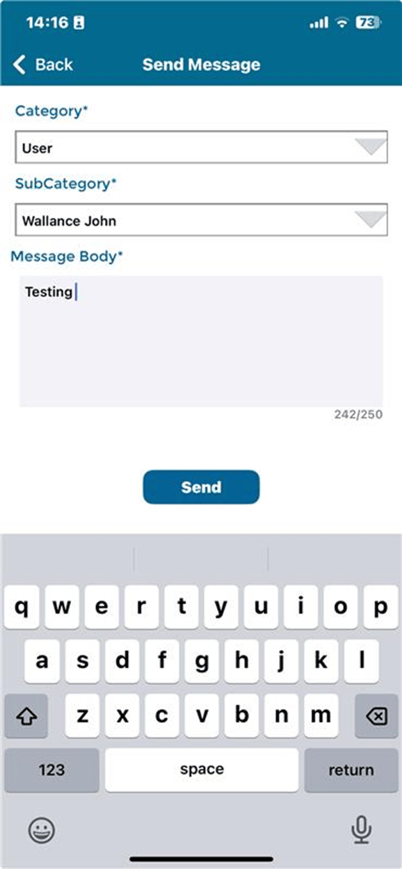
Send Message: Tap on send message button on the app and select the category you want to send message (User/Group) Subcategory will be automatically populated
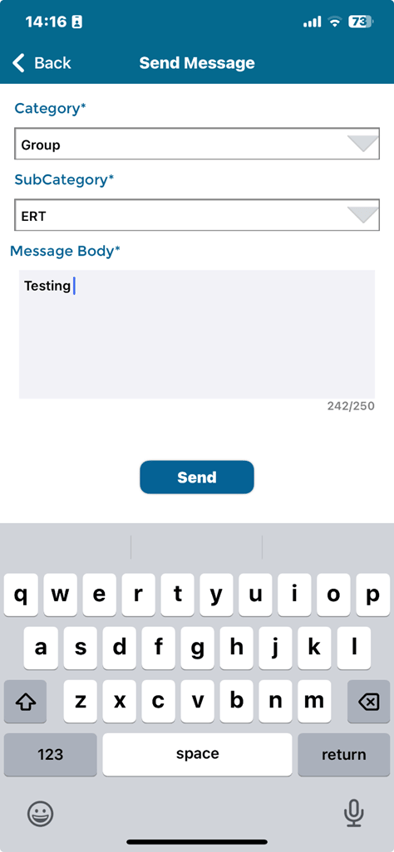
Send to group:
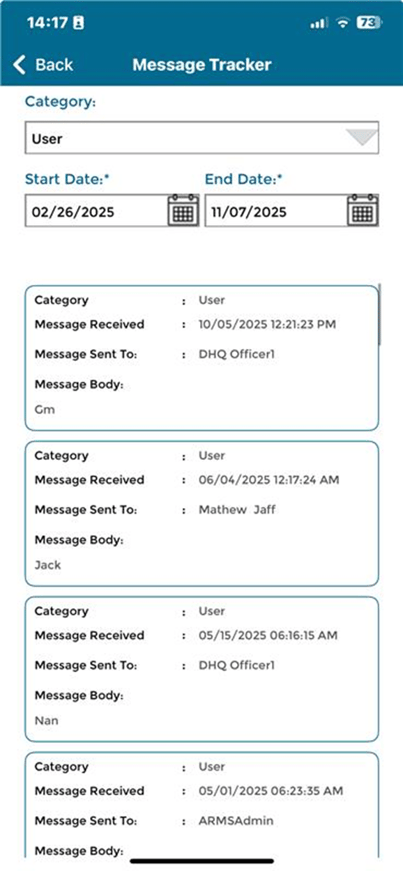
Track Message: Tap on it will show you all the message you sent.
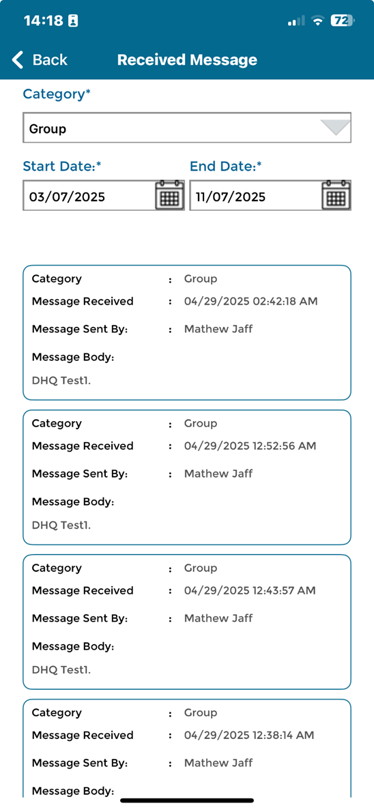
Received Message: When user tap on this button, user can see all the received messages from user OR Group.
- [Administration Guides](https://kb.arms.com/dhq/administration-guides?hsLang=en#main-content)
- [AWA Roll Call](https://kb.arms.com/dhq/administration-guides?hsLang=en#awa-roll-call)
- [Cruiser Check](https://kb.arms.com/dhq/administration-guides?hsLang=en#cruiser-check)
- [Detail Bidding](https://kb.arms.com/dhq/administration-guides?hsLang=en#detail-bidding)
- [Document Sign Off](https://kb.arms.com/dhq/administration-guides?hsLang=en#document-sign-off)
- [Forms Based Authentication](https://kb.arms.com/dhq/administration-guides?hsLang=en#forms-based-authentication)
- [Microsoft Office Settings](https://kb.arms.com/dhq/administration-guides?hsLang=en#microsoft-office-settings)
- [Mobile App](https://kb.arms.com/dhq/administration-guides?hsLang=en#mobile-app)
- [Office 365/Azure Connection](https://kb.arms.com/dhq/administration-guides?hsLang=en#office-365-azure-connection)
- [Passwords](https://kb.arms.com/dhq/administration-guides?hsLang=en#passwords)
- [Permissions](https://kb.arms.com/dhq/administration-guides?hsLang=en#permissions)
- [Personnel Cards](https://kb.arms.com/dhq/administration-guides?hsLang=en#personnel-cards)
- [Smart Police](https://kb.arms.com/dhq/administration-guides?hsLang=en#smart-police)
- [Scheduling](https://kb.arms.com/dhq/administration-guides?hsLang=en#scheduling)
- [Training](https://kb.arms.com/dhq/administration-guides?hsLang=en#training)
- [Quartermaster](https://kb.arms.com/dhq/administration-guides?hsLang=en#quartermaster)
- [Register New User](https://kb.arms.com/dhq/administration-guides?hsLang=en#register-new-user)
- [User Guides](https://kb.arms.com/dhq/user-guides?hsLang=en#main-content)
- [AWA Roll Call](https://kb.arms.com/dhq/user-guides?hsLang=en#awa-roll-call)
- [Cruiser Check](https://kb.arms.com/dhq/user-guides?hsLang=en#cruiser-check)
- [Event Tracking](https://kb.arms.com/dhq/user-guides?hsLang=en#event-tracking)
- [Messaging](https://kb.arms.com/dhq/user-guides?hsLang=en#messaging)
- [Mobile App](https://kb.arms.com/dhq/user-guides?hsLang=en#mobile-app)
- [Safe Watch](https://kb.arms.com/dhq/user-guides?hsLang=en#safe-watch)
- [Smart Police](https://kb.arms.com/dhq/user-guides?hsLang=en#smart-police)
- [Scheduling](https://kb.arms.com/dhq/user-guides?hsLang=en#scheduling)
- [Training](https://kb.arms.com/dhq/user-guides?hsLang=en#training)
- [Quartermaster](https://kb.arms.com/dhq/user-guides?hsLang=en#quartermaster)
- [Document Sign Off](https://kb.arms.com/dhq/user-guides?hsLang=en#document-sign-off)
- [DHQ Modules](https://kb.arms.com/dhq/dhq-modules?hsLang=en)
[](http://arms.com)
[mailto:email@email.com](mailto:email@email.com)
Copyright © 2026, End2End Public Safety