1. Configuring libraries and uploading documents
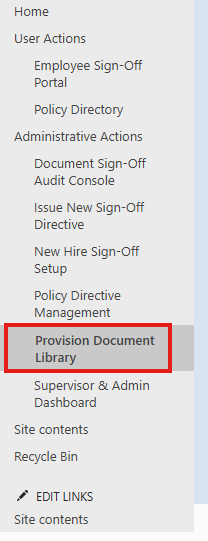
The first step for an Administrator with this module is to provision the libraries that will be used in the module (e.g. Policies & Procedures, General Orders, Memos, Rule & Regs, etc). To set up these libraries, click on "Provision Document Library":
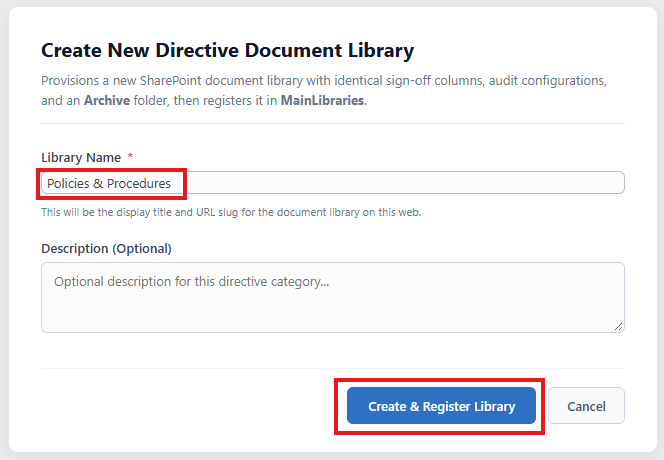
Type in a name for the new library and add a description, if desired. Click on "Create & Register Library":
After creating the library, click on "Policyicy Directive Management":
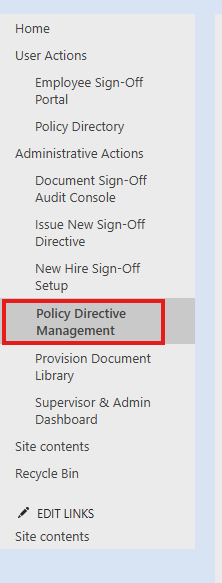
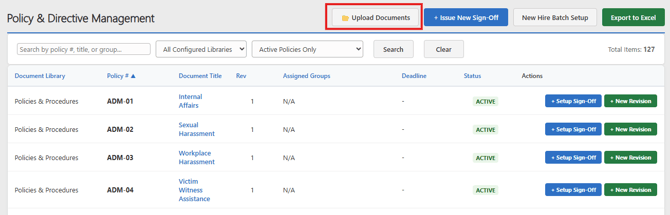
It is here that you will add your documents to the library just created. Click on "Upload Documents":
Select the library and the document to upload. This is also the place to include the document number and title. Doing this correctly from the start will create a clean, organized and alphabetical structure.
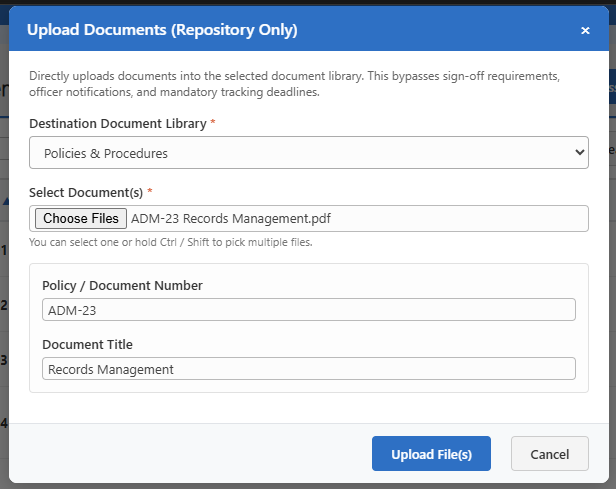
Continue this process until your manual is complete.
2. Policy & Directive Management
This is the main workspace to upload documents, search libraries, issue sign-offs and upload new revisions to existing documents:
Users have a similar workspace called the "Policy Directory" without the management features.
It is here that all the provisioned libraries can be viewed as well; both on the user directory and the management workspace. A search box, library filters and active/inactive filters are provided:

3. Issuing a Sign-Off
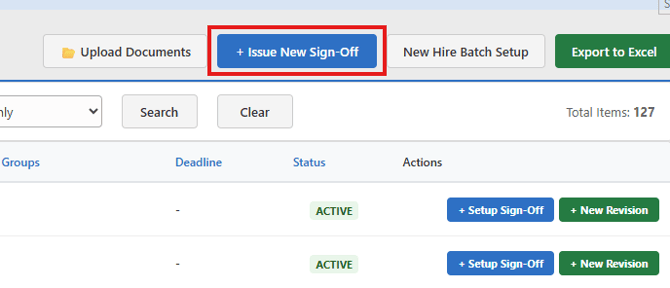
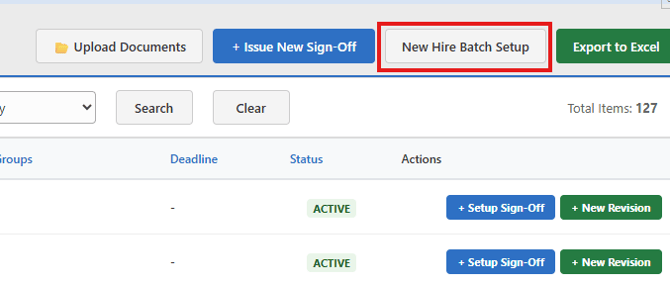
There are three buttons on the management screen to issue a sign off and all accommodate different scenarios:
The top button shown below is used when you're also uploading a new document at the same time as issuing the sign-off
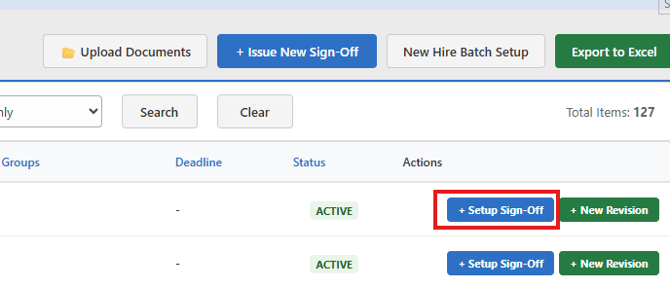
The button in line with each document is to create a sign-off for that document only:
The new hire batch is used for new hires for existing and previously signed off documents:
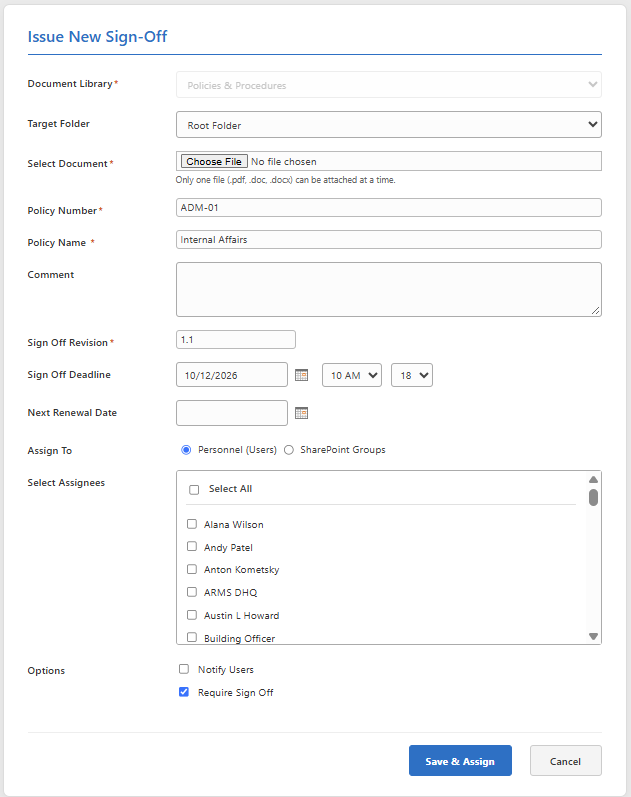
When adding a sign off for an existing document, click the button in line with it. The following form will appear:
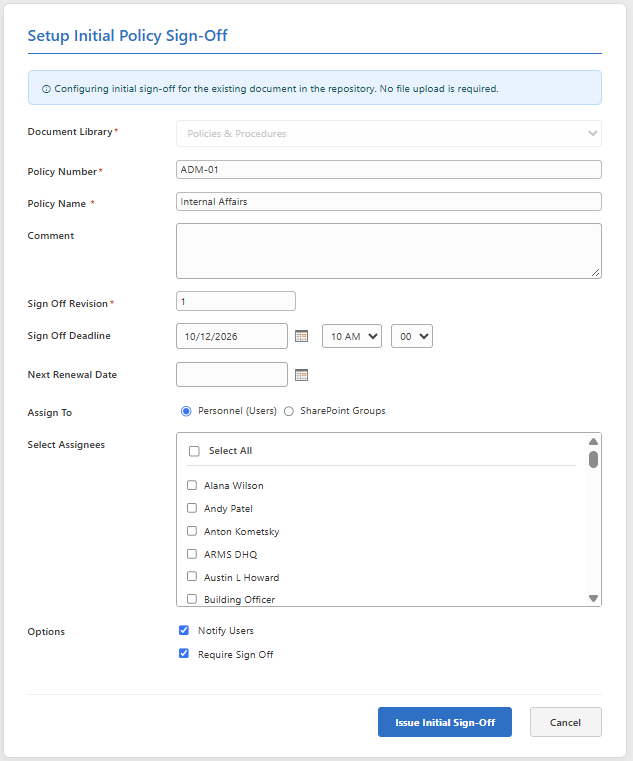
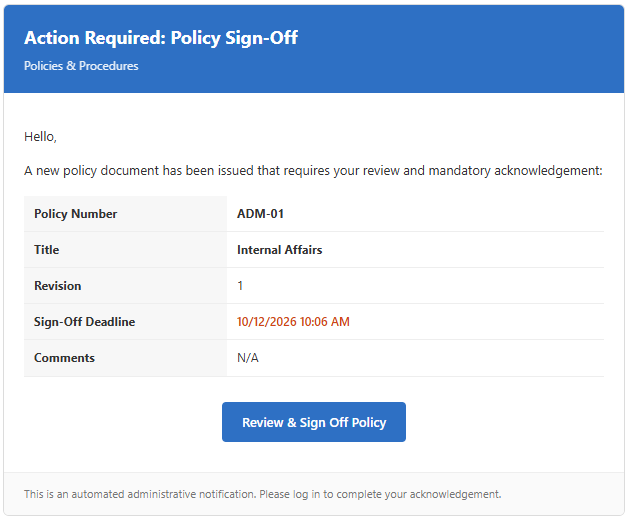
Administrators will need to specify a deadline for users to acknowledge and sign off. A renewal date is not required but can be used if the agency wishes to issue a new sign off at a certain interval. Sign offs can be issued to individual users or groups. And, finally, select the "Notify Users" to send an email notification to the assigned users. This email will send the sign off information as well as a link to follow. This email notification is in addition to a pop up on the DHQ website.
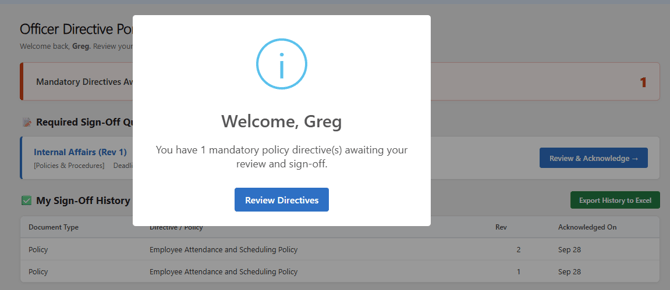
Website notification:
Email notification:
4. Acknowledging a sign off
The user sign off portal will present the user with a pop-up box alerting them to pending sign offs. Once the user acknowledges the pop-up they can interact with the pending review, etc:
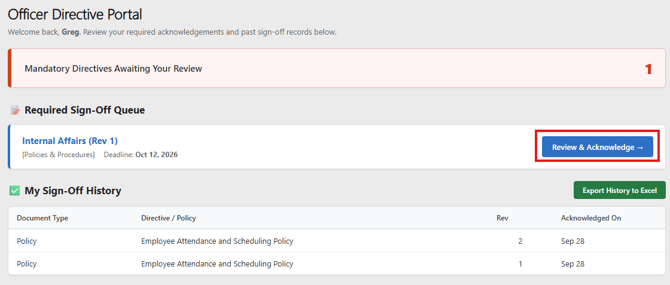
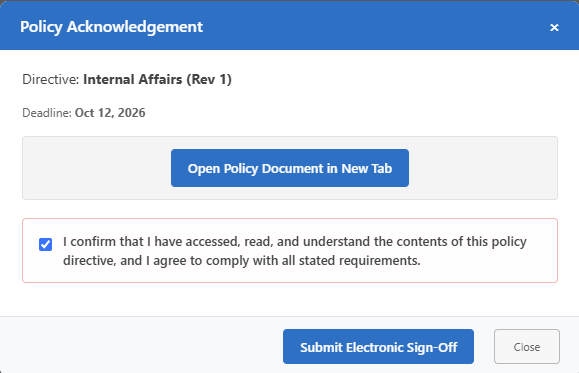
When the "Review & Acknowledge" is clicked, the following window, shown below, opens. Here the user can open the document in a new tab, then submit the sign off.
5. Adding a revised document
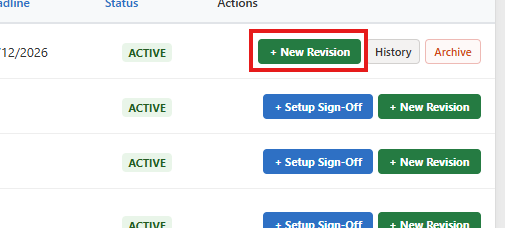
From Policy & Directive Management, find the document you wish to supersede and click on the "New Revision" button:
The same "Issue sign-off" form shown above will open but, will now contain the new revision number. The admin can now proceed with the new sign-off for the revised document.
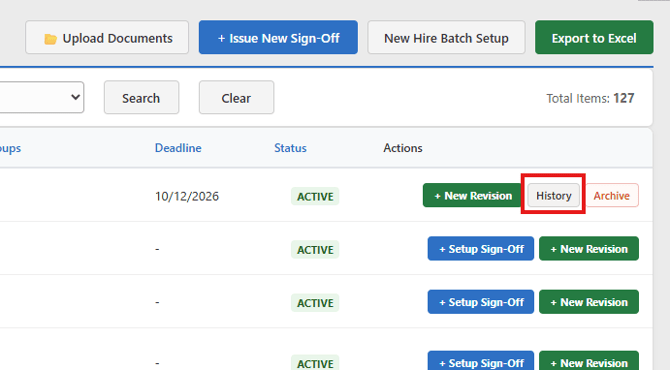
Once a revision has been added, a history is created. This feature is available to admins and users. Click on "History":
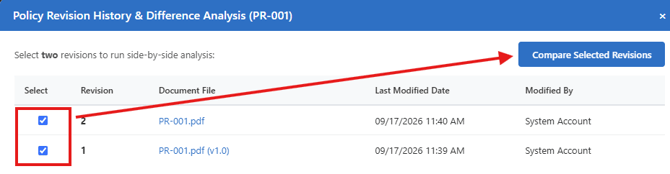
A window will open where each revision may be selected and compared:
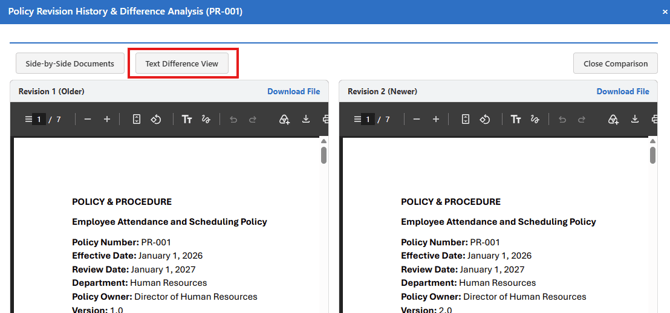
The documents will be displayed side by side. A "Text Difference View" button is also available to see what changed.
6. Archiving documents
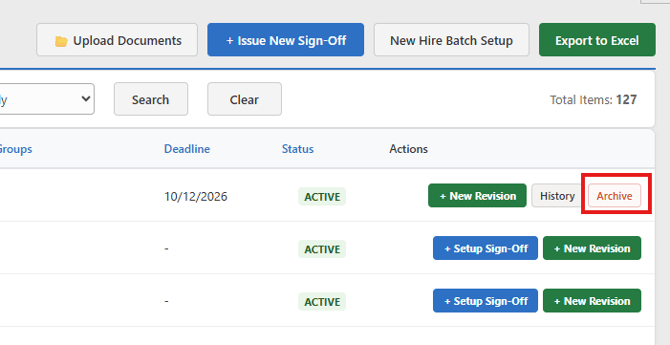
Once a document has been subject to a sign off, it is available to archive in cases where the document no longer holds relevance. Once archived, it will move to archived status and can be viewed from the management workspace by using the active/archived filters.
7. Policy Sign Off Dashboard
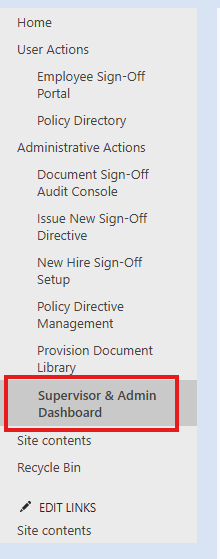
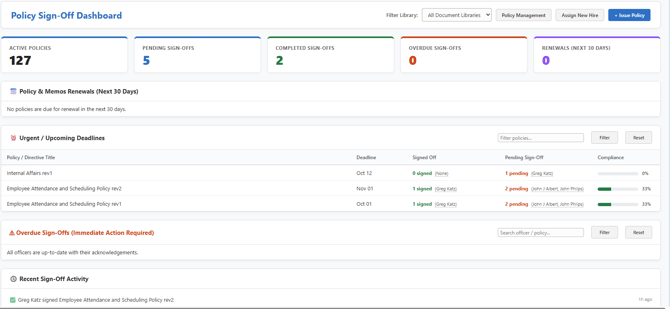
The dashboard displays the status of all sign offs in the system. Click on "Supervisor & Admin Dashboard":
8. Auditing and Reporting
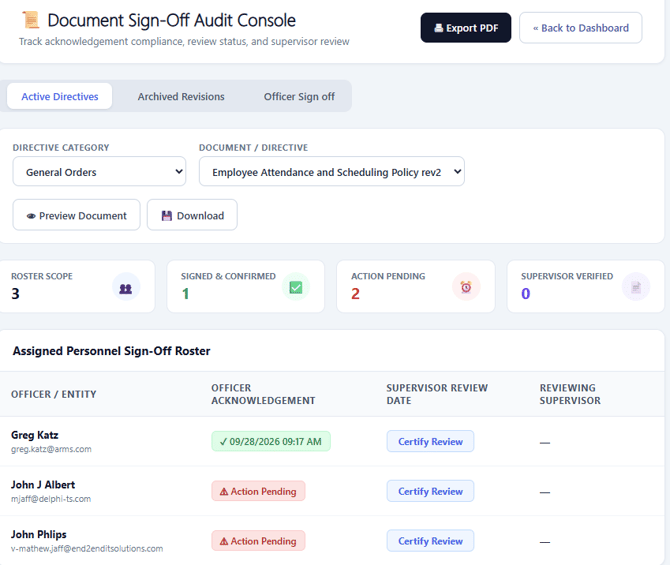
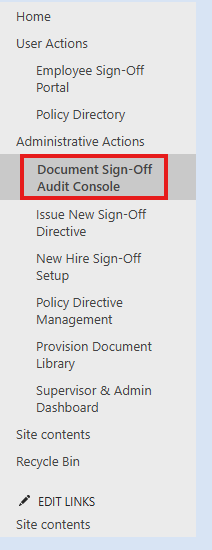
To track acknowledgement compliance, review status, and supervisor review click on "Document Sign-Off Audit Console":
Admins/Supervisors are able to track and monitor sign-offs, preview and download documents and export sign-off rosters.