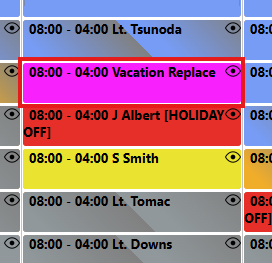
Click on "Add New Time Off" link on the left Nav or the from the schedule button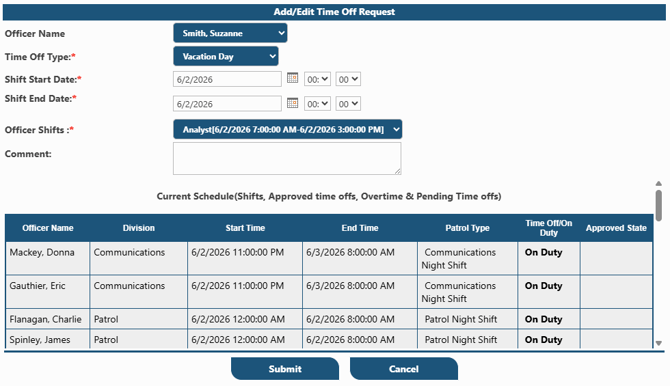
Click on Admin Add Event icon
Now to add admin events like VAC, Sick Leave, Personal Leave…. Select Officer Name
Select the Time type
Enter shift start date OR officer shift
If you want to add overtime entry in place of this officer schedule a confirm popup will be open when hit Save button
Click Submit
The time off entry will move to a pending request awaiting approval
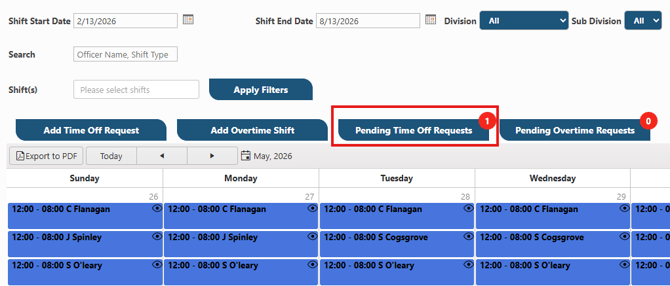
Click to open
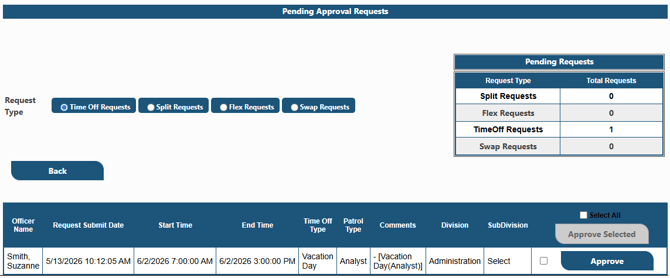
Click "Approve" or "Manage".
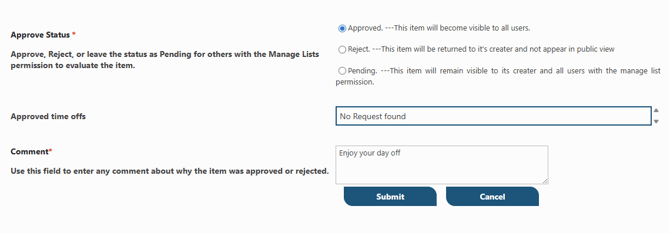
On the next page, the request can be approved, rejected or returned to pending status. Add a comment and click "submit"
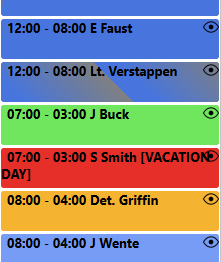
Days off will always appear in red
After submitting the system will offer the ability to add an OT shift to cover the time off
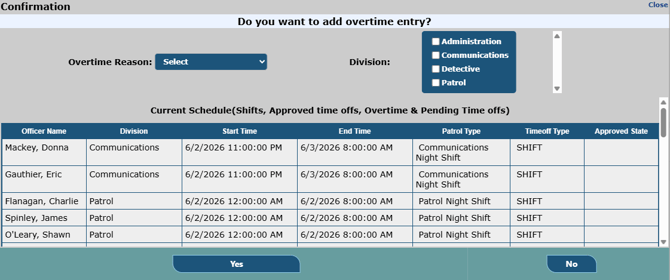
If no overtime is needed, click "No". If you want to add an overtime shift, add an OT reason, the division and click "Yes"
The OT shift will be displayed on the Calendar