
How shifts are filled depends on the agency configuration. This can be assigned manually by an admin or can be accommodated with an availability list where users can request open shifts.
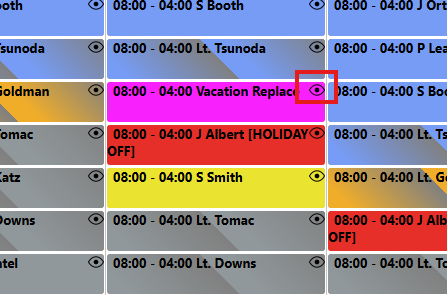
To manually assign an overtime shift. Click on the "Eye" from the calendar view
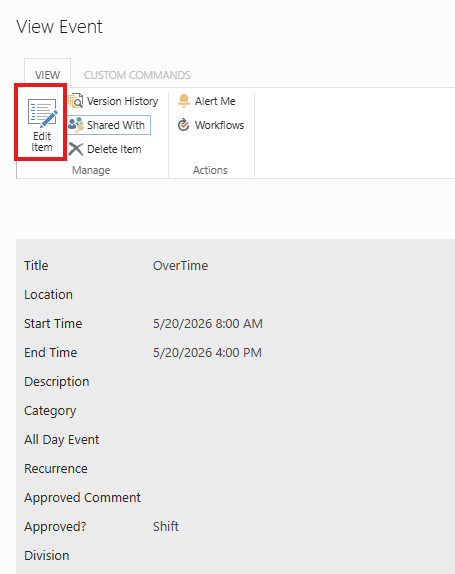
Then, click "Edit"
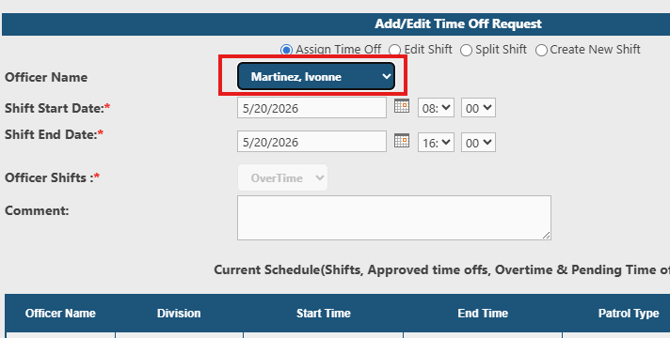
Assign an employee and click "Update"
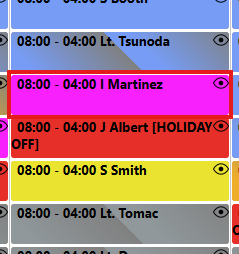
User is now assigned
Alternatively, OT openings can be posted to a list where users can request them
Click on left nav "manage open shifts" under officer-schedule section.
With the help of managing shift page, an officer can choose the open shift and send his/her interest on selected shifts.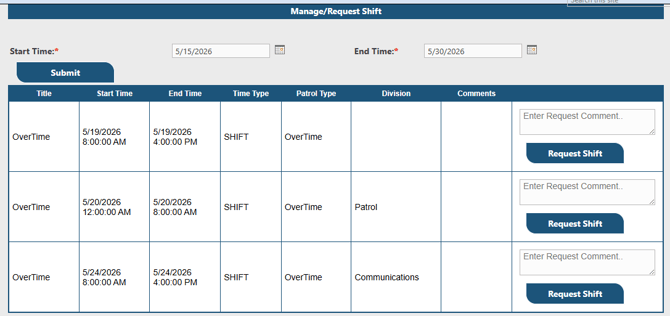
Officer must hit the request shift button. An email notification will be sent to admin with all details.
When Admin receives the officer interest they may approve/reject it.
Approving Open Shift request [Admin]
Click on the administrative link and then Pending Overtime Requests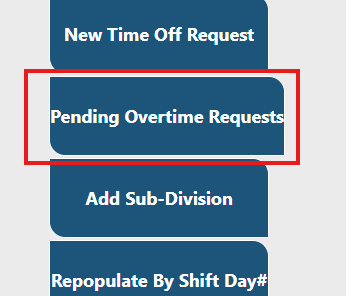
This will list down all the officer's interests in various jobs with an approve button at the end.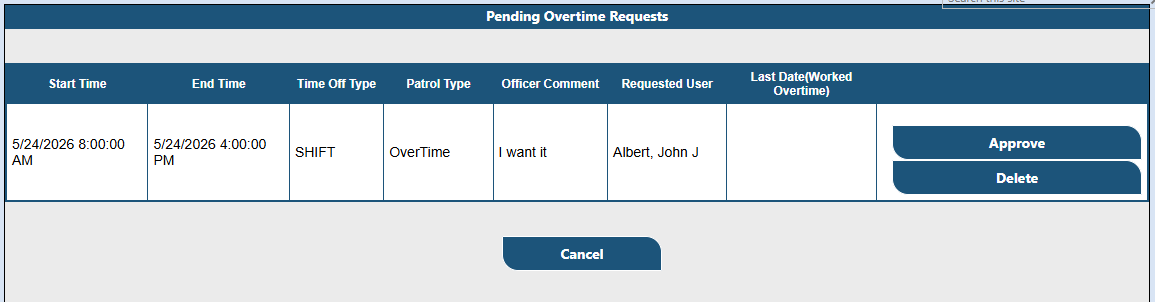
When admin hits the approve button, they have the option to reject/approve it with comment box.