---
title: Details - Invoice Cancelling & Regeneration
description: Details Invoices
---
[Skip to content](https://kb.arms.com/dhq/invoice-cancelling-regeneration#main-content)
English
Show submenu for translations

Open main navigation
Close main navigation
- English
Show submenu for translations
- Contact us
Contact us
How can we help you?
- There are no suggestions because the search field is empty.
1. [DHQ](https://kb.arms.com/dhq?hsLang=en)
2. [Administration Guides](https://kb.arms.com/dhq/administration-guides?hsLang=en)
3. [Detail Bidding](https://kb.arms.com/dhq/administration-guides?hsLang=en#detail-bidding)
# Details - Invoice Cancelling & Regeneration
### Details - Invoice Cancelling & Regeneration
Created by Greg Katz, Modified on Mon, 15 Sep, 2025 at 7:40 AM by Greg Katz
**Invoice Cancelling**
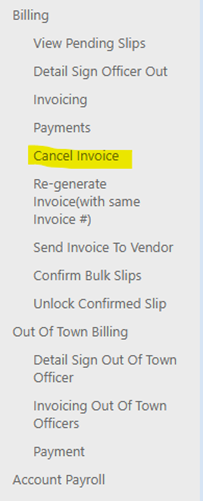
**Step 1** - Open Cancel Invoice page to cancel the already generated invoice.
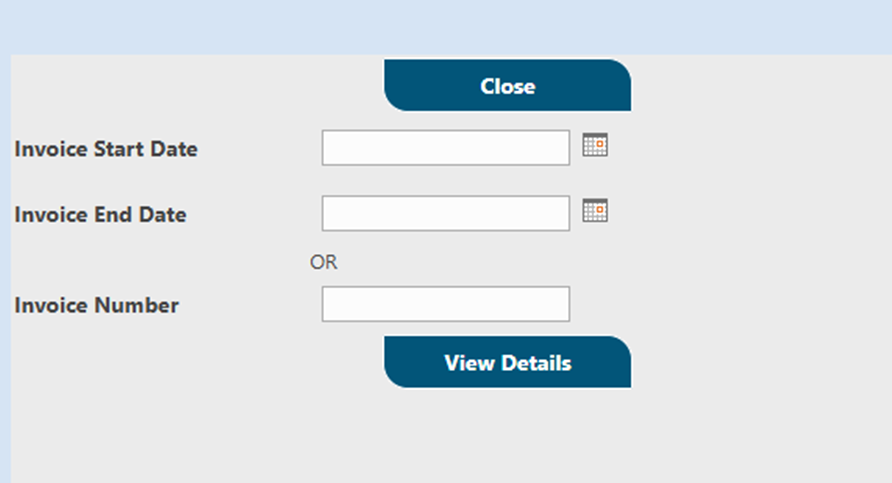
**Step 2** - Cancel Invoice page will display as show below and you need to enter your invoice number OR you can use Invoice start date and end date as well.
**Invoice Regeneration**
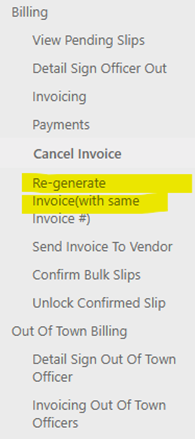
**Step 1** - Go to you left nav and click on Re-generate invoice
**Step 2** - you will see following page to regenerate form
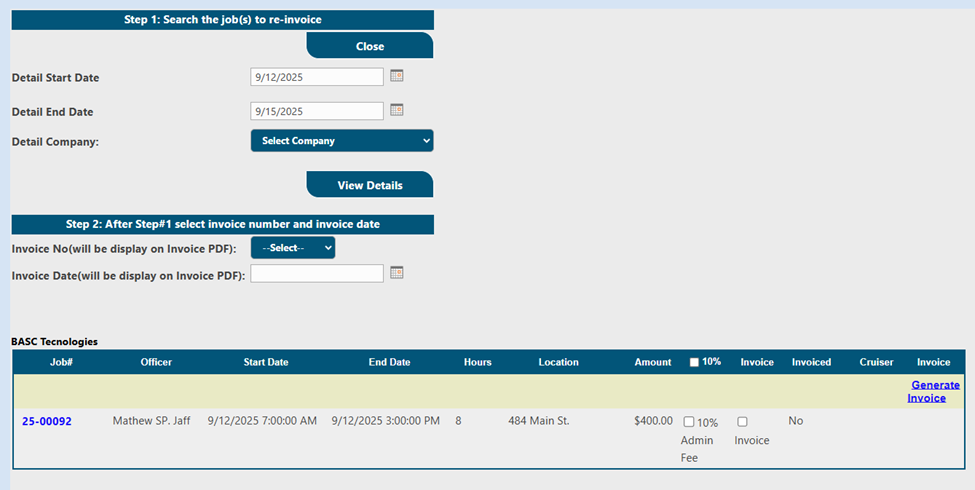
**Step 3** - Enter Detail Start date and End date of same range you have cancelled and select Company name to filter the jobs to be reinvoice. For example. I cancelled the invoice of 9/1 to 9/1 and invoice number was 25-I00006
For example, I have entered 25-I00006 which is my already generated invoice.
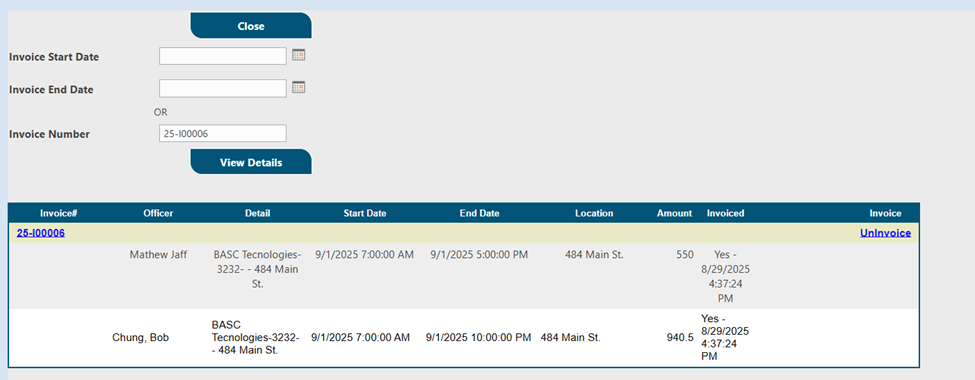
**Step 4** - Click on Invoice number to view the invoice content and invoice date. If you are sure that this is the right invoice you want to cancel, then hit un-invoice link on the right-hand side.
A confirmation will display as shown below.
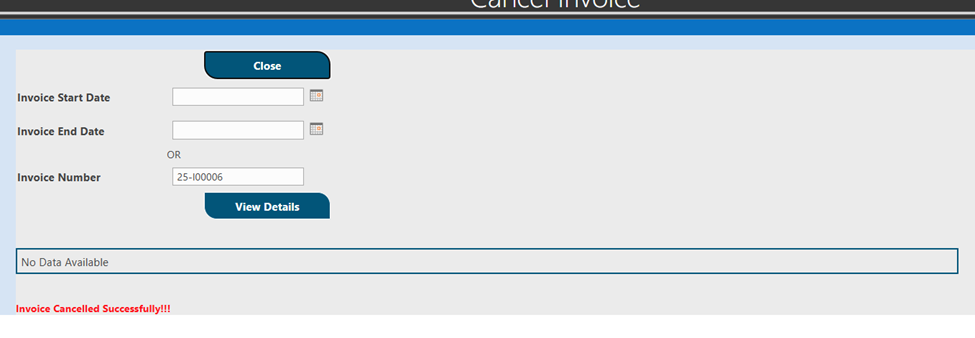
**Step 5** - Now you must make sure you can see all the records of your cancelled invoice on the above screen so that you can reinvoice them again.
Additionally, you have to select your invoice number from the dropdown and select your invoice date you want to print on the new invoice. (you can keep it same).
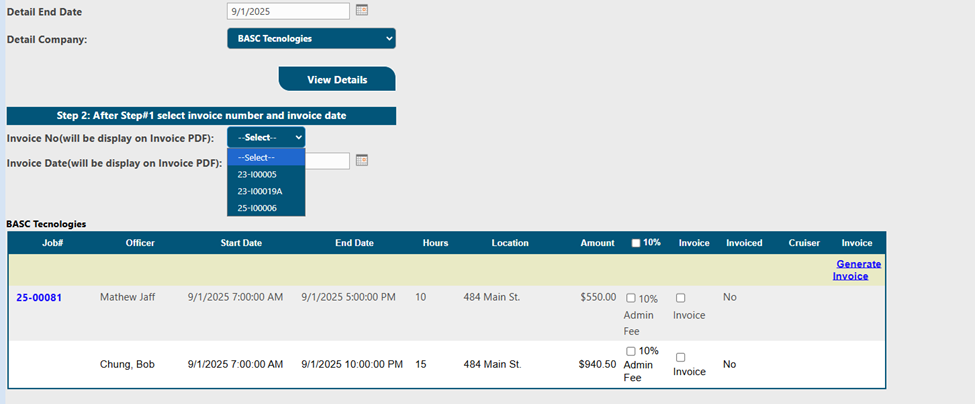
**Step 6** - In this last step you need to check whether you want 10% admin fee or not and select all the checkboxes to complete your new invoice then hit Generate Invoice. This will give you new invoice pdf with same invoice number and date that you selected.
- [Administration Guides](https://kb.arms.com/dhq/administration-guides?hsLang=en#main-content)
- [AWA Roll Call](https://kb.arms.com/dhq/administration-guides?hsLang=en#awa-roll-call)
- [Cruiser Check](https://kb.arms.com/dhq/administration-guides?hsLang=en#cruiser-check)
- [Detail Bidding](https://kb.arms.com/dhq/administration-guides?hsLang=en#detail-bidding)
- [Document Sign Off](https://kb.arms.com/dhq/administration-guides?hsLang=en#document-sign-off)
- [Forms Based Authentication](https://kb.arms.com/dhq/administration-guides?hsLang=en#forms-based-authentication)
- [Microsoft Office Settings](https://kb.arms.com/dhq/administration-guides?hsLang=en#microsoft-office-settings)
- [Mobile App](https://kb.arms.com/dhq/administration-guides?hsLang=en#mobile-app)
- [Office 365/Azure Connection](https://kb.arms.com/dhq/administration-guides?hsLang=en#office-365-azure-connection)
- [Passwords](https://kb.arms.com/dhq/administration-guides?hsLang=en#passwords)
- [Permissions](https://kb.arms.com/dhq/administration-guides?hsLang=en#permissions)
- [Personnel Cards](https://kb.arms.com/dhq/administration-guides?hsLang=en#personnel-cards)
- [Smart Police](https://kb.arms.com/dhq/administration-guides?hsLang=en#smart-police)
- [Scheduling](https://kb.arms.com/dhq/administration-guides?hsLang=en#scheduling)
- [Training](https://kb.arms.com/dhq/administration-guides?hsLang=en#training)
- [Quartermaster](https://kb.arms.com/dhq/administration-guides?hsLang=en#quartermaster)
- [Register New User](https://kb.arms.com/dhq/administration-guides?hsLang=en#register-new-user)
- [User Guides](https://kb.arms.com/dhq/user-guides?hsLang=en#main-content)
- [AWA Roll Call](https://kb.arms.com/dhq/user-guides?hsLang=en#awa-roll-call)
- [Cruiser Check](https://kb.arms.com/dhq/user-guides?hsLang=en#cruiser-check)
- [Event Tracking](https://kb.arms.com/dhq/user-guides?hsLang=en#event-tracking)
- [Messaging](https://kb.arms.com/dhq/user-guides?hsLang=en#messaging)
- [Mobile App](https://kb.arms.com/dhq/user-guides?hsLang=en#mobile-app)
- [Safe Watch](https://kb.arms.com/dhq/user-guides?hsLang=en#safe-watch)
- [Smart Police](https://kb.arms.com/dhq/user-guides?hsLang=en#smart-police)
- [Scheduling](https://kb.arms.com/dhq/user-guides?hsLang=en#scheduling)
- [Training](https://kb.arms.com/dhq/user-guides?hsLang=en#training)
- [Quartermaster](https://kb.arms.com/dhq/user-guides?hsLang=en#quartermaster)
- [Document Sign Off](https://kb.arms.com/dhq/user-guides?hsLang=en#document-sign-off)
- [DHQ Modules](https://kb.arms.com/dhq/dhq-modules?hsLang=en)
[](http://arms.com)
[mailto:email@email.com](mailto:email@email.com)
Copyright © 2026, End2End Public Safety