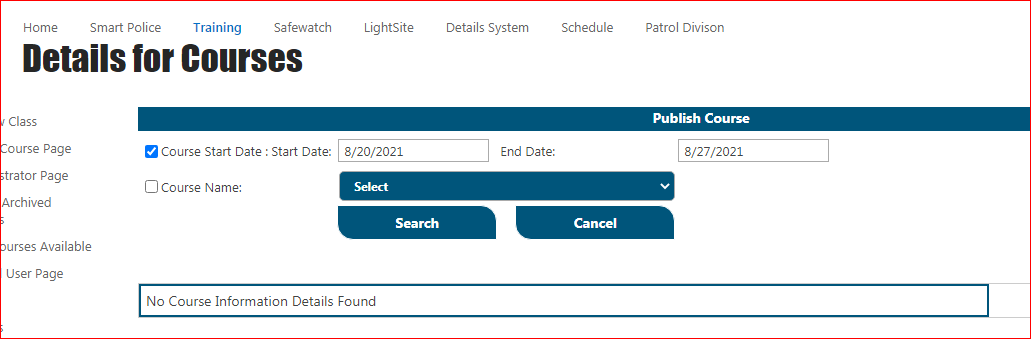
Manage Sign Up Process
Created by Greg Katz, Modified on Fri, 4 Apr, 2025 at 8:18 AM by Greg Katz
Add users to training group
Logged in as Administrator account.
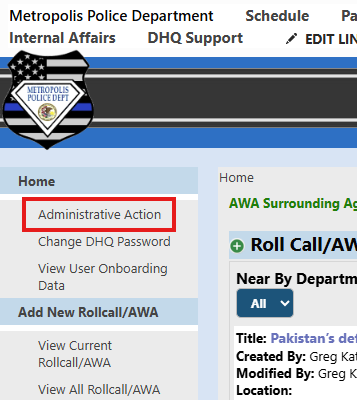
Click on "Administrative Action"
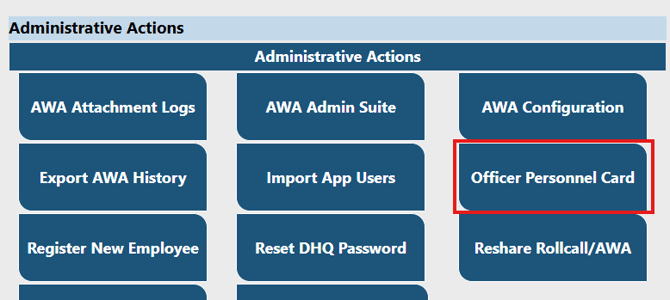
Then, "Officer Personnel Card"
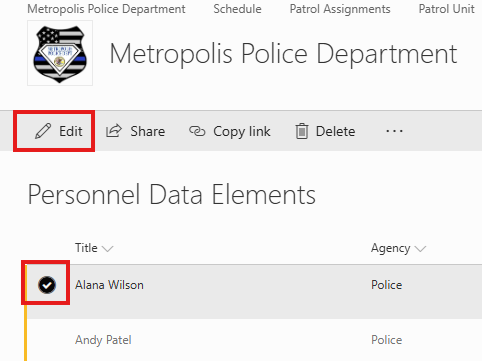
Select a user and click "Edit"
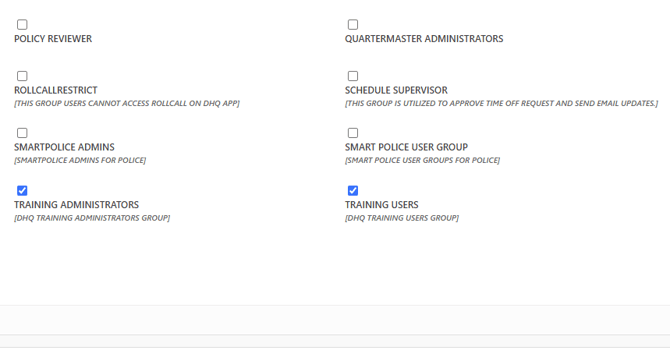
Scroll down and expand the "Groups" section. Check "Training Users" and/or Training Administrators" depending on role
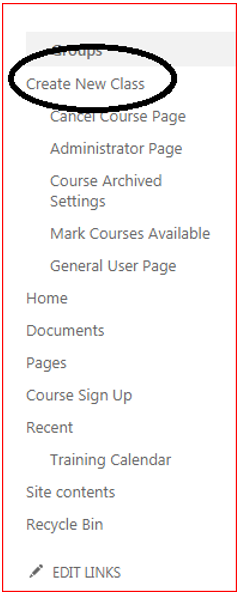
Now go to the appropriate page and click on Create New Class
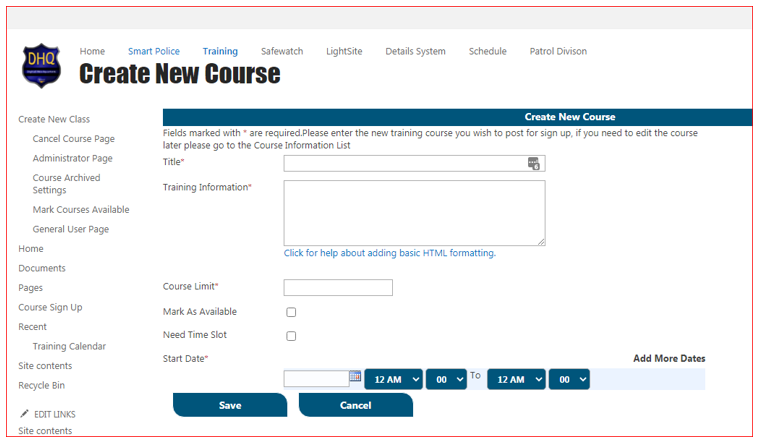
Fill values for creating new course. Now click on save button and an email notification will send to Administrator or course creator. Saved course information will show in All available class webpart.
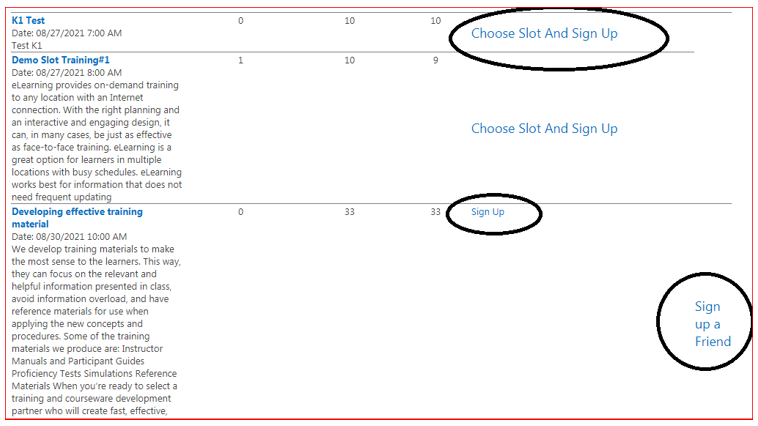
Sign up for a Course
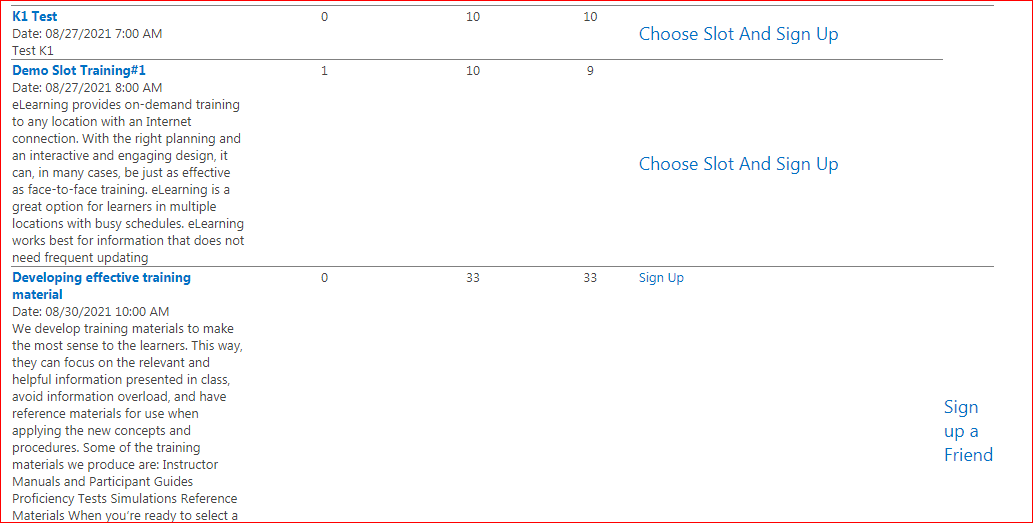
Once Administrator finished creating courses now Training user need to be logged in and training user can sign up for course by clicking Sign up link in All available Course webpart, after signing in for a course an email notification will send to that user as well.

Sign up for a friend
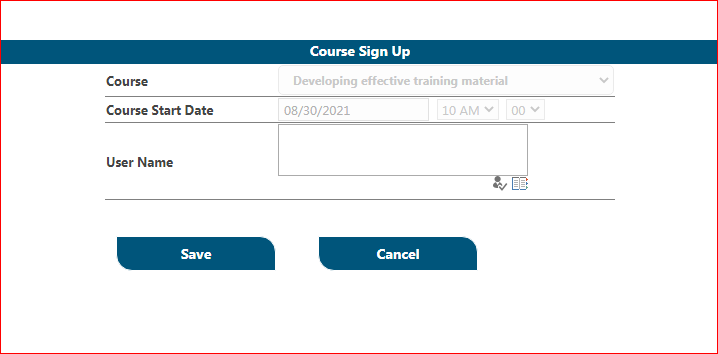
Training user can also sign up his/her friend for any course that has available seats. Training user can click on the Signup a Friend link in all available Course webpart.
Select the training username in username field and click Save button
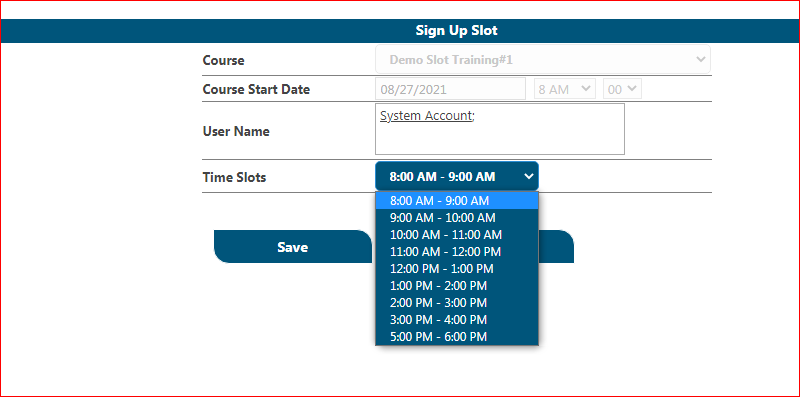
Slot sign up
If user/officer want to signup on gym or health related program so we have opt slot signup feature here where slots will be displayed corresponding to available slots.
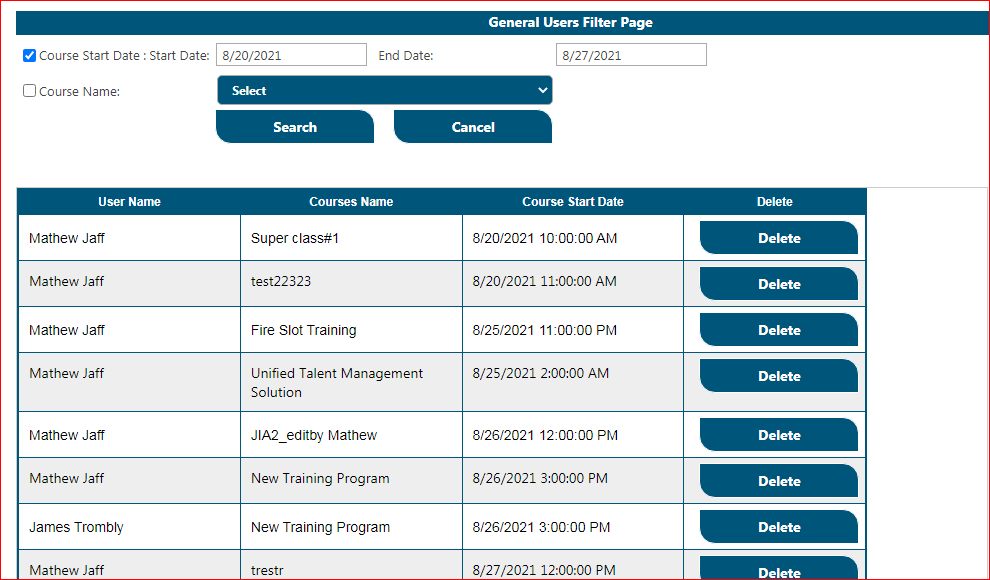
General User Page
Here user can remove his/her Training signups by clicking Delete button.
Cancel Course
If administrator wants to cancel a course, Administrator needs to click on the Link Delete.
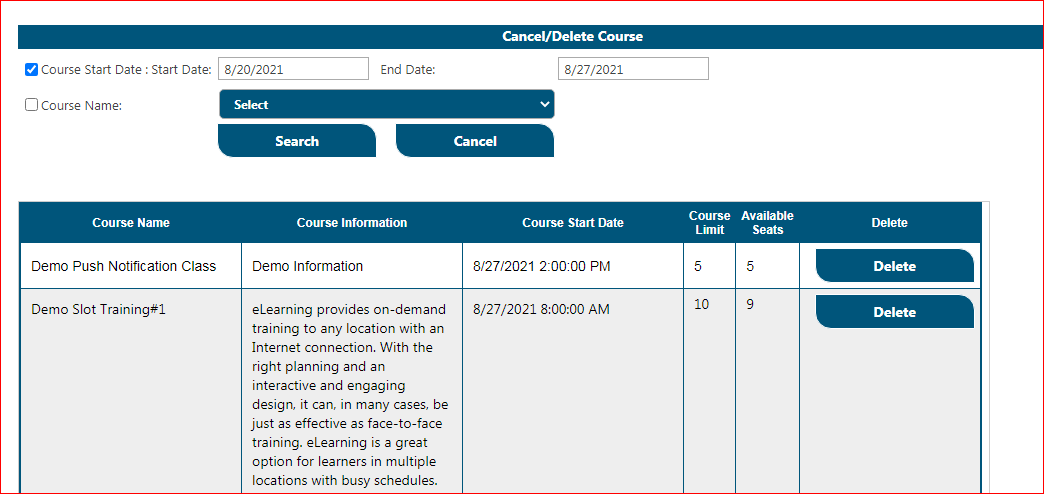
Administrators view
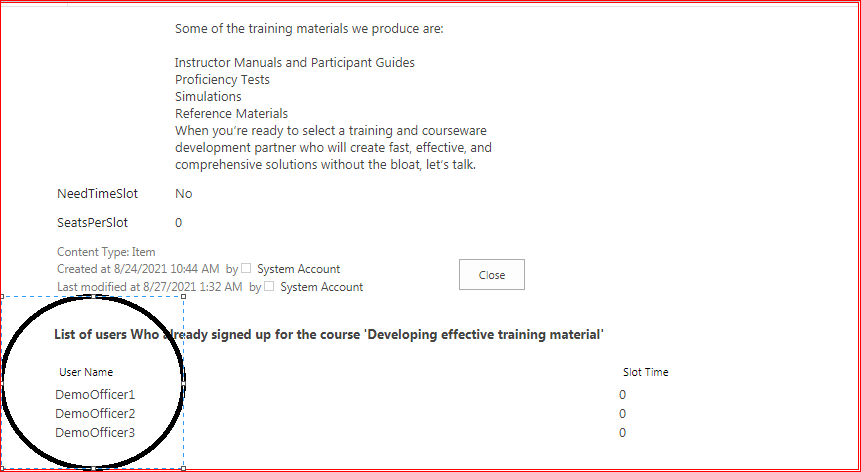
Administrator can also see which users are going to attend training course. She/he needs to click on the name of the Course in the Available Course Web part.
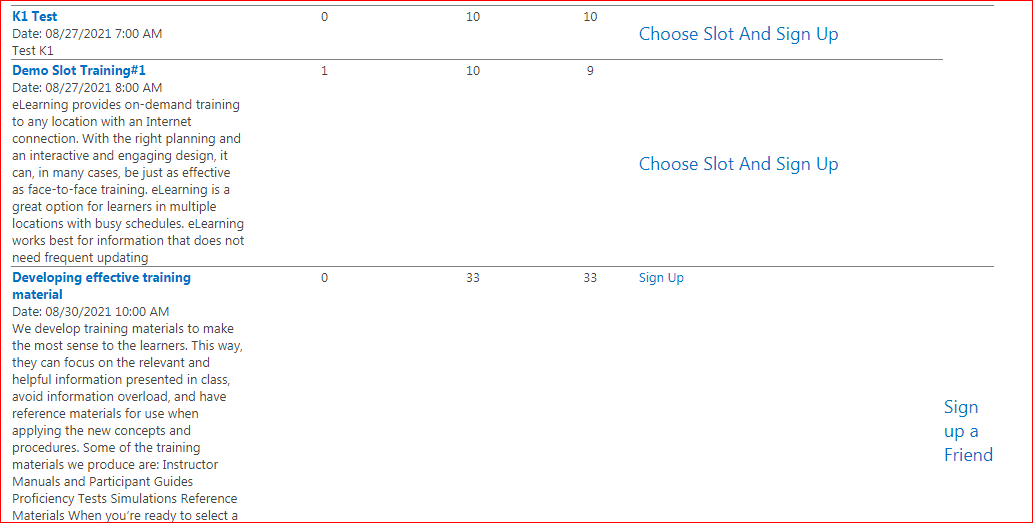
In this view, Administrator can also all the information about course like available seats, Course limit, start date and end date of course.
Administrator Filter Page Functionality
Click on Administrator Page Link on Left Panel as you can see in image,
Select the required filter like check Course Name if you want to search on Name basis.
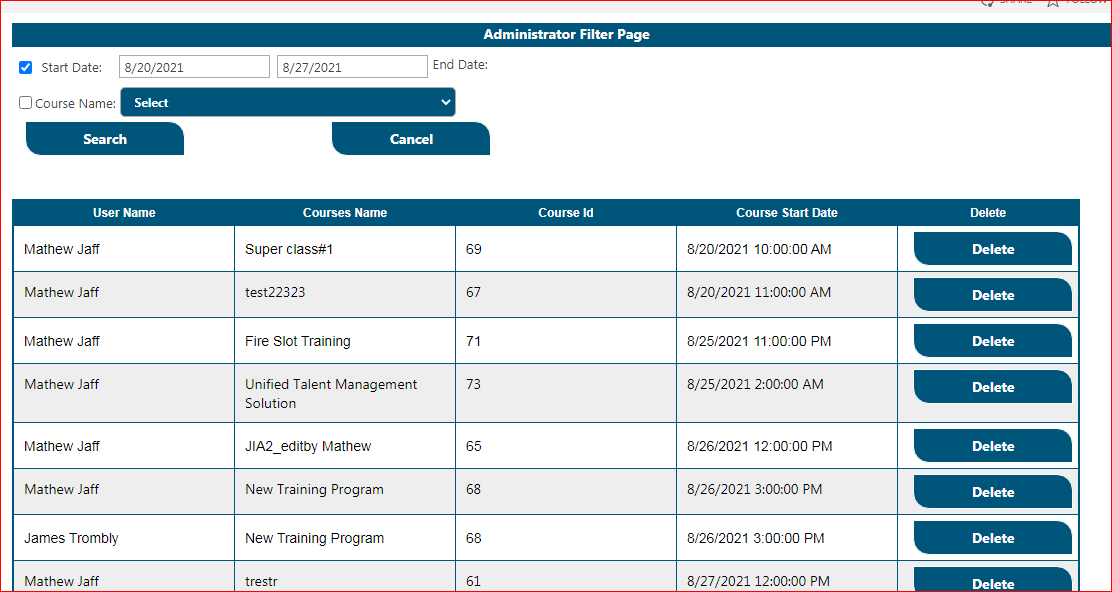
Then select required Courses and select the Delete button as you can see in above image to delete Courses.
Friend Sign Up Settings
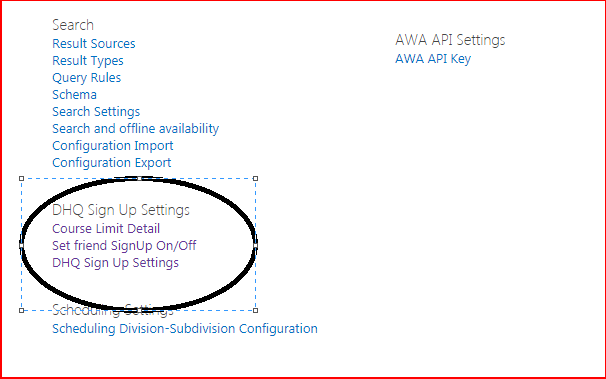
Go to Site Actions ->Site settings, Click on Set Friend Sign Up On/Off.
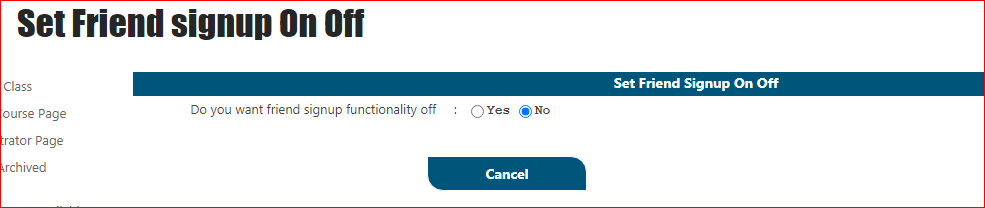
Click on Check box to Enable this service.
Course Archived Settings
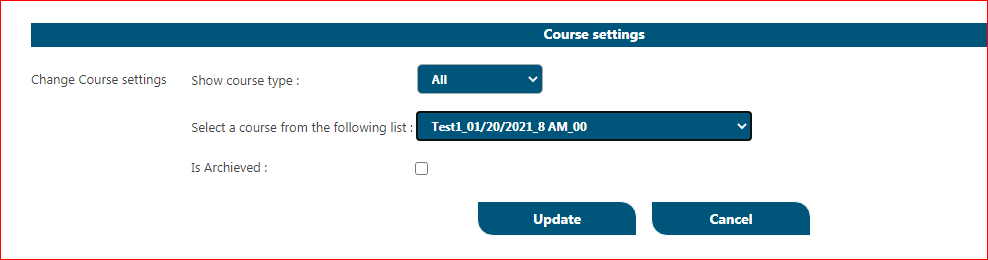
Click on Course Archived Settings Link present on left corner
Then click on course and select from drop down required course whose settings you want to change.
Check the Is Archived checkbox to change course setting to archive and click Update
If You want to see list of Archived courses, select course type from drop down menu and select Archive option.
Course Publish Settings
Click on Mark Course Available Settings Link present on left Nav, this page can be used to hide available or future course/training for some time. This page is specially design for admins when they have list of course or month training programs so they can add all the trainings in system and later they can mark available/publish when needed.