
Marking an Employee Inactive
Created by Greg Katz, Modified on Mon, 24 Mar, 2025 at 11:59 AM by Greg Katz
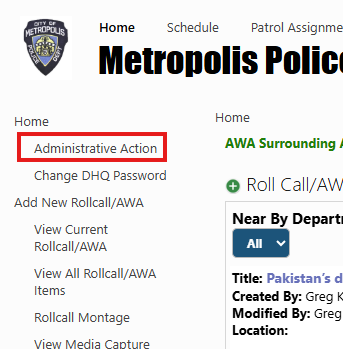
From your DHQ home page find the "Administrative Actions" menu usually located in the quick launch navigation on the left side. Click to open.
Click on "Officer Personnel Card"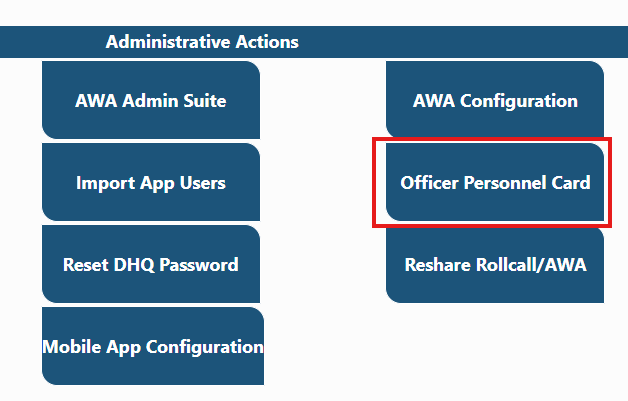
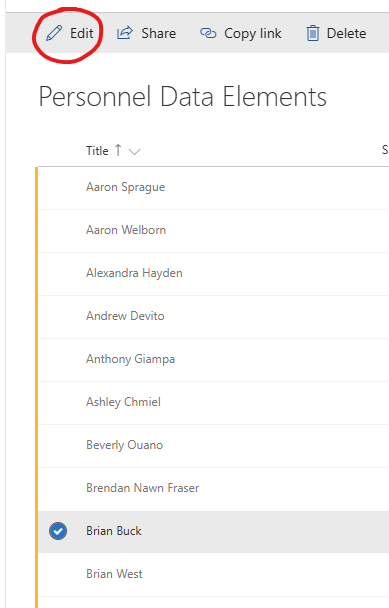
Your list of personnel will open. Find the person you wish to mark inactive and select by clicking the button beside the name and click edit. (o sort users alphabetically use the arrow next to "Title" at the top of the column). The users personnel record will open.
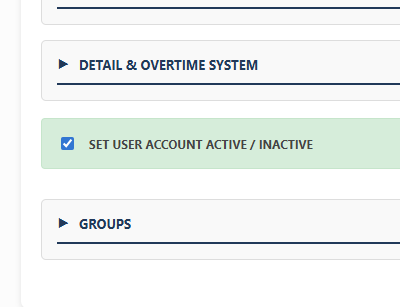
Scroll down to the bottom of the page and uncheck "Set User Account Active/Inactive" and click "Save Record".
Once complete, the user will no longer have access to DHQ but historical records will remain intact.