---
title: Quartermaster Setup
description: Quartermaster setup
---
[Skip to content](https://kb.arms.com/dhq/quartermaster-setup#main-content)
English
Show submenu for translations

Open main navigation
Close main navigation
- English
Show submenu for translations
- Contact us
Contact us
How can we help you?
- There are no suggestions because the search field is empty.
1. [DHQ](https://kb.arms.com/dhq?hsLang=en)
2. [Administration Guides](https://kb.arms.com/dhq/administration-guides?hsLang=en)
3. [Quartermaster](https://kb.arms.com/dhq/administration-guides?hsLang=en#quartermaster)
# Quartermaster Setup
### Quartermaster Setup
Created by Greg Katz, Modified on Mon, 14 Apr, 2025 at 12:38 PM by Greg Katz
Quartermaster allows an agency to keep track of its equipment. Quartermaster has the following features:
- Add and track agency equipment and their location
- Issue equipment to personnel
- Bulk assigning and return tracking
- Marking equipment out of service
- Tracking of equipment expirations and service
- Quantity tracking
- Employee issue acknowledgement
- Reports (Equipment, personnel, availability, service history, equipment history, minimum quantity, expirations, service intervals)
**DHQ**
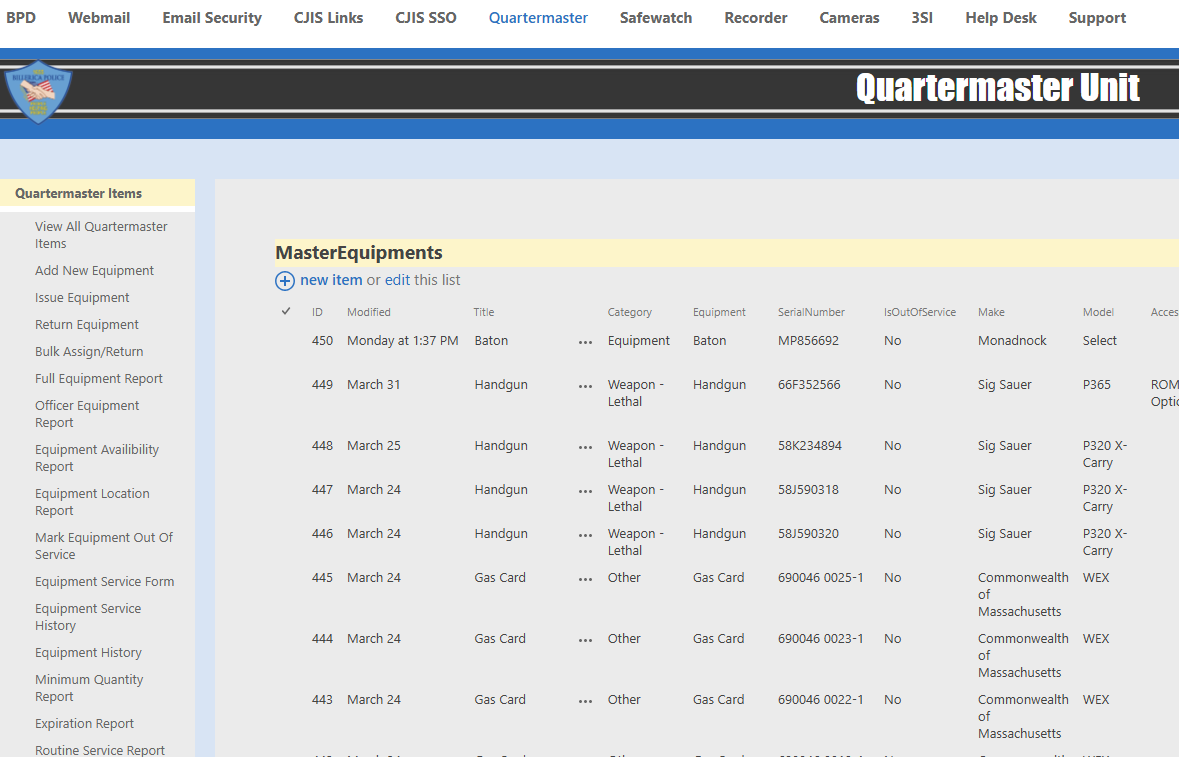
To access the Quartermaster site in DHQ, click the link usually displayed in the top link navigation.

The Quartermaster site will load. All the Quartermaster functions will be on the left side of the screen and the **Master Equipment** list will be displayed.
**Personnel**
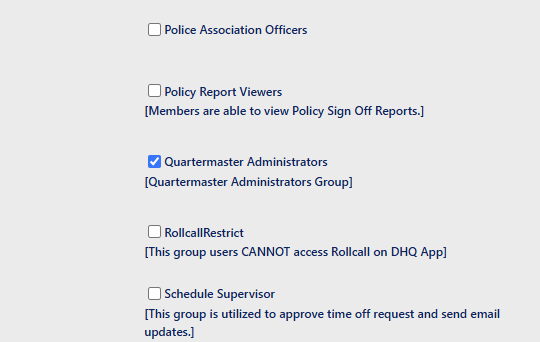
When beginning with Quartermaster an Admin should ensure that all employees have a **Personnel Card** in DHQ. This ensures that each employee appears in the personnel drop down menus. In addition, any employee that manages Quartermaster must have **Quartermaster Administrator** **Group** permissions. The DHQ Admin can go to the appropriate personnel card and add the user to that group (below). (See the **Personnel Card** article for more info).
**Equipment**
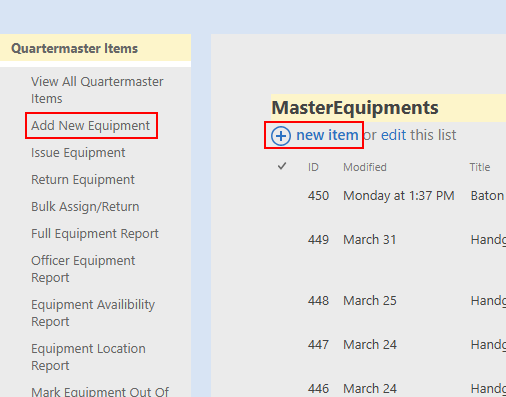
Once personnel in DHQ are added, the next step is to add your agency's equipment. From the main Quartermaster site, select **Add New Equipment** or **New Item** on the **Master Equipment List**
The **Create Quartermaster Inventory** form will open. This form allows the admin to add individual equipment to the database but also their make, model and location. These categories also allow the admin to build the drop-down menus from the convenient links shown below.
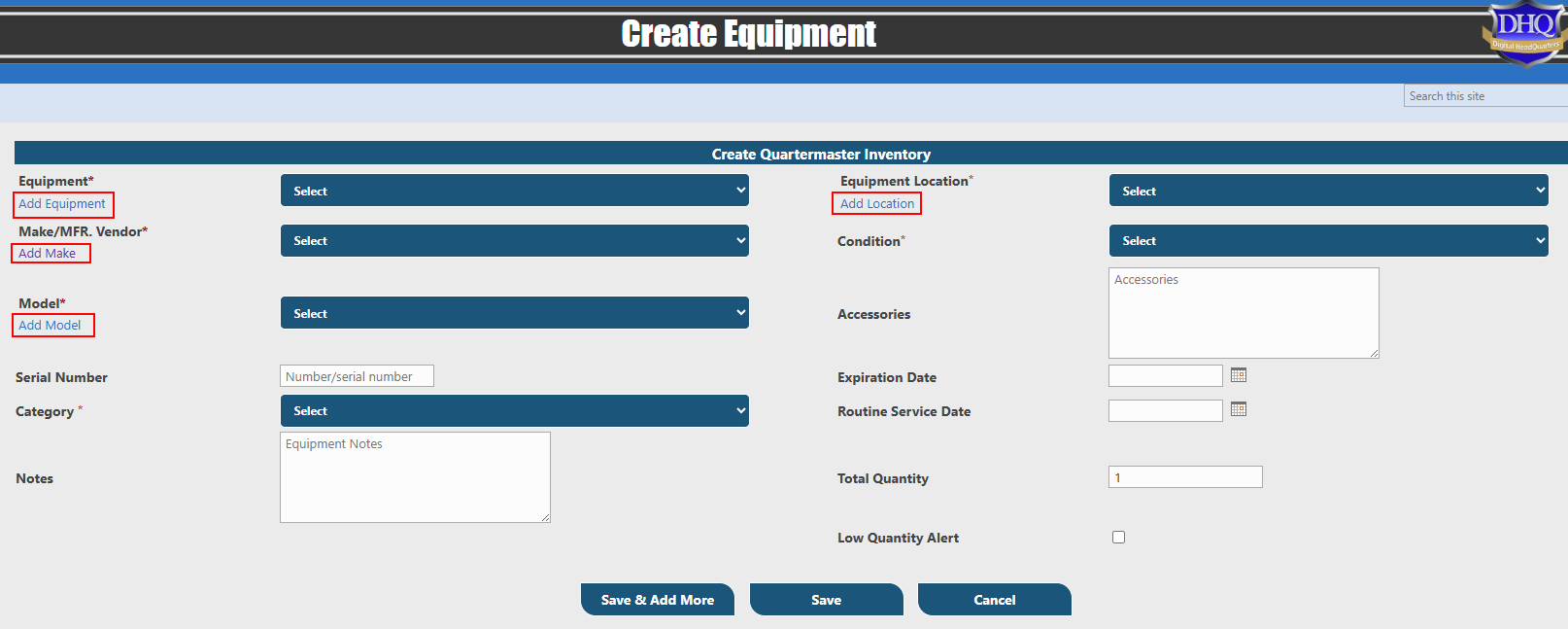
*Three fields on this form can assist agency personnel with unique reporting:*
- *Expiration Date*
- *Routine Service Date*
- *Low Quantity Alert*
*Expiration dates can be used for items that have a limited shelf life (e.g. body armor, pepper spray). By using this field personnel can track expiring equipment from the **Expiration Report**. When the expiration is reached, Quartermaster Admins will receive an email notification.*
*Routine Service Date works similarly with the **Routine Service Report** and email notifications to Quartermaster Admins. When service is due, Quartermaster Admins will receive an email notification.*
*Lastly, the Low Quantity Alert can be checked and specified for items like ammunition. When the quantity is reached, Quartermaster Admins will receive an email notification or run the **Minimum Quantity Report**.*
Click **Save** to save the record or **Save & Add More** to save the record and add more equipment.
**Issuing Equipment to Employee**
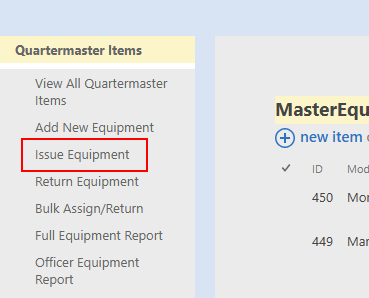
Click on **Issue Equipment**
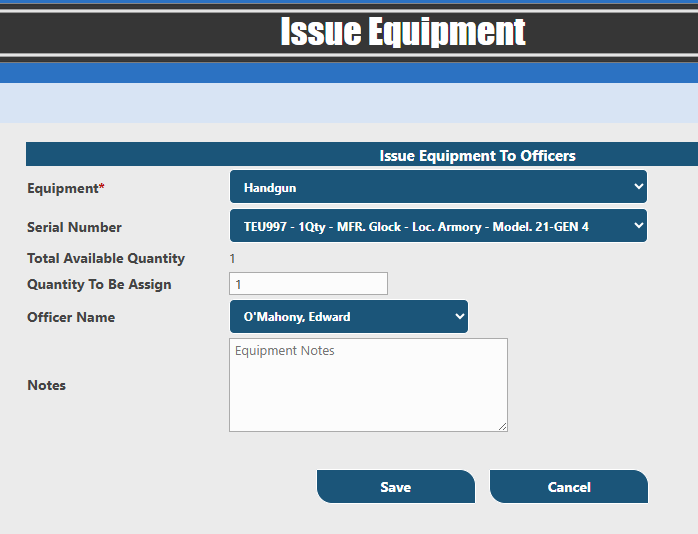
The **Issue Equipment** form will open. The Equipment drop-down menu shows available equipment from your **Master Equipment** list. The Serial Number drop-down will show all available items within the equipment specified. Select the employee receiving the equipment, add notes if desired and click **Save**
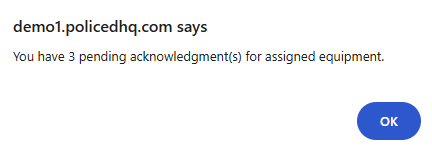
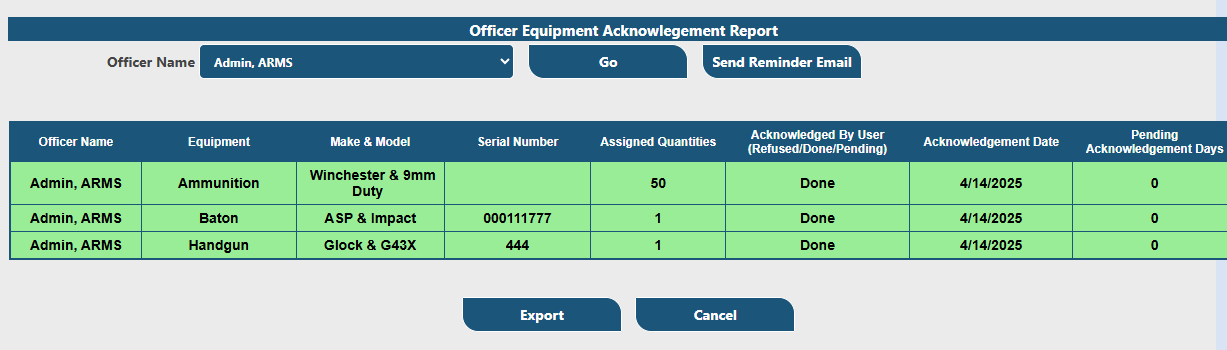
Once equipment is issued, the user (that was issued the equipment) will be provided a reminder to acknowledge that the equipment was received.
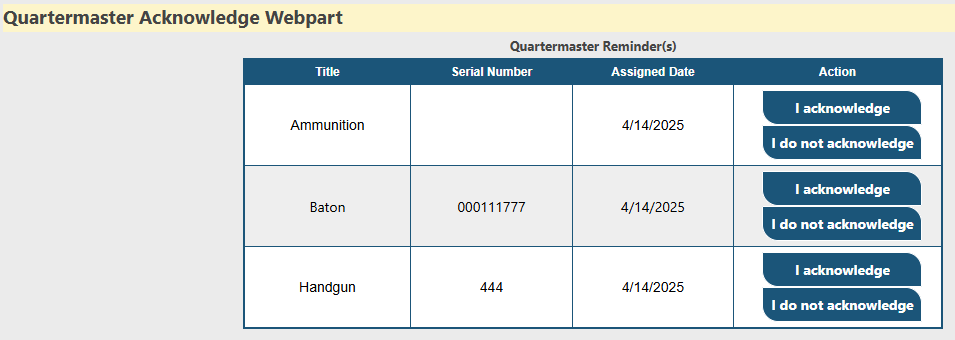
These acknowledgments are available to view in the Quartermaster **Acknowledgment Report**
**Returning Equipment**
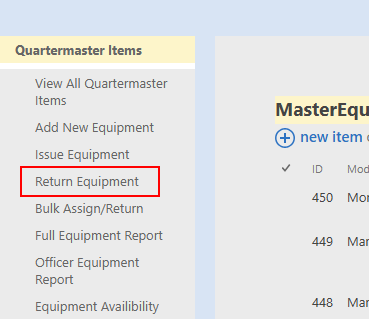
Click on Return Equipment
Select the employee and the equipment to be returned and click **Go**
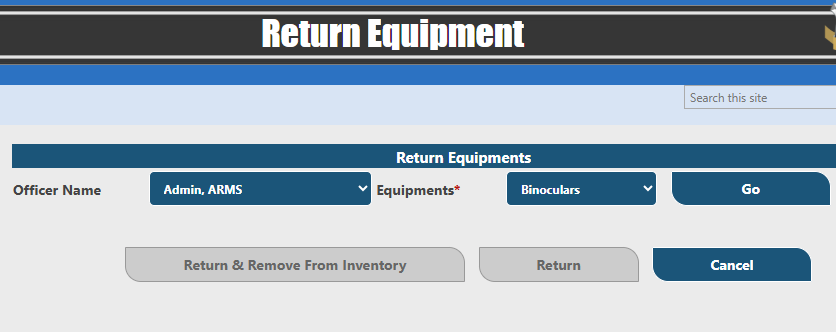
Next, select the location the equipment is being returned to and check the quantities to be returned. Lastly, click on **Return & Remove from Inventory** or just **Return**, depending on the circumstances.
**Bulk Assign/Return**
Click on **Bulk Assign/Return**
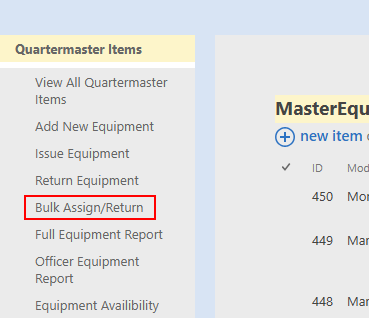
The bulk assignment form will open
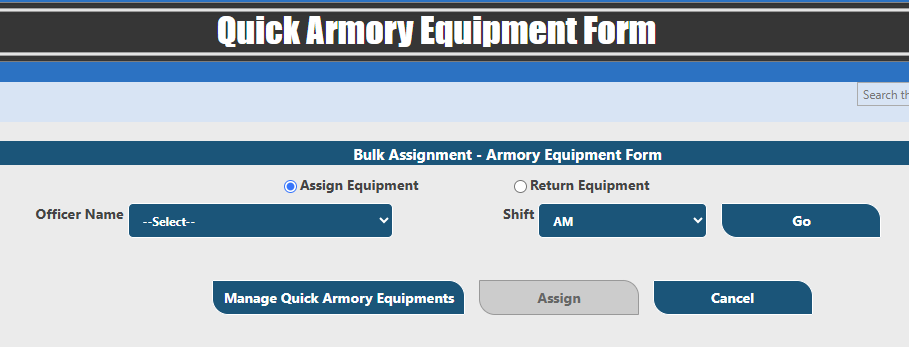
Before assigning equipment, click on Manage **Quick Armory Equipment**
It is this form where a Quartermaster Admin can decide what categories will be available in bulk. The admin can add and remove categories as desired.
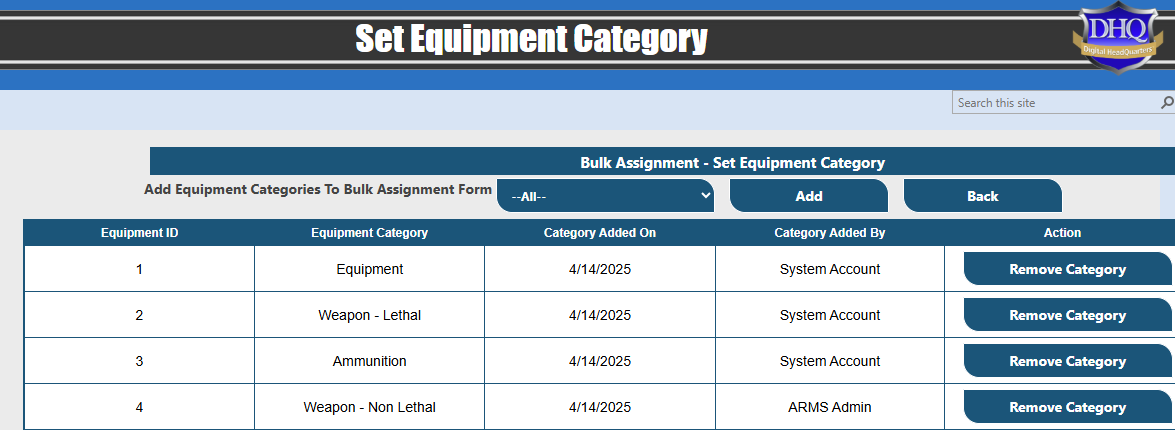
Once the categories are made available, go back to the **Bulk Assignment Issue Form** and specify the employee, shift and click **Go.** Select each item to issue and the quantity and click **Assign.** The quipment will be moved from its current location to the employee.
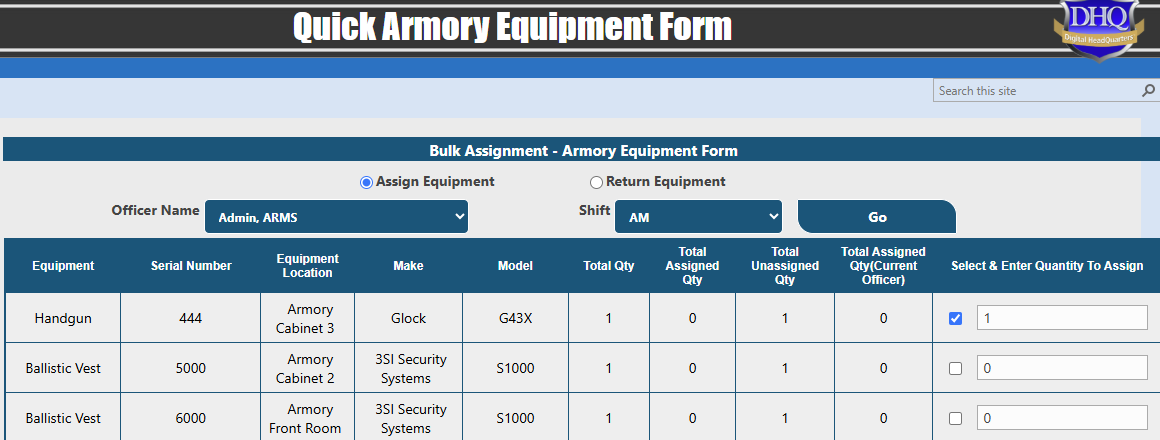
Once equipment is issued, the user will be provided a reminder to acknowledge that the equipment was received.
**Out of Service Equipment**
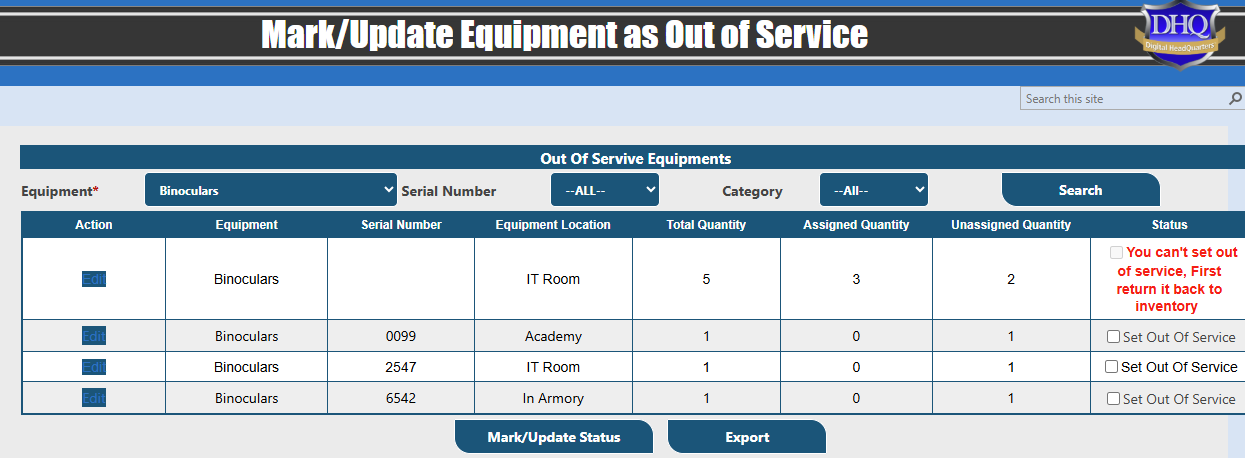
Click on **Mark Equipment Out of Service**
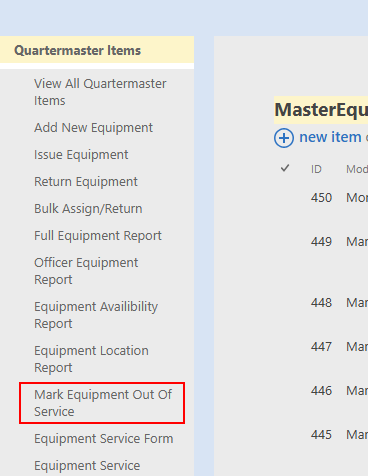
Perform a search for the equipment you wish to mark out of service and check **Set Out of Service** and then **Mark/Update Status**.
Equipment Service
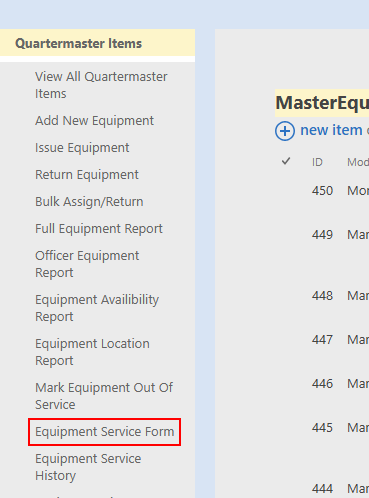
To track equipment service, click on **Equipment Service Form**
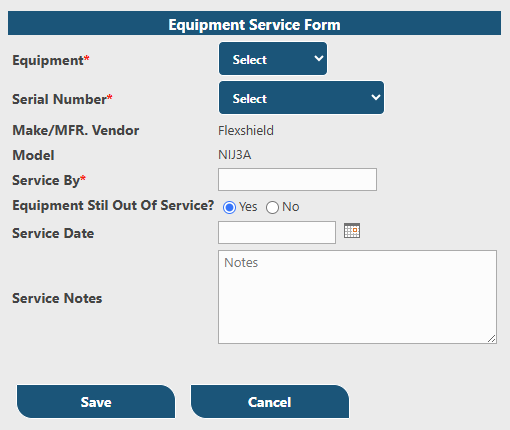
This form allows the user to document the servicing of equipment as well as mark equipment back in service
**Equipment Location**
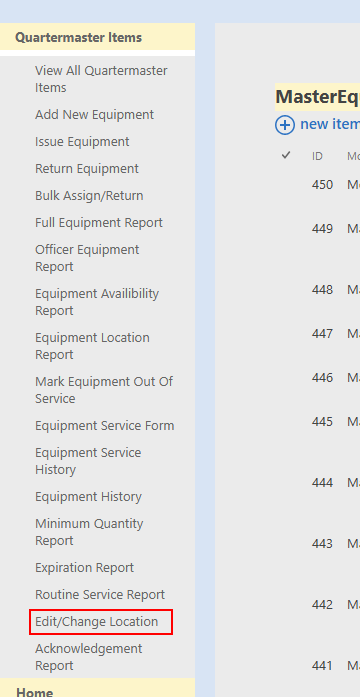
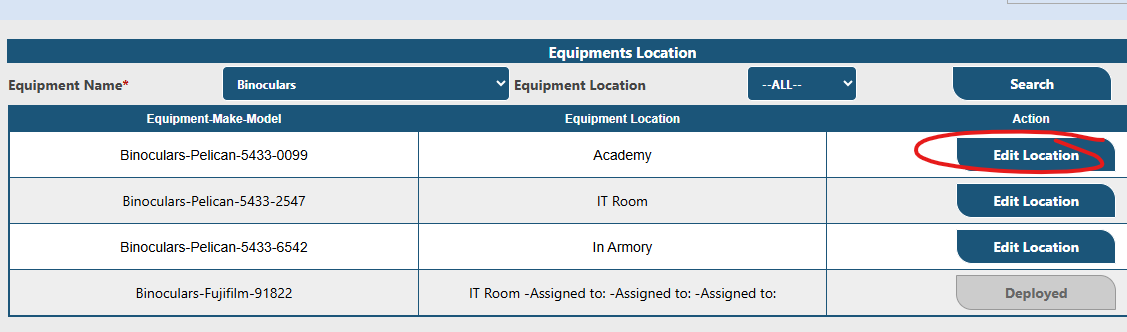
Click on **Edit/Change Location**
Seach for the equipment you want to change the location of and click on Edit Location
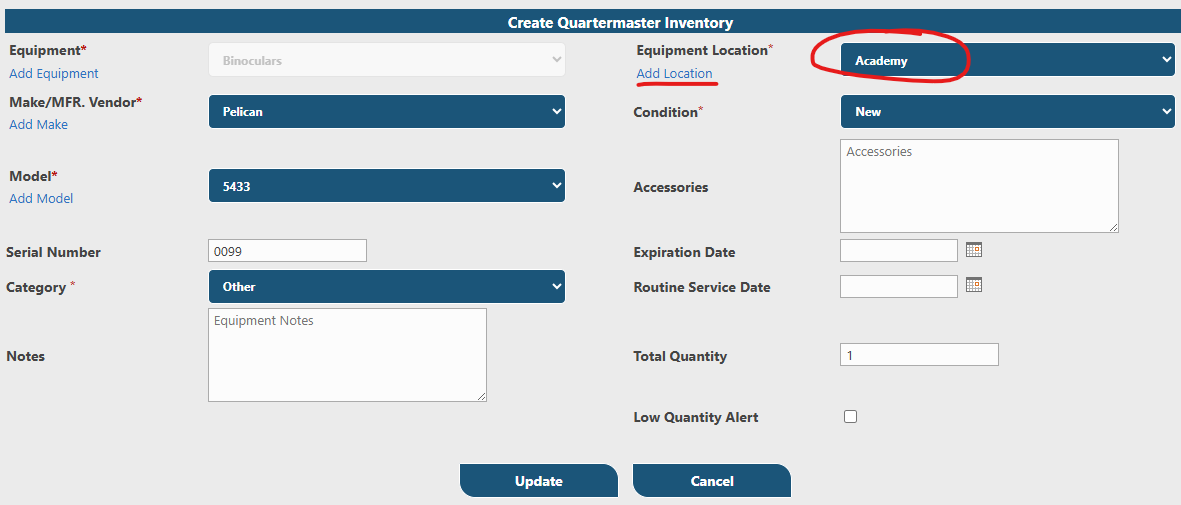
The equipment record will open, and the location menu will be available as well as an option to add a new location
**Reports**
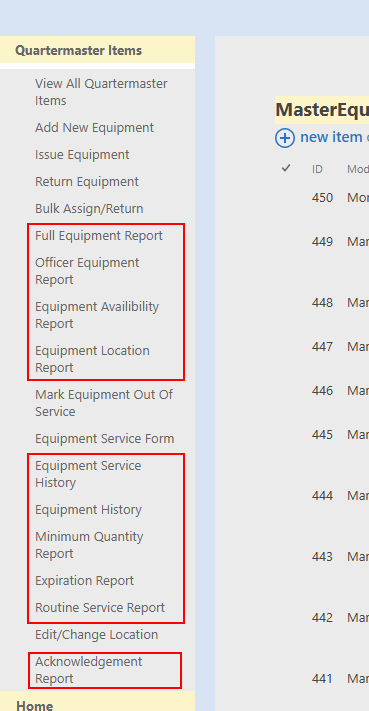
Many reports are available from Quartermaster navigation shown below. All of them are easy to use and have an option to export the results to an Excel CSV file.
- [Administration Guides](https://kb.arms.com/dhq/administration-guides?hsLang=en#main-content)
- [AWA Roll Call](https://kb.arms.com/dhq/administration-guides?hsLang=en#awa-roll-call)
- [Cruiser Check](https://kb.arms.com/dhq/administration-guides?hsLang=en#cruiser-check)
- [Detail Bidding](https://kb.arms.com/dhq/administration-guides?hsLang=en#detail-bidding)
- [Document Sign Off](https://kb.arms.com/dhq/administration-guides?hsLang=en#document-sign-off)
- [Forms Based Authentication](https://kb.arms.com/dhq/administration-guides?hsLang=en#forms-based-authentication)
- [Microsoft Office Settings](https://kb.arms.com/dhq/administration-guides?hsLang=en#microsoft-office-settings)
- [Mobile App](https://kb.arms.com/dhq/administration-guides?hsLang=en#mobile-app)
- [Office 365/Azure Connection](https://kb.arms.com/dhq/administration-guides?hsLang=en#office-365-azure-connection)
- [Passwords](https://kb.arms.com/dhq/administration-guides?hsLang=en#passwords)
- [Permissions](https://kb.arms.com/dhq/administration-guides?hsLang=en#permissions)
- [Personnel Cards](https://kb.arms.com/dhq/administration-guides?hsLang=en#personnel-cards)
- [Smart Police](https://kb.arms.com/dhq/administration-guides?hsLang=en#smart-police)
- [Scheduling](https://kb.arms.com/dhq/administration-guides?hsLang=en#scheduling)
- [Training](https://kb.arms.com/dhq/administration-guides?hsLang=en#training)
- [Quartermaster](https://kb.arms.com/dhq/administration-guides?hsLang=en#quartermaster)
- [Register New User](https://kb.arms.com/dhq/administration-guides?hsLang=en#register-new-user)
- [User Guides](https://kb.arms.com/dhq/user-guides?hsLang=en#main-content)
- [AWA Roll Call](https://kb.arms.com/dhq/user-guides?hsLang=en#awa-roll-call)
- [Cruiser Check](https://kb.arms.com/dhq/user-guides?hsLang=en#cruiser-check)
- [Event Tracking](https://kb.arms.com/dhq/user-guides?hsLang=en#event-tracking)
- [Messaging](https://kb.arms.com/dhq/user-guides?hsLang=en#messaging)
- [Mobile App](https://kb.arms.com/dhq/user-guides?hsLang=en#mobile-app)
- [Safe Watch](https://kb.arms.com/dhq/user-guides?hsLang=en#safe-watch)
- [Smart Police](https://kb.arms.com/dhq/user-guides?hsLang=en#smart-police)
- [Scheduling](https://kb.arms.com/dhq/user-guides?hsLang=en#scheduling)
- [Training](https://kb.arms.com/dhq/user-guides?hsLang=en#training)
- [Quartermaster](https://kb.arms.com/dhq/user-guides?hsLang=en#quartermaster)
- [Document Sign Off](https://kb.arms.com/dhq/user-guides?hsLang=en#document-sign-off)
- [DHQ Modules](https://kb.arms.com/dhq/dhq-modules?hsLang=en)
[](http://arms.com)
[mailto:email@email.com](mailto:email@email.com)
Copyright © 2026, End2End Public Safety