
Ensure users are in the "Training Users" group
Logged in as Administrator account.
Click on "Administrative Action"
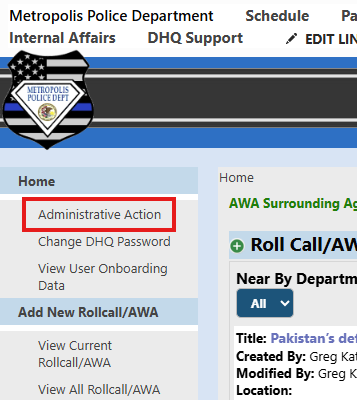
Then, "Officer Personnel Card"
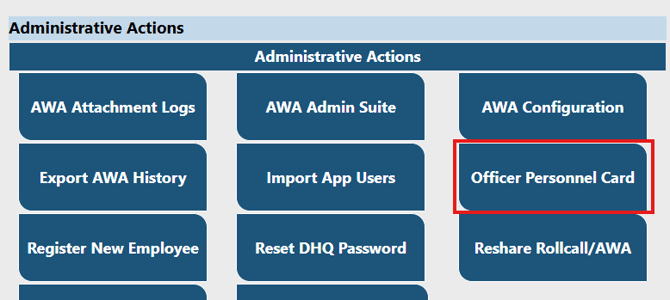
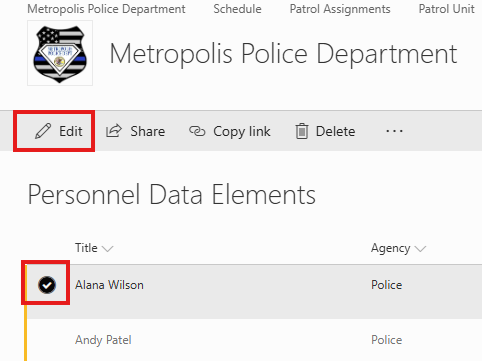
Select a user and click "Edit"
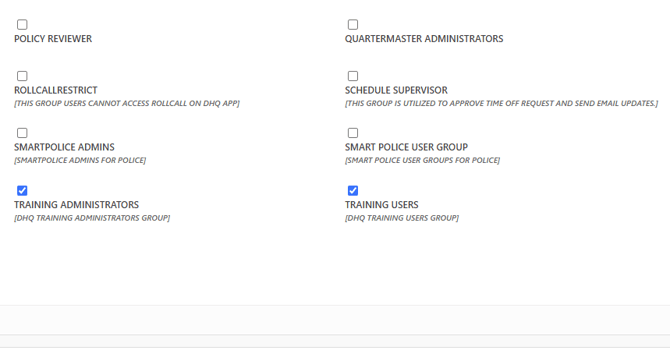
Scroll down and expand the "Groups" section. Check "Training Users" and/or Training Administrators" depending on role
The purpose of this module is to track training of personnel. This includes:
- Training name
- Training type
- Date of training
- Location of training
- Track expiring certifications
- Total hours
- Training provider
- Continuing dispatch education
This module typically is contained within its own DHQ subsite and looks similar to below
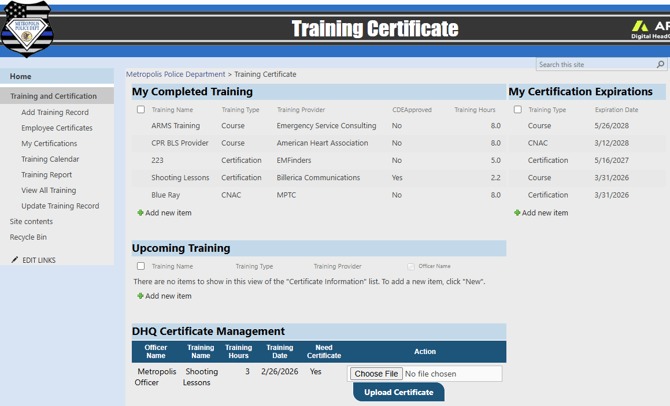
The links, views and lists can vary depending on customer needs.
Add a Training Record
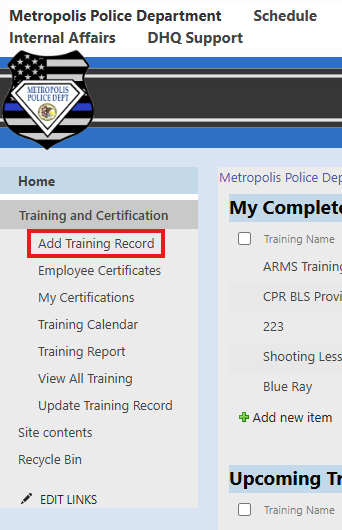
To add a record a link is provided in the left side quick launch
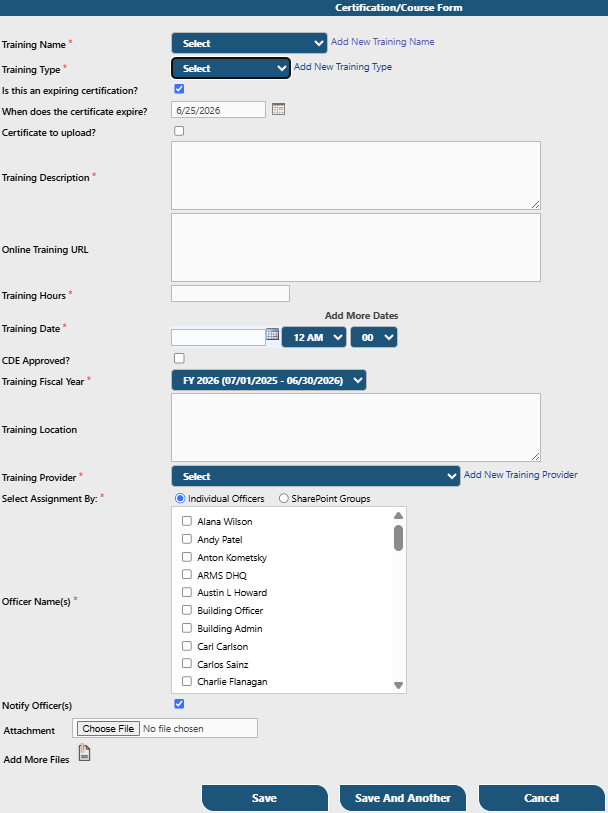
The form will load with multiple fields to complete. The fields and descriptions are:
- Training Name - This is the title of the course (i.e. Communications 101)
- Training Type - Type is the same as category (i.e. Medical, firearms, defensive tactics)
- Is this an expiring certification? - Does the training certification expire and when. Certain training like CPR, as an example, is good for two years. Check the box if this is the case
- When does the certification expire? - Add the date for the expiration
- Certificate to upload? - If this training course issues a certificate at the completion, check this box
- Training Description - Add a description of the course and any pertinent info you'd like the user to have
- Online training URL - If a link is available for the training,ning you may add it here
- Training hours - Add the number of hours that the user should receive credit for
- Training Date - Enter the date and time of the training (if more than one day is needed, use the "Add more dates" link on the form
- CDE Approved? - If this training is credited as "Continuing Dispatch Education", check the box
- Fiscal Year - This is the fiscal year the training applies to
- Training Location - Enter the place/address where the training is being held
- Select Assignment - Check off the users or groups that will attend the particular training
- Notify Officers - Default is checked. When the record is saved, the affected users will receive an email notification with all the pertinent info and an attachment to add the event to their calendar. Uncheck this box to disable this notification
- Attachment - Upload any additional documents
Completing a Training Record
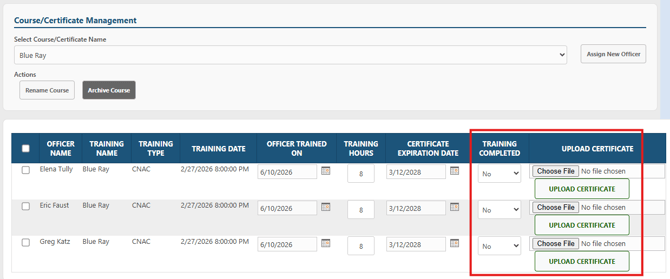
From the quick launch navigation, select "Update Training Record"
Select the desired training course
Mark the course completed, and upload certificates as shown below
Using the Training Report
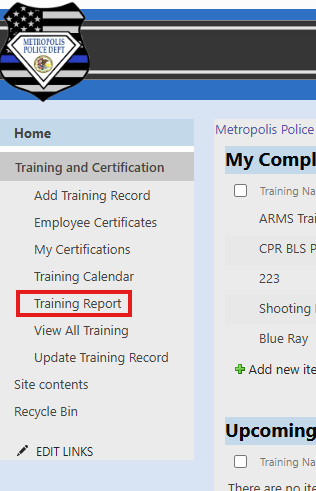
Select "Training Report" from the quick launch navigation
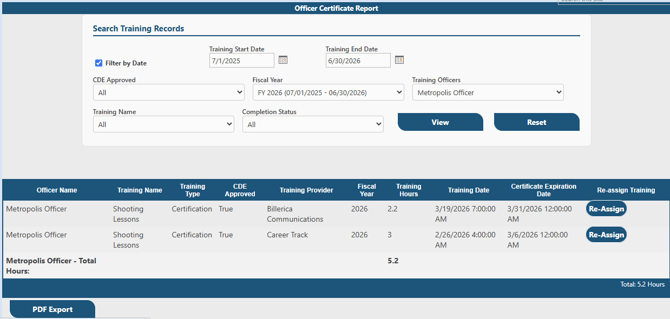
Select the desired search parameters and click "View"
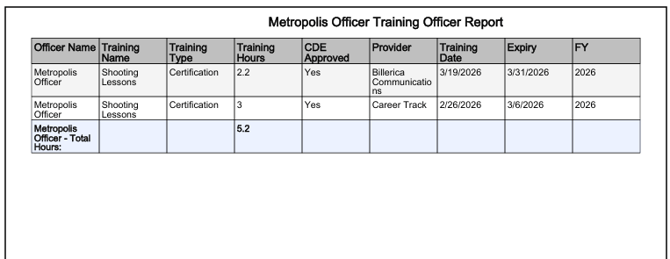
Click on "PDF Export" to export the record into a printable document
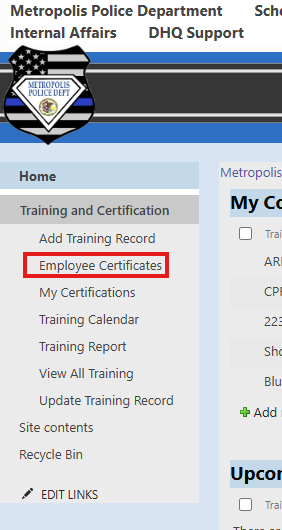
Retrieving Certificates
When a certificate is uploaded to a training record it is saved to an employee certificate library
The folder structure is built dynamically by user then calendar year
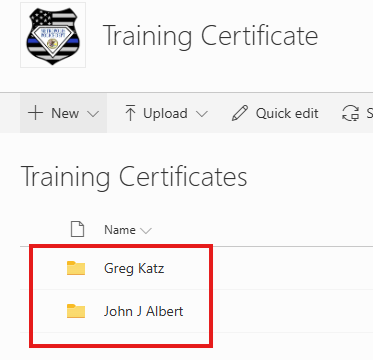
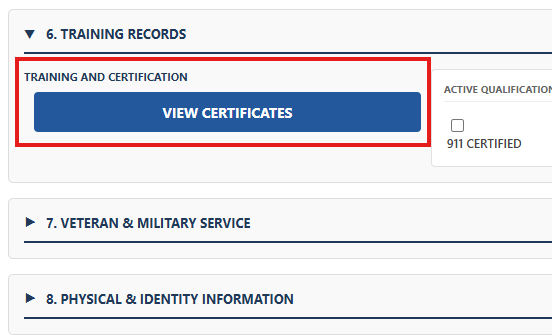
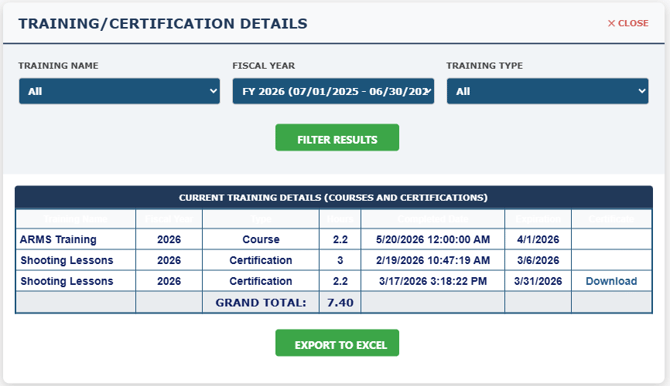
Certificates can also be retrieved directly from the user's personnel card in section 6 (Training Records)
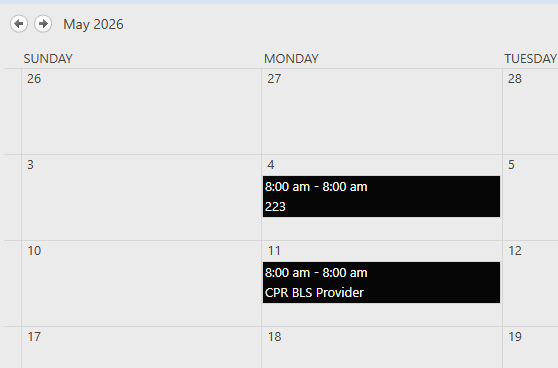
Training Calendar
A calendar with all training events is included in DHQ and can be overlayed to the master calendar for greater visibility
How to cancel a user's training
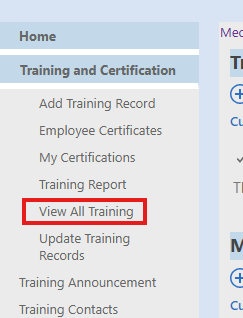
From the training page, select "view all training"
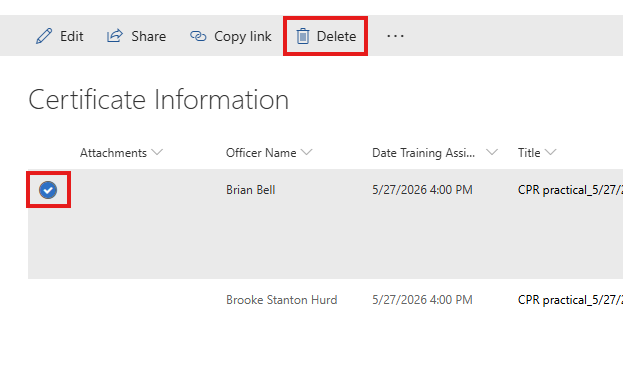
Find the user and training that needs to be cancelled, select that row and delete
List Views
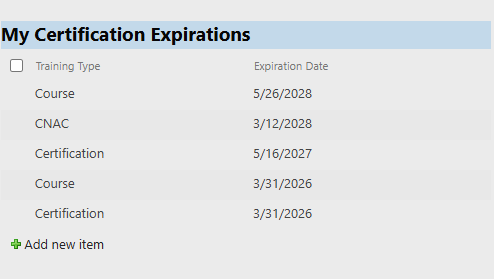
Training classes and certifications can be organized and displayed in various views for users. There can be displayed using all records or records just pertaining to the logged in user. For example:
- My Completed Training
- All Completed Training
- Upcoming Certification Expirations
- My Upcoming Certification Expirations
- All Upcoming Training
- All My Upcoming Training
Please contact support with these view requests