
Training Records & Certification
Created by Greg Katz, Modified on Fri, 6 Feb at 10:39 AM by Greg Katz
This module is designed to record training, track hours and help manage certifications. It is typically installed as a subsite within your main DHQ site. The home page may appear like this one, though different data/views can be provided.
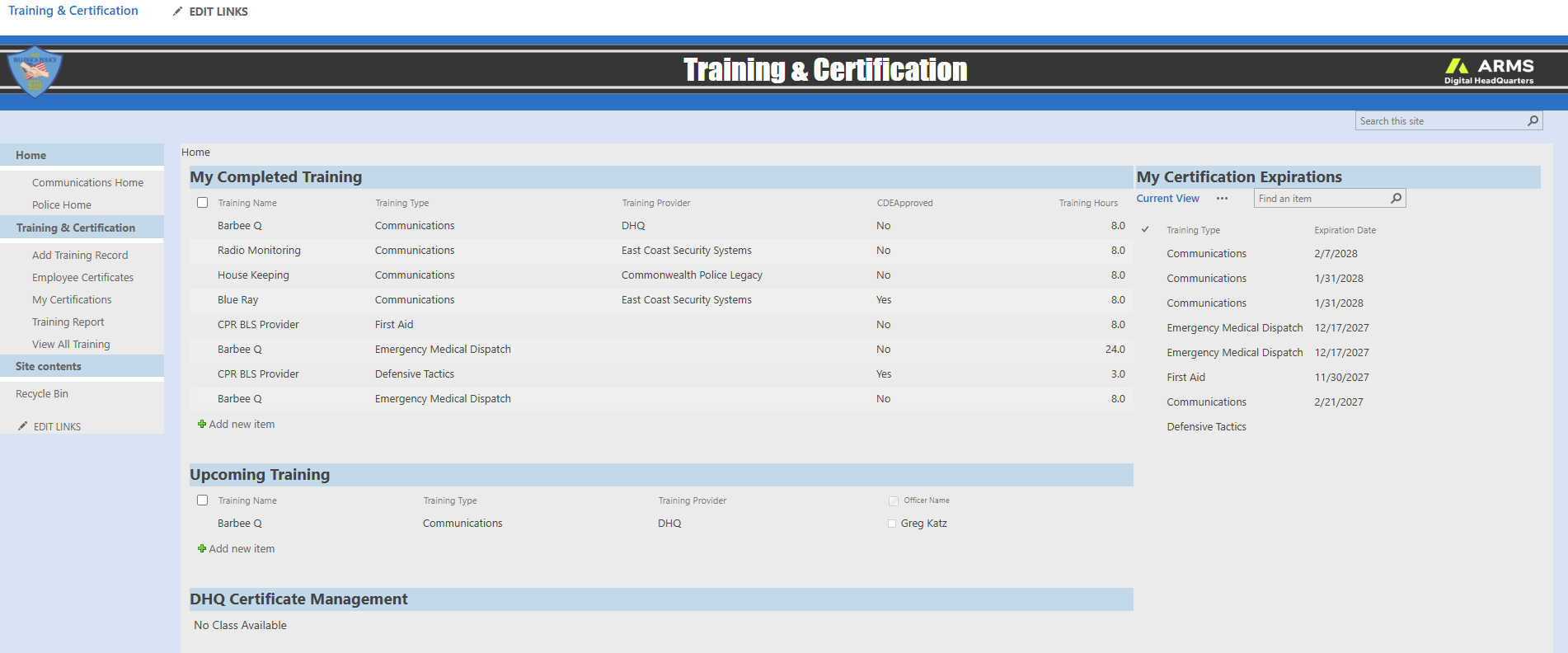
The main menu items for this module are shown below:
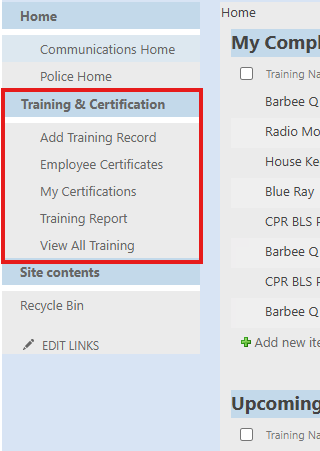
Click on "Add Training Record" to create a new record. The form will load:
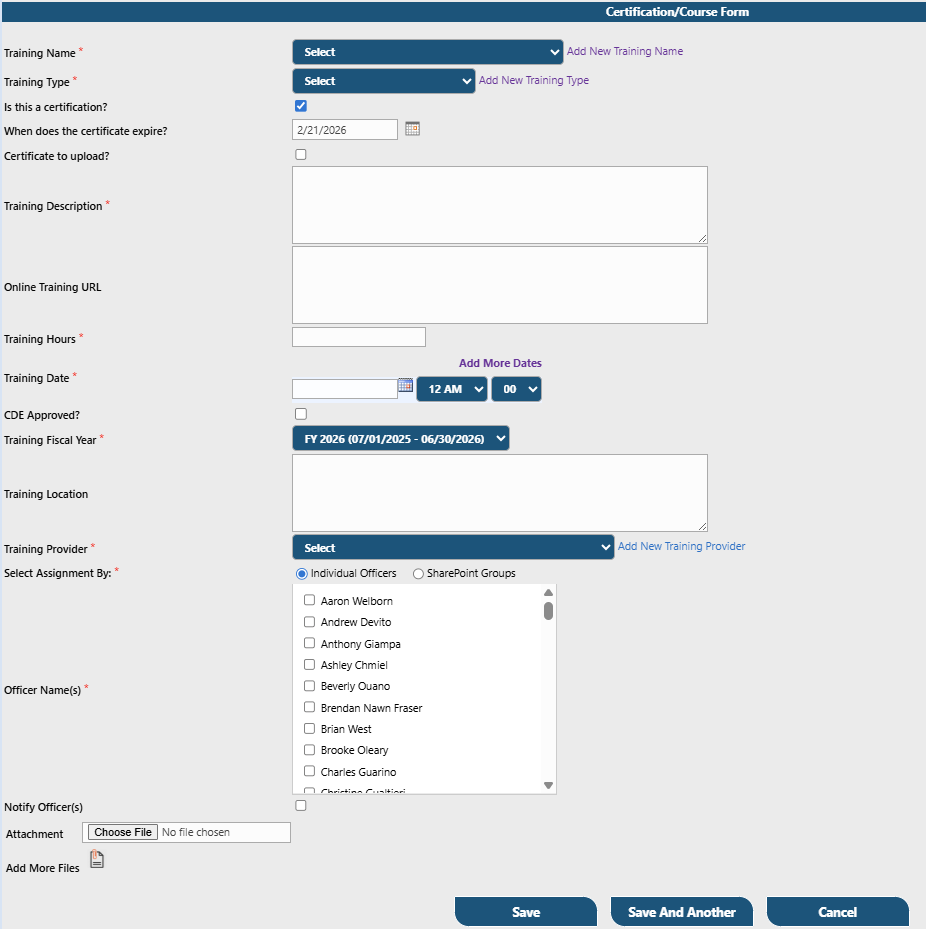
Field descriptions:
Training Name - The name of the training class
Training Type - This is agency defined (e.g. Medical, Firearms, Law Update, Communications, etc)
Is this a Certification? - This will flag and identify the training as a certification that carries an expiration
When does the certificate expire? - Enter the date the certification expires
Certificate to upload? - Checking the box will generate an upload reminder on the home page. More on that below.
Training Description - Enter a description of the training
Online Training URL - Any links to an online resource can be entered here
Training Hours - Enter the number of hours the trainee will be credited for
Training Date - Enter the date and time of the training. Click "add more dates" if multiple days
CDE Approved - This is typically used for "Continuing Dispatch Education" and will assist agencies with tracking hours of approved training
Training Fiscal Year - This is the agencies fiscal year the training took place
Training Location - Enter the location the training is taking place
Training Provider - Select or add who is providing the training
Select assignment by - Choose individual or group to assign the training
Officer name(s) - Select the employees for the training or select a group
Notify Officer(s) - Check this box to send an email to the selected employee(s) containing all the details above
Attachment - Add a document of file to the record
Once a record is added it will appear on the home page. If a certificate is required, the admin will see an upload button.

If no certificate is required, a "Complete Training" button is provided.

Completing either task above marks the training as complete.
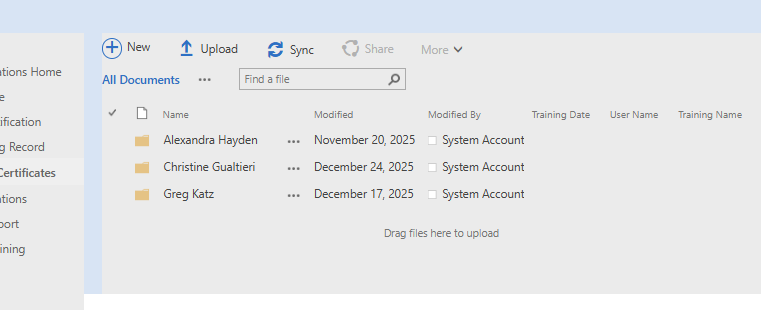
If a certificate is uploaded, it will be placed in the certificate library located here:
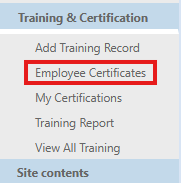
A folder for each employee is automatically built as certificates are uploaded:
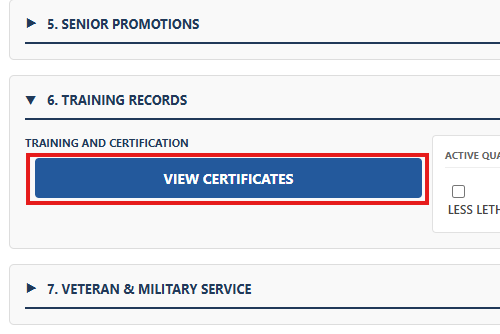
Training certificates are also accessible from the Personnel Data Card:
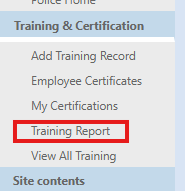
A "Training Report" is provided to view and export each employee's training, view hours and re-assign training:
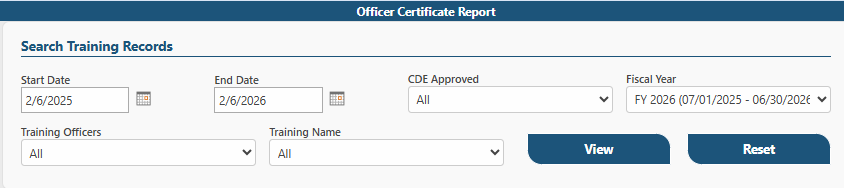
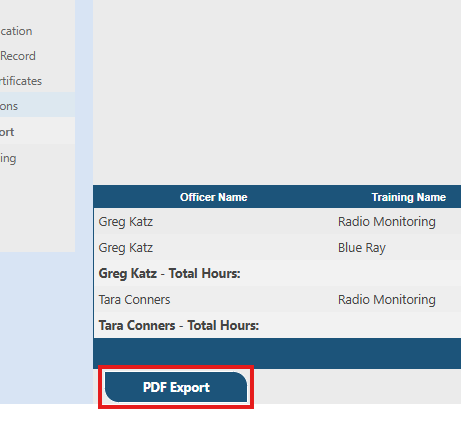
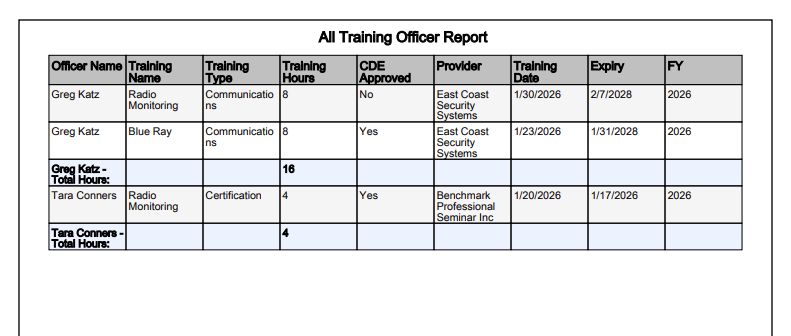
Filtered data will be displayed and an PDF export will be provided to print:
Training Calendar
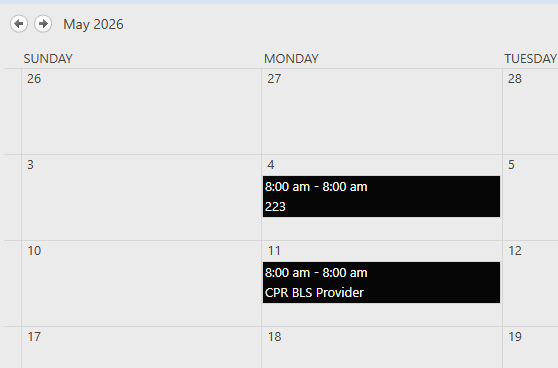
A calendar with all training events is included in DHQ and can be overlayed to the master calendar for greater visibility
How to cancel a user's training
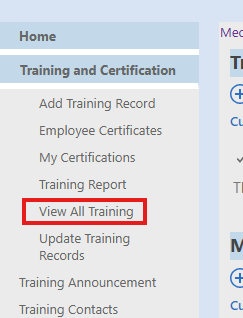
From the training page, select "view all training"
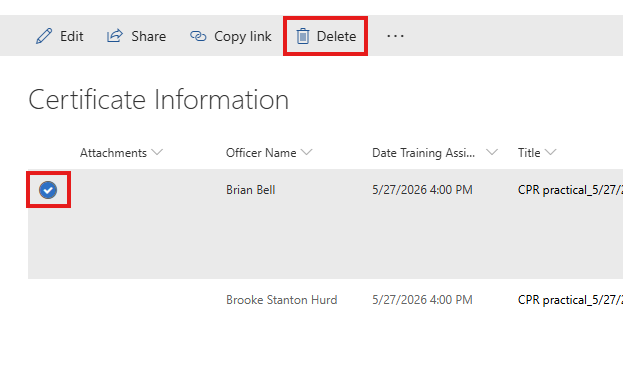
Find the user and training that needs to be cancelled, select that row and delete
ARMS support is available to provide different views of your agency's data. For example, shown below is a list of upcoming certification expirations for the logged-on on employee:
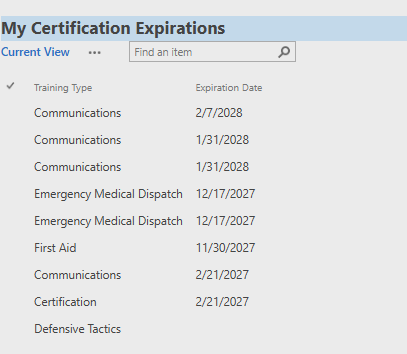
Custom notifications are also available to alert employees of these pending expirations.