Custom Reports
Created by Russ Hartle, Modified on Fri, 20 Jun, 2025 at 2:43 PM by Russ Hartle
Often times it is necessary to export the results from a Query to another source such as Excel. This is a simple process if you are doing a Query for a single Criteria as there is a button at the top of your results page to Export to Excel.
However, if you require multiple Criteria such as Example 2 under our Example Queries section you will have to do a Custom Report as this is the only way to see the data from both layers of Criteria.
To Create a Custom Report export follow the steps below.
- Create a New Query Similar to Example 2 in our Example Queries Section.
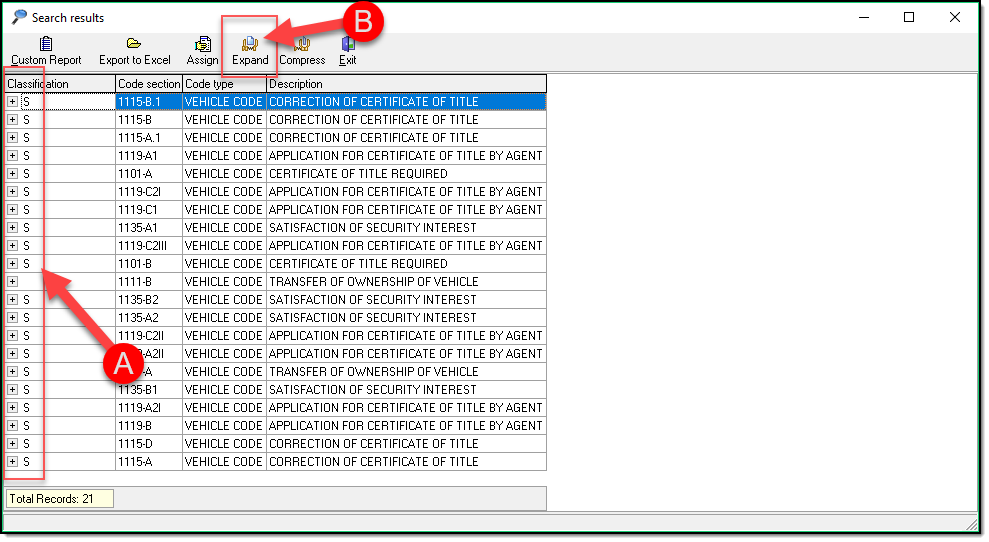
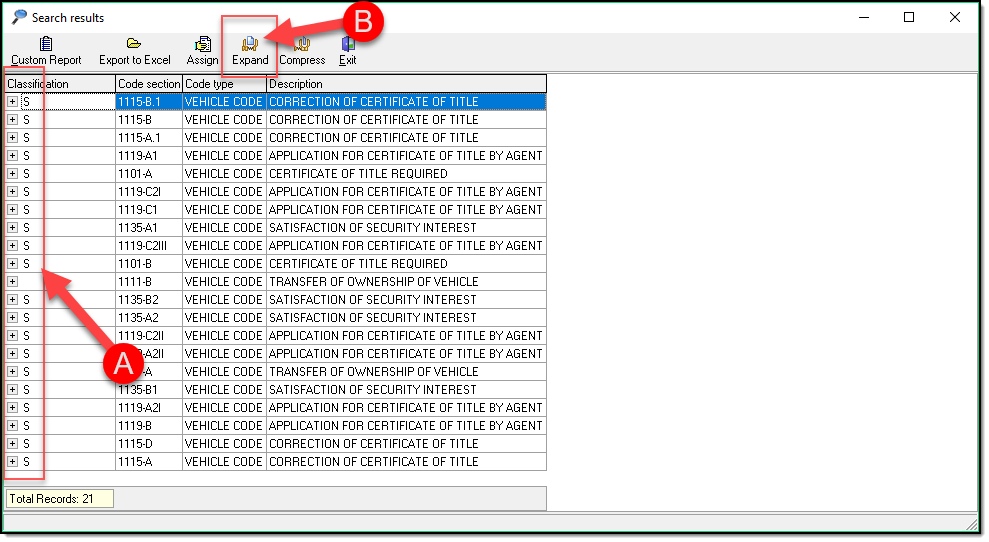
- Your initial results will look as if it only returned the Code Section. However, if you notice the PLUS sign (A) in the left-hand column this indicates there are more details available. This is because we did a multi-layered Query by adding the Extra Criteria. You can now Click (B) to expand your results.
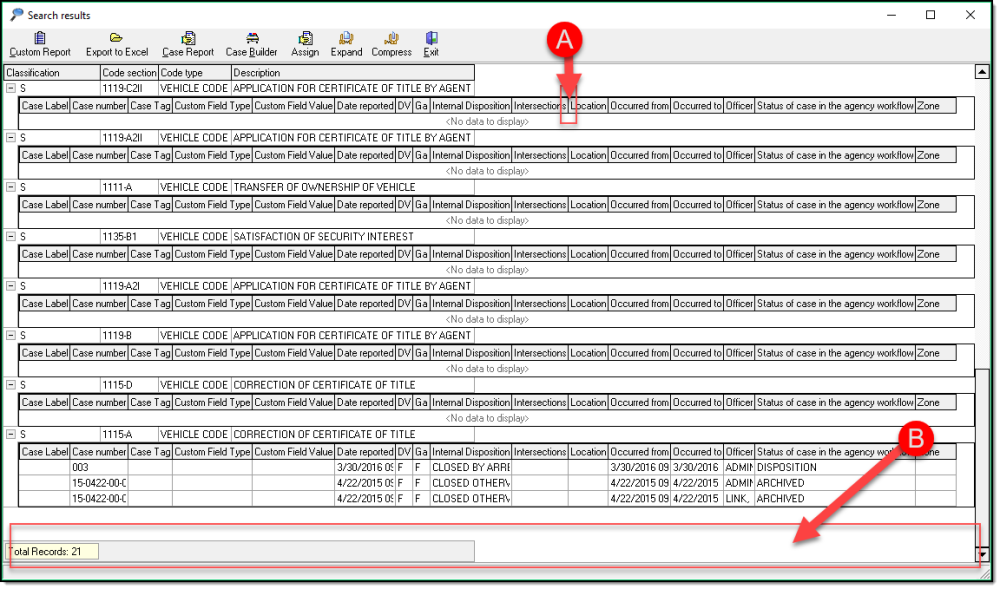
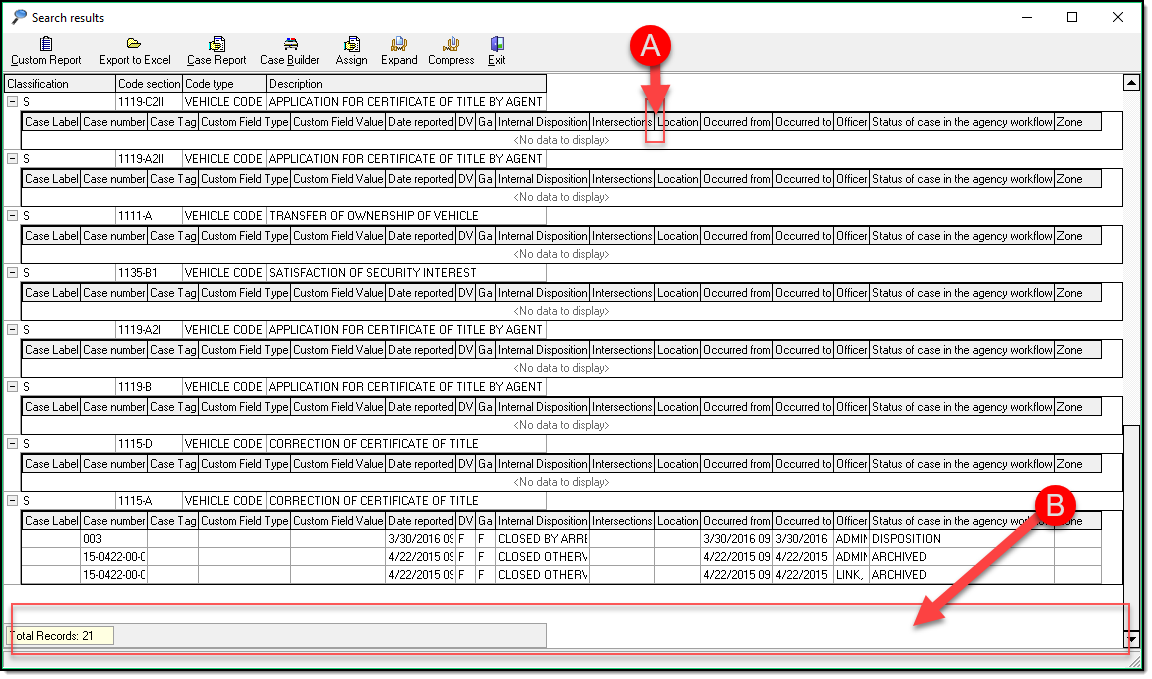
- Notice that the Tables returned often times are oversized and stretch off the screen. You can click the line between the tables (A) to automatically adjust to the smallest size possible. Use the slide bar (B) to go all the way to the right and adjust all sections prior to the next step. (Please note this can be done on both the upper and lower criteria sections depending on the tables returned but you only need to adjust 1 line of each as the system will match the others.
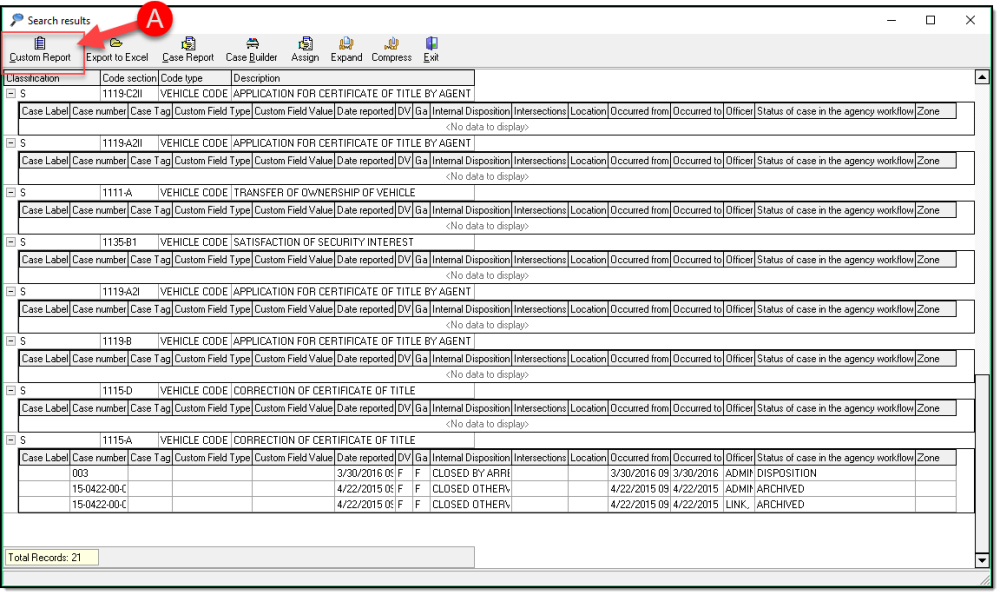
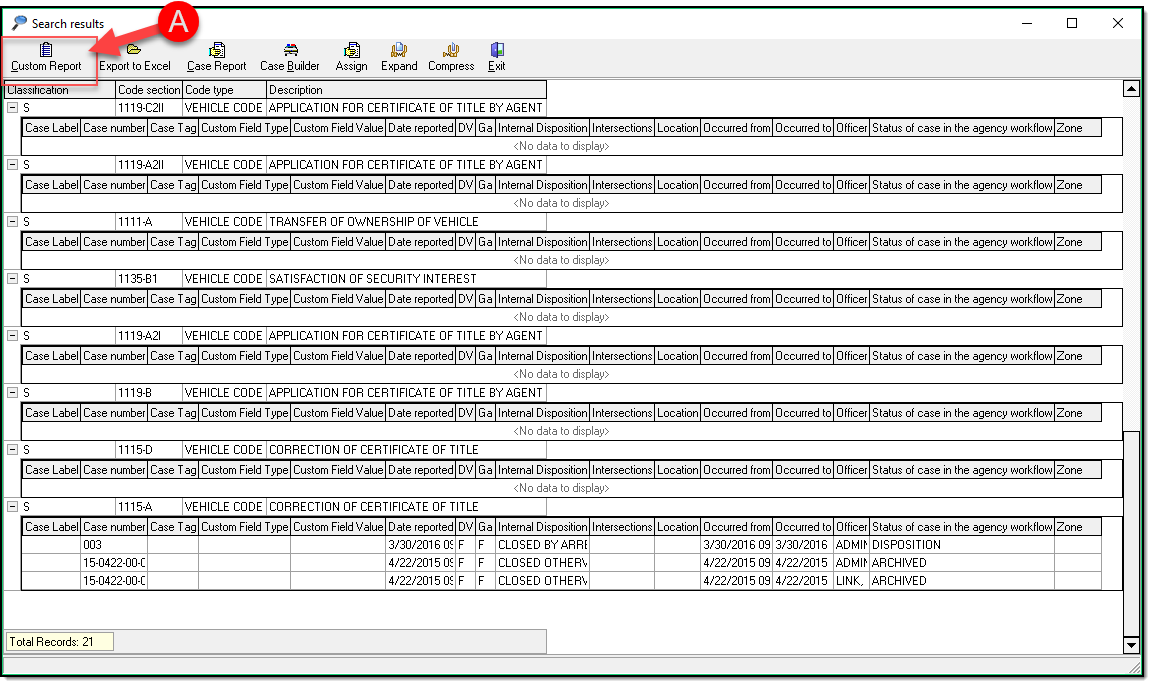
- Once you have your columns sized the way you would like Click Custom Report (A)
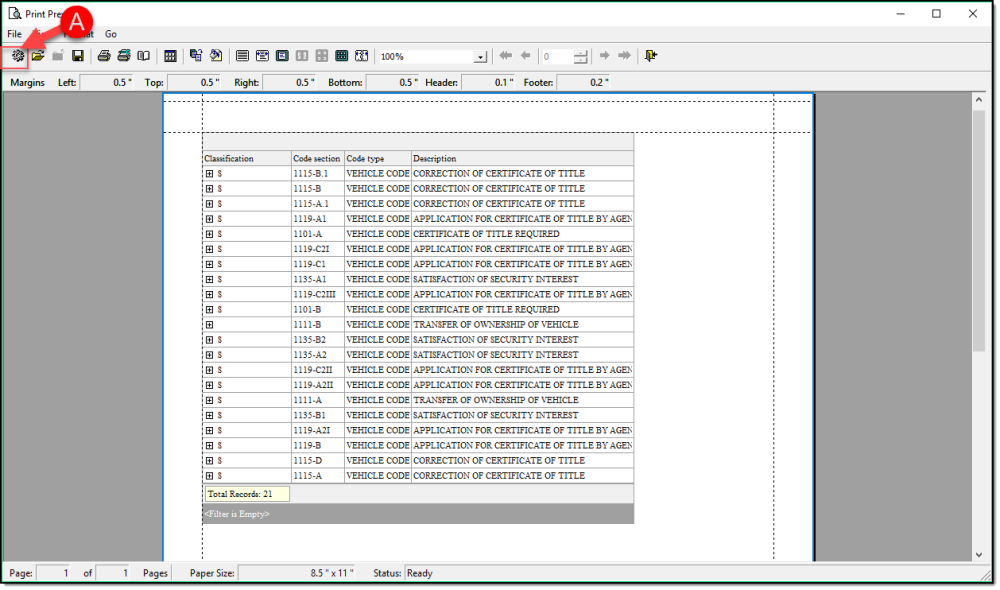
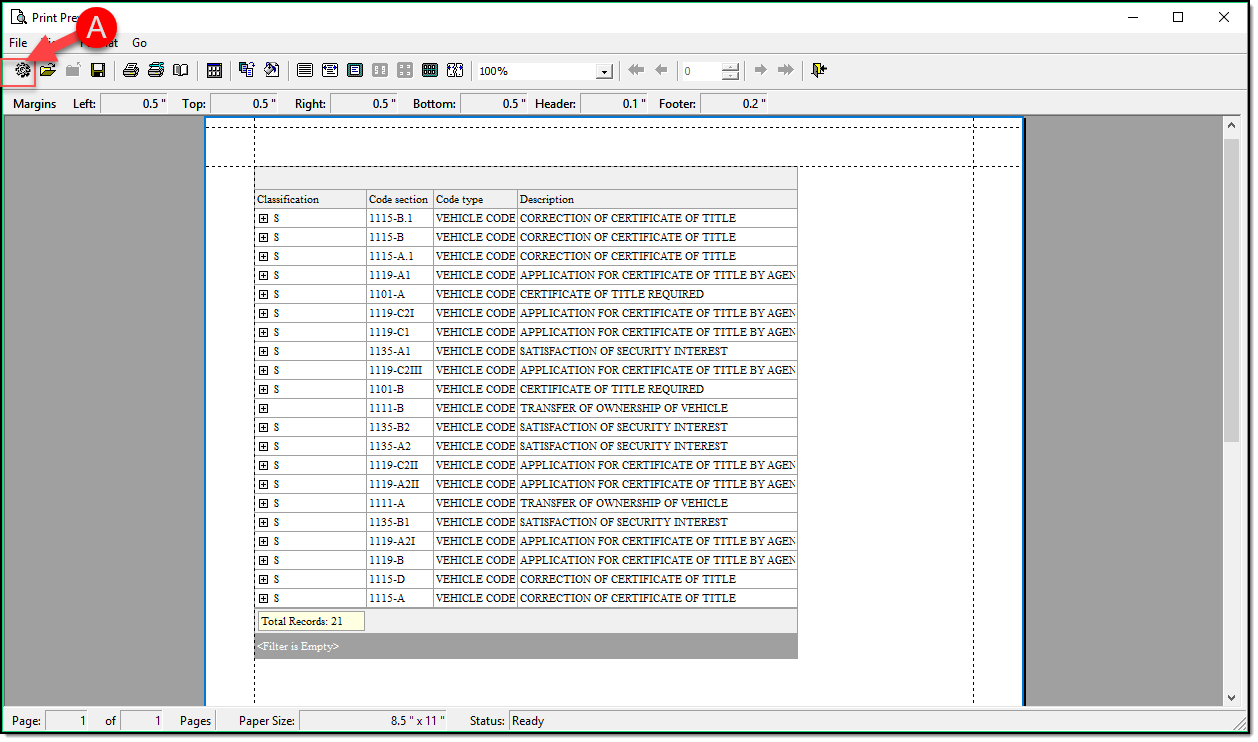
- You will now need to click the settings section (A) from our Custom Reports Preview Screen so we can get all details returned
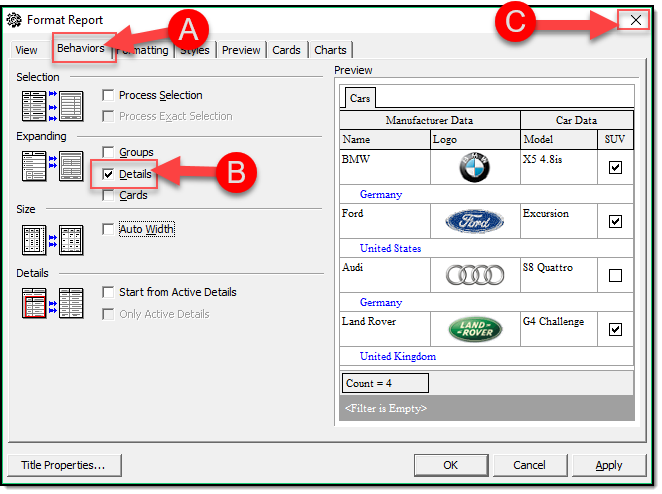
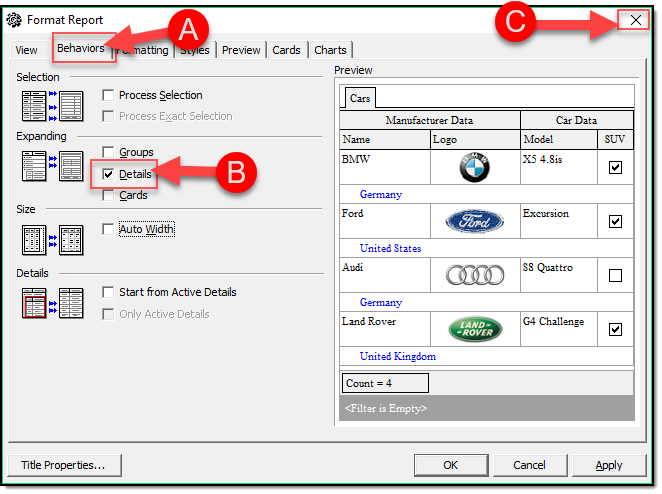
- Go to the Behavior Tab (A) and put check marks in Details (B) and then Exit ( C )
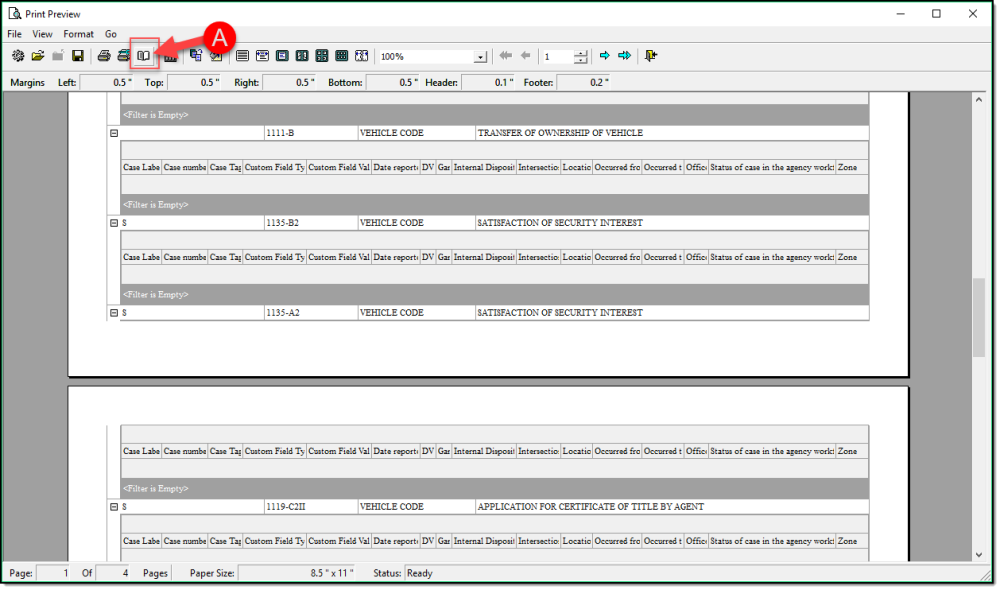
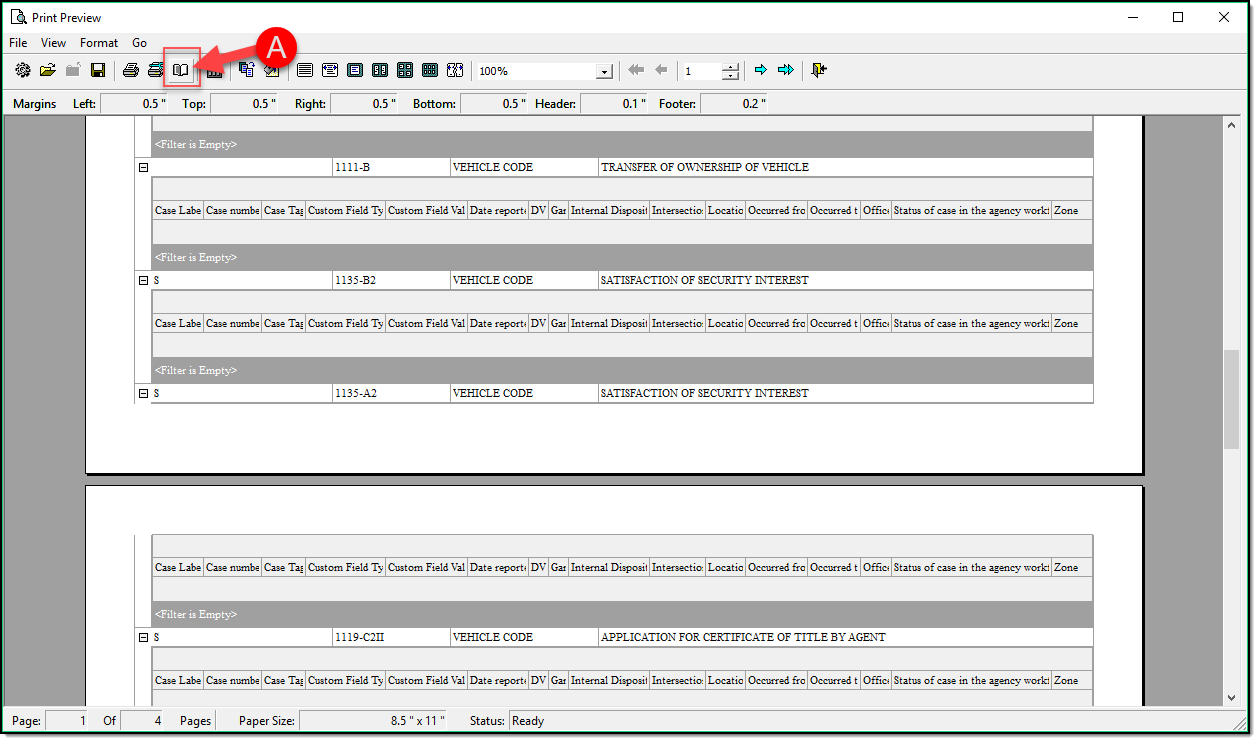
- We now need to adjust the Page to be landscape by Clicking Page Setup (A)
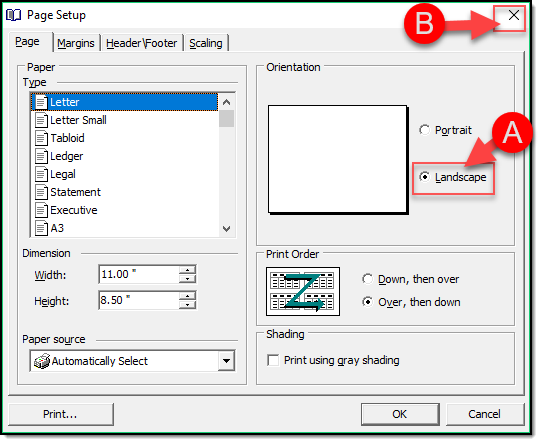
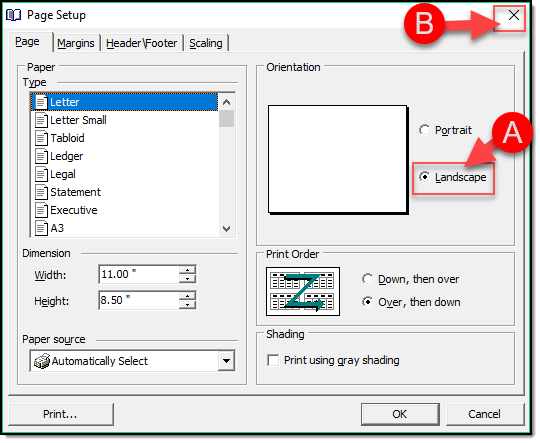
- Put a check mark in Landscape (A) and Close (B)
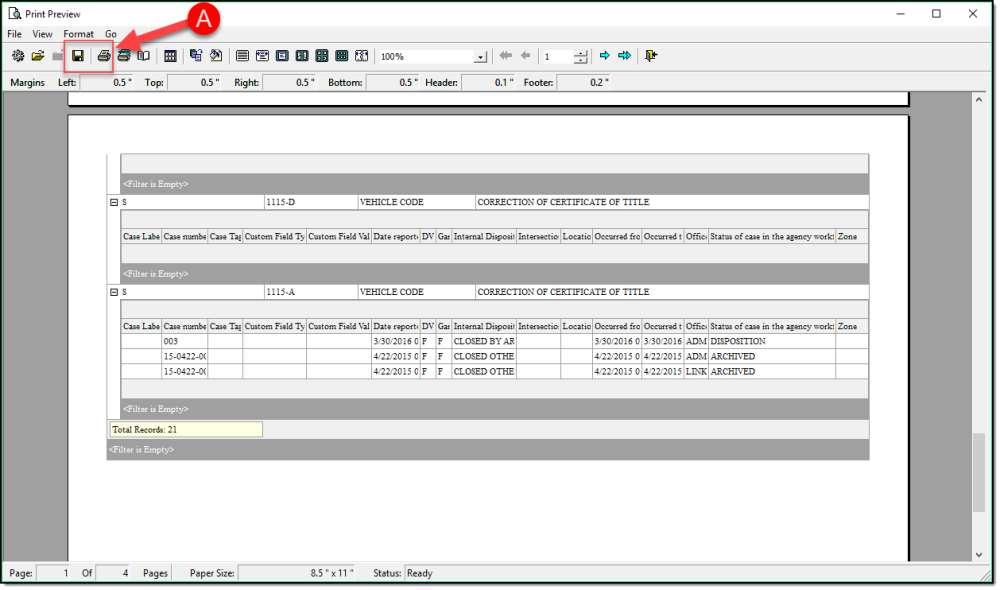
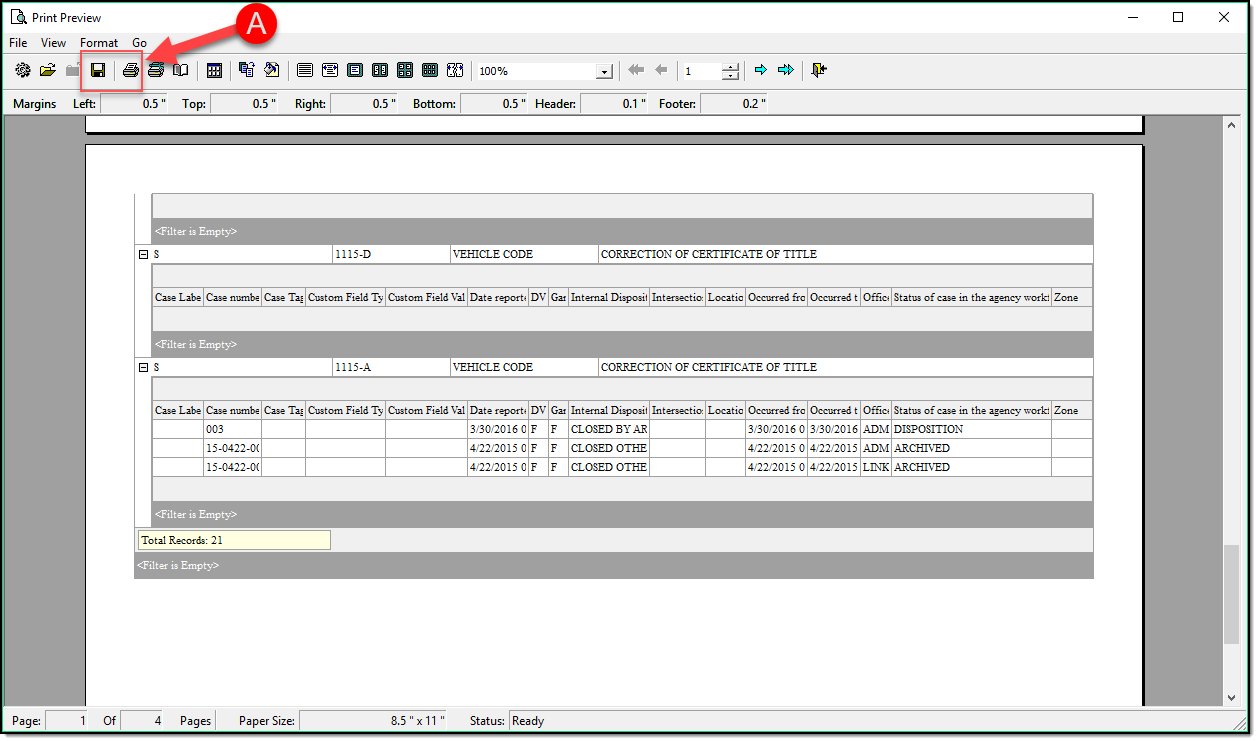
- You can now either Save or Print the report from your toolbar Options (A)
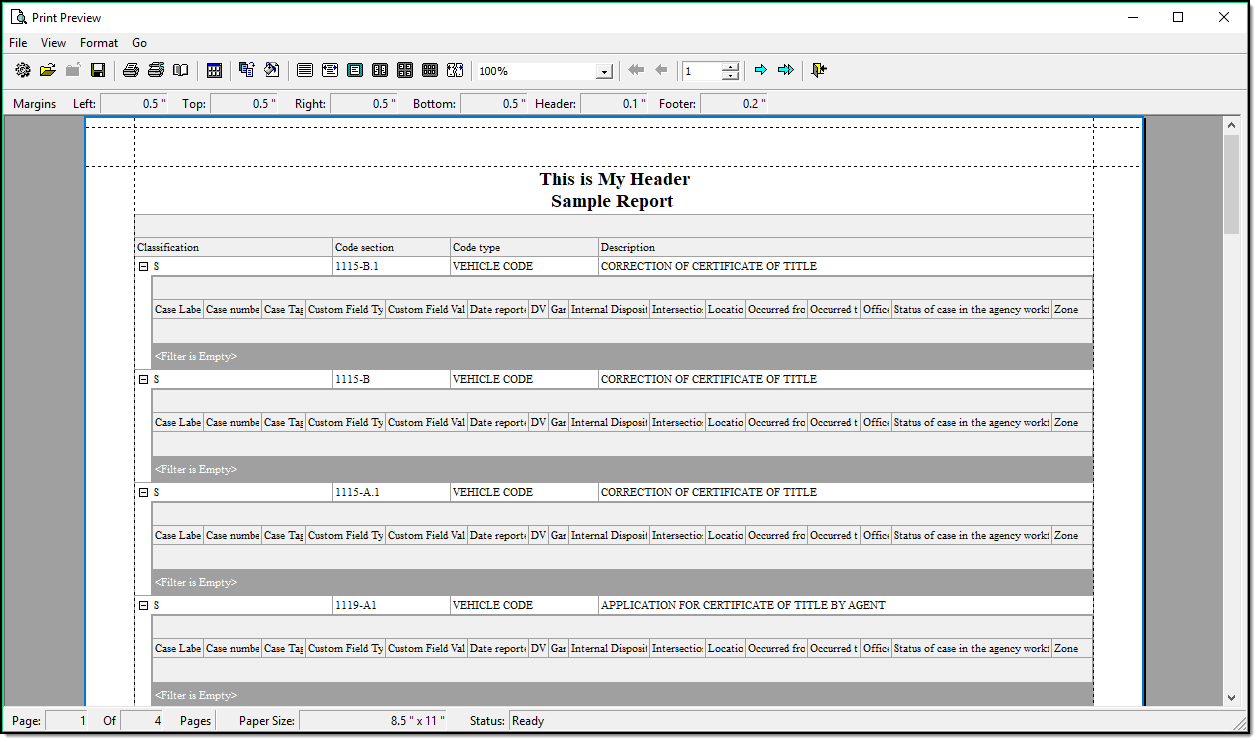
If you would like to add a Header to your report you can do the following steps.
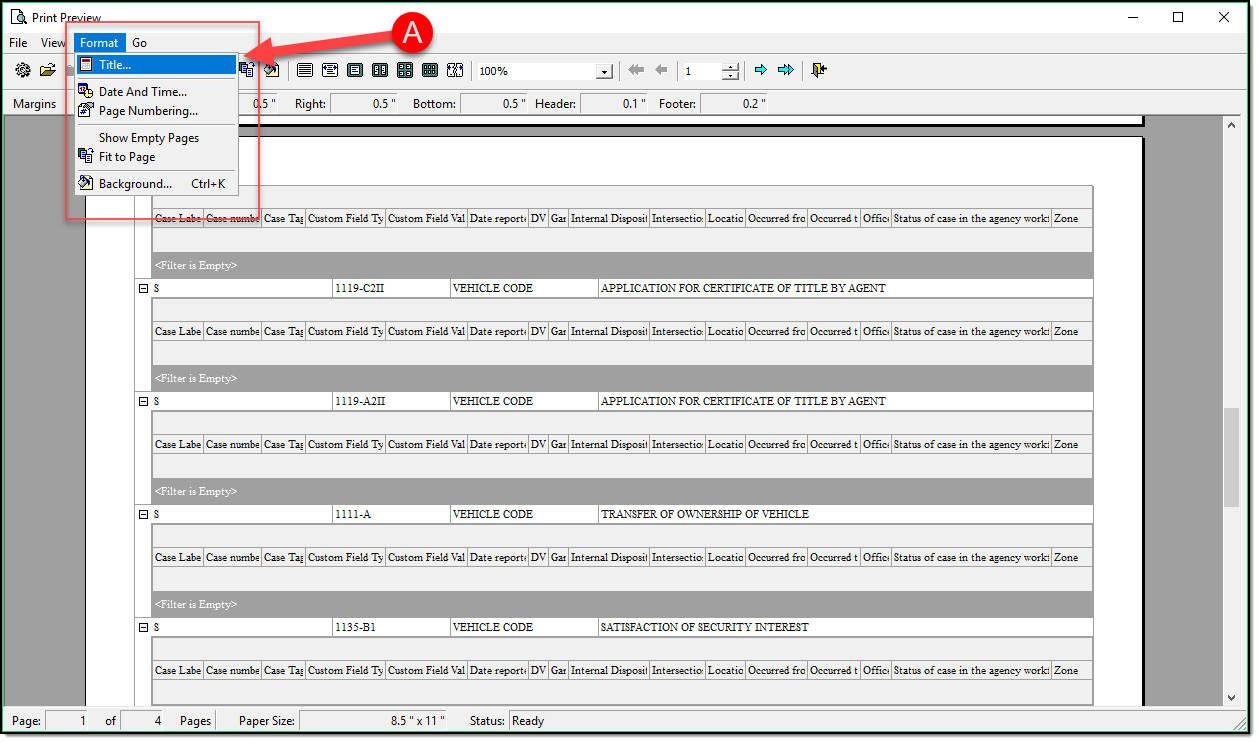
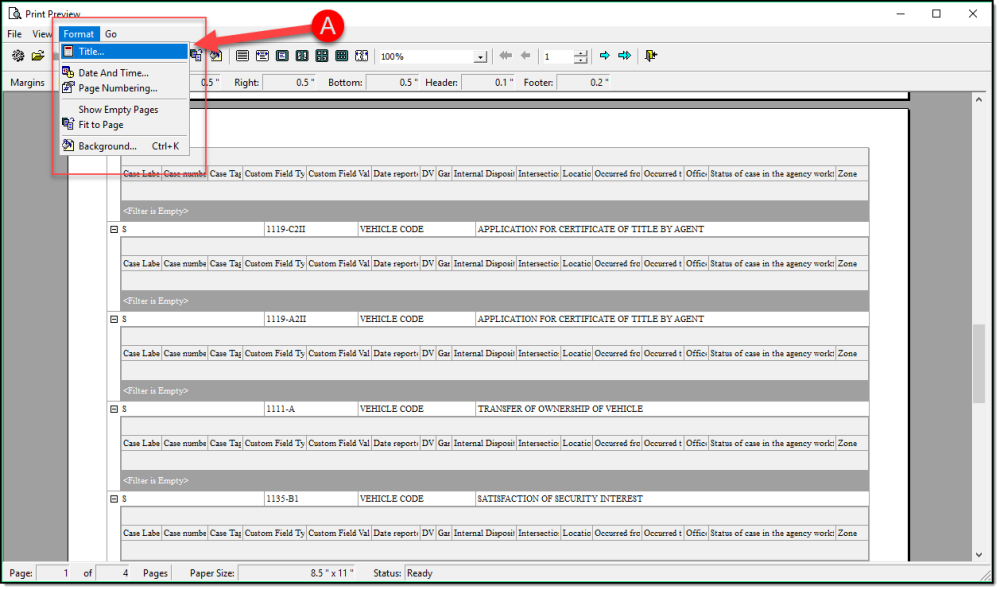
- Go to Format and choose Title (A)
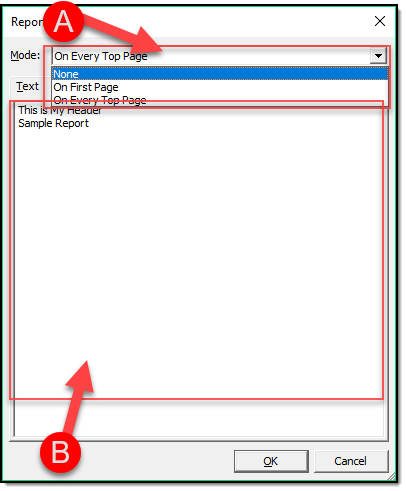
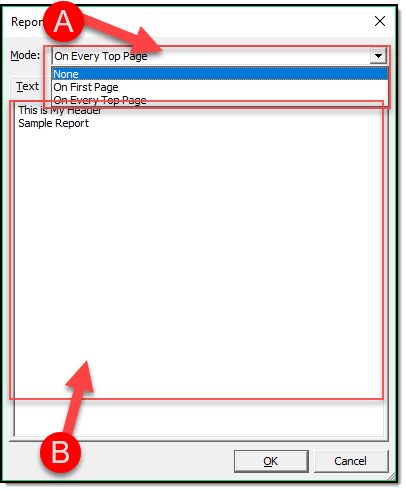
- Choose what pages you would like your Header to be on from the drop-down (A) and enter your text in the Box below (B)
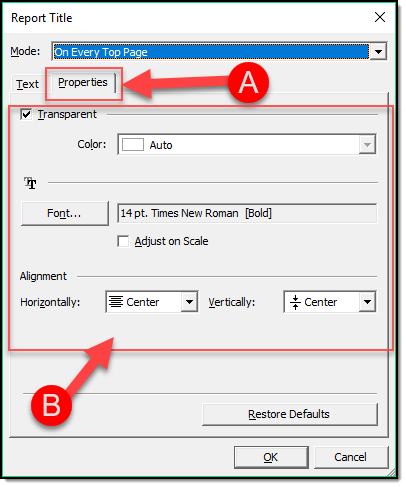
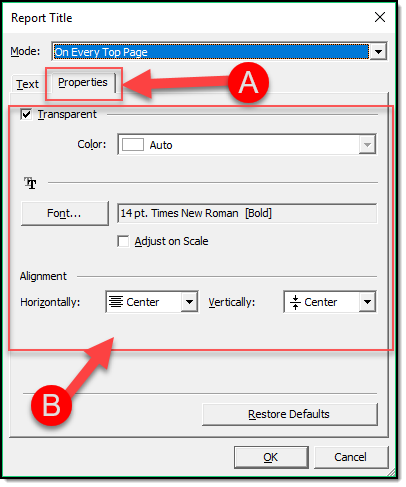
- You can go the Properties Tab (A) and modify various attributes of your Header (B)
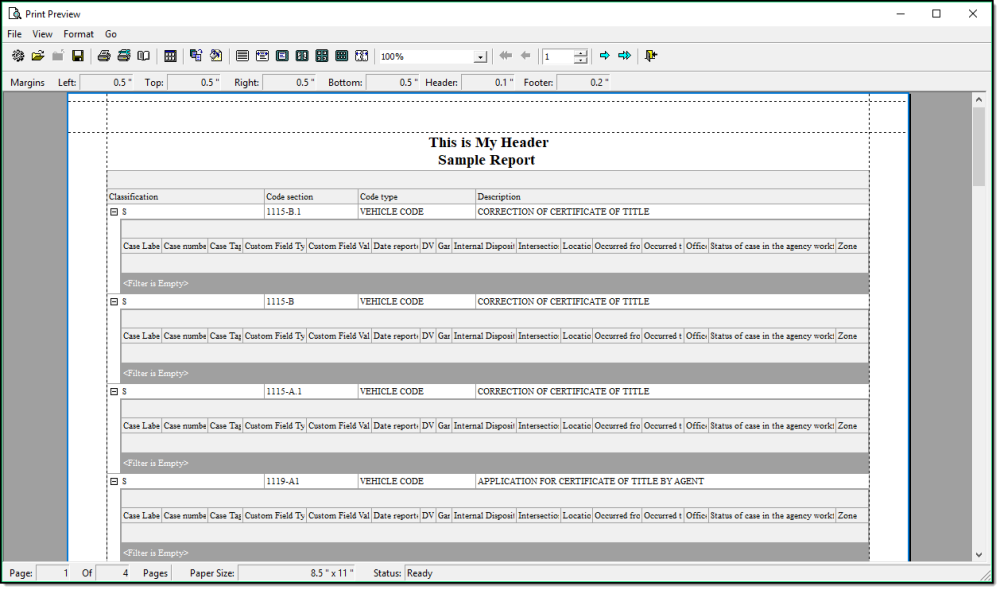
- Once your Header and its properties are set you can click ok and will see your header at the top of your page.