---
title: Entering Press Release Notes
description: In-Synch
---
[Skip to content](https://kb.arms.com/in-synch/entering-press-release-notes#main-content)
English
Show submenu for translations

Open main navigation
Close main navigation
- English
Show submenu for translations
- Contact us
Contact us
How can we help you?
- There are no suggestions because the search field is empty.
1. [In-Synch](https://kb.arms.com/in-synch?hsLang=en)
2. [Knowledge base2](https://kb.arms.com/in-synch/knowledge-base2?hsLang=en)
3. [Modules](https://kb.arms.com/in-synch/knowledge-base2?hsLang=en#modules)
# Entering Press Release Notes
No recent searches
Popular Articles

Sorry! nothing found for
### Entering Press Release Notes
Created by Russ Hartle, Modified on Thu, 22 May, 2025 at 3:36 PM by Russ Hartle
The Press Release tab in the Add/Edit Call window can be used to record a separate sanitized narrative for release to the public and/or press. The printed version of the press release removes the Contact and Vehicle information and replaces the Call Notes narrative with the Press Release narrative. Narrative text can be copied from the Call Notes and pasted into the Press Release by using standard Windows shortcuts. E.g.: Ctrl + a (Select all), Ctrl + c (Copy), and Ctrl + v (Paste).
*\****Tips**:
Rather than copying/pasting, press release notes can be typed directly into the Press Release Notes box. There are also “Timestamp” and “Spell check” buttons available from the Add/Edit Call window.
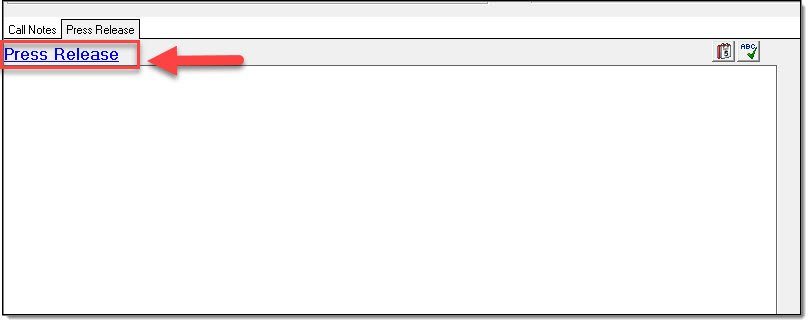
1\. To access a larger Notes Editor window, from the Press Release tab, select the “Press Release” hyperlink.
[](https://manula.s3.amazonaws.com/user/9801/img/press-release-001.jpg)
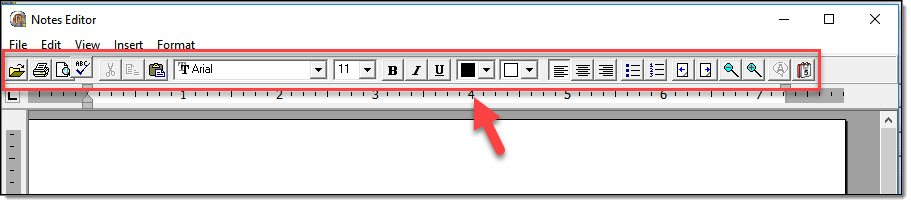
2\. Formatting options are available at the top of the Notes Editor.
[](https://manula.s3.amazonaws.com/user/9801/img/press-release-002.jpg)
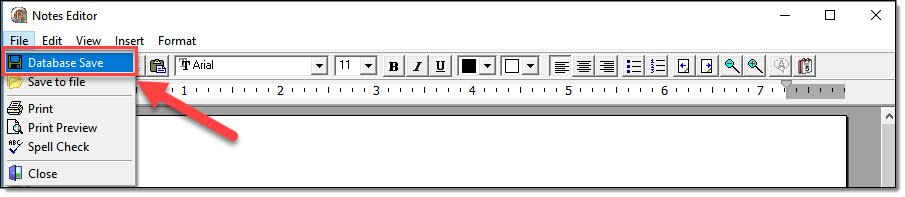
3\. Save the press release notes by selecting “Database Save” from the File drop down menu.
[](https://manula.s3.amazonaws.com/user/9801/img/press-release-003.jpg)
4\. Exit the Press Release Notes Editor by clicking the “X” in the corner of the window.
[](https://manula.s3.amazonaws.com/user/9801/img/press-release-004.jpg)
5\. Click the “Save” button in the upper left-hand corner of the Add/Edit Call window to save all of the recent changes to the call.
[](https://manula.s3.amazonaws.com/user/9801/img/press-release-005.jpg)
Was this article helpful?
That’s Great!
Thank you for your feedback
Sorry! We couldn't be helpful
Thank you for your feedback
Let us know how can we improve this article! \*
Feedback sent
We appreciate your effort and will try to fix the article
**X**
- [Release Notes](https://kb.arms.com/in-synch/release-notes?hsLang=en#main-content)
- [Version 4.8](https://kb.arms.com/in-synch/release-notes?hsLang=en#version-4-8)
- [Knowledge base3](https://kb.arms.com/in-synch/knowledge-base3?hsLang=en#main-content)
- [How To](https://kb.arms.com/in-synch/knowledge-base3?hsLang=en#how-to)
- [Knowledge base2](https://kb.arms.com/in-synch/knowledge-base2?hsLang=en#main-content)
- [Modules](https://kb.arms.com/in-synch/knowledge-base2?hsLang=en#modules)
- [Knowledge base1](https://kb.arms.com/in-synch/knowledge-base1?hsLang=en#main-content)
- [State Reporting](https://kb.arms.com/in-synch/knowledge-base1?hsLang=en#state-reporting)
- [Internal Wiki](https://kb.arms.com/in-synch/knowledge-base1?hsLang=en#internal-wiki)
- [State Specific Modules](https://kb.arms.com/in-synch/knowledge-base1?hsLang=en#state-specific-modules)
- [Release Notes](https://kb.arms.com/in-synch/knowledge-base1?hsLang=en#release-notes)
- [In-Synch RMS QuickStart Video Series](https://kb.arms.com/in-synch/knowledge-base1?hsLang=en#in-synch-rms-quickstart-video-series)
- [Error Messages](https://kb.arms.com/in-synch/knowledge-base1?hsLang=en#error-messages)
- [Knowledge base](https://kb.arms.com/in-synch/knowledge-base?hsLang=en#main-content)
- [Interfaces](https://kb.arms.com/in-synch/knowledge-base?hsLang=en#interfaces)
[](http://arms.com)
[mailto:email@email.com](mailto:email@email.com)
Copyright © 2026, End2End Public Safety