---
title: Final Review and Completing a Case
description: In-Synch
---
[Skip to content](https://kb.arms.com/in-synch/final-review-and-completing-a-case#main-content)
English
Show submenu for translations

Open main navigation
Close main navigation
- English
Show submenu for translations
- Contact us
Contact us
How can we help you?
- There are no suggestions because the search field is empty.
1. [In-Synch](https://kb.arms.com/in-synch?hsLang=en)
2. [Knowledge base2](https://kb.arms.com/in-synch/knowledge-base2?hsLang=en)
3. [Modules](https://kb.arms.com/in-synch/knowledge-base2?hsLang=en#modules)
# Final Review and Completing a Case
No recent searches
Popular Articles

Sorry! nothing found for
### Final Review and Completing a Case
Created by Russ Hartle, Modified on Tue, 27 May, 2025 at 10:24 AM by Russ Hartle
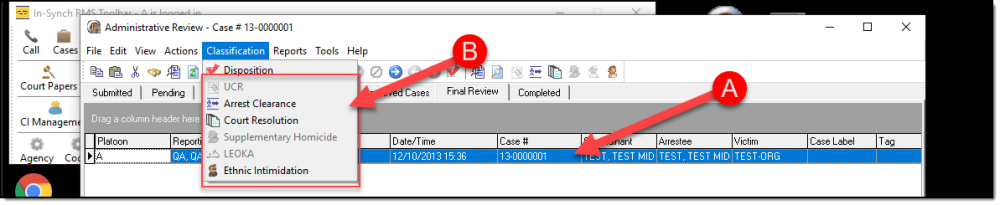
1\. Once a case disposition has been set, the case is moved into the Final Review tab. Cases in the Final Review tab may have other classification information entered such as; arrest clearance, court resolution, state reporting, etc. Highlight the case (A), and then select the corresponding choice from the Classification drop down list (B).
[](https://manula.s3.amazonaws.com/user/9801/img/review016_v1.jpg)
### Completing a Case
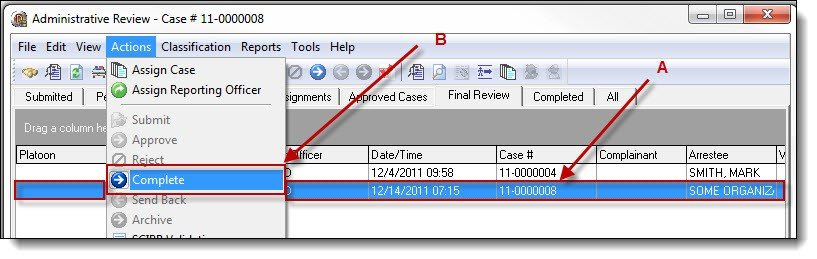
1\. After entering any final classifications or final supervisor approval, a case needs to be marked as completed. Highlight the case in the Final Review tab (A), and then select “Complete” from the Actions drop down list (B).
[](https://manula.s3.amazonaws.com/user/9801/img/review017.jpg)
2\. Click the “Yes” button on the Confirmation window to complete the case. The case is removed from the Final Review tab and placed in the Completed“tab.
[](https://manula.s3.amazonaws.com/user/9801/img/review018.jpg)
Was this article helpful?
That’s Great!
Thank you for your feedback
Sorry! We couldn't be helpful
Thank you for your feedback
Let us know how can we improve this article! \*
Feedback sent
We appreciate your effort and will try to fix the article
**X**
- [Release Notes](https://kb.arms.com/in-synch/release-notes?hsLang=en#main-content)
- [Version 4.8](https://kb.arms.com/in-synch/release-notes?hsLang=en#version-4-8)
- [Knowledge base3](https://kb.arms.com/in-synch/knowledge-base3?hsLang=en#main-content)
- [How To](https://kb.arms.com/in-synch/knowledge-base3?hsLang=en#how-to)
- [Knowledge base2](https://kb.arms.com/in-synch/knowledge-base2?hsLang=en#main-content)
- [Modules](https://kb.arms.com/in-synch/knowledge-base2?hsLang=en#modules)
- [Knowledge base1](https://kb.arms.com/in-synch/knowledge-base1?hsLang=en#main-content)
- [State Reporting](https://kb.arms.com/in-synch/knowledge-base1?hsLang=en#state-reporting)
- [Internal Wiki](https://kb.arms.com/in-synch/knowledge-base1?hsLang=en#internal-wiki)
- [State Specific Modules](https://kb.arms.com/in-synch/knowledge-base1?hsLang=en#state-specific-modules)
- [Release Notes](https://kb.arms.com/in-synch/knowledge-base1?hsLang=en#release-notes)
- [In-Synch RMS QuickStart Video Series](https://kb.arms.com/in-synch/knowledge-base1?hsLang=en#in-synch-rms-quickstart-video-series)
- [Error Messages](https://kb.arms.com/in-synch/knowledge-base1?hsLang=en#error-messages)
- [Knowledge base](https://kb.arms.com/in-synch/knowledge-base?hsLang=en#main-content)
- [Interfaces](https://kb.arms.com/in-synch/knowledge-base?hsLang=en#interfaces)
[](http://arms.com)
[mailto:email@email.com](mailto:email@email.com)
Copyright © 2026, End2End Public Safety