---
title: Running a Report
description: In-Synch
---
[Skip to content](https://kb.arms.com/in-synch/running-a-report#main-content)
English
Show submenu for translations

Open main navigation
Close main navigation
- English
Show submenu for translations
- Contact us
Contact us
How can we help you?
- There are no suggestions because the search field is empty.
1. [In-Synch](https://kb.arms.com/in-synch?hsLang=en)
2. [Knowledge base2](https://kb.arms.com/in-synch/knowledge-base2?hsLang=en)
3. [Modules](https://kb.arms.com/in-synch/knowledge-base2?hsLang=en#modules)
# Running a Report
No recent searches
Popular Articles

Sorry! nothing found for
### Running a Report
Created by Russ Hartle, Modified on Thu, 3 Apr, 2025 at 3:13 PM by Russ Hartle
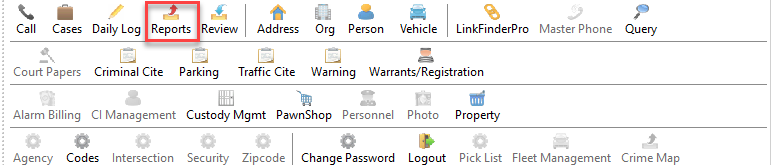
The Reports Module is a listing of individual statistical reports available in the RMS system. These reports are grouped based on the information they pertain to. To enter the Reports module, press the ‘Reports’ button on the main RMS toolbar.
[](https://manula.s3.amazonaws.com/user/9801/img/reports-001.png)
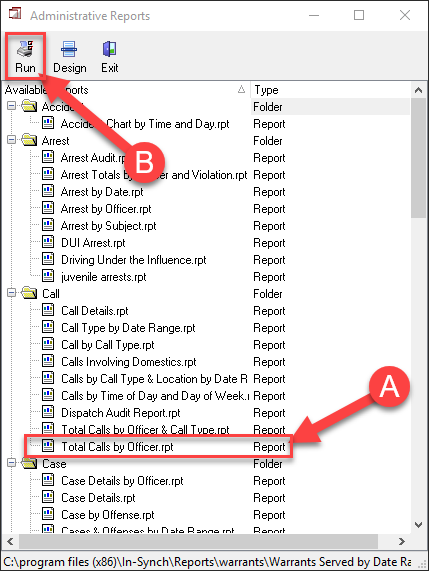
1\. With the Reports module open, select the report you would like to run (A), and press the Run button (B).
[](https://manula.s3.amazonaws.com/user/9801/img/reports-002.png)
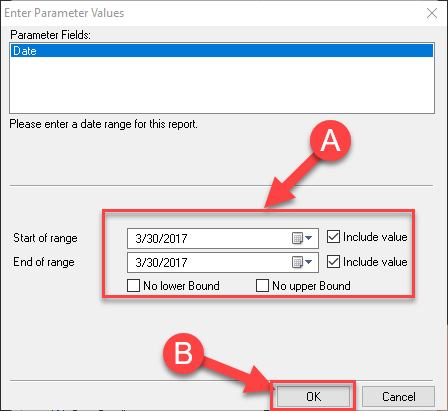
2\. This opens the parameter screen. Enter the required parameters for the report (A), and press the OK button (B).
[](https://manula.s3.amazonaws.com/user/9801/img/reports-003.png)*!***Did You Know?**
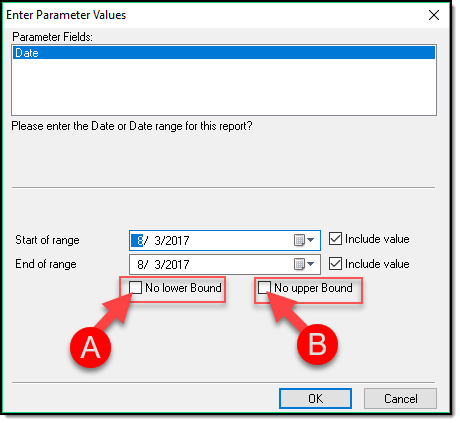
There are two additional options related to the date parameter:
- **No Lower Bounds (A)** – If this option is selected, the report will return results for all records prior to the End of Range Date selected.
- **No Upper Bounds (B)** – If this option is selected, the report will return results for all records after the Start of Range entered.
[](https://manula.s3.amazonaws.com/user/9801/img/reports-007.png)
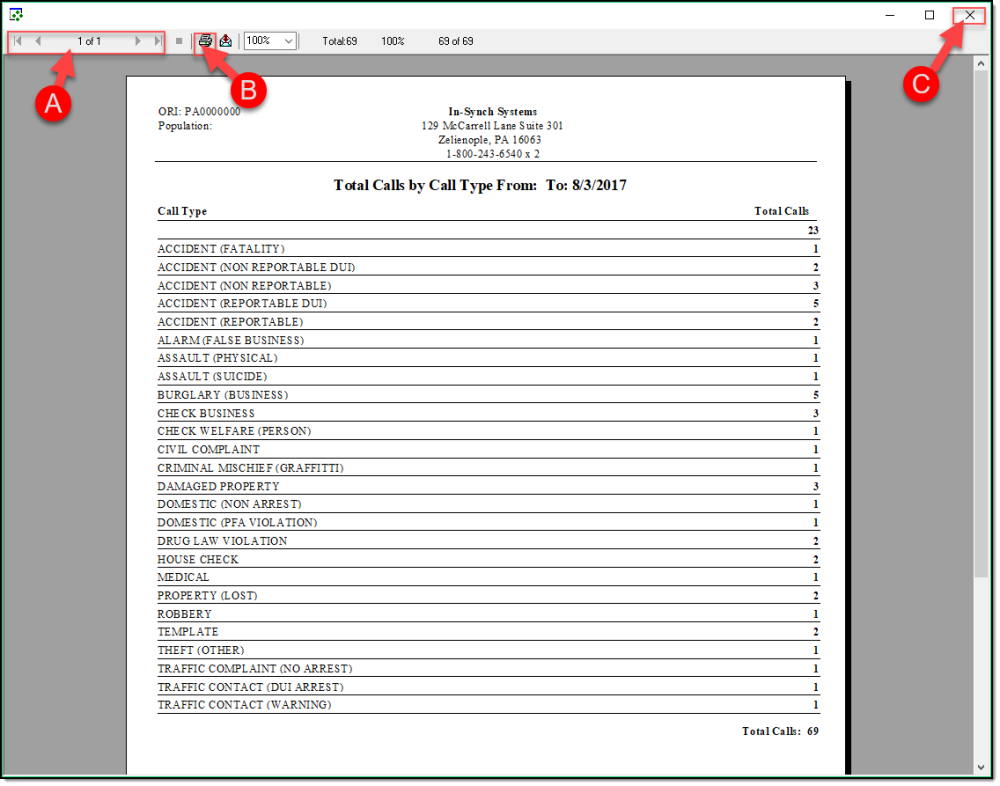
3\. The report will now generate and display on the screen. If the report is more than a single page, it can be navigated by scrolling or using the page arrows (A). If the report needs to be printed, press the print button (B). When finished, simply close the report with the ‘X’ button ( C ).
[](https://manula.s3.amazonaws.com/user/9801/img/reports-004_v1.png)
Was this article helpful?
That’s Great!
Thank you for your feedback
Sorry! We couldn't be helpful
Thank you for your feedback
Let us know how can we improve this article! \*
Feedback sent
We appreciate your effort and will try to fix the article
**X**
- [Release Notes](https://kb.arms.com/in-synch/release-notes?hsLang=en#main-content)
- [Version 4.8](https://kb.arms.com/in-synch/release-notes?hsLang=en#version-4-8)
- [Knowledge base3](https://kb.arms.com/in-synch/knowledge-base3?hsLang=en#main-content)
- [How To](https://kb.arms.com/in-synch/knowledge-base3?hsLang=en#how-to)
- [Knowledge base2](https://kb.arms.com/in-synch/knowledge-base2?hsLang=en#main-content)
- [Modules](https://kb.arms.com/in-synch/knowledge-base2?hsLang=en#modules)
- [Knowledge base1](https://kb.arms.com/in-synch/knowledge-base1?hsLang=en#main-content)
- [State Reporting](https://kb.arms.com/in-synch/knowledge-base1?hsLang=en#state-reporting)
- [Internal Wiki](https://kb.arms.com/in-synch/knowledge-base1?hsLang=en#internal-wiki)
- [State Specific Modules](https://kb.arms.com/in-synch/knowledge-base1?hsLang=en#state-specific-modules)
- [Release Notes](https://kb.arms.com/in-synch/knowledge-base1?hsLang=en#release-notes)
- [In-Synch RMS QuickStart Video Series](https://kb.arms.com/in-synch/knowledge-base1?hsLang=en#in-synch-rms-quickstart-video-series)
- [Error Messages](https://kb.arms.com/in-synch/knowledge-base1?hsLang=en#error-messages)
- [Knowledge base](https://kb.arms.com/in-synch/knowledge-base?hsLang=en#main-content)
- [Interfaces](https://kb.arms.com/in-synch/knowledge-base?hsLang=en#interfaces)
[](http://arms.com)
[mailto:email@email.com](mailto:email@email.com)
Copyright © 2026, End2End Public Safety