---
title: Saving and Uploading a Monthly UCR File
description: In-Synch
---
[Skip to content](https://kb.arms.com/in-synch/saving-and-uploading-a-monthly-ucr-file#main-content)
English
Show submenu for translations

Open main navigation
Close main navigation
- English
Show submenu for translations
- Contact us
Contact us
How can we help you?
- There are no suggestions because the search field is empty.
1. [In-Synch](https://kb.arms.com/in-synch?hsLang=en)
2. [Knowledge base1](https://kb.arms.com/in-synch/knowledge-base1?hsLang=en)
3. [State Reporting](https://kb.arms.com/in-synch/knowledge-base1?hsLang=en#state-reporting)
# Saving and Uploading a Monthly UCR File
No recent searches
Popular Articles

Sorry! nothing found for
### Saving and Uploading a Monthly UCR File
Created by Russ Hartle, Modified on Tue, 27 May, 2025 at 11:05 AM by Russ Hartle
### Saving the Monthly UCR File
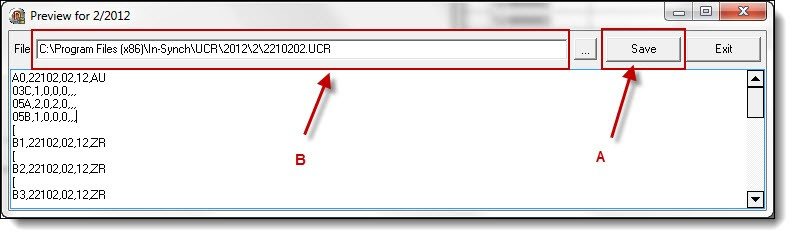
1\. Assuming that all of the outstanding errors have been addressed, click the “Save” button (A) on the UCR Preview window to save the file to the default location (B).
[](https://manula.s3.amazonaws.com/user/9801/img/paucr012.jpg)
***Did You Know?***
***The default UCR file location is stored in the In-Synch folder. The files are organized by year and month***
### Uploading the Monthly UCR File
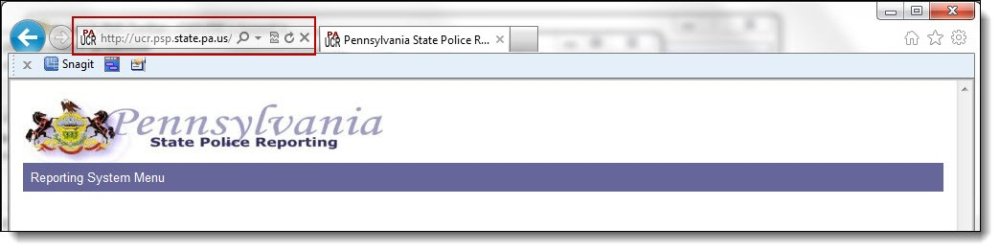
1\. Open the website; http://ucr.psp.state.pa.us from your web browser.
[](https://manula.s3.amazonaws.com/user/9801/img/paucr013.jpg)
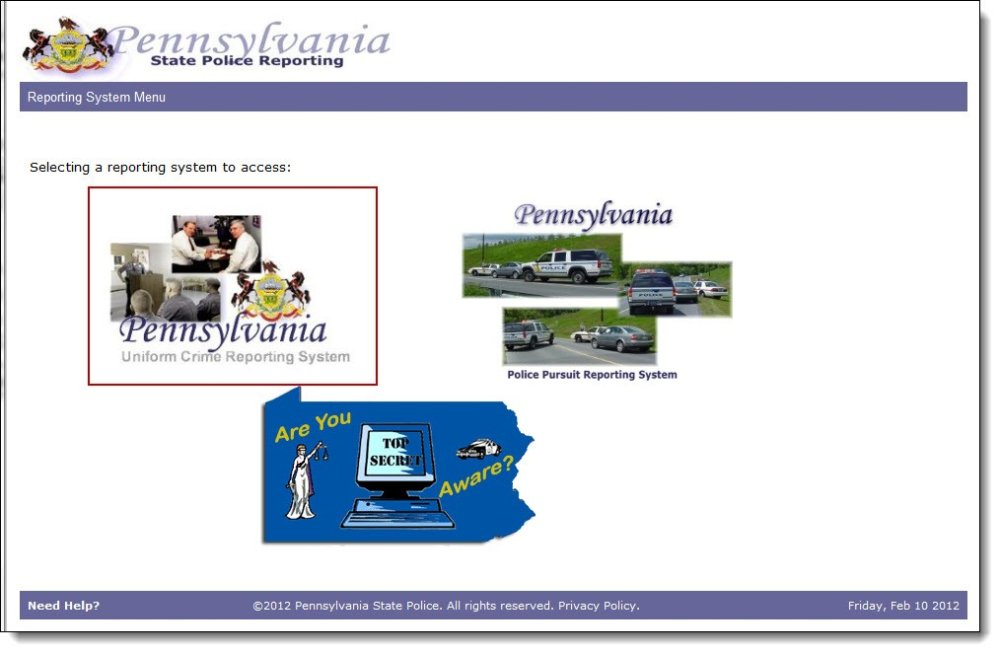
2\. Click the “Pennsylvania Uniform Crime Reporting System” link.
[](https://manula.s3.amazonaws.com/user/9801/img/paucr014.jpg)
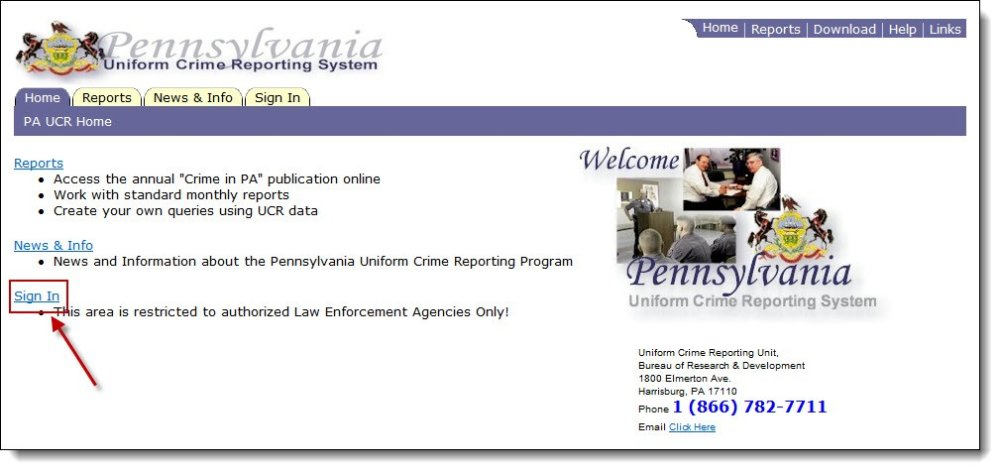
3\. Click the “Sign In” link.
[](https://manula.s3.amazonaws.com/user/9801/img/paucr015.jpg)
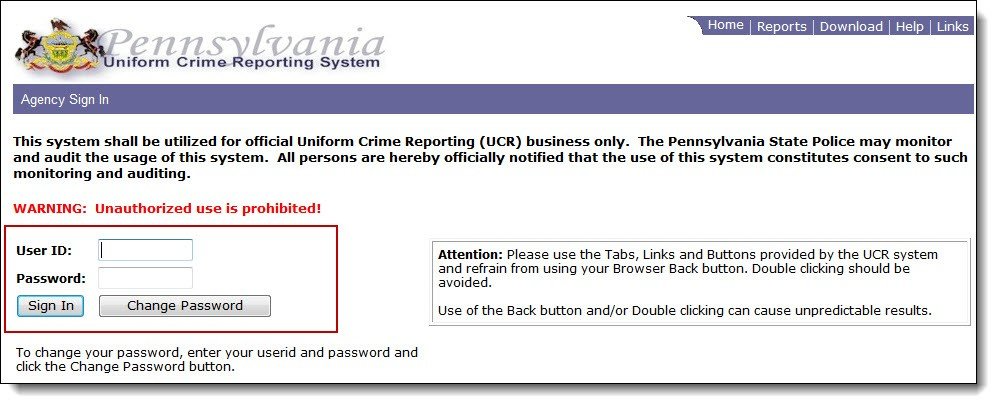
4\. Sign-in using your state-provided user ID and password.
[](https://manula.s3.amazonaws.com/user/9801/img/paucr016.jpg)
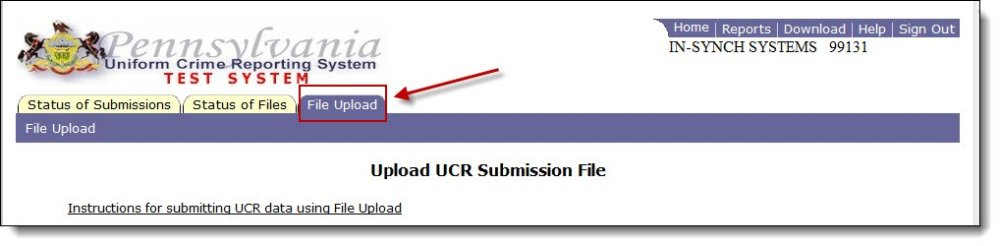
5\. Select the “File Upload” tab.
[](https://manula.s3.amazonaws.com/user/9801/img/paucr017.jpg)
6\. Click the “Browse” button to locate the monthly file on your computer. By default, the UCR file will be located in C:\\Program Files\\In-Synch\\UCR\\“Year”\\“Month” (Program Files (x86) for 64-bit computers).
[](https://manula.s3.amazonaws.com/user/9801/img/paucr018.jpg)
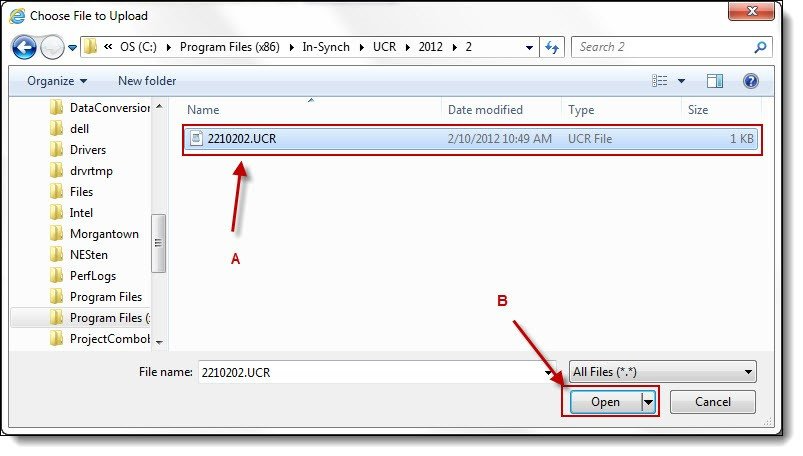
7\. Highlight the file (A), and then click the “Open” button (B).
[](https://manula.s3.amazonaws.com/user/9801/img/paucr019.jpg)
8\. Once the file has been selected, click the “Upload File” button.
[](https://manula.s3.amazonaws.com/user/9801/img/paucr020.jpg)*!***Did You Know?**
- The submission in the file may be scheduled to process overnight according to PSP Administrator guidelines.
- The process status of the uploaded file can be viewed on the Status of Files page, which is displayed when you click the Status of Files tab.
- The outcome of the processed submission(s) can be viewed on the Status Of Submissions page, the page that is displayed when you first log in.
Was this article helpful?
That’s Great!
Thank you for your feedback
Sorry! We couldn't be helpful
Thank you for your feedback
Let us know how can we improve this article! \*
Feedback sent
We appreciate your effort and will try to fix the article
**X**
- [Release Notes](https://kb.arms.com/in-synch/release-notes?hsLang=en#main-content)
- [Version 4.8](https://kb.arms.com/in-synch/release-notes?hsLang=en#version-4-8)
- [Knowledge base3](https://kb.arms.com/in-synch/knowledge-base3?hsLang=en#main-content)
- [How To](https://kb.arms.com/in-synch/knowledge-base3?hsLang=en#how-to)
- [Knowledge base2](https://kb.arms.com/in-synch/knowledge-base2?hsLang=en#main-content)
- [Modules](https://kb.arms.com/in-synch/knowledge-base2?hsLang=en#modules)
- [Knowledge base1](https://kb.arms.com/in-synch/knowledge-base1?hsLang=en#main-content)
- [State Reporting](https://kb.arms.com/in-synch/knowledge-base1?hsLang=en#state-reporting)
- [Internal Wiki](https://kb.arms.com/in-synch/knowledge-base1?hsLang=en#internal-wiki)
- [State Specific Modules](https://kb.arms.com/in-synch/knowledge-base1?hsLang=en#state-specific-modules)
- [Release Notes](https://kb.arms.com/in-synch/knowledge-base1?hsLang=en#release-notes)
- [In-Synch RMS QuickStart Video Series](https://kb.arms.com/in-synch/knowledge-base1?hsLang=en#in-synch-rms-quickstart-video-series)
- [Error Messages](https://kb.arms.com/in-synch/knowledge-base1?hsLang=en#error-messages)
- [Knowledge base](https://kb.arms.com/in-synch/knowledge-base?hsLang=en#main-content)
- [Interfaces](https://kb.arms.com/in-synch/knowledge-base?hsLang=en#interfaces)
[](http://arms.com)
[mailto:email@email.com](mailto:email@email.com)
Copyright © 2026, End2End Public Safety