---
title: Searching and Entering a Person
description: In-Synch
---
[Skip to content](https://kb.arms.com/in-synch/searching-and-entering-a-person#main-content)
English
Show submenu for translations

Open main navigation
Close main navigation
- English
Show submenu for translations
- Contact us
Contact us
How can we help you?
- There are no suggestions because the search field is empty.
1. [In-Synch](https://kb.arms.com/in-synch?hsLang=en)
2. [Knowledge base2](https://kb.arms.com/in-synch/knowledge-base2?hsLang=en)
3. [Modules](https://kb.arms.com/in-synch/knowledge-base2?hsLang=en#modules)
# Searching and Entering a Person
No recent searches
Popular Articles

Sorry! nothing found for
### Searching and Entering a Person
Created by Russ Hartle, Modified on Fri, 20 Jun, 2025 at 2:18 PM by Russ Hartle
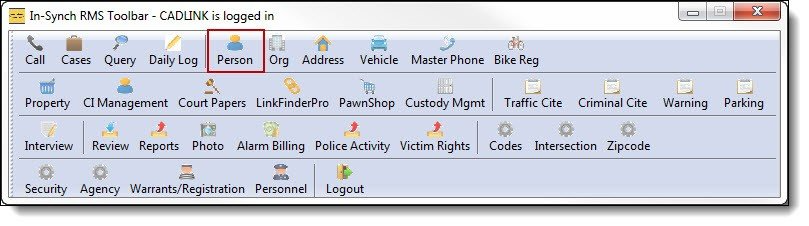
1\. Click on the “Person” button from the main RMS toolbar to open Person Management.
[](https://manula.s3.amazonaws.com/user/9801/img/person001.jpg)
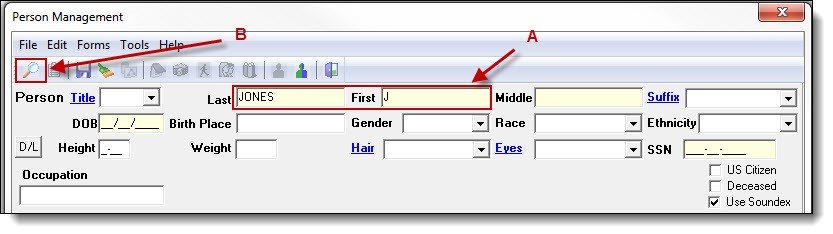
2\. Enter part of the person’s last name, first name, or both (A), and then click the “Search” button (B) to see if the person exists in your database.
*\****Tips:**
You may use the mouse to click the “Search” button or use the “Enter” key to perform searches.
[](https://manula.s3.amazonaws.com/user/9801/img/person002.jpg)*!***Did You Know?**
- Entering a partial name will allow more choices to be searched. The goal of searching is to eliminate duplicates in the database and reduce the need to enter the same data multiple times.
- There are five fields that are searchable in the Person Management window. Last name, first name, and middle name can be searched with as little as one character entered. The other two searchable fields are DOB and SSN, These fields must be completely entered in order to search.
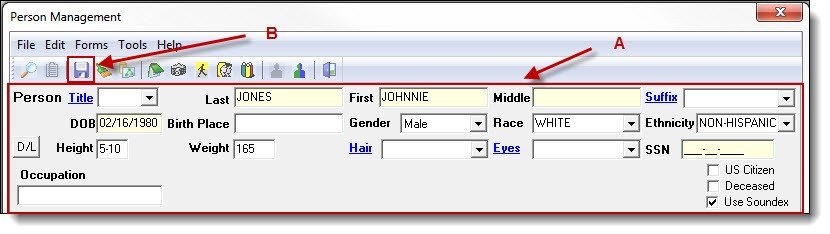
3\. If no matches are found, follow step 3a; otherwise, follow step 4a.
3a. If no matches were found, enter the rest of the person’s known demographic information (A), and then click the “Save” button (B).
[](https://manula.s3.amazonaws.com/user/9801/img/person003.jpg)
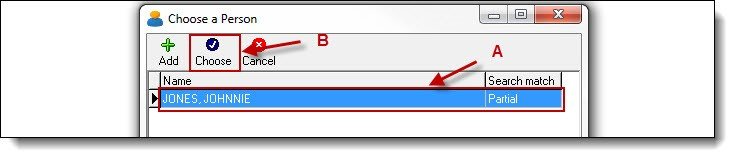
4\. When matches are found, follow step 4a.
4a. If matches were found, highlight the person in the results grid (A), and then click the “Choose” button (B).
[](https://manula.s3.amazonaws.com/user/9801/img/person004.jpg)
*\****Tips**
If results are found, but they are not for the person you are searching for, press the green “Add” button, and then follow step 3a.
Was this article helpful?
That’s Great!
Thank you for your feedback
Sorry! We couldn't be helpful
Thank you for your feedback
Let us know how can we improve this article! \*
Feedback sent
We appreciate your effort and will try to fix the article
**X**
- [Release Notes](https://kb.arms.com/in-synch/release-notes?hsLang=en#main-content)
- [Version 4.8](https://kb.arms.com/in-synch/release-notes?hsLang=en#version-4-8)
- [Knowledge base3](https://kb.arms.com/in-synch/knowledge-base3?hsLang=en#main-content)
- [How To](https://kb.arms.com/in-synch/knowledge-base3?hsLang=en#how-to)
- [Knowledge base2](https://kb.arms.com/in-synch/knowledge-base2?hsLang=en#main-content)
- [Modules](https://kb.arms.com/in-synch/knowledge-base2?hsLang=en#modules)
- [Knowledge base1](https://kb.arms.com/in-synch/knowledge-base1?hsLang=en#main-content)
- [State Reporting](https://kb.arms.com/in-synch/knowledge-base1?hsLang=en#state-reporting)
- [Internal Wiki](https://kb.arms.com/in-synch/knowledge-base1?hsLang=en#internal-wiki)
- [State Specific Modules](https://kb.arms.com/in-synch/knowledge-base1?hsLang=en#state-specific-modules)
- [Release Notes](https://kb.arms.com/in-synch/knowledge-base1?hsLang=en#release-notes)
- [In-Synch RMS QuickStart Video Series](https://kb.arms.com/in-synch/knowledge-base1?hsLang=en#in-synch-rms-quickstart-video-series)
- [Error Messages](https://kb.arms.com/in-synch/knowledge-base1?hsLang=en#error-messages)
- [Knowledge base](https://kb.arms.com/in-synch/knowledge-base?hsLang=en#main-content)
- [Interfaces](https://kb.arms.com/in-synch/knowledge-base?hsLang=en#interfaces)
[](http://arms.com)
[mailto:email@email.com](mailto:email@email.com)
Copyright © 2026, End2End Public Safety