---
title: Windows Socket Error
description: In-Synch
---
[Skip to content](https://kb.arms.com/in-synch/windows-socket-error#main-content)
English
Show submenu for translations

Open main navigation
Close main navigation
- English
Show submenu for translations
- Contact us
Contact us
How can we help you?
- There are no suggestions because the search field is empty.
1. [In-Synch](https://kb.arms.com/in-synch?hsLang=en)
2. [Knowledge base1](https://kb.arms.com/in-synch/knowledge-base1?hsLang=en)
3. [Error Messages](https://kb.arms.com/in-synch/knowledge-base1?hsLang=en#error-messages)
# Windows Socket Error
No recent searches
Popular Articles

Sorry! nothing found for
### Windows Socket Error
Created by Russ Hartle, Modified on Tue, 1 Apr, 2025 at 1:33 PM by Russ Hartle
***Windows socket error: No connection could be made because the target machine actively refused it (10061), on API 'connect'***
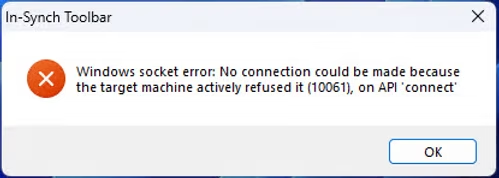
#### What is the In-Synch Socket Server?
The In-Synch RMS Socket Server is a critical component that allows the graphical user interface (GUI) to connect and communicate with the database backend.
#### What Causes This Error Message?
This error message means the In-Synch Socket Server Service isn't running or the application hasn't loaded. Depending on your computer setup, there are several possible reasons:
**Socket Server Installed as a Service (most common):**
- An Antivirus, PC-optimizing software, or Windows Update has shut down or disabled the service.
**Socket Server Installed as an Application (less common):**
- There wasn't enough time for the computer to load all startup items before the RMS software was launched or the socket server application was closed.
#### How to Rectify a Socket Error
**Installed as a Service (most common):**
1. Right-click the Taskbar and choose "Task Manager."

2\. Select the "Services" section in Task Manager.
*(Note: Depending on the operating system/version, "Services" could be listed as a tab at the top of the Task Manager window or an option on the left-hand menu.)*
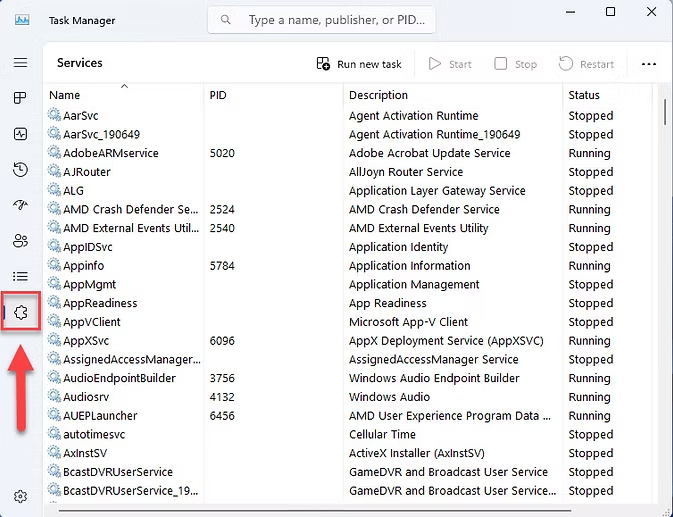
3\. Find "SocketServer" in the list of services, right-click on the listing, and choose "Start" from the list of options.
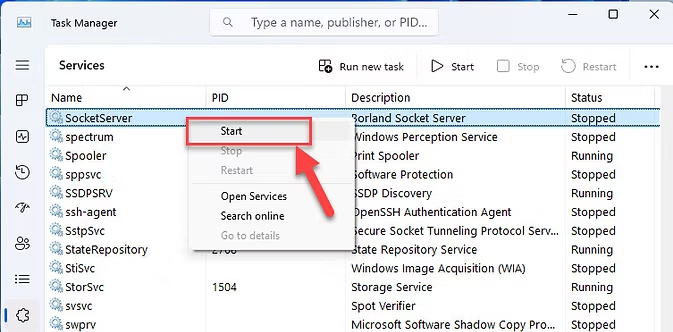
4\. Close the Task Manager window and relaunch In-Synch RMS software.
**Installed as an Application (less common):**
If "SocketServer" isn't an option in your Services list, the computer will likely be installed in an "Application" configuration. The In-Synch Socket Server will launch as an application at computer "startup," with an icon in the system tray.
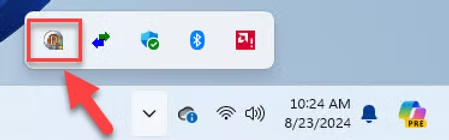
If the Socket Server icon isn't present:
1. Wait for the computer to fully load all startup items before launching In-Synch RMS.
2. Reboot your machine (and wait for the computer to fully load all startup items before launching In-Synch RMS.)
3. Manually launch the socket server application.
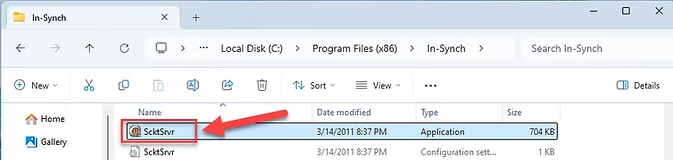
1. Navigate to "C:\\Program Files (x86)\\In-Synch" (*"C:\\Program Files\\In-Synch" for 32-bit operating systems)*
2. Double-click the "ScktSrvr" application.
Was this article helpful?
That’s Great!
Thank you for your feedback
Sorry! We couldn't be helpful
Thank you for your feedback
Let us know how can we improve this article! \*
Feedback sent
We appreciate your effort and will try to fix the article
**X**
- [Release Notes](https://kb.arms.com/in-synch/release-notes?hsLang=en#main-content)
- [Version 4.8](https://kb.arms.com/in-synch/release-notes?hsLang=en#version-4-8)
- [Knowledge base3](https://kb.arms.com/in-synch/knowledge-base3?hsLang=en#main-content)
- [How To](https://kb.arms.com/in-synch/knowledge-base3?hsLang=en#how-to)
- [Knowledge base2](https://kb.arms.com/in-synch/knowledge-base2?hsLang=en#main-content)
- [Modules](https://kb.arms.com/in-synch/knowledge-base2?hsLang=en#modules)
- [Knowledge base1](https://kb.arms.com/in-synch/knowledge-base1?hsLang=en#main-content)
- [State Reporting](https://kb.arms.com/in-synch/knowledge-base1?hsLang=en#state-reporting)
- [Internal Wiki](https://kb.arms.com/in-synch/knowledge-base1?hsLang=en#internal-wiki)
- [State Specific Modules](https://kb.arms.com/in-synch/knowledge-base1?hsLang=en#state-specific-modules)
- [Release Notes](https://kb.arms.com/in-synch/knowledge-base1?hsLang=en#release-notes)
- [In-Synch RMS QuickStart Video Series](https://kb.arms.com/in-synch/knowledge-base1?hsLang=en#in-synch-rms-quickstart-video-series)
- [Error Messages](https://kb.arms.com/in-synch/knowledge-base1?hsLang=en#error-messages)
- [Knowledge base](https://kb.arms.com/in-synch/knowledge-base?hsLang=en#main-content)
- [Interfaces](https://kb.arms.com/in-synch/knowledge-base?hsLang=en#interfaces)
[](http://arms.com)
[mailto:email@email.com](mailto:email@email.com)
Copyright © 2026, End2End Public Safety