---
title: Appellate Court Export
description: Appellate Court Export
---
[Skip to content](https://kb.arms.com/teleosoft/appellate-court-export#main-content)
English
Show submenu for translations

Open main navigation
Close main navigation
- English
Show submenu for translations
- [Customer Portal](https://helpdesk.arms.com/tickets)
[Customer Portal](https://helpdesk.arms.com/tickets?hsLang=en)
How can we help you?
- There are no suggestions because the search field is empty.
1. [Teleosoft](https://kb.arms.com/teleosoft?hsLang=en)
2. [Teleosoft Documents](https://kb.arms.com/teleosoft/teleosoft-documents?hsLang=en)
# Appellate Court Export
[Click here to download the PDF](https://kb.arms.com/hubfs/CountySuite%20Civil%20Court%20-%20Appellate%20Court%20Export2026.pdf?hsLang=en)

**Appellate Court Export**
**Overview**
The Appellate Court Export Tool enables county offices to generate civil case documentation for appellate court submission in compliance with AOPC specifications without printing or copying case files. When a case is appealed, the county user can use the tool to efficiently assign each case document to one of the five file categories defined by the State for electronic filing through the State’s PacFile system.
**Description** User Permission
The permission **CreateAppellateCourtExport** is required to utilize the tool.
Export Tool Location
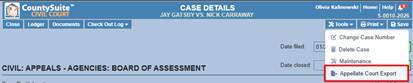
Users with the required permission will see the Appellate Court Export in the Tools drop-down in Case Details.
****
Export Tool Flyout
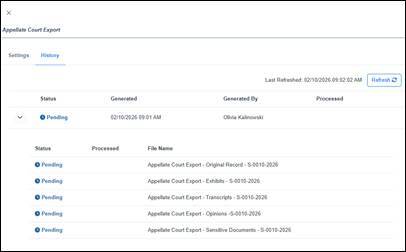
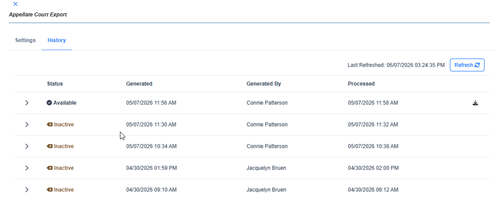
The flyout has 2 tabs at the top, **Settings and History.** The Settings tab is used to define the documents to be exported in one of the file categories defined by the AOPC. The History tab contains the most recent export file(s) and the history of all prior exports generated for the case.
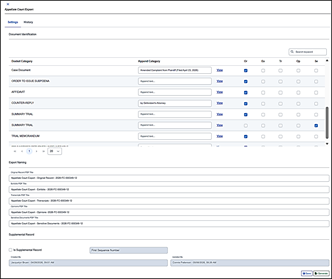
**The Settings tab has 4 sections:**
1. **Document Identification Section**
2. **Export Naming Section**
3. **Supplemental Record Section**
4. **Audit Information, Save and Generate**
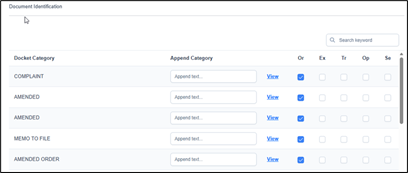
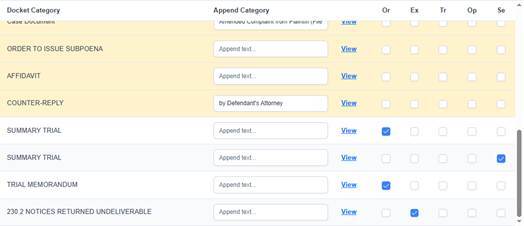
1. 1. **Docket Category column**
- Each document on the case is listed by Docket Category name in ascending order, oldest to newest, by docket entry date.
- If there is more than one document on a docket, the Docket Category for each will be the same and will be ordered by date of the document(s) captured on the docket, oldest to newest.
- To review the document associated with the docket category, elect the **View** hyperlink. The document will open in a separate tab.
2. **Append Category column**
- This column can be used to append the docket category name with additional details so that the name is sufficiently descript to meet AOPC requirements.
- Text added in this field will be appended to the docket category name displayed in the PDF file’s Document Information table of contents as well as the document stamp placed on the first page of each document in the PDF.
- The Append Category text is only used to expand on the docket category name for the appellate court export PDF files. *It is not saved to the case docket.*
- The Docket Category name for case documents that do not have an associated docket will be Case Document. **The Append Category field can be used to further** **describe the document.**
3. **File Category columns**
- Documents can be assigned to one of five file categories:
- Original Record (Or)
- Exhibits (Ex)
- Transcripts (Tr)
- Opinions (Op)
- Sensitive Documents (Se)
- When the flyout is opened the first time, sealed/confidential documents are auto checked in the Sensitive Documents (Se) column. All other documents are auto checked in the Original Record (Or) column.
- The user can change the file category for each document. Any saved changes will remain whenever the flyout is opened.
- **A file category must be selected for the document to be included in the export.** If a file category is not selected, that line will be highlighted in yellow to alert the user that this document will not be included in an export file.
4. **Search Keyword field**
- Users can use this field to search the Docket Category and Append Category columns.
- This section displays the file name that will be used for each of the PDF files that will be generated.
- PDF files will be generated for each file category that has documents assigned. For example, if no documents are assigned to the Transcripts (Tr) column, a Transcripts PDF will not be created.
- The file names can be modified, but it is recommended that the default file names be used.
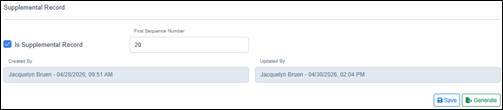
- This section can be used in the event the Prothonotary needs to create a Supplemental Record(s) to file with the Appellate Court after the Prothonotary has already filed the Case.
- The Created By and Updated By information is easily referenced.
- Save – User can save changes made on the flyout so they are there the next time an user opens the page.
- Generate – User can generate the Export files once they have assigned all the documents that they want included in the Export.
**Create an Export**
1. Pull up the Case.
2. On the Case Details page, select Tools.
3. Select Appellate Court Export to open the Appellate Court Export flyout.
4. Review the Docket list and documents.
- The Docket Category description for case documents that do not have an associated docket will be “Case Document”. The user can Append to add more description for the Court.
5. Add Append Category text for docket categories that do not provide a sufficient description of the document for the Appellate Court.
6. Select a File Category for each document you want included in the Export.
- Only one file category can be selected per docket item.
- **If a file category is not selected,** that item will be highlighted in yellow to make the user aware that this document will not be in the Export.
- **Documents that exceed the file size limit** will be highlighted red. ***See Document Size Handling in Notes for information on how to handle this.***
7. Once you have made your selections, click **Save.**
- You can save your work in progress and finish later if needed.
8. Click **Generate.**
- To avoid potential application slowness, the Appellate Court Export processing will be initiated at the **end of the day around 4:00 pm**. The processing time will vary based on the case file size.
- The status will show as Pending until processing begins. Once processing is completed, the status will be Available and the PDFs can be downloaded.
9. Once the Export has been processed, the PDF files will be available for download on the History tab. Click the download icon on the available file to download a zipped file that includes all the PDF files generated or expand the view to download each file separately.
10. If a new export is generated, the previous one will become inactive and the prior PDF files will no longer be available.
11. Processing Errors: If there is an error during file processing, the file status error will be displayed. If this occurs, the user should generate a new export.

**Export File Layout**
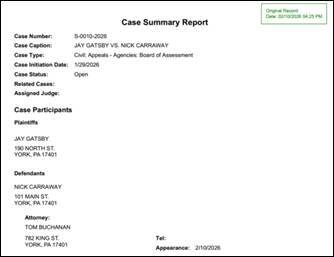
Each PDF file will include a Case Summary Report, Docket Information table, Binder Information page, and the documents that are viewable in this file.
- **Case Summary Report**
- Provides information about the case, case participants, and attorneys.
- File stamp in the top right corner of the first page. The file stamp includes the PDF file name and the date/time created.
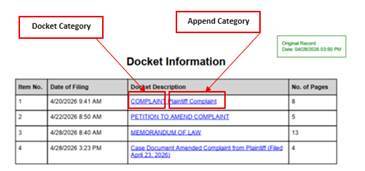
- **Docket Information Table**
- Lists all the dockets in the PDF file in order by Date of Filing, oldest to newest.
- Item No.
- Each docket is assigned an Item No*.*
- *See Sequencing section for more information.*
- Docket Description
- The Appended Docket Category description is displayed with a hyperlink.
- Click on the description to go to the first page of that document in the file.
- Use your PDF Reader bookmarks viewer to easily navigate bookmarked documents and return to the Docket Information table.
- No. of Pages
- The number of pages in the document are displayed.
- Like the Case Summary Report, there is a File stamp in the top right corner of the first page.
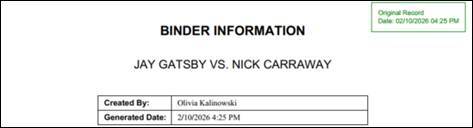
- **Binder Information Page**
- The Binder Information shows the case caption, the name of the person who generated the file and the date and time the file was generated.
- Like the Case Summary Report and the Docket Information table, there is a File stamp in the top right corner.
Foxit PDF Reader Example:
- **Documents**
- Each document linked to file is displayed in the order shown in the Docket Information table.
- A document stamp is in the top-left corner of the first page of each document.
- The document stamp displays the Item No., Docket Category, and Append Category descriptions.
- The stamp is 1-2 lines.
- Line 1 displays the Item No. and the Docket Category description.
- Line 2 displays the Append Category description if entered.
- If either line exceeds the stamp text limit, an ellipsis “….” will be displayed to indicate the text exceeds the limit. 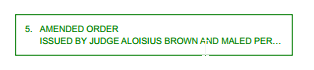
**Notes** Case Documents That Exceed File Size Limit
The PACFile system has a file size limit for each PDF file being e-filed.
If a **single case document** exceeds a file size limit of 450 MBs, that document will be highlighted in red and the user will be notified that they need to rescan the document into smaller file sizes on the case docket before it can be assigned to a file category.
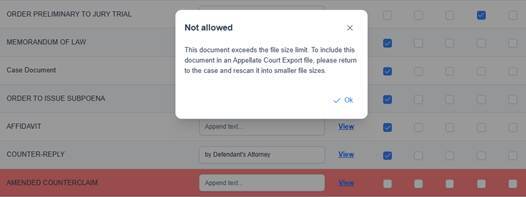
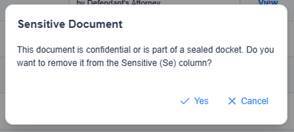
Reclassifying a Sensitive Document to Another File Category
If the document was auto checked as a Sensitive Document, the user will be asked to confirm the change.Changing the document to another file category ONLY identifies the Export fille that will include the document.It does not change the status of the document on the case.
Export Files that Exceed File Size Limit
If one of the generated files exceeds the file size limit, the fille will be **automatically** divided into multiple files and numbered.

The file stamp in each file will also identify the file order, (X of X).

When there are multiple files for a file category, the **Docket Information table in the first file (1 of X) serves as a “Master” Docket Information table for that file category.**
- Lists **all** the dockets included in the export files for that **File category**.
- Uses table **headers** to identify the documents per file (File 2 of X, File 3 of X).
- Only dockets that are available in the **first file** have a document hyperlink.
- The Docket Information table for file(s) 2+ only list the dockets available in that file.
- The item numbering will be a continuation of the next lowest number for that File category based off of previous files (File 1, File 2, etc.).
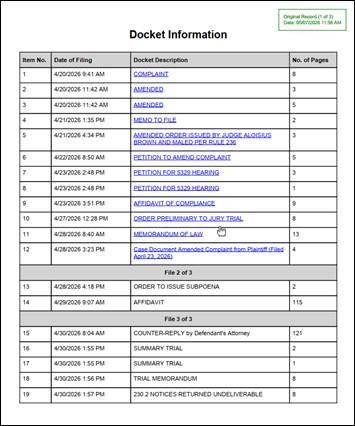
Item No. Sequence Defaults
The **Item No.** sequence number value is globally unique for a given export and increments sequentially beginning with the Original Record file.
- **Original Record** files always start at 1
- The other files are incremented according to their placement in the Appellate Court Export flyout:
- Exhibits
- Transcripts
- Opinions
- Sensitive Documents
- The numbers in each file are ordered by date relative to the dockets in that file.
*Not every file type will always be present, but the numbering still ascends in that order* *starting with the Original Record file.*
(*e.g., if the Exhibits file has items 30-39, the oldest document will be 30 and the most recent will be 39 irrespective of the dates of the documents contained in the other files).*
Create Supplemental Export
The Supplemental Record section at the bottom of the flyout is so the civil court office can file a secondary submission to the Appellate Court when a civil court filing is received after the case has been transitioned to the Appellate Court.
1. Go to the **History** page and open the most recent export and note the last (highest) Item No. used.
2. **Select** the newly filed dockets for the Supplemental Record export.
3. **Uncheck** the dockets that have already been filed.
4. **Save** your changes to the flyout.
5. Go to the **Supplemental Record section** of the flyout.
6. Select **Is Supplemental Record** checkbox.
7. Enter the **First Sequence Number** to be used in the Supplemental export file(s).
8. Select **Generate.**
- *Enter the last (highest) export Item No. from the most recent export +1*
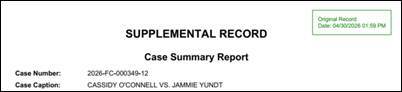
The Case Summary Report will have a header **"SUPPLEMENTAL RECORD**".
- [Teleosoft Documents](https://kb.arms.com/teleosoft/teleosoft-documents?hsLang=en#main-content)
- [Test](https://kb.arms.com/teleosoft/teleosoft-documents?hsLang=en#test)
- [Courts](https://kb.arms.com/teleosoft/courts?hsLang=en#main-content)
- [Civil Court](https://kb.arms.com/teleosoft/courts?hsLang=en#civil-court)
- [CA Sheriff](https://kb.arms.com/teleosoft/ca-sheriff?hsLang=en)
[mailto:support@arms.com](mailto:support@arms.com)
Copyright © 2026, End2End Public Safety