
Click here to download the PDF

How to Consolidate Cases
Start by launching CountySuite Civil Court.
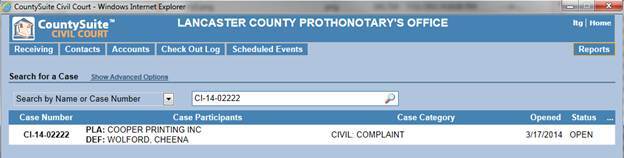
- Enter the Case Number of the TARGET case (or LEAD case), click the Search button, and then go to that case. This is the case which will contain all future actions.
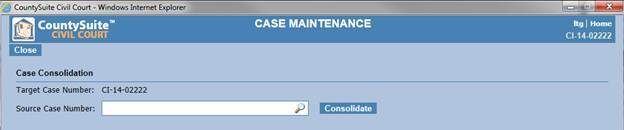
- At the top of the Case Details page, click the Maintenance button.
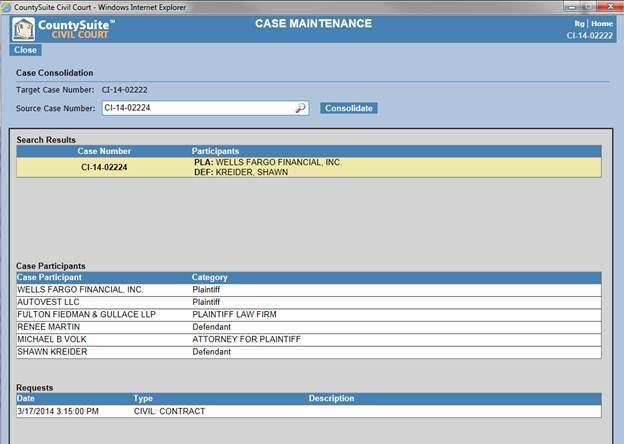
- Enter the Case Number of the SOURCE case, and click the Search button. This is the case that will be consolidated INTO the TARGET case. The SOURCE case will no longer receive entries. All action will take place in the new TARGET (LEAD) case.
- The search results will show any cases that match the search criteria. Click on the row in the search results, and the page should return the details of the SOURCE case for preview. PLEASE MAKE SURE THIS IS THE CORRECT CASE.
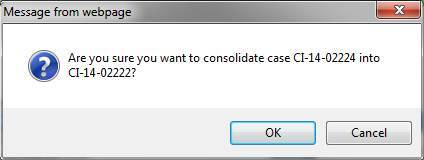
- If the information looks correct, click the “Consolidate” button to merge the cases. The application will prompt the user to verify this action.
- At this point, the following actions should occur:
- The most recent docket entry in the SOURCE case will be copied to the TARGET case, along with any attachments to that docket entry. (This should be the Order for Consolidation.)
- The rest of the docket entries will be moved to the TARGET case, along with their scanned images.
- Any Scheduled Events that occur in the future will be moved to the TARGET case.
- Any Checkout Log entries that are active (ie. the folder is still checked out) will be moved to the TARGET case.
- The Case Number of the TARGET case will be inserted into the Reference Number field of the SOURCE case.
- The Case Number of the SOURCE case will be inserted into the Reference Number field of the TARGET case.
- The Notes field in the TARGET case will say “<Source Case #> was consolidated into this case”.
- The Notes field in the SOURCE case will say “This case is consolidated into <Target Case #>”
- Any additional contacts in the SOURCE case (that are not in the TARGET case already) will be added to the TARGET case (along with all attorney relationships)
- The AOPC Disposition on the SOURCE case will be set to “H – Other”
- NO Judgments will be moved (or copied) from the SOURCE case to the TARGET case
- NO Filing Ledgers will be moved (or copied) from the SOURCE case to the TARGET case

- Click the Close button at the top of the page to return to the TARGET case page and verify that the consolidation action completed successfully.
- Return to the Home page (click Home in the upper-right of the page header), look up the SOURCE case, and verify:
-
- That the Docket Entries have been moved, except for the Order for Consolidation
- That the TARGET Case Number is in the Reference Number field
- That the Notes field indicates that the case was consolidated into the TARGET case