---
title: Lack of Prosecution Guide For Counties
description: Lack of Prosecution Guide
---
[Skip to content](https://kb.arms.com/teleosoft/lack-of-prosecution-guide#main-content)
English
Show submenu for translations

Open main navigation
Close main navigation
- English
Show submenu for translations
- [Customer Portal](https://helpdesk.arms.com/tickets)
[Customer Portal](https://helpdesk.arms.com/tickets?hsLang=en)
How can we help you?
- There are no suggestions because the search field is empty.
1. [Teleosoft](https://kb.arms.com/teleosoft?hsLang=en)
2. [Teleosoft Documents](https://kb.arms.com/teleosoft/teleosoft-documents?hsLang=en)
# Lack of Prosecution Guide For Counties
[Click here to download the PDF](https://kb.arms.com/hubfs/Lack%20of%20Prosecution%20Guide%20-%20For%20Counties.pdf?hsLang=en)
**Lack of Prosecution Guide For Counties**
**Lack of Prosecution Guide**
LOP Templates
To get to the Templates section, from the LOP landing page, click on the “Edit Templates” button in the upper right-hand corner.
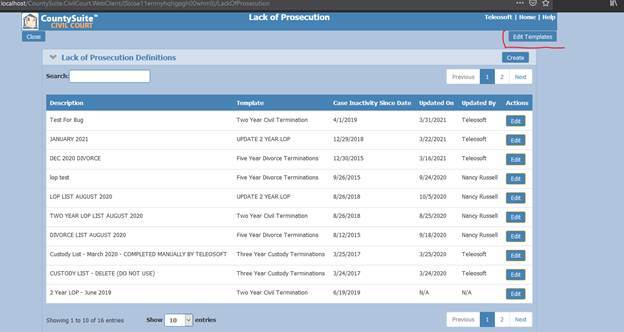
Lack of prosecution templates are the driving filters for results in Lack of Prosecutions.
1. All Lack of Prosecution Definitions have a Lack of Prosecution Template
2. Templates have the following pieces:
- Template Details
- Case Categories
- Ignore Dockets
- Excluded Dockets
- Included Dockets
- Letters
Template Details
You can add new templates or edit existing templates here
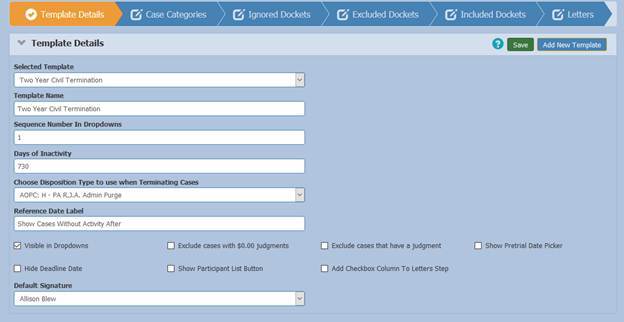
Template Details is the basic details of the template:
1. Name
2. Sequence in dropdowns
3. Days of Inactivity
- Days of inactivity is the number of days that LOP will look back from the create date of an LOP definition to count a case as inactive. For example, if the create date is 1/1/2020 and the Inactivity in Days is set to 365, then a case will be considered inactive if it has had no activity on it since 1/1/2019.
4. Disposition Type
- This is the disposition that will be assigned to a case if it is terminated from LOP
- Note, this is NOT the final disposition but is instead AOPC, Custody, or Divorce
5. Reference Date Label
- Simply the label that will be shown next to the Inactivity Days value on the LOP Definition
6. Visible in Drop-Down
- Sets if a template is selectable for a definition
7. Exclude Cases with $0.00 Judgments
8. Exclude Cases that have a Judgment
9. Show Pretrial Date Picker
- This will show a date picker on the letters step of an LOP definition for setting the pretrial date
- Note, this only applies to Northampton and their notices
10. Hide Deadline Date
- Will hide the deadline date on the Letters step of an LOP definition
11. Show Participants button
- Shows the Participants List button on a LOP definition for generating a report of all case participants
12. Add Checkbox to Letters Step
- Will add a checkbox column to the Letters step of an LOP definition for selecting which cases to generate letters for
13. Default Signature
- The official signature letters will default to
- Note, this is changeable at letter generation time
You could type the word “Reference Date” or “Date” in this section
Case Categories
Case Categories are all the Request Categories that an LOP Definition will search and filter for. Note, this is an inclusive list, not exclusive.
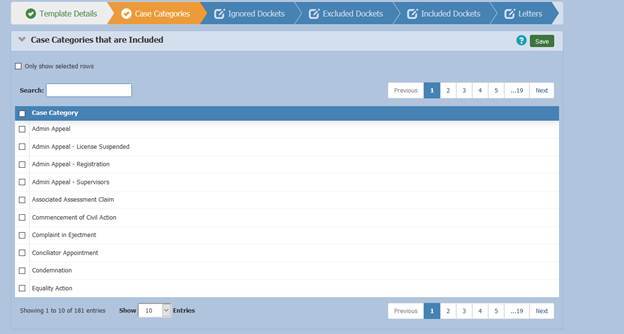
Selecting a checkbox next to the name of a category will tell LOP to look for cases with that Request Category. Multiple categories can be selected.
Ignored Dockets
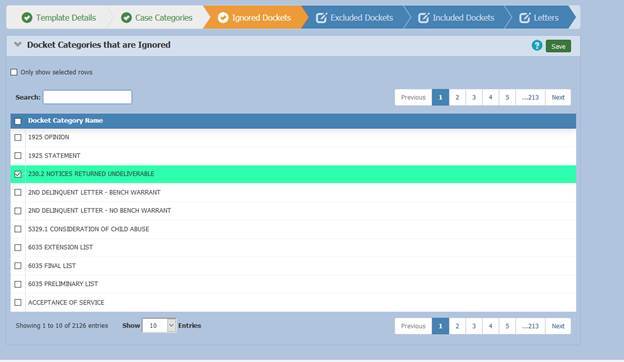
Ignored Dockets are dockets that should be ignored when checking a case for activity past the Days of Inactivity threshold.
Example: Days of Inactivity is set to cut off at 1/1/2019. Ignored Dockets has 1925 OPINION selected. The case has a docket entry on 5/1/2020 of type 1925 OPINION. LOP will not consider this activity.
Note if a docket event category is ignored, it will not automatically return the case as inactive if other non-ignored docket events are present on said case.
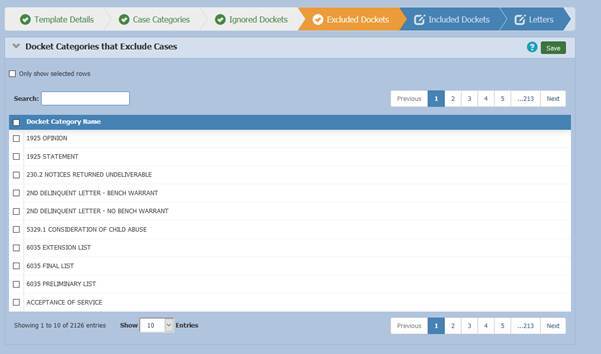
Excluded Dockets
Excluded dockets are dockets that, if present on a case, will exclude the case from being marked as inactive by LOP. (Example: Days of Inactivity is set to cut off at 1/1/2019. An Excluded Docket of ACCEPTANCE OF SERVICE is set in the template. A case has an ACCEPTANCE OF SERVICE on 1/1/2018. LOP will see this docket entry and will not return the case as inactive, as this Docket Event Category is considered a valid reason for the case to stay inactive for this period.)
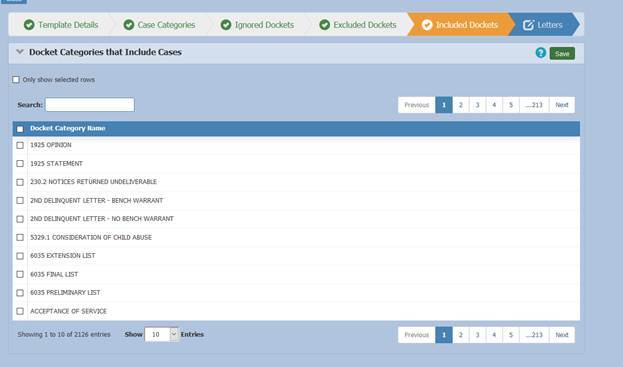
Included Dockets
Included Dockets will filter out and select cases that have any of the selected Docket Event Categories present on the case.
Letters
The Letters step shows which letters will be available for an LOP Definition to generate.
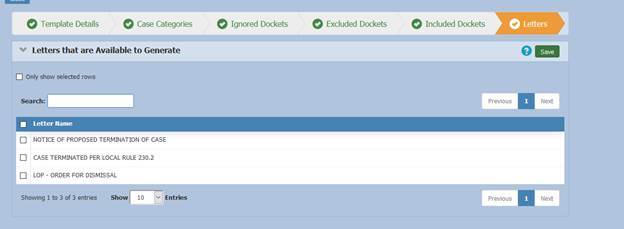
Note only the letters selected will be available in your LOP definition.
Case Activity Logic
The following constitutes activity on a case regarding what LOP decides which cases to filter:
1. Docket Event added
2. Judgment added
3. Disposition added
4. Subsequent Filing is added
LOP Definitions
Lack of Prosecution Definitions are what hold a particular set of cases marked for review and termination. Definitions use a template (see above) to set their filtering and inactivity time criteria.
To create a new definition, click “Create New” in the upper right. The following options are available
1. Name
2. Notes (optional)
3. Template (which template to base the criteria from)
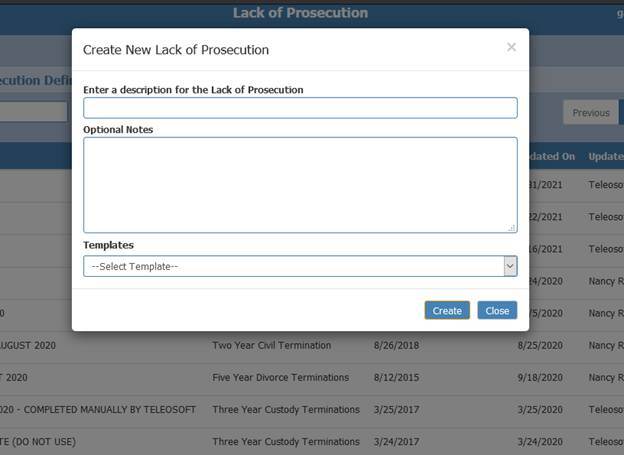
Alternatively, you can click on the “Edit” button for any existing Definition.
Definition
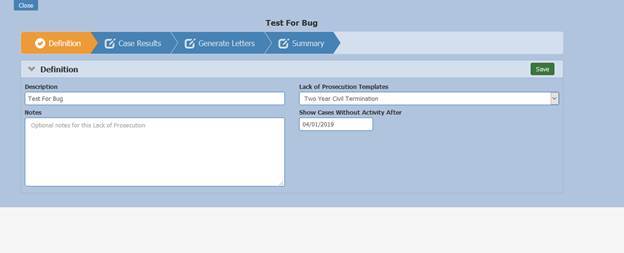
The first page of an LOP Definition contains the following:
1. Description (name)
2. Notes
3. Lack of Prosecution template
- This is the template that will be used to filter results of cases
4. Reference Date (this label is configurable based on template, in the screenshot below it is “Show Cases With Inactivity After”)
- This is changeable to whatever date is needed, but will default to today’s date minus the selected templates Inactivity in Days.
Case Results
This shows the cases that are found fitting the criteria of the template selected for the current LOP definition.
Note, when first coming to this page, user will need to hit “Refresh Cases” to get results, as LOP Definitions begin as empty upon creation
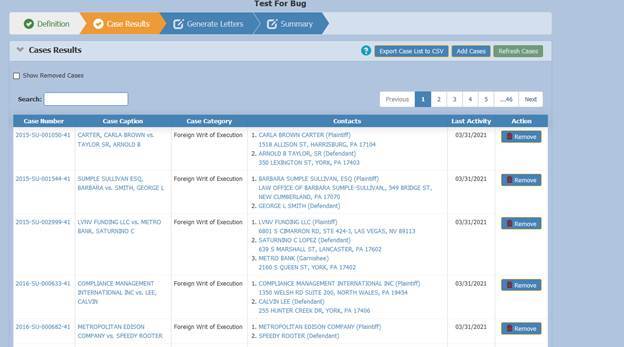
The following are controls on the Case Results page:
1. Export Case List To CSV
2. Add Cases
- This will bring up a modal where users can search for additional cases that do not fit the filter criteria but they wish to be added to the list of cases returned. An unlimited number of cases can be added.
3. Refresh Cases
- Will reset the case results using the template criteria
- Note, this will remove all manually added cases with the “Add Cases” button or Cases that were removed since it will follow the template’s criteria
- Also note, this button will be disabled if any letters are generated on the Letters step
4. Show Removed Cases
- Will show cases that have been marked to be removed
- Note, cases are not removed from the results set, but instead marked to not have letters generated for them and will not appear in the Letters step
5. Remove
- Marks a case as “Removed,” and will not show up on the Letters step
Letters
The Letters step of an LOP Definition is where letters and docket entries generated for cases in the LOP Definition.
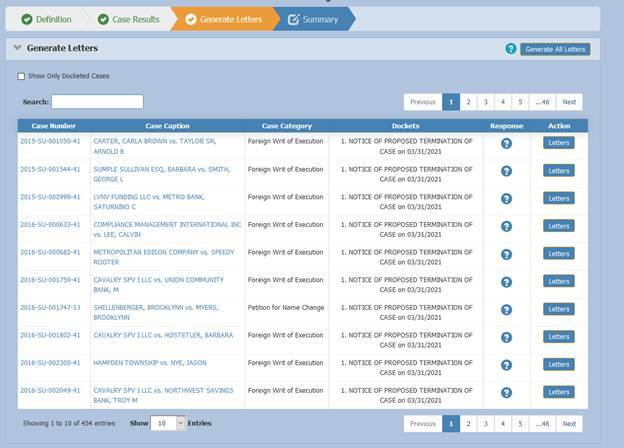
The following controls are on the Letters step:
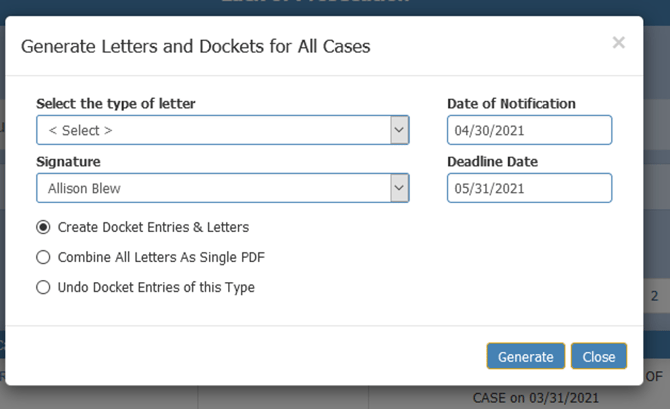
- - Generate all letters
- This will bring up a modal with the following options (see below)
- Select the Type of Letter
- The letter type that will be generated. The letters available are driven by the template selected for the LOP Definition
- Signature
- Official signature that will be on the letter
- Create Docket Entries & Letters
- Will generate all letters for participants and attach them as docket events
- For Letters that close cases (Case Terminated, etc) the disposition set in the template will be added to the case and the case will be closed
- Combine All Letters As A Single PDF
- Generates a single PDF with all letters for mailing
- Undo Docket Entries of this Type
- Removes the docket event of the generated type from all cases
- Note, this will also open cases that have been terminated through LOP if a termination letter was generated
- Date of Notification
- Deadline Date
- Date contacts have to respond to the mailed letter
1. Letters
- This will bring up a similar modal to the “Generate All Letters” button, but letters will only be generated for the row clicked on.
2. The Dockets column will show all dockets generated by LOP
3. Response has 3 states
- Unknown (Question Marl) – a Notice of Proposed Termination was generated but the contacts have not responded
- Responded (Green Checkmark) – A contact on the case responded to the Notice of Proposed Termination and case activity has appeared on the case. LOP will automatically check for this each time the page loads
- Terminated (Red X) – Case has been terminated through LOP
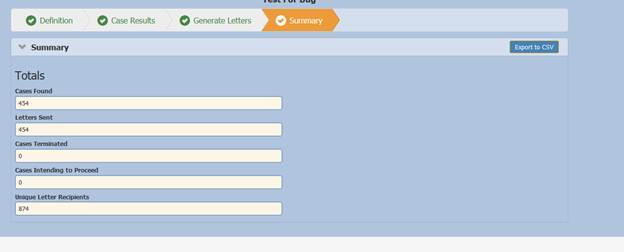
Summary
This is simple page showing summary data from the current definition and has the following controls and information:
- 1. Cases Found
2. Letters Sent
3. Cases Terminated
4. Cases Intending to Proceed
5. Cases Terminated
6. Unique Letter Recipients
7. Export to CSV
- Exports all of the case data to a CSV, similar to the Case Results step
- [Teleosoft Documents](https://kb.arms.com/teleosoft/teleosoft-documents?hsLang=en#main-content)
- [Test](https://kb.arms.com/teleosoft/teleosoft-documents?hsLang=en#test)
- [Courts](https://kb.arms.com/teleosoft/courts?hsLang=en#main-content)
- [Civil Court](https://kb.arms.com/teleosoft/courts?hsLang=en#civil-court)
- [CA Sheriff](https://kb.arms.com/teleosoft/ca-sheriff?hsLang=en)
[mailto:support@arms.com](mailto:support@arms.com)
Copyright © 2026, End2End Public Safety