Click here to download the PDF

Browse & Attach Images
How to Upload Images as Attachments
This tutorial will show the user how to upload existing PDF images and attach them to Docket Entries. These attachments can be added when a new Docket Entry is created or to any existing Docket Entry.
How to Upload Attachments
- Create a new Docket Entry or navigate to and select the docket event you’d like to add an attachment to.
- On the Docket Entry Details flyout, select “Capture Document” at the bottom of the flyout.
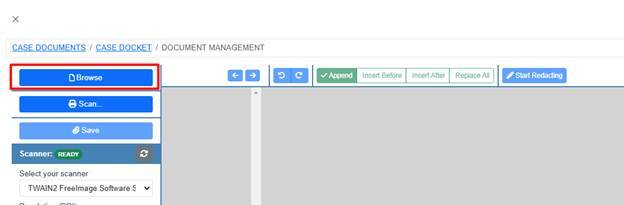
- Select “Browse” to search for Existing the PFD file to attach to the Docket Entry.
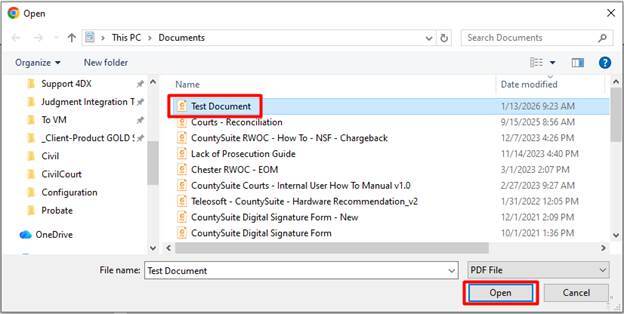
- Choose the desired PDF file and select “Open”.
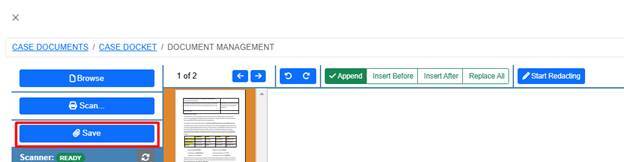
- Click Save.
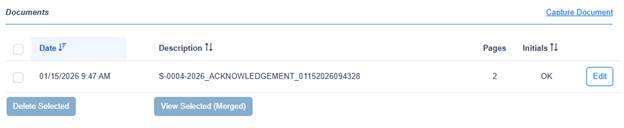
- You will now see an attachment entry in the “Documents” section on the docket entry.


How to Delete Attachments
- Navigate to the Docket Entry to delete the desired attachment(s).
- Select the attachment or as many attachments that need to be deleted by checking the box(s).
- Select “Delete Selected”.
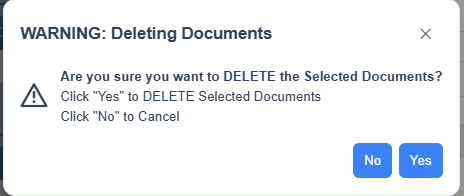
- Warning Prompt will appear. Click Yes to finish deleting documents. This action can not be undone.