---
title: Appendix
description: Appendix
---
[Skip to content](https://kb.arms.com/ticketrak/appendix#main-content)
English
Show submenu for translations

Open main navigation
Close main navigation
- English
Show submenu for translations
- [Customer Portal](https://helpdesk.arms.com/tickets)
[Customer Portal](https://helpdesk.arms.com/tickets?hsLang=en)
How can we help you?
- There are no suggestions because the search field is empty.
1. [TickeTrak](https://kb.arms.com/ticketrak?hsLang=en)
2. [TickeTrak User](https://kb.arms.com/ticketrak/ticketrak-user?hsLang=en)
# Appendix
### ***Appendix***
### **Linking Ownerless Tickets**
The **Ownerless Ticket** report can be used to identify Tickets that are not attached to a Person.
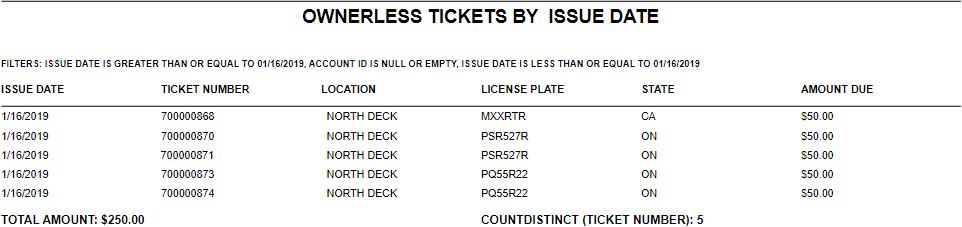
*Ownerless Ticket Report Example*
Open the **Vehicle** module and in the **Person** field, search for the Person account you will be linking this License Plate and Ticket to. You can search by Last Name, First Name, Local ID, or Alternate ID.
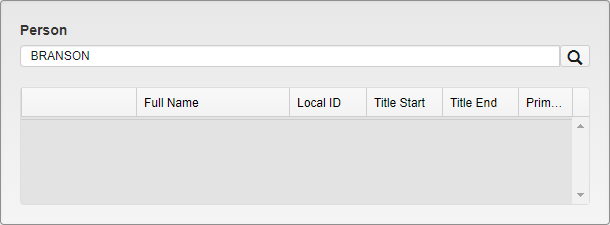
*Person Search in Vehicle Module*
When the browse list appears, select the appropriate Person account.
If the Person account is not in the database, click **Add** to add a new Person account.
If you click **Add**, a mini **Person** module will open and add all associated Person information (Name, Address, Status, etc).
When a new Person account is added, to ensure this Person is linked to the License Plate, click on the **Set as Primary Person** checkbox.
When adding addresses, check the **Billing** checkbox if this Person account will be billed for any Tickets or Permits issued to this License Plate/Vehicle.
After the Person is saved or selected, a grid of ownerless Tickets will open to allow you to select the linking preference.
Click on the **Select** checkbox to link the Ticket to the Person account.
Enter the **Title Start Date** and **Title End Date**.
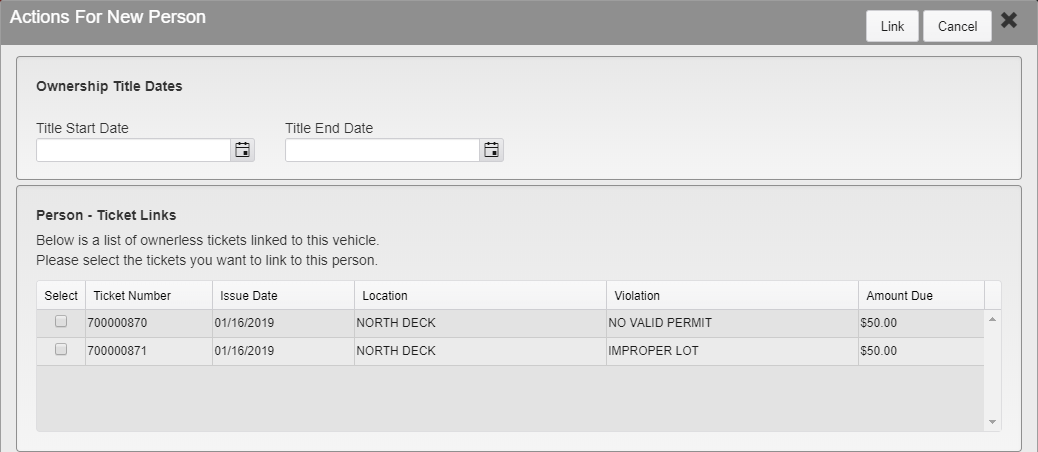
*Actions For New Person Menu*
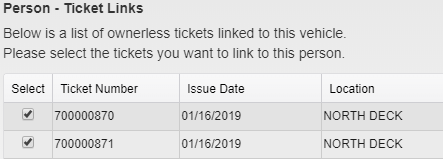
*Person-Ticket Link Menu*
Click **Link**.
Click **Save**.
### **Permit Vehicle Update Process**
Removing a Person from a valid Permit that has already been paid for is not recommended. This ensures that there is a clear audit trail of who paid for the Permit.
If a new License Plate is being linked to a Permit, add the new License Plate and Vehicle to the Person account first. This action will automatically link the new License Plate to the Person account.
### **Remove Linked Vehicle and Add New License/Vehicle to Permit**
- Click on the X to remove the Vehicle-Permit link. This does not remove the Vehicle from the database.
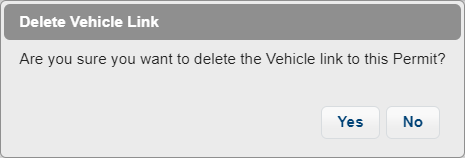
*Delete Vehicle Link Confirmation*
- After the page refreshes, enter the new/updated license plate number to link to this Permit, then click the **search** icon.
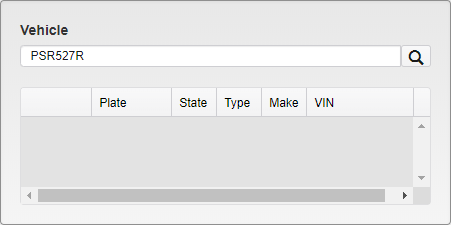
*Vehicle Search*
- A browse list of your search results will appear. Select the correct **License Plate**.

*Vehicle Search Results*
- If the **License Plate** number is not in the database, add the new **License Plate** to the Person account first.
- Once saved, the new Vehicle will be linked to the Permit and the handheld will update with the new License Plate associated with the Permit Number.
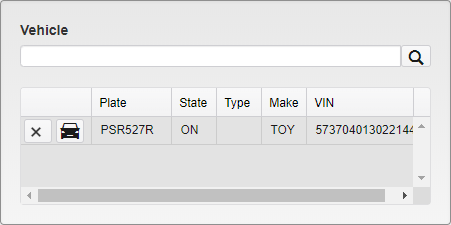
*Newly Linked Vehicle*
### **Edit Linked Vehicle Description**
This is used to update vehicles without changing the plate number attached to a **Permit**.
- Click on the **car icon** to edit and save. Update the Vehicle description (Make/Model, etc) and click **Save**. Any Vehicle changes will also update the Vehicle description in the **Vehicle** module.
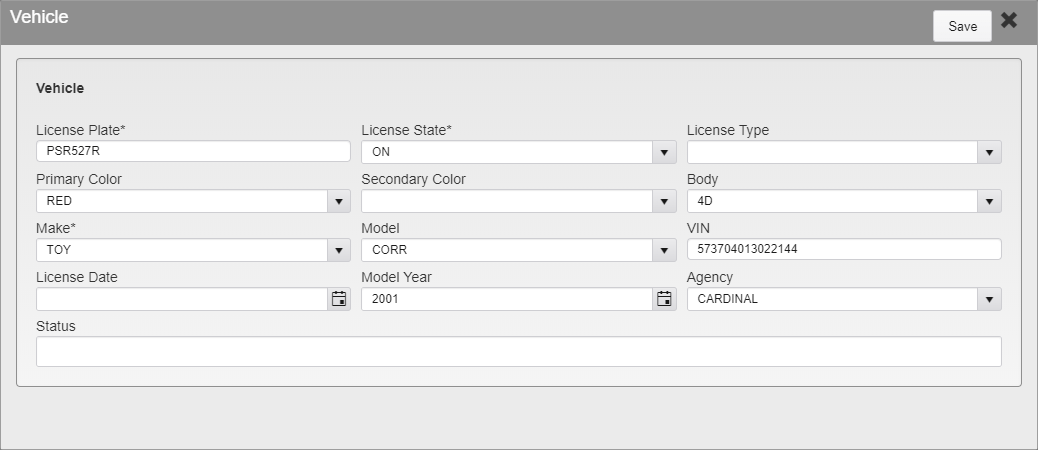
*Vehicle Edit Menu*
- [TickeTrak Admin](https://kb.arms.com/ticketrak/ticketrak-admin?hsLang=en)
- [TickeTrak User](https://kb.arms.com/ticketrak/ticketrak-user?hsLang=en)
- [TickeTrak Mobile](https://kb.arms.com/ticketrak/ticketrak-mobile?hsLang=en)
- [Release Notes](https://kb.arms.com/ticketrak/release-notes?hsLang=en)
[mailto:email@email.com](mailto:email@email.com)
Copyright © 2026, End2End Public Safety