---
title: Batch Letters
description: Batch Letters
---
[Skip to content](https://kb.arms.com/ticketrak/batch-letters#main-content)
English
Show submenu for translations

Open main navigation
Close main navigation
- English
Show submenu for translations
- [Customer Portal](https://helpdesk.arms.com/tickets)
[Customer Portal](https://helpdesk.arms.com/tickets?hsLang=en)
How can we help you?
- There are no suggestions because the search field is empty.
1. [TickeTrak](https://kb.arms.com/ticketrak?hsLang=en)
2. [TickeTrak Admin](https://kb.arms.com/ticketrak/ticketrak-admin?hsLang=en)
# Batch Letters
### ***Batch Letters***
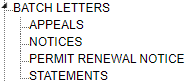
*Batch Letters TreeView*
### **General Settings**
All templates must first be set up in **Template** before they can be run.
**Print Options** - All batch template letters will have the same Print Options.
**Delivery Order** - This is the order in which the letters are processed and emailed or printed. You may use the *First Available* address or *Send to All* addresses.
If you are printing letters you must also select which address to use as multiple addresses are possible.
- **Billing** - Multiple billing addresses are possible, so you must also select *Last Entered* or *Address Type*.
- **Last Entered** - This is the last or latest address in the system.
- **Address Type** - Choose to send to a specific address type.
Choose the print order, by *Last Name* or by *Zip Code*.
**Example 1:** If you are sending notices to everyone that has an unpaid Ticket, you may have email addresses for some Persons but not all.
If you choose 1. *Email1* and 2. *Printed* then choose *First Available*, all letters where the person has an *Email1* will be emailed and only the ones with no *Email1* will be printed.
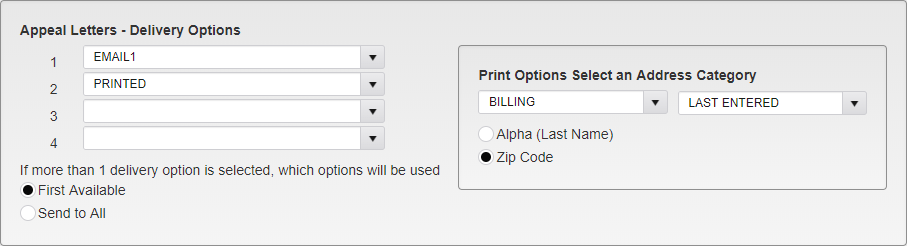
*Example 1 Setup*
**Example 2**: You are sending an email notice to an employee and their department head.
If you choose 1. *Email1* and 2. *Email2*, then choose *Send to All*, all persons with and *Email1* and *Email2* will be emailed a notice to each address. No letters will be printed.
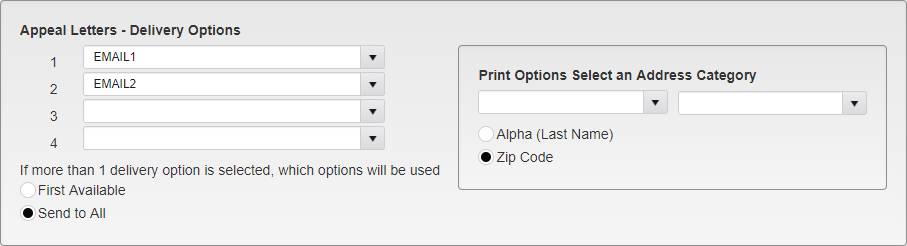
*Example 2 Setup*
### **Appeals**
**Appeal Letters** are assigned to each Appeal as it happens. The only options are the print options.
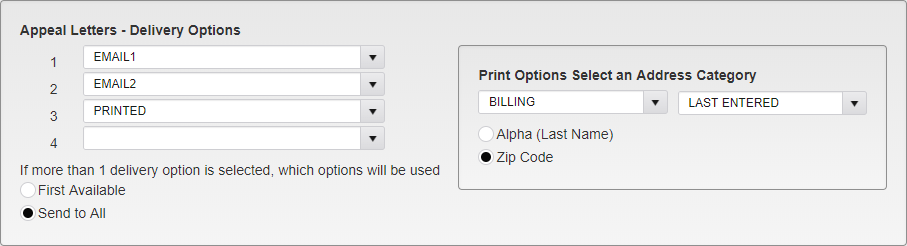
*Appeal Delivery Options*
### **Notices**
**Notices** can be sent to all Tickets that meet the selected criteria and have a Person record attached, with either an email address or a physical address to send the notice to. Notices can be created for multiple levels and each level may have different options.

*Notice Options*
**Name** - Select a name for the notice.
**Notice Level** - Select a notice level.
***Note:*** *Tickets must have a Notice 1 before they can get a Notice 2, and have a Notice 2 before they can get a Notice 3, etc.*
**Notice Template** - Select the notice template to use.
***Note:*** *This template letter must be created in Template in System Settings first.*
### **Search Criteria**
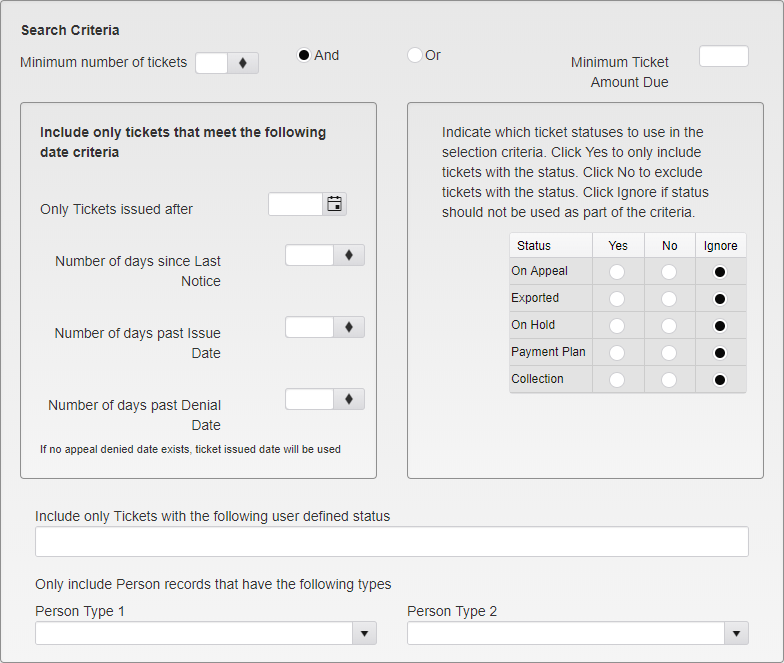
*Notice Search Criteria*
**Minimum number of tickets** and/or **Minimum Ticket Amount Due** - Choose the Minimum number of tickets and/or a Minimum Ticket Amount Due.
**Only Tickets issued after** - Tickets issued before this date will not be included in the criteria.
**Number of days since Last Notice** - For notice Level 2 or above, select the number of days since the last notice was sent.
**Number of days past Issue Date** - Select the number of days since the Ticket was issued.
**Number of days past Denial Date** - If the Ticket was on Appeal and then the Appeal was denied, select the number of days since the denial date.
**Only include Tickets with the following user defined status** - Only Tickets with the chosen status will be included.
**Only include Person records with the following Person Type 1** - Only Tickets associated with a Person with this Person Type 1 will be included.
**Only include Person records with the following Person Type 2** -Only Tickets associated with a Person with this Person Type 2 will be included.
**Include tickets with the following status** - Select *Yes* to only include Tickets with the status. Select *No* to not include Tickets with the status. Select *Ignore* if the status should not be used as part of the criteria.
- **On Appeal**
- **Exported**
- **On Hold**
- **Payment Plan**
- **Collection**
Enter Print Options.
### **Permit Renewal Notice**
**Permit Renewal Notices** can be sent to Persons with Permits that are about to or have just expired, prompting them to renew.

*Permit Renewal Notice Name Options*
**Name** - Enter a name for the Permit Renewal Notice.
**Template** - Select the template to be used for the notice.
***Note:*** *This template letter must be created in Template in System Settings first.*
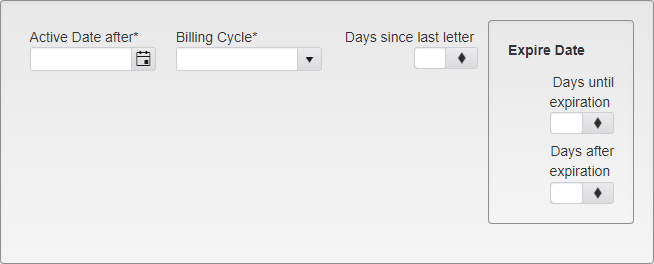
*Permit Renewal Notice Date Options*
**Active Date after** - Select the earliest date on which the Permit Renewal Notice will be in use.
**Billing Cycle** - Select the Billing Cycle that the Renewal Notice will follow. Permits without a Billing Cycle selected will be automatically excluded from any Permit Renewal Notice runs.
**Days since last letter** - Enter the number of days since the last letter was sent about the Permit before an additional Notice is sent.
**Expire Date** - Enter when the Renewal Notice will be sent, based on the number of **Days until** or **after expiration** of the Permit.
***Note:*** *You can only enter days until* ***or*** *days after. Selecting one will clear the other.*
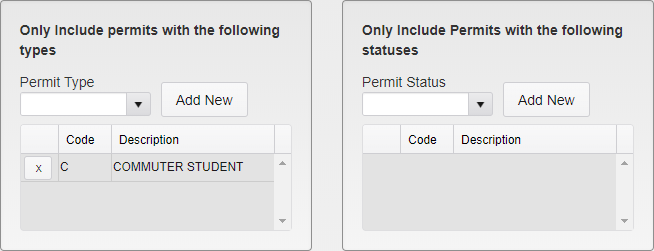
*Permit Renewal Notice Type and Status Options*
Select the **Permit Types** and **Permit Statuses** that this Permit Renewal Notice will cover. To remove a previously selected Type or Status, click the X button next to it. There is no limit to the number of Types or Statuses that can be selected.
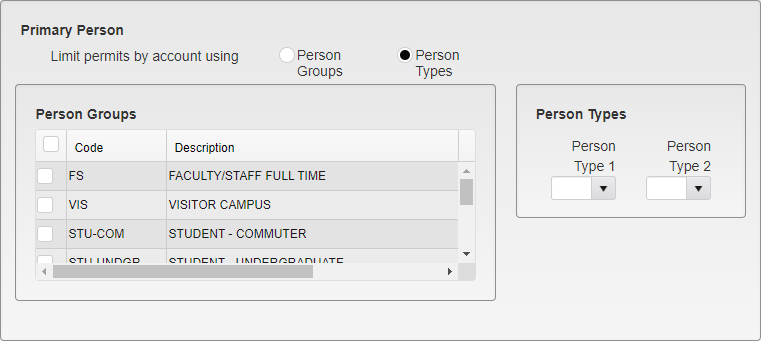
*Permit Renewal Notice Person Options*
Select if this Permit Renewal Notice will be limited by **Person Groups** or **Person Types**.
For **Person Groups**, select the Groups that the Renewal Notice will apply to. Multiple groups can be selected.
For **Person Types**, select the Types that the Renewal Notice will apply to. Only one Person Type 1 and Person Type 2 can be selected.
Enter Print Options.
### **Statements**
**Statements** can be sent to Persons that meet the selected search criteria. They are not leveled like notices and can be sent as many times as you wish. You may create multiple statements if desired.

*Statement Options*
**Name** - Enter a name for the statement.
**Statement Template** - Select the template to be used for the statement.
***Note:*** *This template letter must be created in Template in System Settings first.*
### **Records to Include**
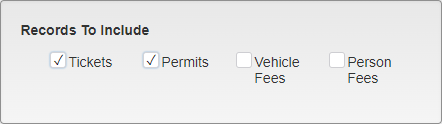
*Statement Records to Include*
Select which record types to include in the Statement. Options are *Tickets*, *Permits*, *Vehicle Fees*, and *Person Fees*.
### **Ticket Date Criteria**
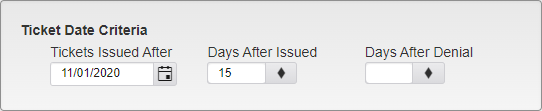
*Statement Ticket Date Criteria*
The criteria in this section only applies to Tickets. If Tickets are not included in the record selection, this section will have no effect on the records included in the Statement.
**Tickets Issued After** - The Statement will only incldue Tickets issued after the selected date.
**Days After Issued** - The Statement will only include Tickets once they are the entered number of days old.
***Days After Denial** - If a Ticket has been Appealed and Denied, the Statement will only include those Tickets after the entered number of days after the Appeal Denial.*
### **Search Criteria**
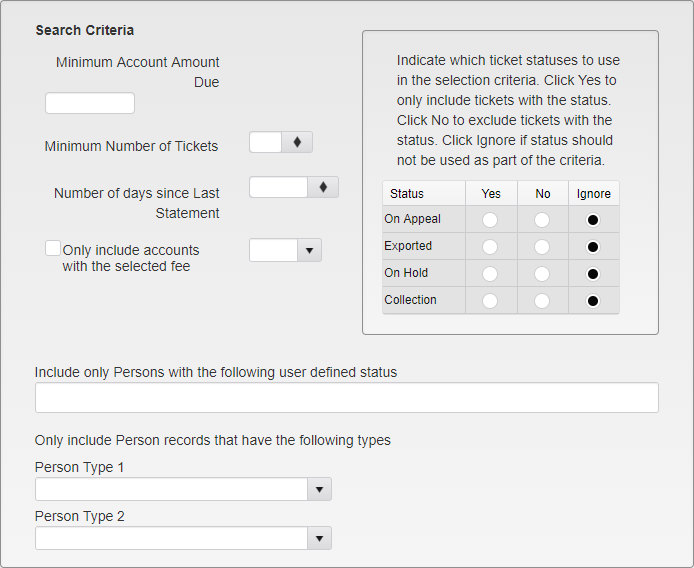
*Statement Search Criteria*
**Minimum Account Amount Due** - Select the minimum due on the account to get a statement.
**Minimum Number of Tickets** - Select the minimum number of unpaid Tickets to get a statement.
**Number of days since Last Statement** - Select the number of days since the last statement was sent.
**Only include accounts with the selected fee** - Select a Fee that must be on a Person to get this statement.
**Only include Persons with the following user defined status** - Only Persons with this status will be included.
**Only include Person records with the following Person Type 1** - Only Persons with this Person Type 1 will be included.
**Only include Person records with the following Person Type 2** - Only Persons with this Person Type 2 will be included.
**Include tickets with the following status** - Select *Yes* to only include Tickets with the status. Select *No* to not include Tickets with the status. Select *Ignore* if the status should not be used as part of the criteria.
- **On Appeal**
- **Exported**
- **On Hold**
- **Collection**
Enter Print Options.
- [TickeTrak Admin](https://kb.arms.com/ticketrak/ticketrak-admin?hsLang=en)
- [TickeTrak User](https://kb.arms.com/ticketrak/ticketrak-user?hsLang=en)
- [TickeTrak Mobile](https://kb.arms.com/ticketrak/ticketrak-mobile?hsLang=en)
- [Release Notes](https://kb.arms.com/ticketrak/release-notes?hsLang=en)
[mailto:email@email.com](mailto:email@email.com)
Copyright © 2026, End2End Public Safety