---
title: General Information
description: General Information
---
[Skip to content](https://kb.arms.com/ticketrak/general-information#main-content)
English
Show submenu for translations

Open main navigation
Close main navigation
- English
Show submenu for translations
- [Customer Portal](https://helpdesk.arms.com/tickets)
[Customer Portal](https://helpdesk.arms.com/tickets?hsLang=en)
How can we help you?
- There are no suggestions because the search field is empty.
1. [TickeTrak](https://kb.arms.com/ticketrak?hsLang=en)
2. [TickeTrak User](https://kb.arms.com/ticketrak/ticketrak-user?hsLang=en)
# General Information
### ***General Information***
### **Sign In**
Using the link provided, enter your **User Name** and **User Password** then click **Login**. If you have caps lock on, you will see a message below the Password field when it is active.
***Note:*** *To ensure TickeTrak works correctly, allow popups from this website on your browser.*
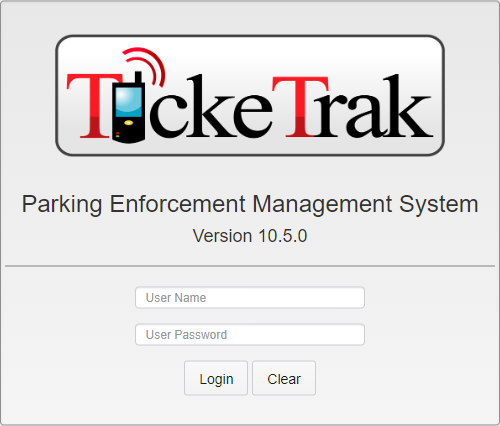
*TickeTrak Login Page*
### **Navigation Bar**

*Navigation Bar*
Clicking the TickeTrak logo will take you to **Global Search**. This is the default screen
### **Moving Around in TickeTrak**
You can use the **Navigation Bar** to access a particular function or module within TickeTrak.

*Navigation Bar*
Clicking **Modules** opens a menu with links to the main **Modules** of TickeTrak.

*Modules Menu*
Clicking **Finance** opens a menu with links to the various **Finance** features in TickeTrak.
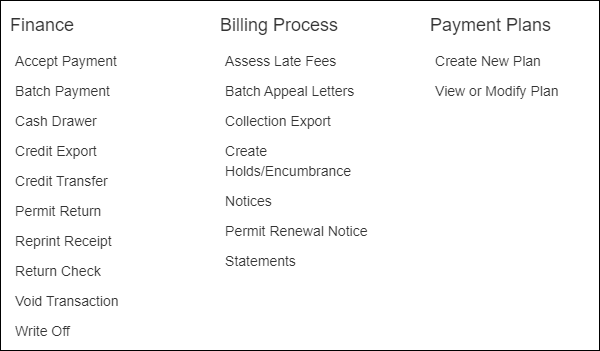
*Finance Menu*
Clicking **Utilities** opens a menu with links to various **Utilities**. Utilities are features added to assist in day-to-day tasks, as well as to assist in cleaning up data in the event an error is made.
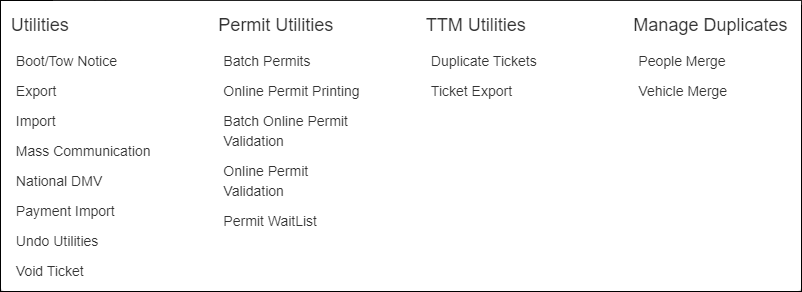
*Utilities Menu*
Clicking **Admin** opens a menu with links to various **Admin** functions. Admin functions allow high-level Personnel to control software settings and the permissions granted to other users.
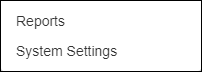
*Admin Menu*
Clicking the **Skyview** icon opens the Skyview dashboard in a new tab. This feature requires an additional log in to view.
Clicking the **Notifications** icon will show system notifications that have been sent to you. If you have no notifications, this icon will not appear.
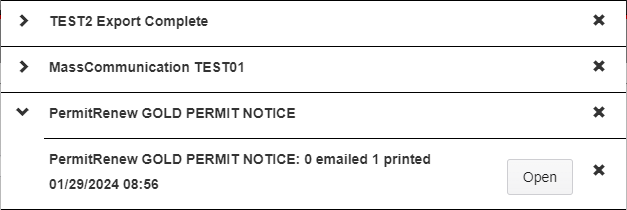
*Notifications Menu*
Notifications are grouped by Notification Type. Clicking the arrow next to a section will open the full list of those Notifications, allowing you to open any files generated and view other information they provide.
The maximum size for a single file is 200 MB. If the file generated by a process would exceed that limit, it is broken into smaller files. Each file will have its own notification with the same time stamp.
Clicking the X on a single Notification will mark that item as viewed and remove it from the listing. Clicking the X on a Notification grouping will mark all items in that section as viewed.
Notifications are automatically marked as read and removed from the list after 30 days.
Clicking **Help** opens a menu with links to various help functions, including **Remote Support** to allow our technicians to assist if needed. Additionally, Admins can see who is logged in and disconnect them if needed. The number of licenses you have and the modules you have access to are also listed here.
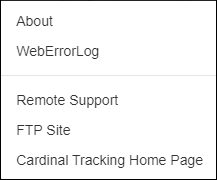
*Help Menu*
The About page also has a link to Update License for the software. The License is immediately updated for the user who clicked it, but others will need to log out and back in to see the change.
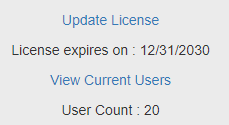
*Update License*
Clicking your **User Name** opens a menu with links to reset your password or log out of the system.
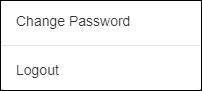
*User Menu*
**Change Password** allows you to change your password.
- Complex passwords
- Passwords must be at least 8 characters.
- Passwords must have at least one non-letter, non-digit character (eg, ‘!’, ‘?’, ‘$’).
- Passwords must have at least one lowercase letter (‘a’-‘z’).
- Passwords must have at least one uppercase letter (‘A’-‘Z’).
- Passwords expire every 90 days.
**Logout** manually, or you will be automatically logged out after 30 minutes of inactivity.
### **Searching for Data**
All fields are searchable.
Mandatory fields are marked with an asterisk. These fields are only mandatory when saving or editing a record. When searching, any combination of fields can be used.
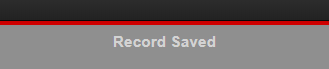
*Record Saved Soft Notification*
Actions are confirmed with soft messages that appear in the Action Bar. You do not have to click again to confirm changes.

*Field Entry Message Samples*
Field entry messages are displayed under the relevant field. These specify errors and missing information to make it simpler to find and fix data entry errors.
Clicking on a drop down box will provide a list of the options for that fields that have been set up in System Settings. You can enter the code or the description of an option to search for it.
Grids can be sorted by clicking on the labels above the content.
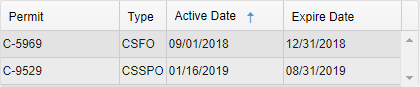
*Sort Ascending*
Clicking the column label once will arrange the grid in ascending order based on the chosen column. Note the small blue up arrow next to the **Active Date** label.
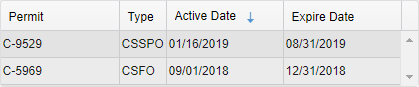
*Sort Descending*
Clicking it again will arrange it in descending order. Note the small blue down arrow next to the **Active Date** label.
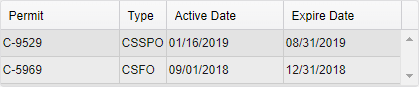
*Default Sort*
Clicking a third time will remove all sorting and revert to the default view. Note the lack of small
blue arrow anywhere in the grid labels.
### **Attachments**
Files may be attached to a record. These include the images taken on the handheld ticket writers and all letters created. Letters are saved as PDFs.
Letters may be emailed or printed.
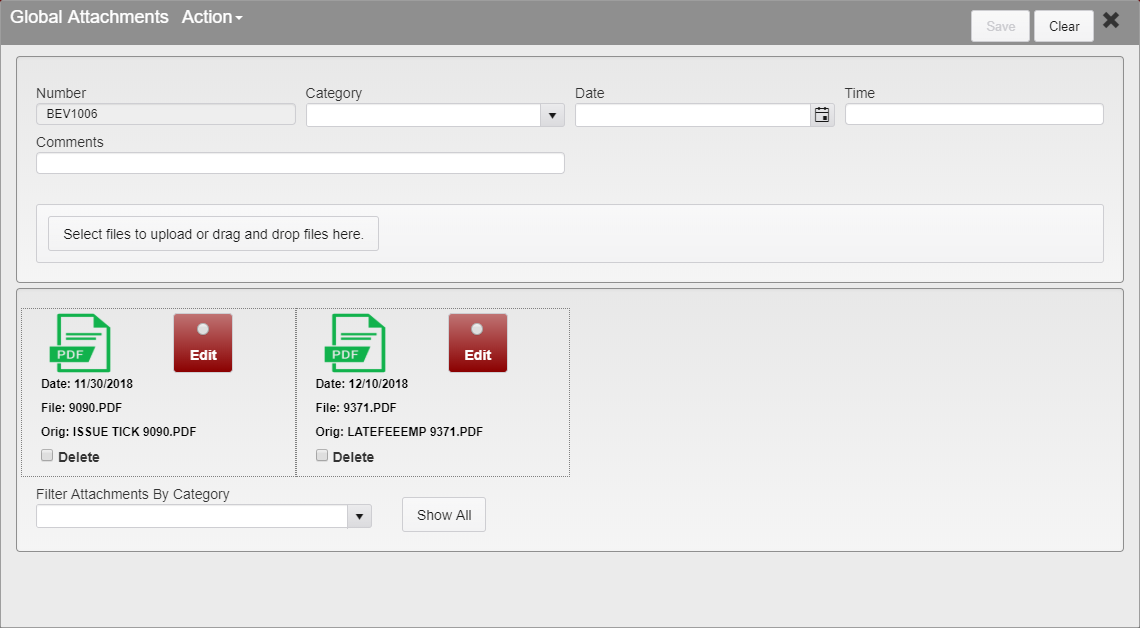
*Attachment Manager*
When uploading a new attachment, you can select the attachment **Category**, the **Date** and **Time** the attachment was created. You can also add **Comments** about the attachment.
These options can be changed on an existing attachment by clicking **Edit** next to the attachment you wish to change. This will load the existing information into the fields. Click **Save** to save any changes made.
You can **Filter Attachments By Category** using the dropdown. This will show only the attachments that have that category. To return to the full list of attachments, click **Show All**.
To delete an attachment, check the **Delete** box on the attachments you wish to delete. Then go to the Action Menu and choose the **Delete** option. You will be asked to confirm that you wish to delete the attachments.
### **Notes**
Notes may be added to each record.
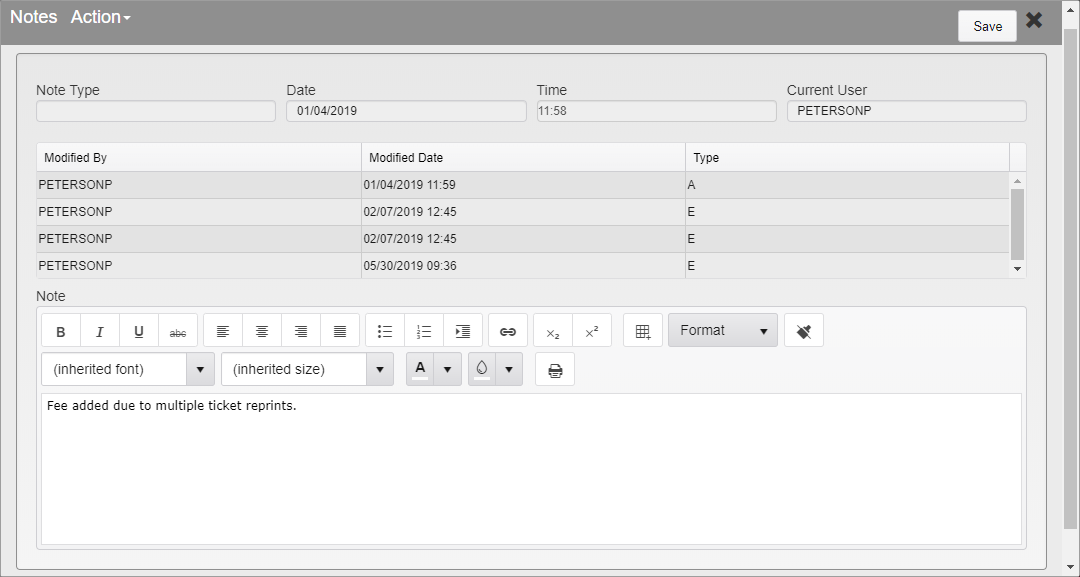
*Notes Manager*
Notes can be entered and edited in the text box. Click **Save** to save the changes to the Note.
**Modified By** lists the user who entered or modified the note. **Modified Date** indicates the date of the change made. **Type** is either *A* (Added) or *E* (Edit).
The Action Menu contains an option for the user to **Delete** the Note. Deleting a Note clears both the Note itself and the modification history for the Note. You will be asked to confirm that you wish to delete the Note.
- [TickeTrak Admin](https://kb.arms.com/ticketrak/ticketrak-admin?hsLang=en)
- [TickeTrak User](https://kb.arms.com/ticketrak/ticketrak-user?hsLang=en)
- [TickeTrak Mobile](https://kb.arms.com/ticketrak/ticketrak-mobile?hsLang=en)
- [Release Notes](https://kb.arms.com/ticketrak/release-notes?hsLang=en)
[mailto:email@email.com](mailto:email@email.com)
Copyright © 2026, End2End Public Safety