---
title: Permit
description: Permit
---
[Skip to content](https://kb.arms.com/ticketrak/permit#main-content)
English
Show submenu for translations

Open main navigation
Close main navigation
- English
Show submenu for translations
- [Customer Portal](https://helpdesk.arms.com/tickets)
[Customer Portal](https://helpdesk.arms.com/tickets?hsLang=en)
How can we help you?
- There are no suggestions because the search field is empty.
1. [TickeTrak](https://kb.arms.com/ticketrak?hsLang=en)
2. [TickeTrak User](https://kb.arms.com/ticketrak/ticketrak-user?hsLang=en)
# Permit
### ***Permit***
### **Action Menu**
- **Add Fee** - Opens a window that allows you to add a Fee to the Permit.
- **Audit History** - Opens the Audit History for the Permit.
- **Template Letters** - Opens a window that allows you to select a Template Letter and send it to the Person attached to the Permit.
- **Delete Permit** - Deletes the Permit. You will be prompted to confirm that you wish to delete the Permit.
- **Accept Payment** - Opens the Accept Payment window with the Permit information filled in.
### **Permit Information**
### **Header**

*Permit Header*
The Permit header shows the active status of the Permit, the **Account ID** it is attached to, and the current **Amount Due** on the Permit.
Checking the *Lost/Stolen* box will mark the Permit as such, and will alert Officers in the field of this if it is scanned. Clicking the Scofflaw truck icon brings up a list of the Scoffs associated with the Permit.
### **General Information**
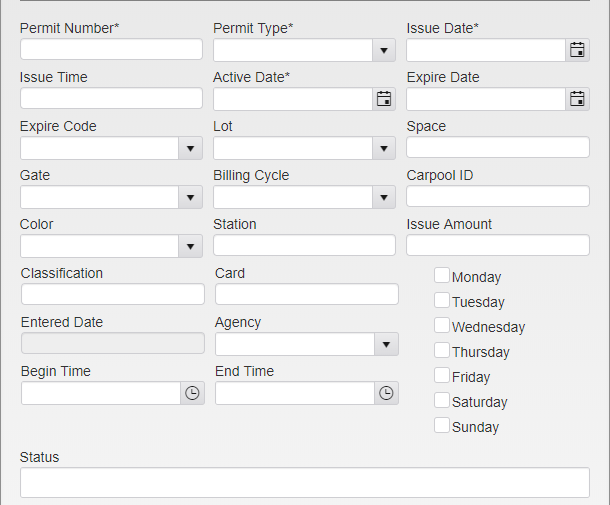
*Permit Menu*
Enter the **Permit Number** and click **Find** to perform a partial search for the entered number. Click **Select** next to the entry you wish to view, or click **Cancel** in the upper right to continue data entry.
Select the **Permit Type** and enter the **Issue Date**. This will cause different fields to automatically fill in based on the settings for that Permit Type.
The **Issue Time** is the time the Permit was issued at. The **Active Date** is the date on which the Permit can first be used. The **Expire Date** is the last date on which the Permit can be used.
***Note:*** *Permits expire at midnight on the Expire Date, not immediately.*
The **Expire Code** is only used when a Permit is expired. It notes the reason for the expiration, such as the Permit being returned or stolen.
The **Lot** and **Space** indicate the specific location where the Permit can be used. The **Gate** indicates gated lots that the Permit allows access to.
The **Color** of the Permit can be entered to further distinguish Permit Types.
The **Issue Amount** is the price of the Permit. This can be overwritten by admins.
The **Entered Date** will automatically fill in the current date when the Permit is first created.
The **Agency** is used to associate the Permit with a particular agency associated with your organization.
**Begin** and **End Time** and the weekday checkboxes are used to limit when a Permit is valid. These times are in military time. A Begin Time of 08:00 and an End Time of 20:00 means the Permit will only be valid from 8 in the morning to 8 in the evening. Checking only the Monday box means the Permit will only be valid on Mondays.
**Status** is used to enter statuses for the Permit that have been defined by your organization. Click the box to open the **Status** dropdown. Click on the Status you wish to include to add it to the Permit.
To remove a single Status, click the X next to that Status. To clear all of the Statuses, click the X at the end of the box.
Additionally, up to five User Defined Fields can be added to the module via System Settings. These fields can be used for any bookkeeping or notes as decided by your agency. Each field allows entries of up to 50 characters.
### **Annual Permits**
These are Permits that have predefined start and end date permits, usually used by universities.
After **Permit Number**, **Type**, and **Issue Date** are entered, the **Active** and **Expire Dates**, **Issue Amount**, and any other information preset for the Permit in System Settings will autofill.
### **Temporary Permits**
Temporary Permits last for a set amount of time (a week, a month, ect.) and start on dates chosen by the Person buying the Permit.
After **Permit Number**, **Type**, and **Issue Date** are entered, the **Issue Amount** and any other information preset for the Permit in System Settings will autofill. Enter the **Active Date** and the **Expire Date** will autofill based on the length of the Permit being bought.
The **Issue Amount** may be overridden if allowed by an admin.
### **Person**
Multiple Persons can be linked to a Permit.
When a new Person is added to a Permit, if any Vehicles exist that are linked to the Person, a popup will let you link the Vehicle to the Permit as well.
ThePerson icon is used to open the **Person** module to make changes to the Person, such as Address.
The edit icon is used to change the relationship.
**Title Start** and **Title End** are used to assign Tickets to the correct Person. When the Title End date is reached, new tickets will not link to the previous Person, and instead will link to the new one.
**Primary** is used to make the Person the primary owner of the Vehicle. All new Tickets on the Vehicle will be linked to this Person. If any Tickets exist on that Vehicle with no Person linked, you will be prompted to link them if desired.
### **Vehicle**
Lists all Vehicles linked to the Permit.
TheVehicle icon is used to open the **Vehicle** module to make changes to the Vehicle, such as color or body.
### **Finance**
Each Fine and Fee attached to the Permit is displayed in the **Finance** grid. Click the arrow to expand and see payment information if present.
### **History**
The **History** box contains a record of all major changes and additions to the Permit, as well as the dates they were made and the account that made them.
- [TickeTrak Admin](https://kb.arms.com/ticketrak/ticketrak-admin?hsLang=en)
- [TickeTrak User](https://kb.arms.com/ticketrak/ticketrak-user?hsLang=en)
- [TickeTrak Mobile](https://kb.arms.com/ticketrak/ticketrak-mobile?hsLang=en)
- [Release Notes](https://kb.arms.com/ticketrak/release-notes?hsLang=en)
[mailto:email@email.com](mailto:email@email.com)
Copyright © 2026, End2End Public Safety