---
title: Ticket
description: Ticket
---
[Skip to content](https://kb.arms.com/ticketrak/ticket#main-content)
English
Show submenu for translations

Open main navigation
Close main navigation
- English
Show submenu for translations
- [Customer Portal](https://helpdesk.arms.com/tickets)
[Customer Portal](https://helpdesk.arms.com/tickets?hsLang=en)
How can we help you?
- There are no suggestions because the search field is empty.
1. [TickeTrak](https://kb.arms.com/ticketrak?hsLang=en)
2. [TickeTrak User](https://kb.arms.com/ticketrak/ticketrak-user?hsLang=en)
# Ticket
### ***Ticket***
### **Action Menu**
- **Add Fee** - Opens a window to allow you to add a Fee to the Ticket.
- **Appeal** - Brings up the Appeal module for the Ticket.
- **Block Collection** - Prevents the Ticket from being sent to Collections.
- **Void Ticket** - Brings up the Void module for the Ticket.
- **Change to a Warning** - Changes the Ticket to a warning and zeroes the amount due.
- **Audit History** - Opens the Audit History for the Ticket.
- **Template Letters** - Opens a window that allows you to select a Template Letter and send it to the Person the Ticket is attached to.
- **Delete Ticket** - Deletes the Ticket. You will be prompted to confirm that you wish to delete the Ticket.
- **Place on Hold/Encumbrance/Remove Hold** - Places a Ticket on Hold or Encumbrance or removes the Hold. The option that appears depends on your System Settings and the current status of the Ticket.
- **Accept Payment** - Opens the Accept Payment window with the Ticket information filled in.
- **Quick Pay** - Opens the Accept Payment window with just the Ticket information filled in. No other related Tickets or Fees will be shown.
***Note:*** *The find button will always perform a search of the entire module.*
### **Ticket Information**
### **Header**
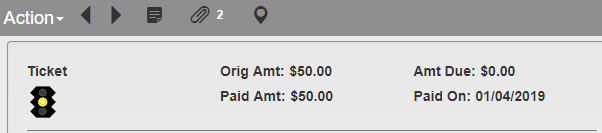
*Ticket Header*
The module header shows Original Ticket Amount, Amount Due, Paid Amount and Paid On. If several payments have been made on the Ticket, Paid On will show the most recent payment date. Past payment dates are listed in the Ticket **History** and **Finance** sections.
### **General Information**
This module is used to search for existing Tickets or enter new Tickets into the system.
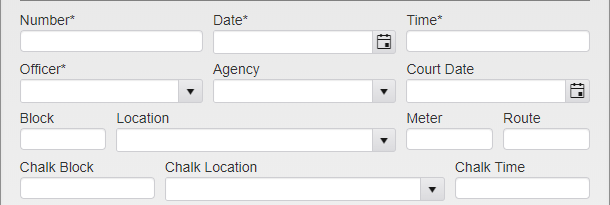
*Ticket Menu*
Enter the Ticket **Number** and click **Find** to perform a partial search for the entered number. Click **Select** next to the entry you wish to view, or click **Cancel** in the upper right to continue data entry.
The **Date** and **Time** are when the Ticket was issued. The issuing **Officer** can be selected from the dropdown, along with their **Agency**.
The **Court Date** is used if your organization uses a court appeals system.
**Block**, **Location**, **Meter**, and **Route** are all used to track the location of the Vehicle. **Chalk Block**, **Chalk Location**, and **Chalk Time** are used when chalking a Vehicle.

*Ticket Status*
**Status** is used to enter statuses for the Ticket that have been defined by your organization. Click the box to open the **Status** dropdown. Click on the Status you wish to include to add it to the Ticket.
To remove a single Status, click the X next to that Status. To clear all of the Statuses, click the X at the end of the box.
Additionally, up to five User Defined Fields can be added to the module via System Settings. These fields can be used for any bookkeeping or notes as decided by your agency. Each field allows entries of up to 50 characters.
### **Violation**
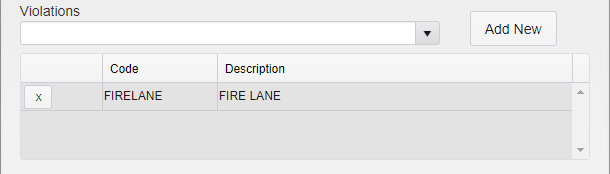
*Violation Entry*
To add a **Violation**, type the code or description into the **Violations** field or select the Violation from the drop down. Then click **Add New**.
To delete a **Violation**, click the X by the violation. Violations can only be removed if no payment has been made and no late fee has been added to the Ticket.
### **Comments**
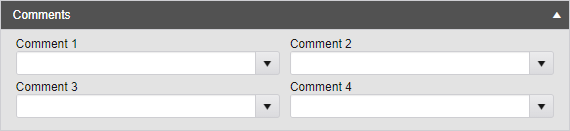
*Ticket Comments*
Click on the **Comments** header to open up the Comments entry box. Select Comments from the dropdowns.
***Note:*** *Some Comments may only be available in specific Comment fields.*
### **Vehicle**
Type in the **License Plate** and press tab on your keyboard. A browse list will appear if an exact matching plate is found.

*Exact Matches*
Type in the **License Plate** and click the search icon and a partial search is performed. This lists all plates that begin with the entered search term.
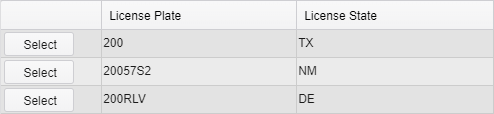
*Partial Matches*
**Select** from the list or click **Cancel** to continue data entry.
If new information has been entered, a Vehicle record will be created when the Ticket is saved.
If the Vehicle has a primary Person attached, the Person information will be automatically entered in the Person section and the Ticket will be linked to them.
### **Person**
Type in any of the following and press tab.
- Last Name, First Name
- Local ID
- Alternate ID
- DL Number
This will perform a partial search for Persons that match the entered search term. **Select** from the list or click **Cancel** to continue data entry. If the Person you are searching for is not on the list, click **Add** in the upper right of the window to open a mini **Person** module for data entry. Click **Save** and you will be returned to the **Ticket** module.
If no match is found you will be prompted to create a new record. A mini **Person** module will open and allow data entry. Click **Save** and you will be returned to the **Ticket** module.
The Person icon can be used to view the mini **Person** module and update the record if needed.
### **Changing the Linked Person**
Overwrite the Person information and click **Save**. A **History** record is created with the changed information.
### **Finance**
Each Fine and Fee is displayed in the **Finance** grid. Click the arrow to expand and see payment information if present.
### **History**
The **History** box contains a record of all major changes and additions to the Ticket, as well as the dates they were made and the account that made them.
- [TickeTrak Admin](https://kb.arms.com/ticketrak/ticketrak-admin?hsLang=en)
- [TickeTrak User](https://kb.arms.com/ticketrak/ticketrak-user?hsLang=en)
- [TickeTrak Mobile](https://kb.arms.com/ticketrak/ticketrak-mobile?hsLang=en)
- [Release Notes](https://kb.arms.com/ticketrak/release-notes?hsLang=en)
[mailto:email@email.com](mailto:email@email.com)
Copyright © 2026, End2End Public Safety