
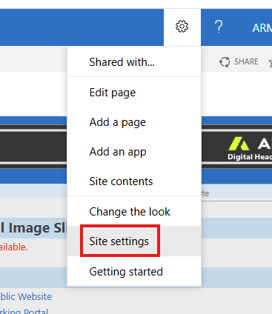
From your DHQ home page, click on the settings icon in the upper right side and click "Site Settings"
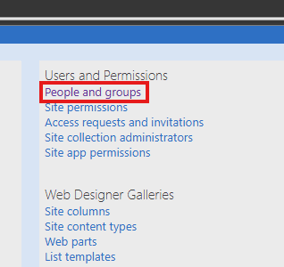
Then click on "People and groups"
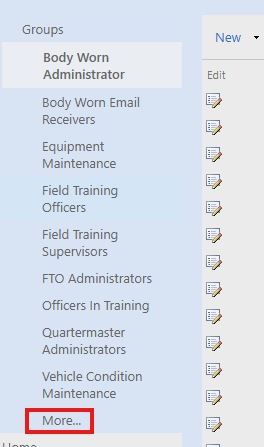
Click on "More"
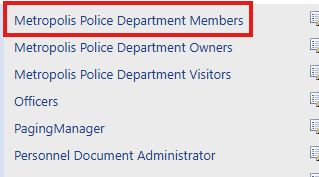
Then your "Members" group
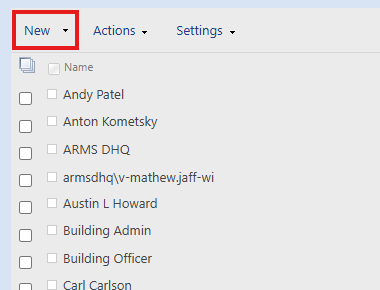
Click on "New"
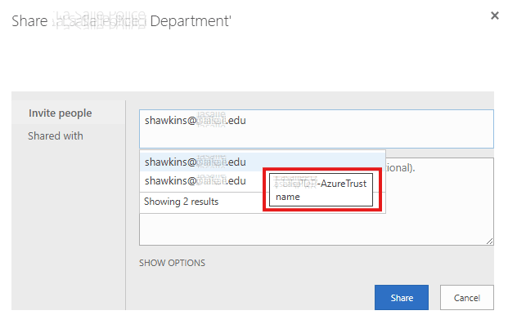
Type the users email address in the box shown below. You will see two options. Roll your mouse over both and select the one with "name" in the dialogue shown below, then click "Share"
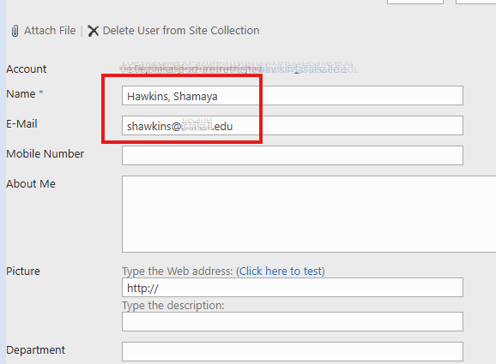
Find the newly created user. The user will only show the email address. Select the edit button.

Move the user's email address to the correct field and enter the user's name as shown below
You have completed the basic user setup from your Azure AD. The next step is adding the user's personnel card. Article Link - Creating a Personnel Card