---
title: DHQ Digital Rollcall & Area Wide Alert (AWA) User Guide
description: Digital Roll Call
---
[Skip to content](https://kb.arms.com/dhq/dhq-digital-rollcall-area-wide-alert-awa-user-guide#main-content)
English
Show submenu for translations

Open main navigation
Close main navigation
- English
Show submenu for translations
- Contact us
Contact us
How can we help you?
- There are no suggestions because the search field is empty.
1. [DHQ](https://kb.arms.com/dhq?hsLang=en)
2. [User Guides](https://kb.arms.com/dhq/user-guides?hsLang=en)
3. [AWA Roll Call](https://kb.arms.com/dhq/user-guides?hsLang=en#awa-roll-call)
# DHQ Digital Rollcall & Area Wide Alert (AWA) User Guide
### DHQ Digital Rollcall & Area Wide Alert (AWA) User Guide
Created by Greg Katz, Modified on Fri, 14 Nov, 2025 at 8:30 AM by Greg Katz

### **1. Overview**
The Digital Rollcall / Area Wide Alert (AWA) module enables police departments to record, share, and collaborate on operational alerts efficiently. It allows saving rollcall records locally and sharing them securely with nearby agencies configured by the system administrator.
### **2. Key Features**
- Save and manage rollcall records locally.
- Share rollcall entries with nearby agencies (AWA).
- Receive instant notifications when comments or updates occur.
- Supports DHQ Local, DHQ AWA, and DHQ Missing categories.
- Only originating PD can edit body text; others can add comments or attachments.
- Integrated with mobile app for full functionality and push notifications.
- Records expire by default after 14 days (adjustable).
- Auto-switch category based on Information Type selection.
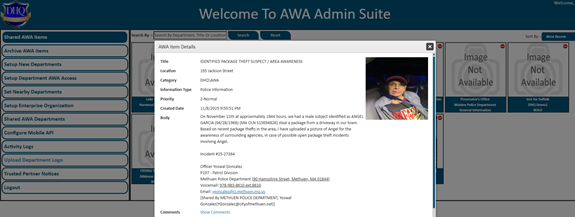
- All AWA records visible in Admin Suite Portal.
### **3. Categories Explained**
### **3.1 DHQ Local**
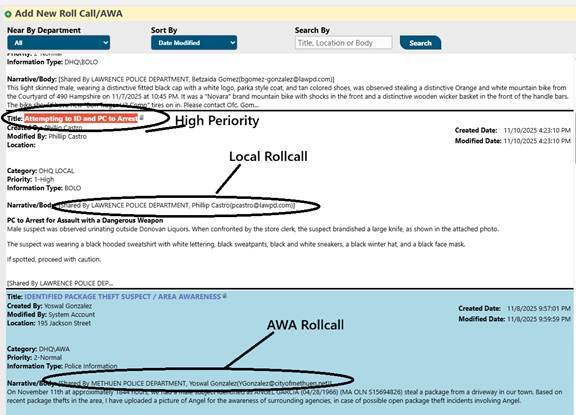
Used for internal PD rollcall records. Not shared with other agencies. Full edit permissions.
### **3.2 DHQ AWA (Area Wide Alert)**
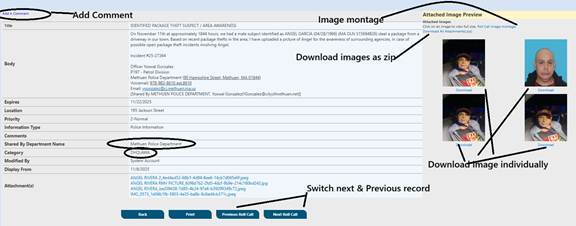
Shared across nearby agencies. Color-coded for easy identification. Only originating PD can edit the narrative; other PDs can comment or upload attachments. Each comment includes PD name and user email for traceability.
### **3.3 DHQ Missing**
Used to record missing persons or vehicles. Supports attachments and can be escalated to AWA.
### **4. Notifications & Alerts**
Notifications are triggered when new AWA records are shared, or comments/attachments are added. Both web and mobile users receive real-time updates.
### **5. Mobile App Features**
The mobile app provides all web features with added convenience. Users can create, update, comment, and receive push notifications.
### **6. Record Expiry and Retention**
Default expiry is 14 days from creation but can be modified. Expired records are archived for reference.
### **7. Auto Switch Feature**
The system auto-selects category (e.g., to AWA) based on Information Type selection and configuration.
### **8. Comments and Collaboration**
Comments are displayed line by line with PD name and user email ID for clarity. Multiple PDs can collaborate on the same record.
### **9. Admin Suite Portal**
Admins can view all AWA records, audit activity, manage sharing configurations, and monitor system performance.
### **10. Security & Permissions**
Originating PD: Full control over record. Connected PDs: Comment and attach only. Admin: Oversight and configuration rights.
### **11. Best Practices**
- Use concise titles for records.
- Include relevant attachments with each alert.
- Check Information Type to avoid incorrect category routing.
- Monitor notifications regularly.
- Keep the mobile app updated.
### **12. Support & Troubleshooting**
For issues, verify internet access, permissions, and configuration. Contact the system admin for assistance. Ensure the mobile app has notification permissions enabled.
### **13. Summary**
The Digital Rollcall / AWA module improves coordination among PDs by centralizing communication, enabling cross-departmental alerts, and ensuring real-time updates.
**Search and Sort Feature — Rollcall / AWA Module**
**1. Overview**
The Search and Sort enhancement in the Digital Rollcall / Area Wide Alert (AWA) module allows users to quickly find and organize rollcall records using flexible criteria such as department name, title, date modified, and keywords within the rollcall body.
This helps departments easily navigate large record sets and locate specific rollcalls — especially in multi-agency setups where AWA records are shared among several Police Departments (PDs).
**2. Key Features**
**Tables can't be imported directly. Please insert an image of your table which can be found [here](https://kb.arms.com/dhq/dhq-digital-rollcall-area-wide-alert-awa-user-guide).**
Feature
Description
Department Filter (Dropdown)
Search roll calls by selecting a specific department name from a dropdown list. Only departments configured for sharing will appear.
Free Text Search
A search box allows users to enter any keyword or phrase. The system searches within the *Title*, *Narrative/Body*,
Sort Options
Users can reorder results based on key parameters like date or department.
Instant Results
The grid updates dynamically when users select filters or sort options.
Default Sort (Most Recent)
When the page loads, rollcalls are automatically sorted by the most recent modification date.
**3. Search Options**
A. Department Search
1. Click on the Department dropdown at the top of the Rollcall / AWA list view.
2. Select the department name you want to view records from.
3. The list automatically refreshes to show only rollcalls shared by or created under that department.
*This filter is especially useful for viewing inter-departmental AWA records and tracking which PD originated each alert.*
**B. Free Text Search**
1. Type any keyword in the Search Box.
2. The system searches across:
- Rollcall Title
- Rollcall Body/Narrative
1. Matching records appear instantly in the results grid.
**Example:** Searching for “vehicle” will display all AWA or Local records containing that term anywhere in the record body or comments.
**4. Sorting Options**
Users can sort the Rollcall / AWA list using the following dropdown options:
**Tables can't be imported directly. Please insert an image of your table which can be found [here](https://kb.arms.com/dhq/dhq-digital-rollcall-area-wide-alert-awa-user-guide).**
Sort By
Description
Most Recent (Default)
Shows the latest updated rollcalls at the top.
Last Modified
Sorts by the most recently edited date/time.
Shared By Department
Groups and sorts by the department that shared the record.
Title
Alphabetical sorting by record title.
Sorting applies automatically once an option is selected.
**5. Combined Search & Sort Behavior**
- You can combine filters and sort options (e.g., “Show all AWA from PD ABC sorted by Last Modified”).
- Both Local and AWA rollcalls follow the same search logic, but access permissions still apply.
- Clearing the search text or department filter resets the view to the default (most recent).
**Media Capture Feature**
### **1. Overview**
The Media Capture feature in the DHQ App enables officers to capture and store multimedia evidence such as photos and videos directly from their mobile device. These entries are private by default and can later be used to create Rollcall or Area-Wide Alert (AWA) records. Only the creator and the System Administrator can view them.
### **2. Purpose**
The Media Capture module allows officers to collect visual evidence efficiently during field operations. It ensures media is securely stored and can be attached to Rollcall records later without premature sharing.
### **3. Access Control and Visibility**
**Tables can't be imported directly. Please insert an image of your table which can be found [here](https://kb.arms.com/dhq/dhq-digital-rollcall-area-wide-alert-awa-user-guide).**
Role
Access Level
Creator (User)
Full control – can capture, view, and manage their own media records.
System Administrator
Full oversight – can view and delete any media capture record.
Other PD Users
No access – cannot view, edit, or search another user’s media captures.
### **4. Key Features**
- Capture photos or videos directly in the DHQ App.
- Auto-record metadata like date/time, GPS location, and user ID.
- Private storage – visible only to the creator and System Admin.
- Cloud synchronization for backup and web access.
- Reuse captured media for Rollcall or AWA creation.
- Offline capture supported with later synchronization.
- System Admin can view and delete any media capture record.
### **5. Workflow**
### Step 1: Capture Media
1\. Open the DHQ Mobile App.
2\. Go to the Media Capture as information type in roll call section.
3\. Hit Add new record.
4\. Choose between 'Capture Photo' or 'Record Video'.
5. Add an optional description and save.
\[Screenshot Placeholder 1: Capture Screen\]
### Step 2: View or Manage Captures
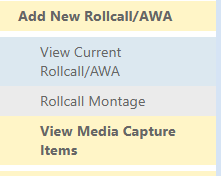
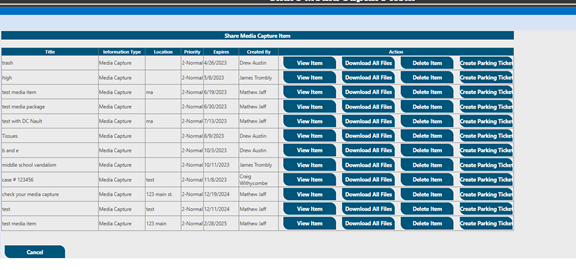
Users can view their own captures in the View Media Capture link on left navigation. Each entry includes thumbnail, time, location, and description. Only the creator and System Admin can view or delete these captures.
###  Step 3: Use Media for Rollcall Creation
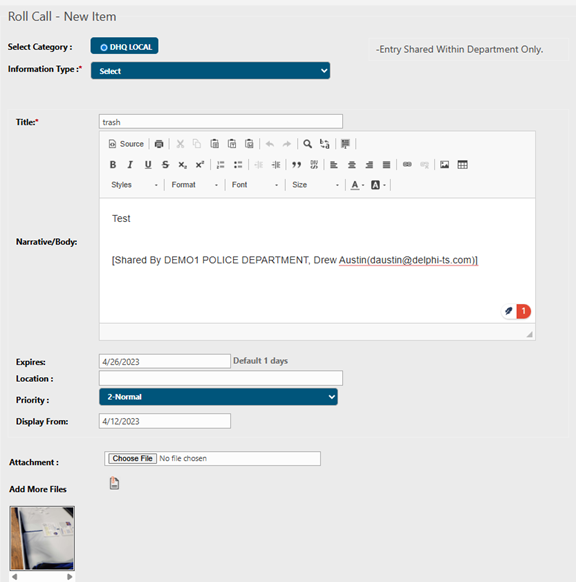
When creating a new Rollcall (Local) or AWA record, select 'Attach Media from Captures' to link previously saved photos or videos. Once attached, media inherits the Rollcall category and permissions.
By clicking on View Item user can create a rollcall record locally
### **6. Administrative Controls**
- View all media captures from all users for auditing.
- Delete any media capture record if needed.
- Maintain audit logs of all admin actions.
### **7. Security and Privacy**
All media files are encrypted and securely stored. Access requires DHQ authentication. Only the creator and System Admin can view captures. All uploads and deletions are logged for transparency.
### **8. Web Version Access**
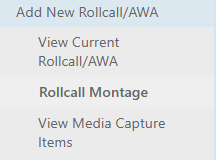
Users can access their captures under ‘View Media Capture' in the DHQ Web Portal. Admins can view all captures, search by user or date, and manage records through the Admin Suite dashboard.
### **9. Best Practices**
- Use descriptive titles for each capture (e.g., 'Vehicle Near Gate – 12 Nov').
- Capture only necessary evidence to avoid data clutter.
- Review and delete outdated or irrelevant media regularly.
- Ensure location access is enabled for accurate field logging.
- Sync app frequently to upload offline captures.
### **10. Summary**
The Media Capture feature enhances DHQ operations by enabling secure, private, and efficient collection of field evidence. It bridges on-ground media collection with digital rollcall creation while maintaining strict privacy and administrative oversight.
**Rollcall Montage Feature**
**1. Overview**
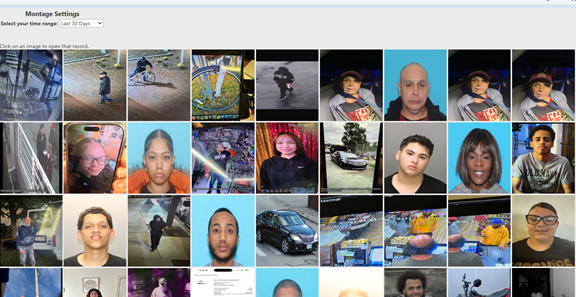
The Rollcall Montage feature provides a visual dashboard of all rollcall-related images captured or attached within the DHQ Digital Rollcall System.
It helps officers quickly review recent rollcall visuals, identify relevant entries at a glance, and access the corresponding record details instantly.
This feature improves situational awareness by presenting rollcall information in an intuitive, image-based layout — especially useful for command briefings, shift reviews, or rapid case reference.
**2. Purpose**
The Rollcall Montage module is designed to:
- Visually summarize recent rollcall activity through an image gallery.
- Allow users to search and filter rollcall images by date range (e.g., “last 3 days,” “last 7 days,” or “custom”).
- Enable one-click navigation from an image directly to its associated rollcall record.
- Provide a fast, visual method to recall field activity without opening each rollcall individually.
### **3. Key Features**
**Tables can't be imported directly. Please insert an image of your table which can be found [here](https://kb.arms.com/dhq/dhq-digital-rollcall-area-wide-alert-awa-user-guide).**
Function
Description
Image Gallery View
Displays thumbnails of all rollcall images in a grid or montage layout.
Date Filter
Search rollcall images by configurable day count (e.g., last 7, 15, or 30 days).
Clickable Thumbnails
Clicking any image redirects the user to the detailed Rollcall record.
Hover Details
Displays summary info such as record title, date, and originating PD on hover (web view).
- [Administration Guides](https://kb.arms.com/dhq/administration-guides?hsLang=en#main-content)
- [AWA Roll Call](https://kb.arms.com/dhq/administration-guides?hsLang=en#awa-roll-call)
- [Cruiser Check](https://kb.arms.com/dhq/administration-guides?hsLang=en#cruiser-check)
- [Detail Bidding](https://kb.arms.com/dhq/administration-guides?hsLang=en#detail-bidding)
- [Document Sign Off](https://kb.arms.com/dhq/administration-guides?hsLang=en#document-sign-off)
- [Forms Based Authentication](https://kb.arms.com/dhq/administration-guides?hsLang=en#forms-based-authentication)
- [Microsoft Office Settings](https://kb.arms.com/dhq/administration-guides?hsLang=en#microsoft-office-settings)
- [Mobile App](https://kb.arms.com/dhq/administration-guides?hsLang=en#mobile-app)
- [Office 365/Azure Connection](https://kb.arms.com/dhq/administration-guides?hsLang=en#office-365-azure-connection)
- [Passwords](https://kb.arms.com/dhq/administration-guides?hsLang=en#passwords)
- [Permissions](https://kb.arms.com/dhq/administration-guides?hsLang=en#permissions)
- [Personnel Cards](https://kb.arms.com/dhq/administration-guides?hsLang=en#personnel-cards)
- [Smart Police](https://kb.arms.com/dhq/administration-guides?hsLang=en#smart-police)
- [Scheduling](https://kb.arms.com/dhq/administration-guides?hsLang=en#scheduling)
- [Training](https://kb.arms.com/dhq/administration-guides?hsLang=en#training)
- [Quartermaster](https://kb.arms.com/dhq/administration-guides?hsLang=en#quartermaster)
- [Register New User](https://kb.arms.com/dhq/administration-guides?hsLang=en#register-new-user)
- [User Guides](https://kb.arms.com/dhq/user-guides?hsLang=en#main-content)
- [AWA Roll Call](https://kb.arms.com/dhq/user-guides?hsLang=en#awa-roll-call)
- [Cruiser Check](https://kb.arms.com/dhq/user-guides?hsLang=en#cruiser-check)
- [Event Tracking](https://kb.arms.com/dhq/user-guides?hsLang=en#event-tracking)
- [Messaging](https://kb.arms.com/dhq/user-guides?hsLang=en#messaging)
- [Mobile App](https://kb.arms.com/dhq/user-guides?hsLang=en#mobile-app)
- [Safe Watch](https://kb.arms.com/dhq/user-guides?hsLang=en#safe-watch)
- [Smart Police](https://kb.arms.com/dhq/user-guides?hsLang=en#smart-police)
- [Scheduling](https://kb.arms.com/dhq/user-guides?hsLang=en#scheduling)
- [Training](https://kb.arms.com/dhq/user-guides?hsLang=en#training)
- [Quartermaster](https://kb.arms.com/dhq/user-guides?hsLang=en#quartermaster)
- [Document Sign Off](https://kb.arms.com/dhq/user-guides?hsLang=en#document-sign-off)
- [DHQ Modules](https://kb.arms.com/dhq/dhq-modules?hsLang=en)
[](http://arms.com)
[mailto:email@email.com](mailto:email@email.com)
Copyright © 2026, End2End Public Safety