
No recent searches
Popular Articles

Sorry! nothing found for
Add/Edit a Parking Ticket
Created by Russ Hartle, Modified on Fri, 20 Jun, 2025 at 3:06 PM by Russ Hartle
Click ADD (A) from the main Parking Ticket Toolbar.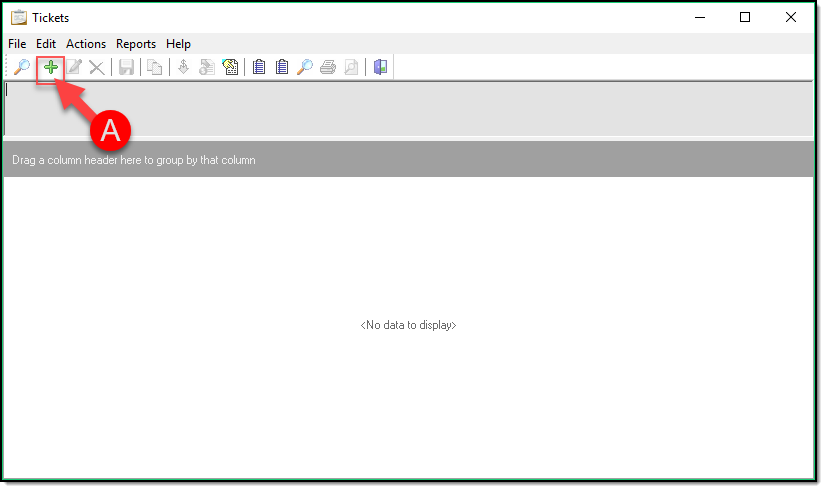
!Did You Know?
Adding or Editing parking tickets is very similar to traffic and non-traffic citations and warnings. The fields on the Ticket Details screen use a variety of standard control-types. Several of these pick-lists (Type, Officer Role, Disposition, Location code, Violations) should be customized by an administrator.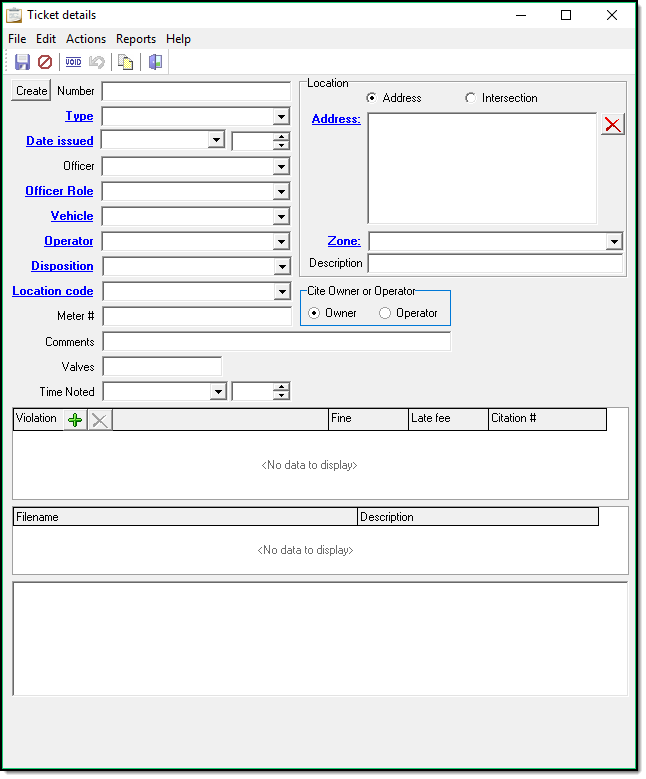
On the Ticket Details screen click Create (A) to create your Parking Ticket number, Type (B) and choose the type of ticket from the dropdown list, and enter your ticket details with the remaining dropdown lists and hyper links ( C ) similar to any other area of RMS when you need to add details.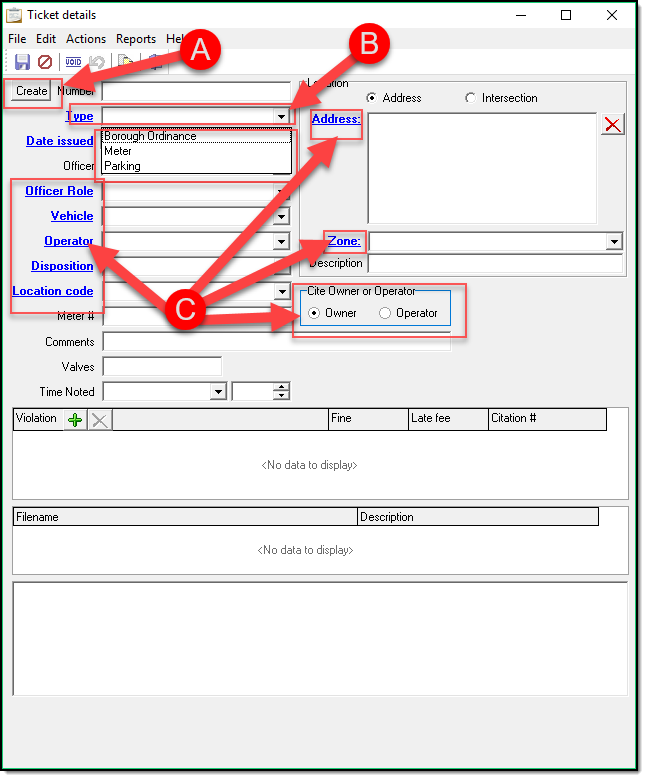
!Did You Know?
Many agencies use the Location Code and Description fields to record location instead of using the Address box. For example, you may enter a ticket with these details:
Location Code: ‘Main Street Lot’
Description: ‘Meter 13’
Enter your Parking Violation by clicking Add (A)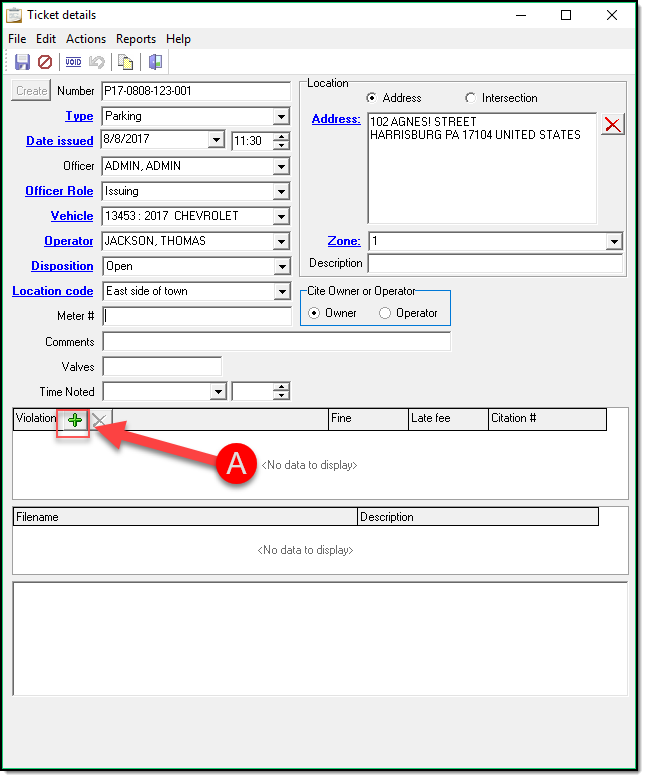
Browse the Codes Module for the violation you need highlight and hit Choose (A) (for this example I sorted by the Code Type of Parking)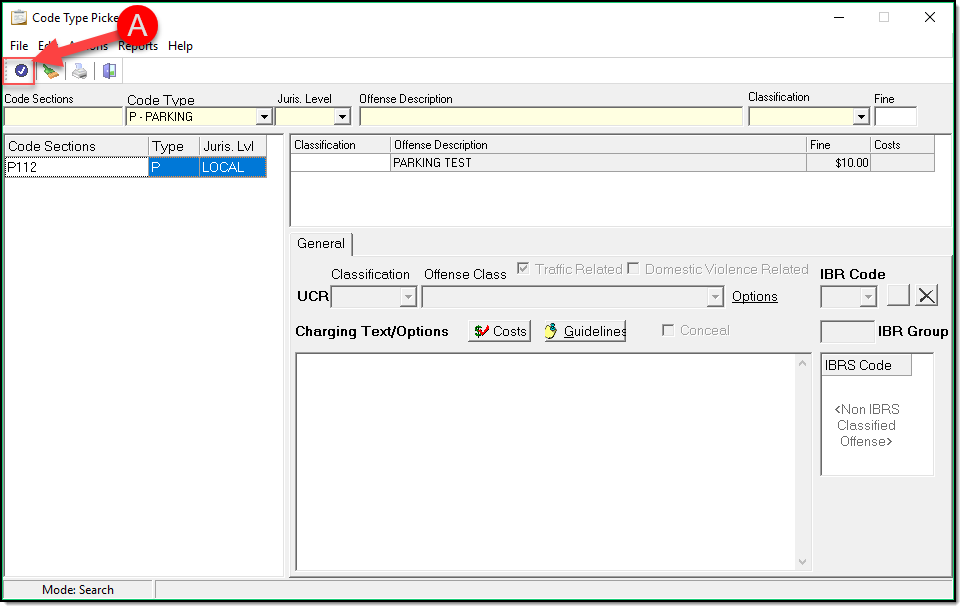
Note that you can add multiple Violations to one ticket by Clicking the Add (A) in the Violation field for each Violation needed.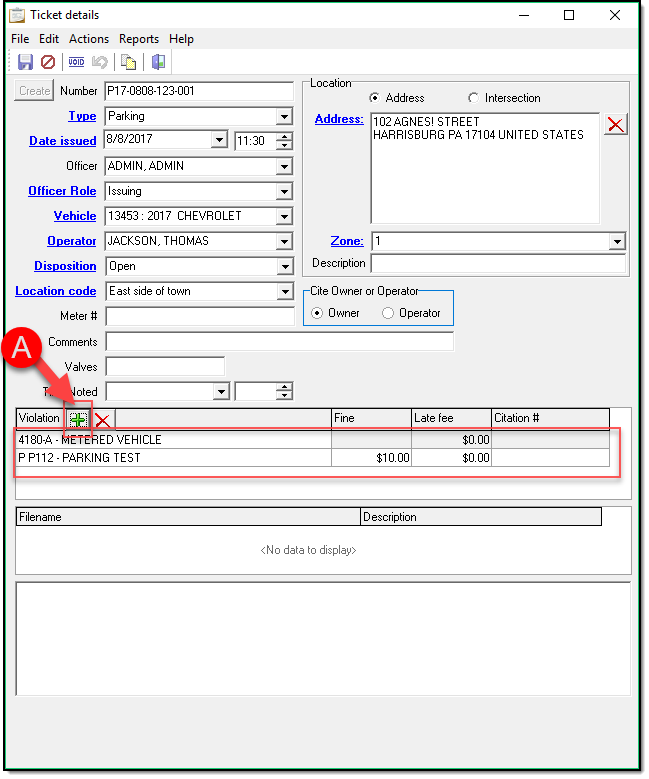
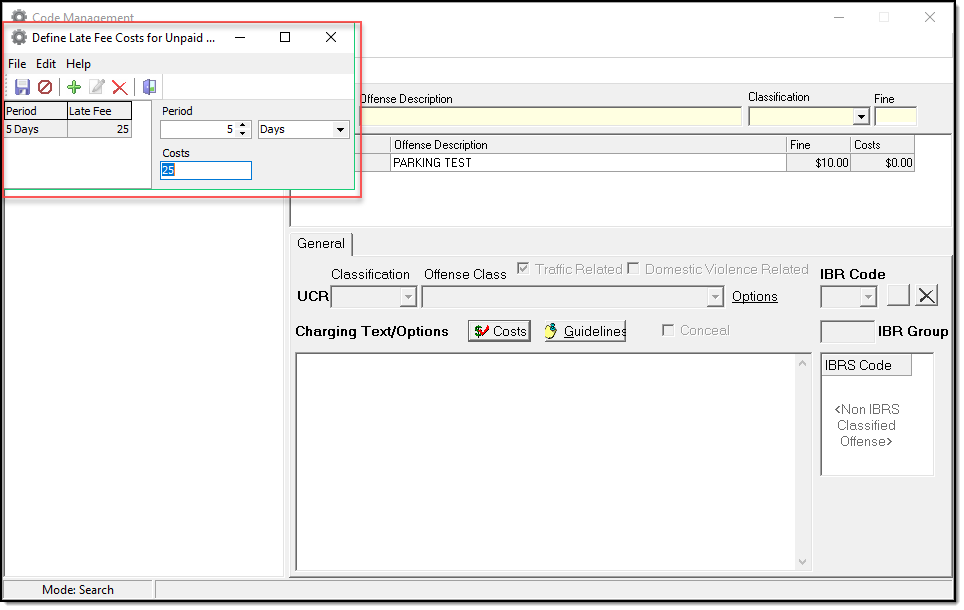
It is important to have the Fine and Costs associated with the Violations. This can be done by your administrator within the Code Management. They have the ability to edit the Codes that are typically used and add Fines (A) and Costs (B) for help with adding costs please refer to our Costs Section in the Code Management part of this manual.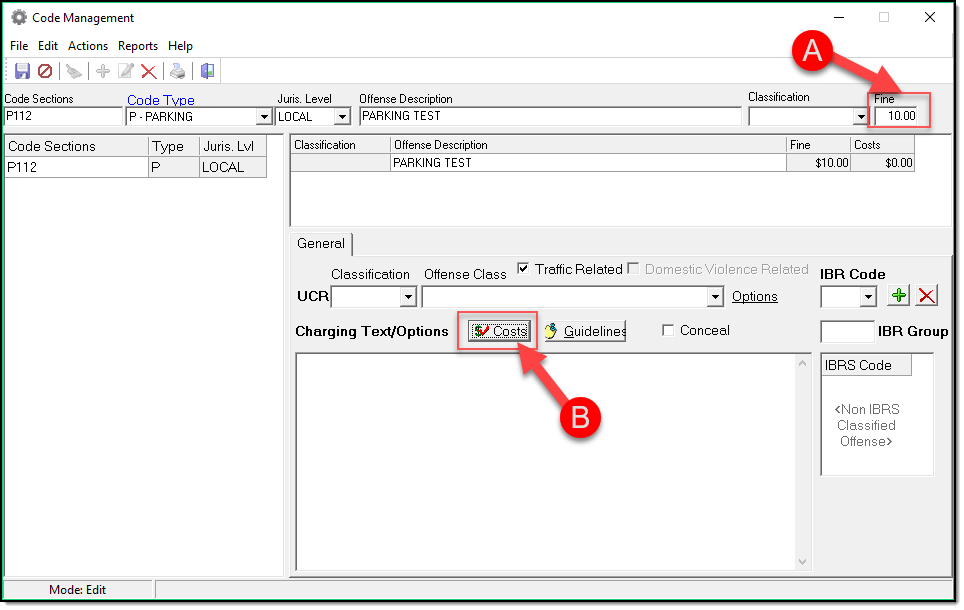
You are also able to Add Notes to your Parking Ticket by Typing in the bottom box (A)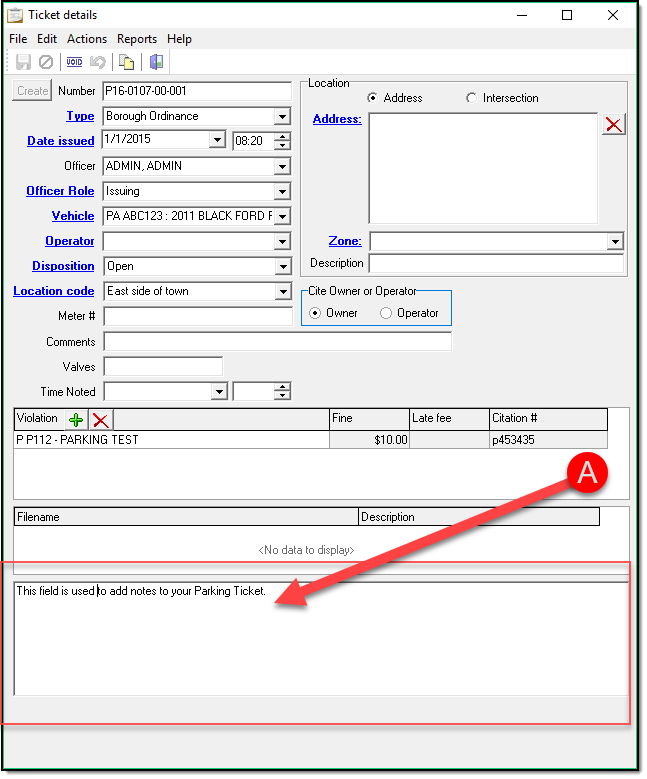
When you are finished adding or editing the ticket, you should Save (A) it. You can also Cancel (B) the ticket or Exit ( C ) the window.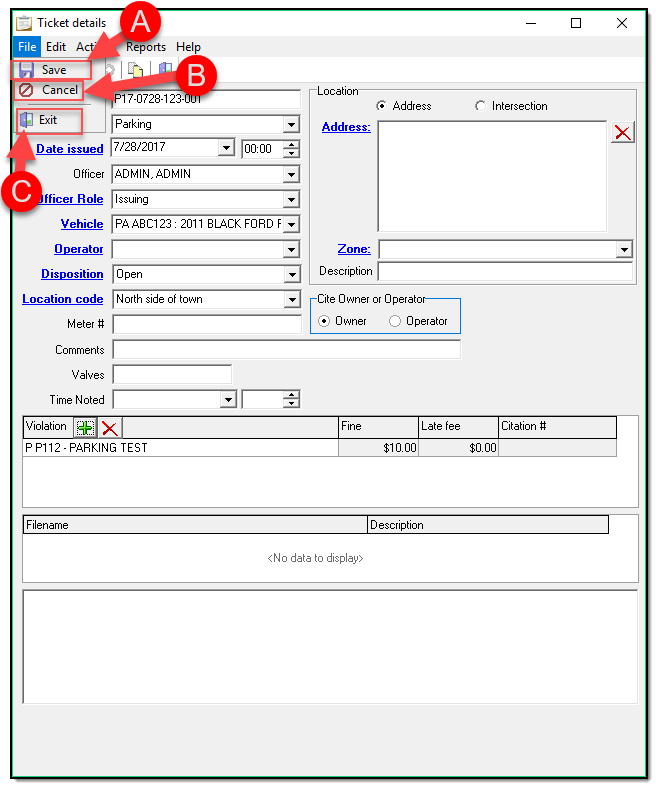
!Did You Know?
In the Actions drop down menu, there is a listing for ‘Mobile SC Import’. This is only used for a Mobile SC interface, which is not part of the standard RMS package.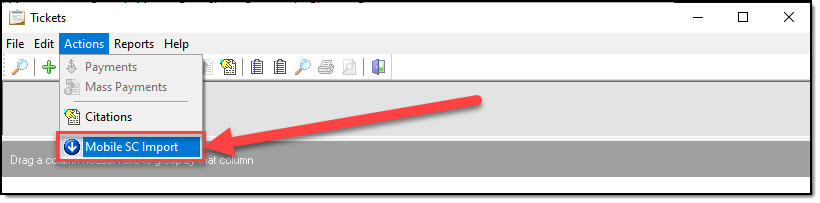
Was this article helpful?
That’s Great!
Thank you for your feedback
Sorry! We couldn't be helpful
Thank you for your feedback
Let us know how can we improve this article!
Feedback sent
We appreciate your effort and will try to fix the article
X