
No recent searches
Popular Articles

Sorry! nothing found for
Adding a New Field Interview
Created by Russ Hartle, Modified on Wed, 10 Sep, 2025 at 3:53 PM by Russ Hartle
Adding a New Field Interview
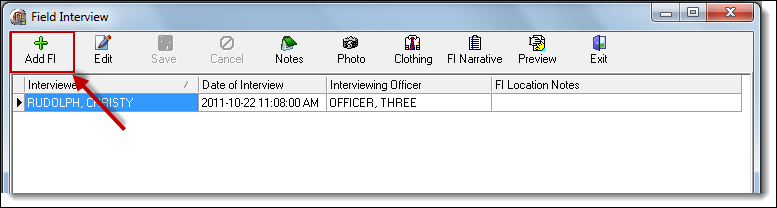
1. To create a new Field Interview, click the “Add FI” button on the Field Interview toolbar.
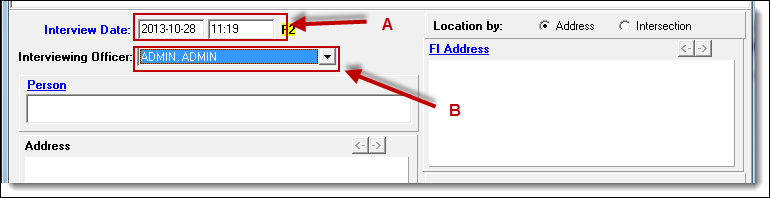
2. Enter the Interview Date (A) and the Interviewing Officer (B) fields.
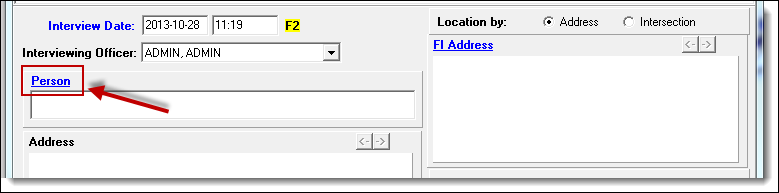
3. Click the blue word “Person” to search for/create a person record.
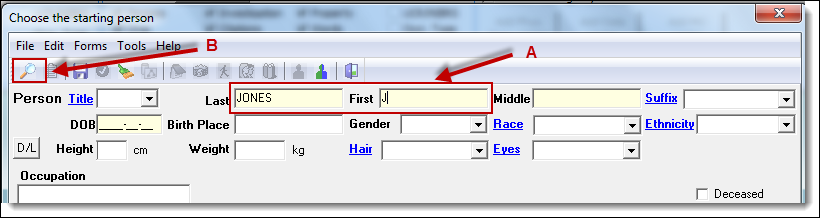
4. Enter part of the last name, or first name, or combination of both (A), and click the “Search” button (B).
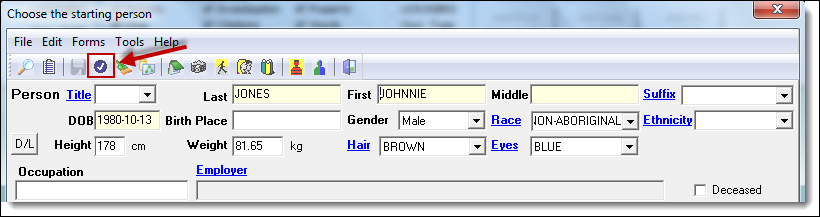
5. Once the person record is found or created, click the “Choose” button to link the person to the Field Interview.
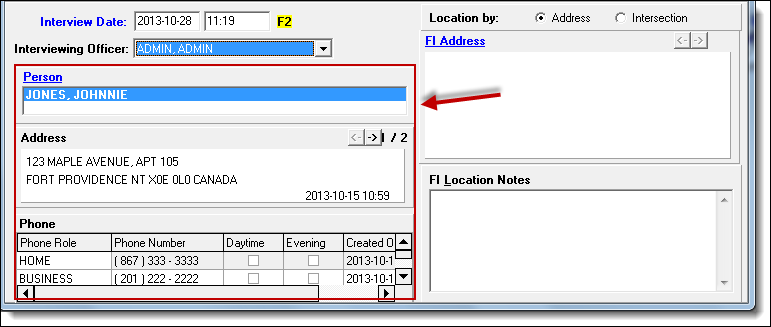
6. In the person record, any addresses and phone numbers will be displayed in the Field Interview window.
Was this article helpful?
That’s Great!
Thank you for your feedback
Sorry! We couldn't be helpful
Thank you for your feedback
Let us know how can we improve this article!
Feedback sent
We appreciate your effort and will try to fix the article
X