
No recent searches
Popular Articles

Sorry! nothing found for
Adding Forms to a Call
Created by Kris Wahler, Modified on Fri, 9 May, 2025 at 12:35 PM by Kris Wahler
Adding Forms to a Call
Agency-specific forms can be attached to calls-for-service using the Forms drop down list on the Add/Edit Call window. These forms can be templates made in Word, Excel, Adobe PDF, as well as various other programs. More information regarding the setup of these forms can be found in the “Call Log Forms” topic under the Supervisory Functions section of this chapter.
This example assumes that an Administrator has already created and attached the form templates to Call Log and that your computer has the proper programs and network connections.
1. In the Add/Edit Call window, select the Forms drop down list. This list will display any available forms that can be linked to the call-for-service.
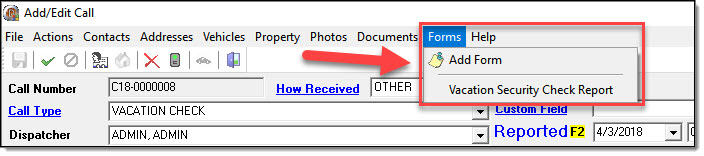
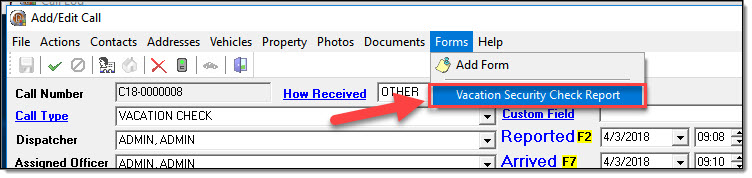
2. In this example, we have one form (Vacation Security Check Report). Select the form from the drop down list.
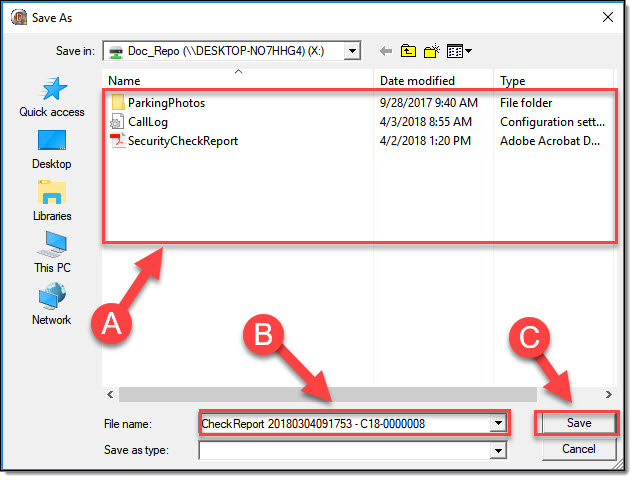
3. A Save File dialog window will open to your agency’s Document Repository location. Choose or create a location/sublocation (per your agency’s standards) inside the Document Repository (A). Enter a File name (B). By default, the File name is the Form name + date/time (yyyyddmmhhmmss). The best practice is to include the call number as part of the file name. Select the “Save” button (C ).
*Tips:
Files attached to the RMS must be stored within the Document Repository. Rules pertaining to an agency’s Document Repository can be found here.
4. The Form Template will open in its native program. Enter any needed information on the form.
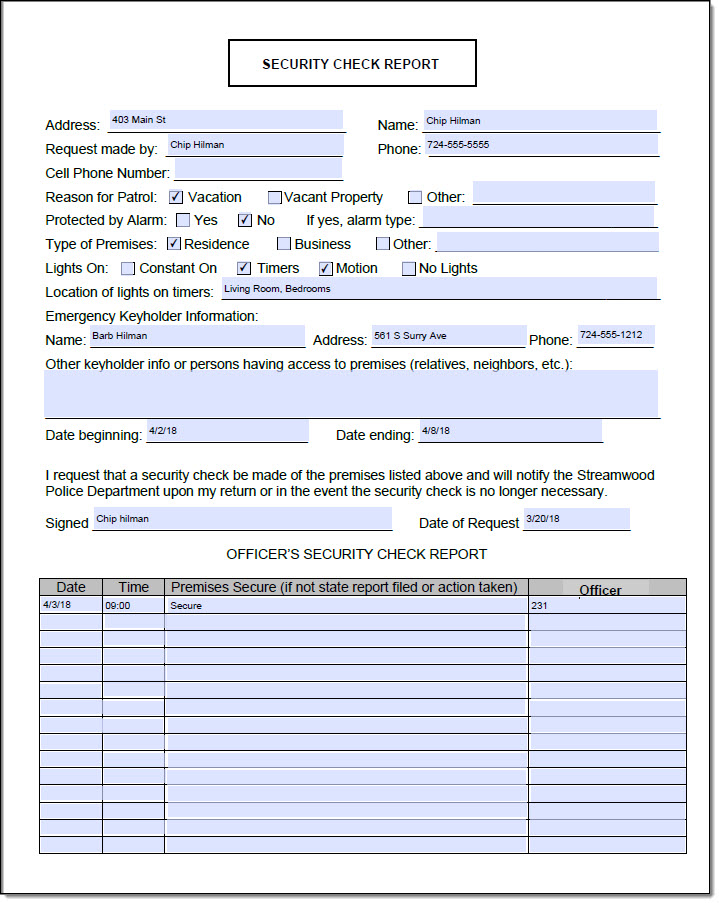
5. Save the form using the native program’s save feature.
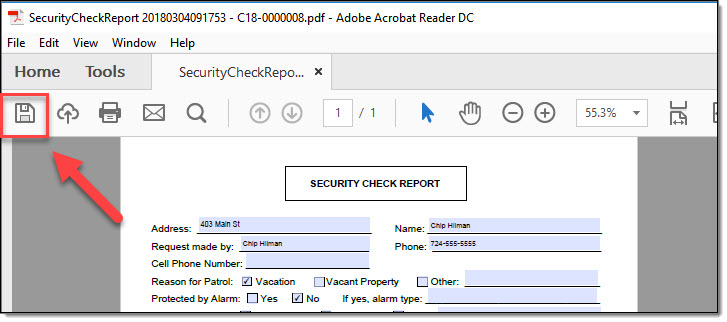
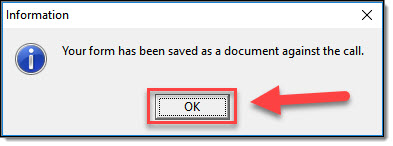
6. Close the program/form to return to the Add/Edit Call window. Select the “OK” button on the Information box.
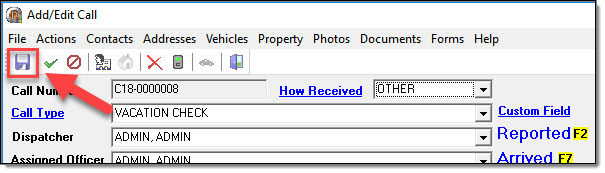
7. Select the “Save” button on the Add/Edit Call window to save the changes.
Viewing/Editing Existing Call Forms
Once a form has been saved and linked to a call-for-service, it can be found in the Documents section of the Add/Edit Call window.
1. Select the “Documents” option from the Documents drop down list.
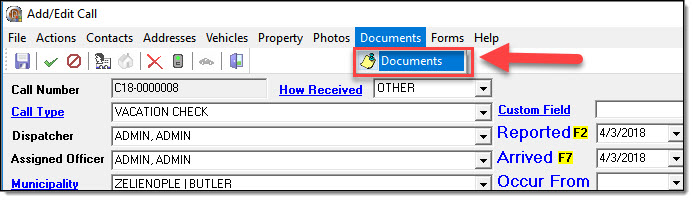
2. A list of attachments will be displayed in the Document Storage window.
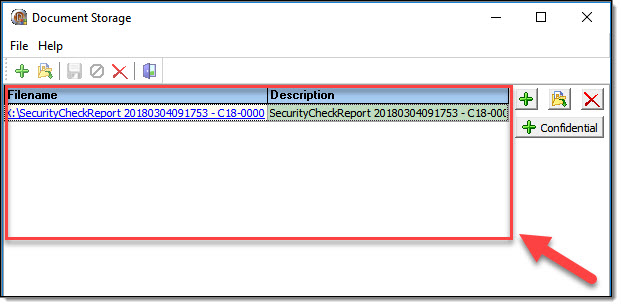
3. Double-click on the desired attachment to open it in its native program.
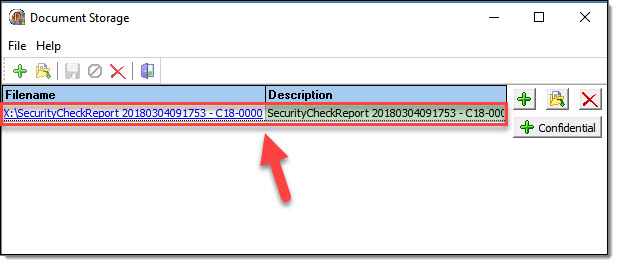
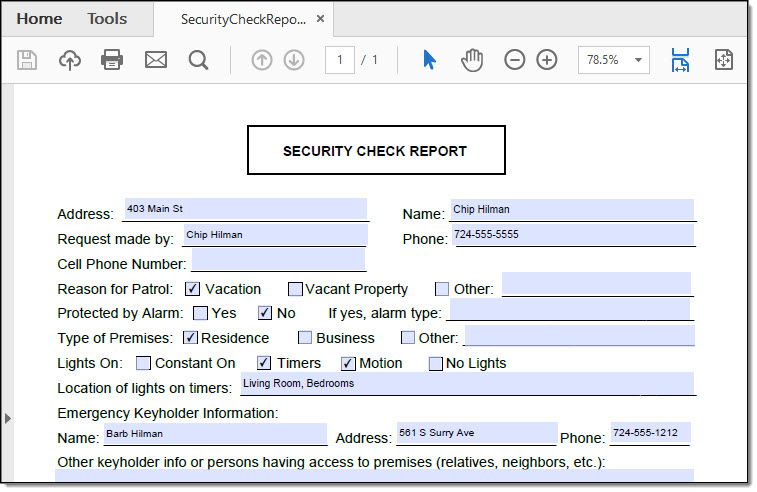
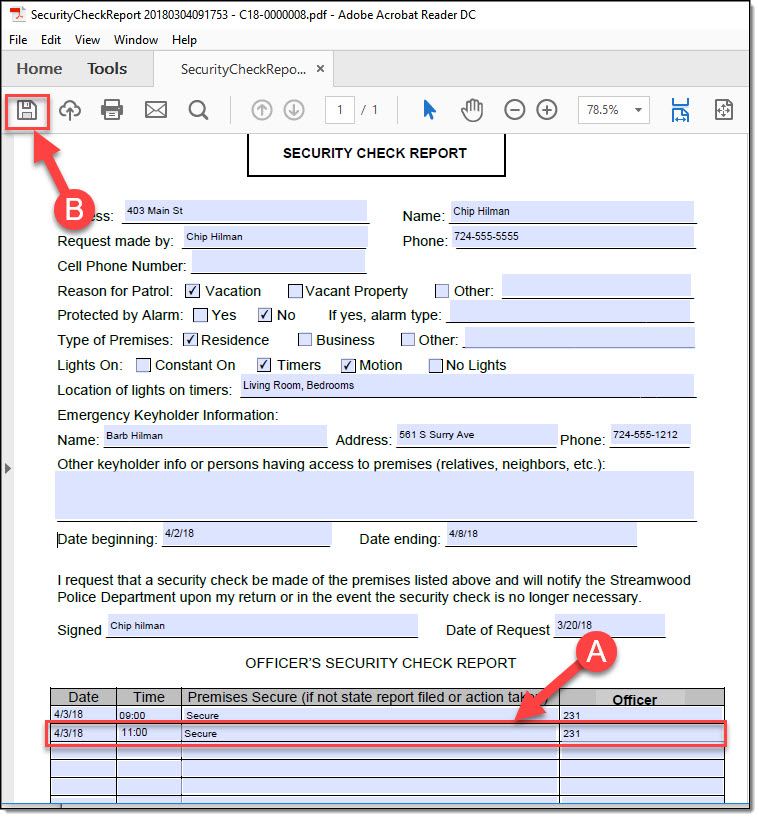
4. The document can be edited by adding/changing data (A) and then saving the changes through the native program’s save function (B).
Was this article helpful?
That’s Great!
Thank you for your feedback
Sorry! We couldn't be helpful
Thank you for your feedback
Let us know how can we improve this article!
Feedback sent
We appreciate your effort and will try to fix the article
X