
No recent searches
Popular Articles

Sorry! nothing found for
Adding New Zip Codes
Created by Russ Hartle, Modified on Thu, 3 Apr, 2025 at 3:00 PM by Russ Hartle
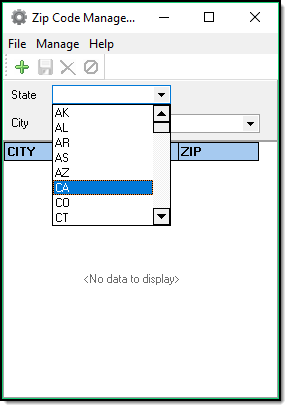
1. From the main Zipcode Management window, select the State in which you wish to add a zip code.
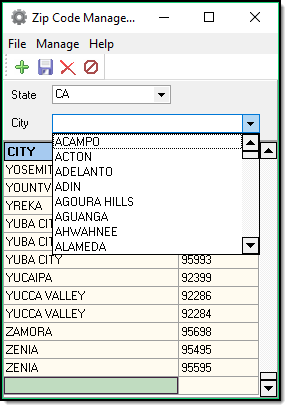
2. Any existing cities will be available in the “City” drop down list as well as shown in the grid below.
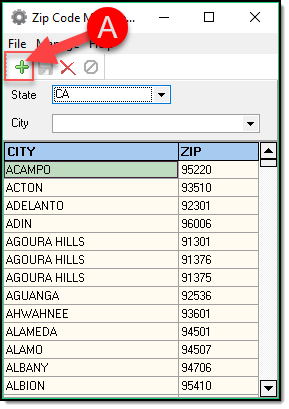
3. To create a new entry, click the “Add” button (A).
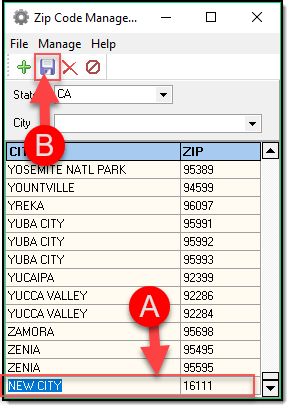
4. Enter the city name and a zip code (A), and then click the “Save” button (B). Make sure to type the city name in all CAPS so that the cities are standardized in the drop down list.
5. Repeat steps 3-4 for any additional zip codes that need to be entered for the selected city.
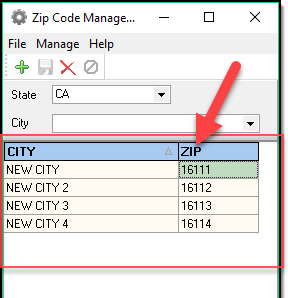
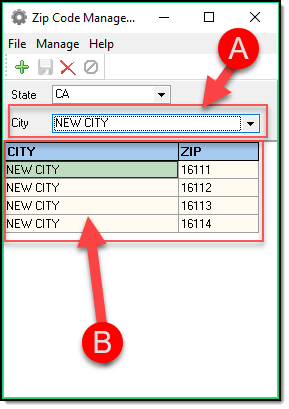
6. Once zip codes have been entered for more than one city, you can use the city drop down list (A) to filter the selections displayed in the Zip code Management grid (B).
Was this article helpful?
That’s Great!
Thank you for your feedback
Sorry! We couldn't be helpful
Thank you for your feedback
Let us know how can we improve this article!
Feedback sent
We appreciate your effort and will try to fix the article
X