
No recent searches
Popular Articles

Sorry! nothing found for
Adding Vehicle to a Call
Created by Kris Wahler, Modified on Fri, 9 May, 2025 at 11:23 AM by Kris Wahler
Linking a Vehicle to the Call
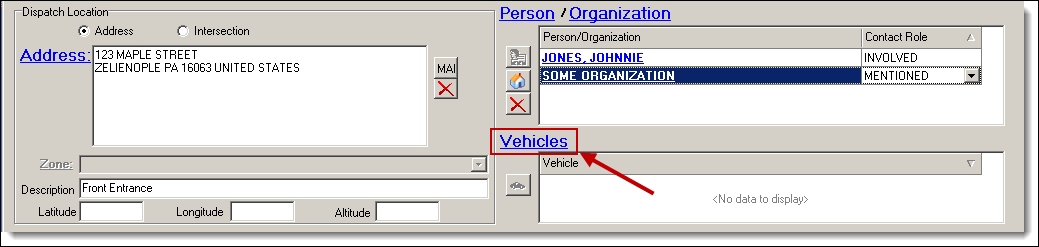
1. Click the blue word “Vehicles” to open the Contacts by Vehicle window.
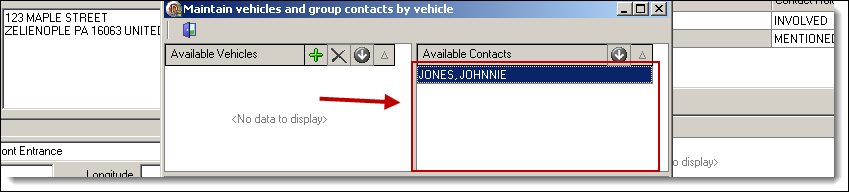
2. The right side of the Contacts by Vehicle window shows all available person contacts from the call.
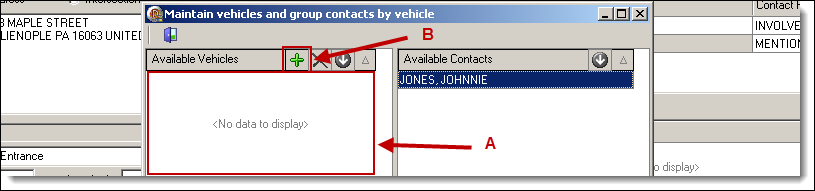
3. The left side of the Contacts by Vehicle window shows available vehicles (A). To add a new vehicle, click the “Add” button (B).
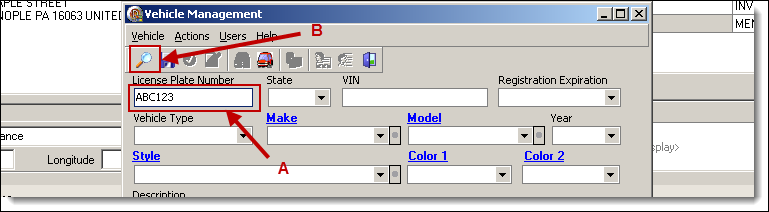
4. Enter part of the license plate number (A), and then click the “Search” button (B).
5. Follow steps 3a-4c from the Searching and Entering a New Vehicle section of the Vehicle Management chapter for details on saving a new vehicle record or choosing an existing vehicle record.
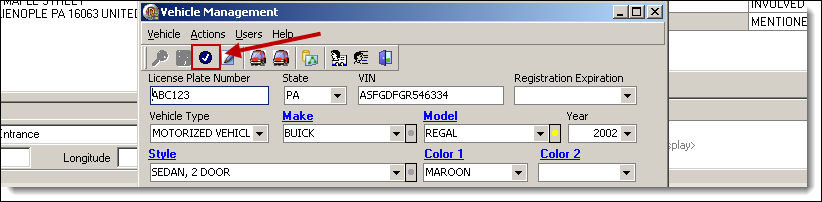
6. Click the “Choose” button from the Vehicle Management window to link the vehicle to the call.
 !Did You Know?
- The Master Vehicle Index can be accessed for the selected vehicle from the Vehicles drop-down menu or the button located on the Add/Edit Call toolbar.
Relating a Contact to a Vehicle
1. Select the person from the right side (A). Hold down the left mouse button and drag the person on top of the vehicle (B), and then release the left mouse button.
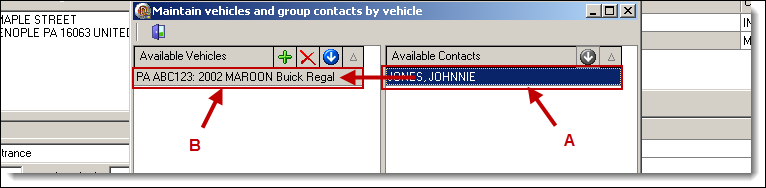
2. Once a contact has been related to a vehicle, they will both display in the bottom half of the Contacts by Vehicle window. Click in the Contact Role box to select whether the person was a Driver, Passenger, or Other.

3. After relating the contacts and vehicles, return to the Add/Edit Call window by clicking the “Exit” button.
Was this article helpful?
That’s Great!
Thank you for your feedback
Sorry! We couldn't be helpful
Thank you for your feedback
Let us know how can we improve this article!
Feedback sent
We appreciate your effort and will try to fix the article
X