
No recent searches
Popular Articles

Sorry! nothing found for
Approving or Rejecting a Case Assignment
Created by Russ Hartle, Modified on Tue, 27 May, 2025 at 10:22 AM by Russ Hartle
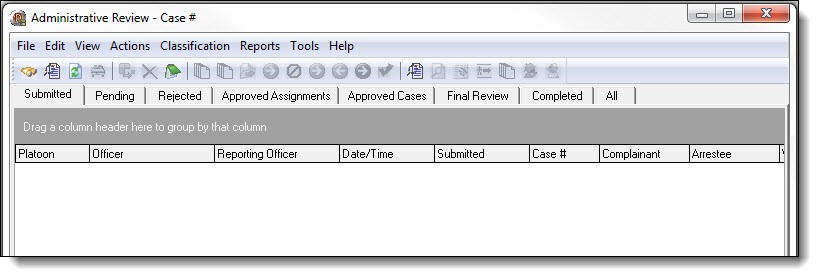
1. Once the case assignment has been reviewed, the supervisor then has the option to “Approve” or “Reject” the assignment.
2. To reject an assignment, follow steps 2a-2g; otherwise skip to step 3 for instructions on approving a case assignment.
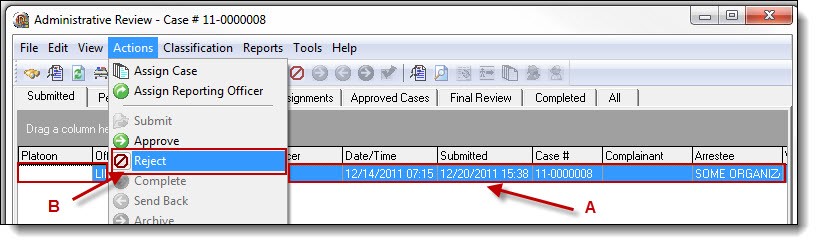
2a. After reviewing the case assignment, incomplete work or reports not matching the agency’s standards can be rejected back to the submitting officer. Highlight the case assignment that will be rejected (A), and then select “Reject” from the Actions drop down list (B).
2b. Rejected assignments can be issued a “Due Back Date”. If the rejection requires a Due Back Date, enter the information into the Date field (A), and then click the “Ok” button (B). If the rejection does not require a Due Back Date, leave the Date field blank, and then click the “Ok” button (B).

2c. If the supervisor wishes to enter review notes for the officer, click the “Yes” button (A); otherwise click the “No” button (B) on the Confirmation window.

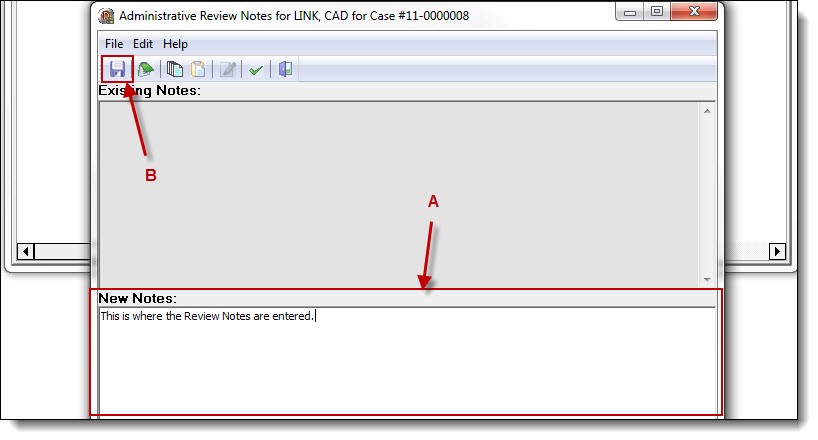
2d. Enter the review notes into the New Notes section of the editor (A), then click the “Save” button (B).
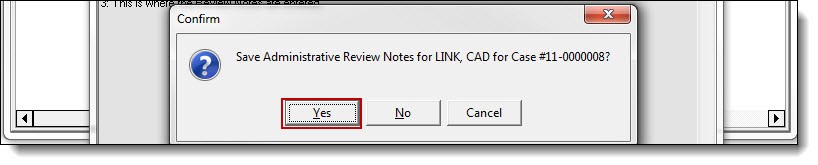
2e. Confirm the review notes by clicking the “Yes” button on the Confirmation window.
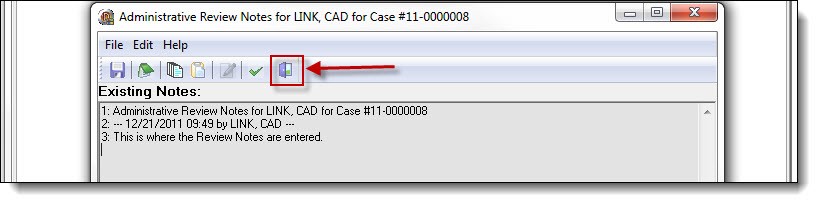
2f. Click the “Exit” button to return to the Admin Review grid.
2g. The rejected assignment will be removed from the Submitted tab and rejected back to the submitting officer.
 !Did You Know?
- Once a case assignment has been rejected, it can be found in the Rejected tab of Admin Review.
- Rejected case assignments will show in the officer’s Case Builder list of assigned cases. Any review notes or due back date will be visible to the officer.
3. To approve an assignment, follow steps 3a-3b.
3a. To approve a case assignment, highlight the case assignment (A), and then select “Approve” from the Actions drop down list (B).
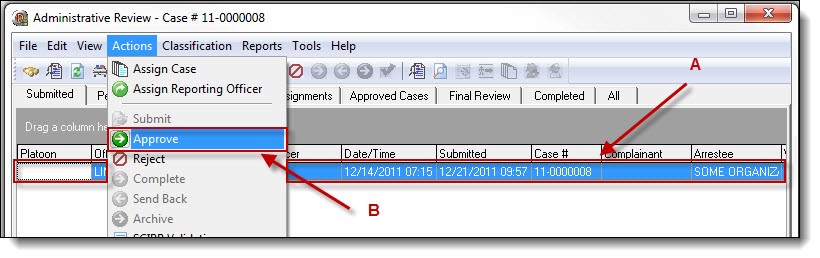
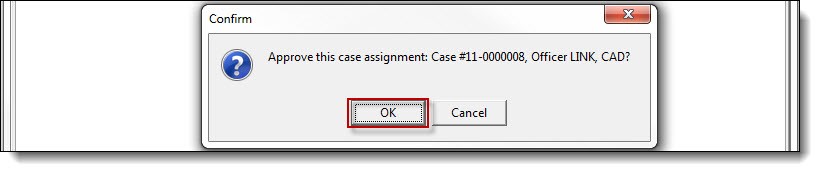
3b. Confirm the approval by clicking the “Ok” button on the Confirmation window. The approved case assignment will be removed from the Submitted tab and placed in the Approved Cases tab.
*Tips:
Approving a case assignment may result in the case temporarily displaying in the Approved Assignments tab. Refer to the Approved Assignments section of this chapter for details on the difference between approved assignments and approved cases. After approving a case assignment, a supervisor can assign a follow-up to the reporting officer, or any additional officer. To learn more about assigning follow-ups, refer to the “Assigning a Case Follow-up” chapter.
Was this article helpful?
That’s Great!
Thank you for your feedback
Sorry! We couldn't be helpful
Thank you for your feedback
Let us know how can we improve this article!
Feedback sent
We appreciate your effort and will try to fix the article
X