---
title: CADLink as a Service
description: In-Synch
---
[Skip to content](https://kb.arms.com/in-synch/cadlink-as-a-service#main-content)
English
Show submenu for translations

Open main navigation
Close main navigation
- English
Show submenu for translations
- Contact us
Contact us
How can we help you?
- There are no suggestions because the search field is empty.
1. [In-Synch](https://kb.arms.com/in-synch?hsLang=en)
2. [Knowledge base1](https://kb.arms.com/in-synch/knowledge-base1?hsLang=en)
3. [Internal Wiki](https://kb.arms.com/in-synch/knowledge-base1?hsLang=en#internal-wiki)
# CADLink as a Service
No recent searches
Popular Articles

Sorry! nothing found for
### CADLink as a Service
Created by Russ Hartle, Modified on Tue, 11 Nov, 2025 at 9:54 AM by Russ Hartle
### Configuring CADLink as a Service
*!*Please note the following steps assume that the in-synch.ini is already configured for CAD to process files. Please ensure this is done before proceeding forward.
1. Obtain the following files for the build version installed on the customer site. Please note the CAD service was not official until the next major release after 4.7.5 build on 04-04-13.
1. XMLDirectoryMonitorServ.exe
2. XMLAutoProcess.exe
2. Place both files obtained in step 1 in the in-synch directory.
3. Close socket server if running as an application. If running as a windows service do not alter that is the desired configuration.
[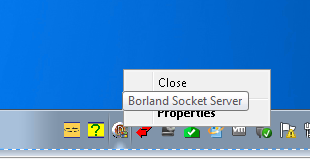](https://manula.s3.amazonaws.com/user/9801/img/configuring-cad-service-001.png)
4. Configure socket service to run as a service with the following command.
1. ScktSrvr.exe -install
5. Once socket server is installed as a service please remove socket server from startup.
[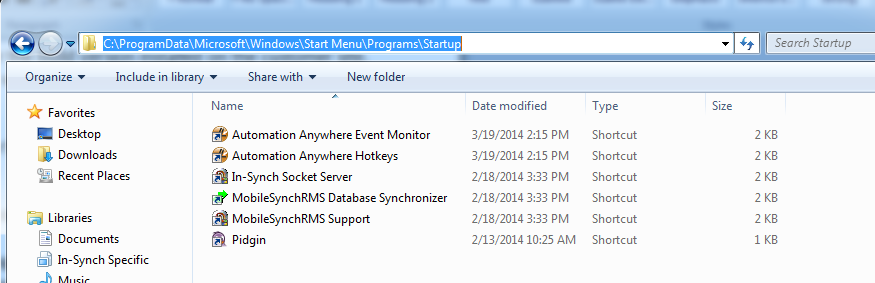](https://manula.s3.amazonaws.com/user/9801/img/configuring-cad-service-002.png)
6. Add the following entries to the in-synch.ini. bc. \*\*\*\[XMLDirectoryMonitorServ\]\*\*\*
LogLevel=5
LogFileName=DirectoryMonitorServ.log
7. Next lets discuss the trickiest part of configuration. Window services have issues reading mapped drives. To handle this we need to configure our in-synch.ini settings to monitor the network share or local file share.
1. Ex: Monitor=\\\\mike-knight-rulez\\cadfiles\\
8. If the service is reading from a network share please ensure to establish connectivity to the server by connecting to the share. To connect to the share click start —-\> run and then enter the share name \\\\mike-knight-rulez\\cadfiles\\. When you receive the following prompt please check remember password to prevent unnecessary outages.
[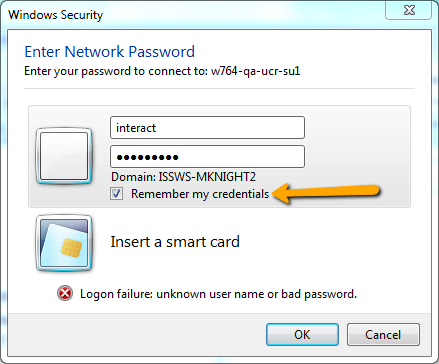](https://manula.s3.amazonaws.com/user/9801/img/configuring-cad-service-003.png)
In order for the CAD service to read the files from this share the cad server and the network share host machine must share a common administrator username / password. In testing I have tested local and domain accounts and both have worked.
9. Next you must configure install the directory monitor service. Please issue the following command to do so:
1. C:\\program Files\\In-Synch\\XMLDirectoryMonitorServ.exe /install
10. Once the directory monitor service is installed please configure to run as a local or domain administrator.
[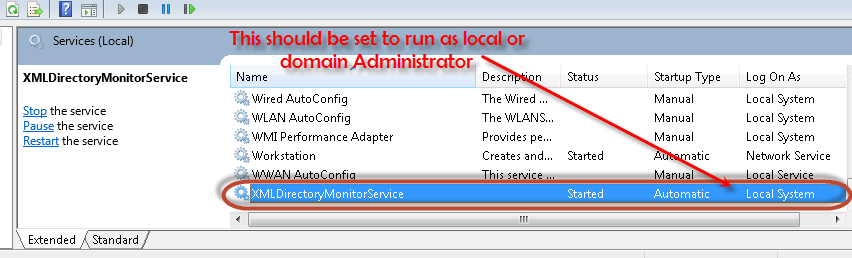](https://manula.s3.amazonaws.com/user/9801/img/configuring-cad-service-004.png)
To change the log on information for a service simply double click. After you double click navigate to the “Log On” tab. It is here you can configure to run as a local or domain admin.
11. At this point you are all done. A word to the wise when you first start the cad service it takes a bit longer then as an application to pull the first batch of XML files. Expect about a minute delay before you see the files begin to pull down for processing.
Was this article helpful?
That’s Great!
Thank you for your feedback
Sorry! We couldn't be helpful
Thank you for your feedback
Let us know how can we improve this article! \*
Feedback sent
We appreciate your effort and will try to fix the article
**X**
- [Release Notes](https://kb.arms.com/in-synch/release-notes?hsLang=en#main-content)
- [Version 4.8](https://kb.arms.com/in-synch/release-notes?hsLang=en#version-4-8)
- [Knowledge base3](https://kb.arms.com/in-synch/knowledge-base3?hsLang=en#main-content)
- [How To](https://kb.arms.com/in-synch/knowledge-base3?hsLang=en#how-to)
- [Knowledge base2](https://kb.arms.com/in-synch/knowledge-base2?hsLang=en#main-content)
- [Modules](https://kb.arms.com/in-synch/knowledge-base2?hsLang=en#modules)
- [Knowledge base1](https://kb.arms.com/in-synch/knowledge-base1?hsLang=en#main-content)
- [State Reporting](https://kb.arms.com/in-synch/knowledge-base1?hsLang=en#state-reporting)
- [Internal Wiki](https://kb.arms.com/in-synch/knowledge-base1?hsLang=en#internal-wiki)
- [State Specific Modules](https://kb.arms.com/in-synch/knowledge-base1?hsLang=en#state-specific-modules)
- [Release Notes](https://kb.arms.com/in-synch/knowledge-base1?hsLang=en#release-notes)
- [In-Synch RMS QuickStart Video Series](https://kb.arms.com/in-synch/knowledge-base1?hsLang=en#in-synch-rms-quickstart-video-series)
- [Error Messages](https://kb.arms.com/in-synch/knowledge-base1?hsLang=en#error-messages)
- [Knowledge base](https://kb.arms.com/in-synch/knowledge-base?hsLang=en#main-content)
- [Interfaces](https://kb.arms.com/in-synch/knowledge-base?hsLang=en#interfaces)
[](http://arms.com)
[mailto:email@email.com](mailto:email@email.com)
Copyright © 2026, End2End Public Safety