
No recent searches
Popular Articles
Sorry! nothing found for
Changing Your Password
Created by Russ Hartle, Modified on Thu, 3 Apr, 2025 at 2:59 PM by Russ Hartle
The Change Password Module is a simple tool that allows users to change their own passwords without having to contact an RMS administrator for assistance. The module can be added to your company’s toolbar in a few moments by contacting our support staff.
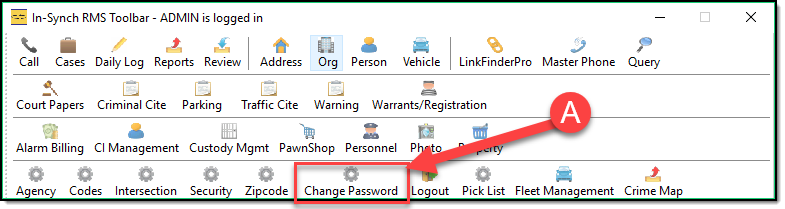
To access the Change Password Module click the Icon (A) on the toolbar.
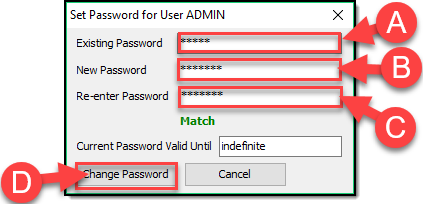
After opening the module an information box will appear where you.
- Enter your existing Password (A)
- Enter your new Password (B)
- Re-enter your new Password ( C )
- Confirm by clicking Change Password (D)
Tips:
- If you mistype your Existing Password (A) or your New Password (B) and ( C ) the RED words No Match will appear. If you correctly type your password the GREEN word Match appears.
- Please note our Password Field is case sensitive
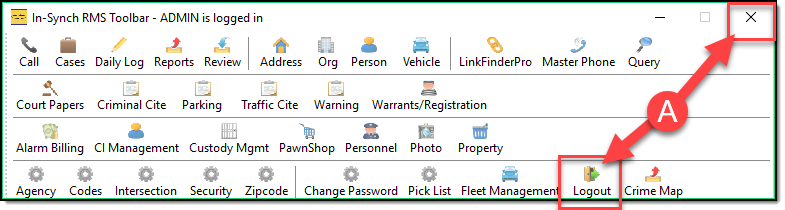
After you change your password you should log out of the toolbar by either hitting the X in the upper right or choosing the log out option (A) on the toolbar.
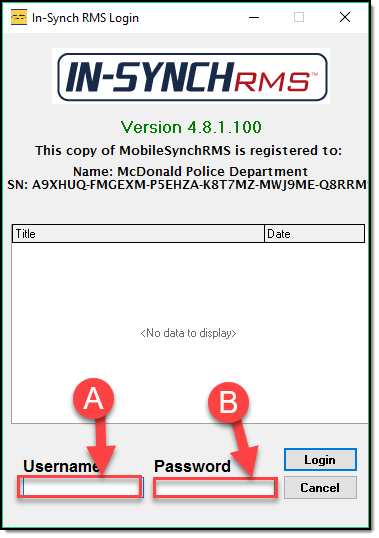
Once logged out re-launch the In-Synch RMS toolbar and enter your Username (A) and your New Password (B)
 *
*
Was this article helpful?
That’s Great!
Thank you for your feedback
Sorry! We couldn't be helpful
Thank you for your feedback
Let us know how can we improve this article!
Feedback sent
We appreciate your effort and will try to fix the article
X