
No recent searches
Popular Articles

Sorry! nothing found for
Creating a New Daily Log
Created by Russ Hartle, Modified on Tue, 27 May, 2025 at 10:18 AM by Russ Hartle
Creating a New Daily Log
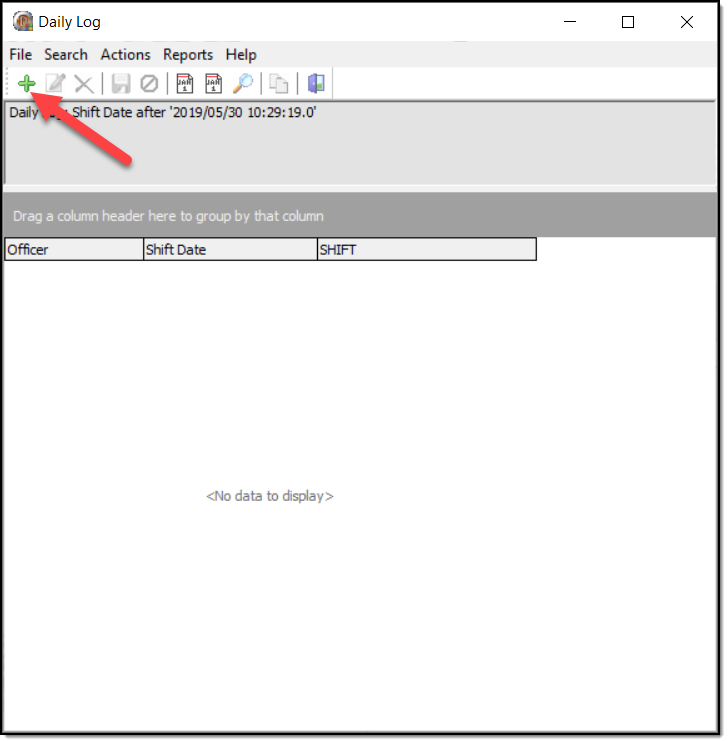
When the Daily Log module is opened, a grid window will appear that displays the Daily Logs entered in the last 24 hours. To work on a previously submitted Daily Log highlight the desired entry and double click to open the log.
1. To create a new Daily Log click on the “Add” button at the top of the Daily Log tool bar (A).
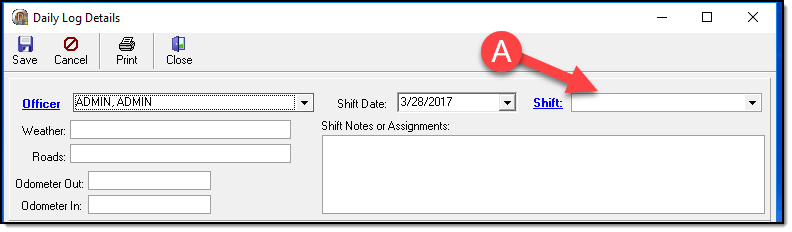
2. A Daily Log Details window will open that automatically contains the logged in officer’s name and the current date. The officer’s assigned shift (A) can be selected from the corresponding drop down box to the right of the Shift date field.
*Tips:
Users with administrative rights can edit the options that are available in most drop down lists found within the Daily Log module.
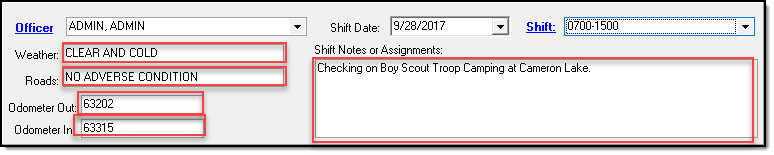
3. Entries can be made concerning Weather, Road Conditions, Odometer readings and
Shift Notes or Assignments by typing data directly into the appropriate boxes. Entries for Weather and Roads are limited to 20 characters and Odometer entries are limited to 7 characters. There is no character limit to Shift Notes or Assignment entries.
Was this article helpful?
That’s Great!
Thank you for your feedback
Sorry! We couldn't be helpful
Thank you for your feedback
Let us know how can we improve this article!
Feedback sent
We appreciate your effort and will try to fix the article
X