
No recent searches
Popular Articles

Sorry! nothing found for
Creating a New RMS User
Created by Russ Hartle, Modified on Fri, 12 Sep, 2025 at 3:42 PM by Russ Hartle
Creating a new RMS User
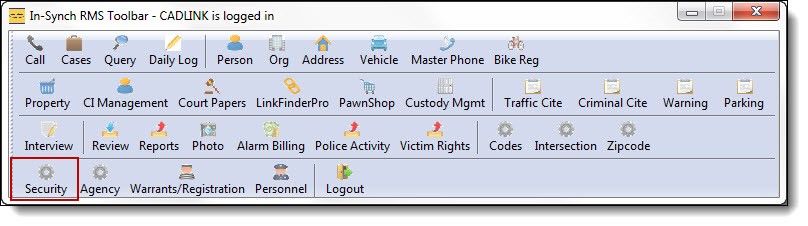
1. To open Security Management, click the “Security” button from the main RMS toolbar.
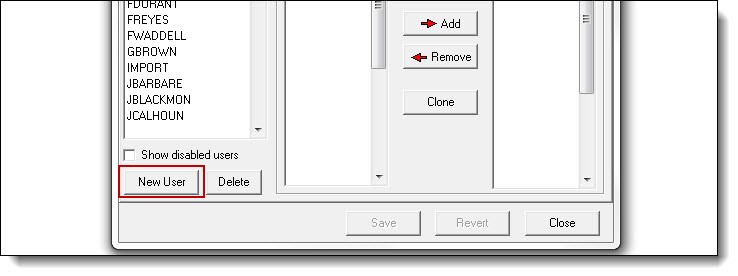
2. Click on the “New User” button at the bottom left of the Security Management window.
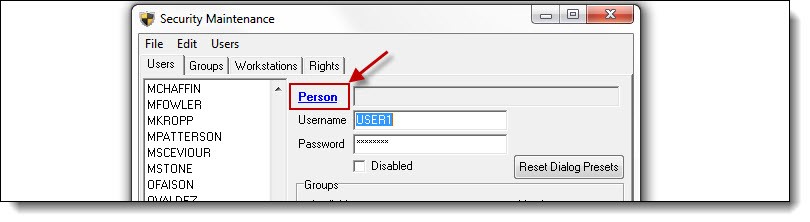
3. Click on the blue word “Person” to search for the new officer.
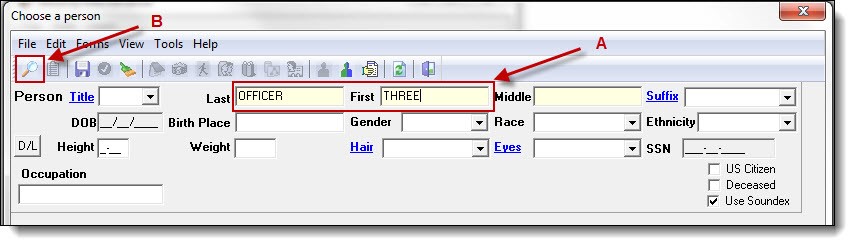
4. Enter part of the officer’s last name, first name, or both (A), and then click the “Search” button (B).
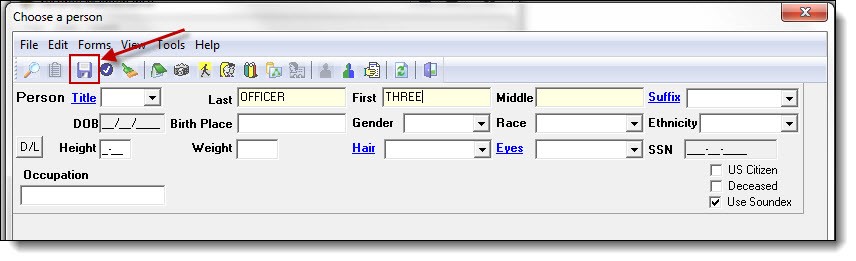
5. If the person already has a record in the database, choose the record from the results window; otherwise, click the “Save” button to add the person to the database.
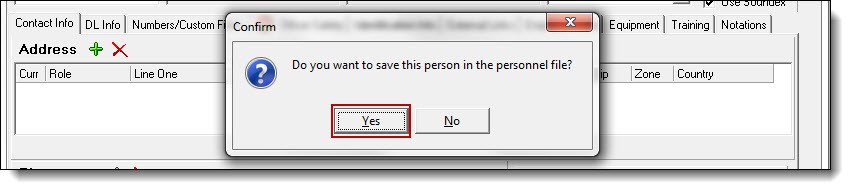
6. You will be prompted to save this person in the personnel file. Click “Yes” to save the person.
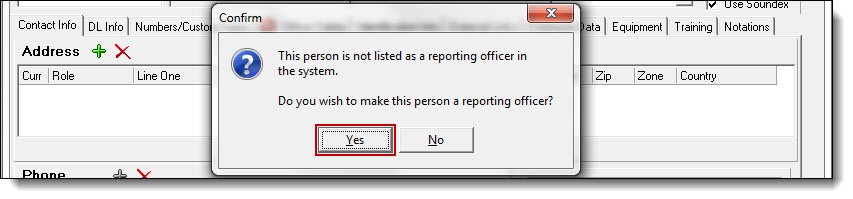
7. You will be prompted to make this person a reporting officer. Reporting officers have the ability to make arrests. Click “Yes” to make the person a reporting officer.
!Did You Know?
If a person is listed as reporting officer, their name will be available from drop down boxes for items such as case assignments, citations, etc. Any personnel can be marked as a reporting officer at a later time from the Employee Data tab in Personnel Management.
8. Click the “Choose” button to use the new officer record.
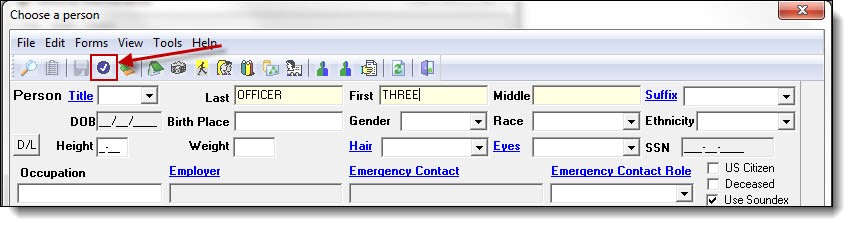
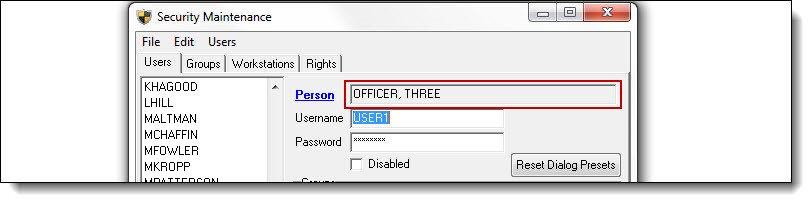
9. The officer’s name now appears in the Person field.
Was this article helpful?
That’s Great!
Thank you for your feedback
Sorry! We couldn't be helpful
Thank you for your feedback
Let us know how can we improve this article!
Feedback sent
We appreciate your effort and will try to fix the article
X