
No recent searches
Popular Articles

Sorry! nothing found for
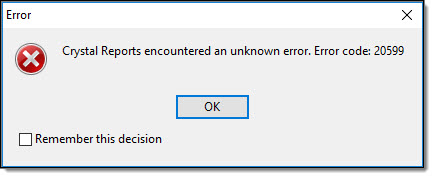
Crystal Reports Error Code 20599
Created by Russ Hartle, Modified on Tue, 1 Apr, 2025 at 2:10 PM by Russ Hartle
Occasionally, users will receive an error when trying to generate reports from the Admin Reports module. Typically, the report will fail to load and you will receive a Crystal Reports error. This error is caused by an improper ODBC connection and is mostly found on computers with a 64-bit architecture. The resolution may require an administrator account or an account with the rights to manipulate the computer’s ODBC connections. If your account doesn’t have these rights, please contact your IT department for further assistance.
32-Bit Computers
The resolution may require an administrator account or an account with the rights to manipulate the computer’s ODBC connections.
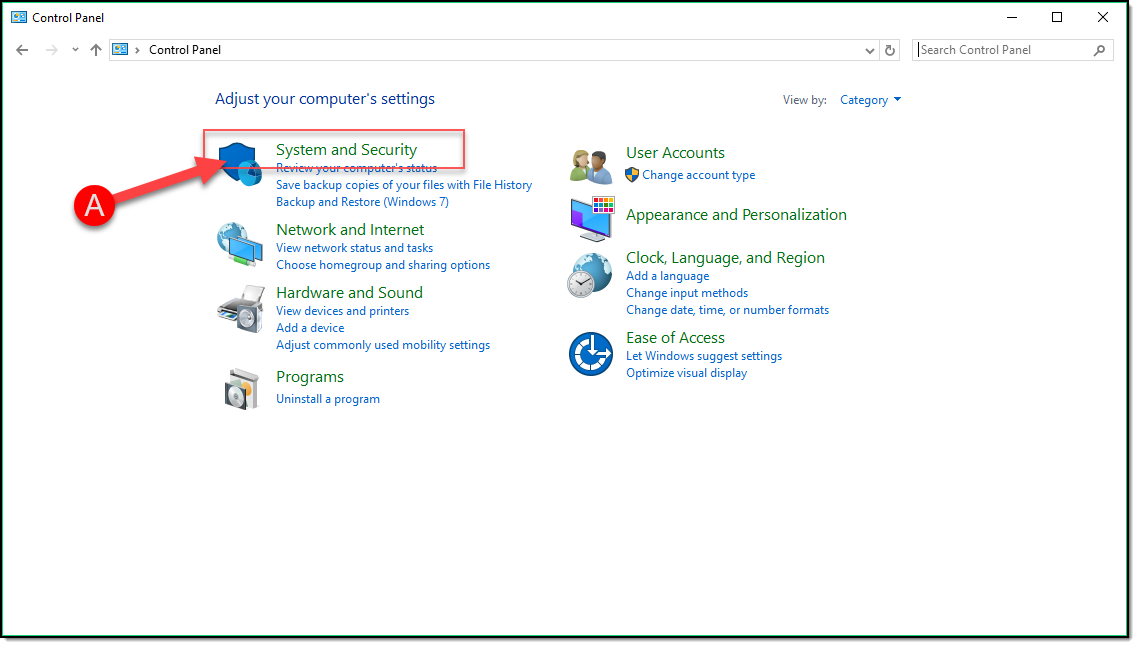
- Go to Control Panel
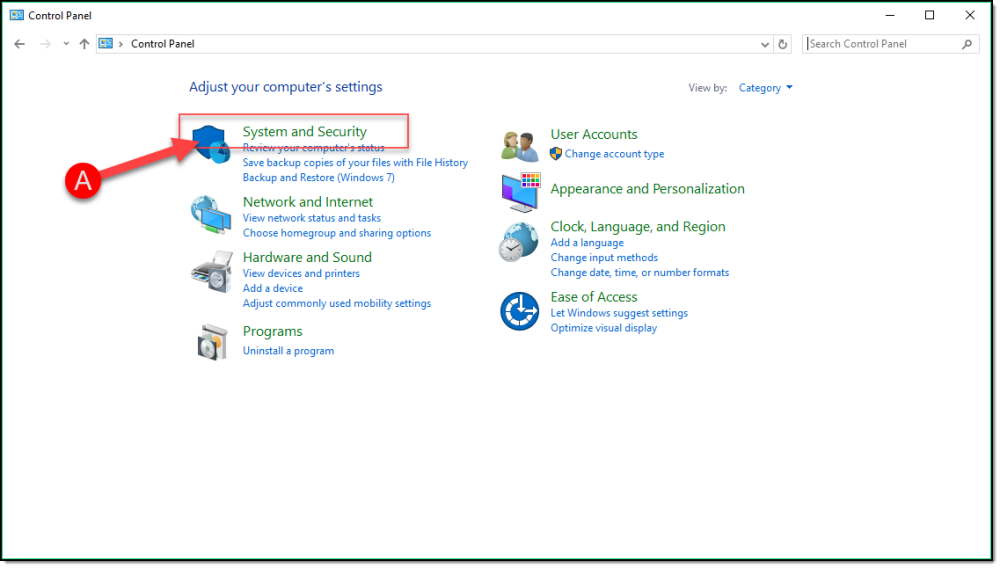
- Select the “System and Security” category (A).
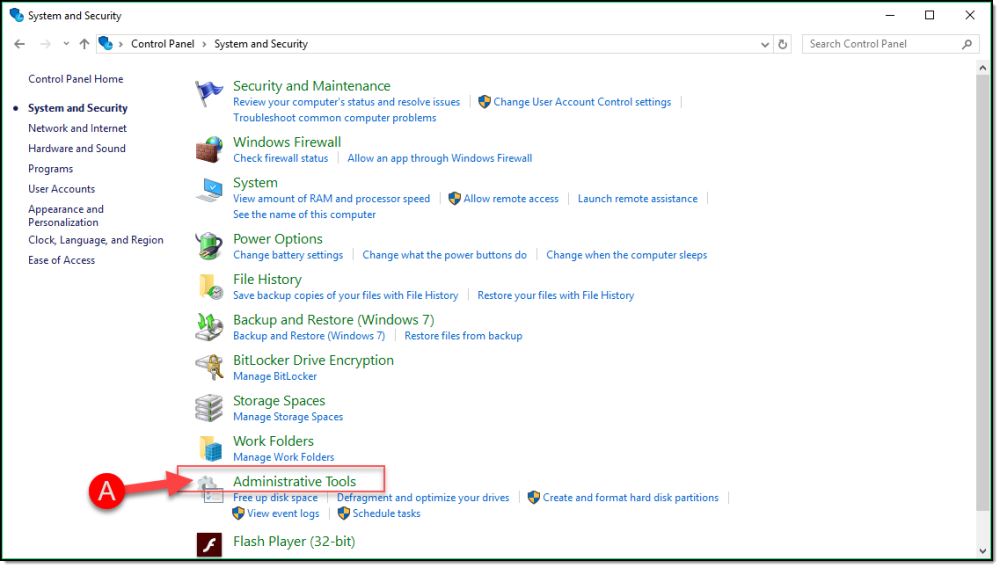
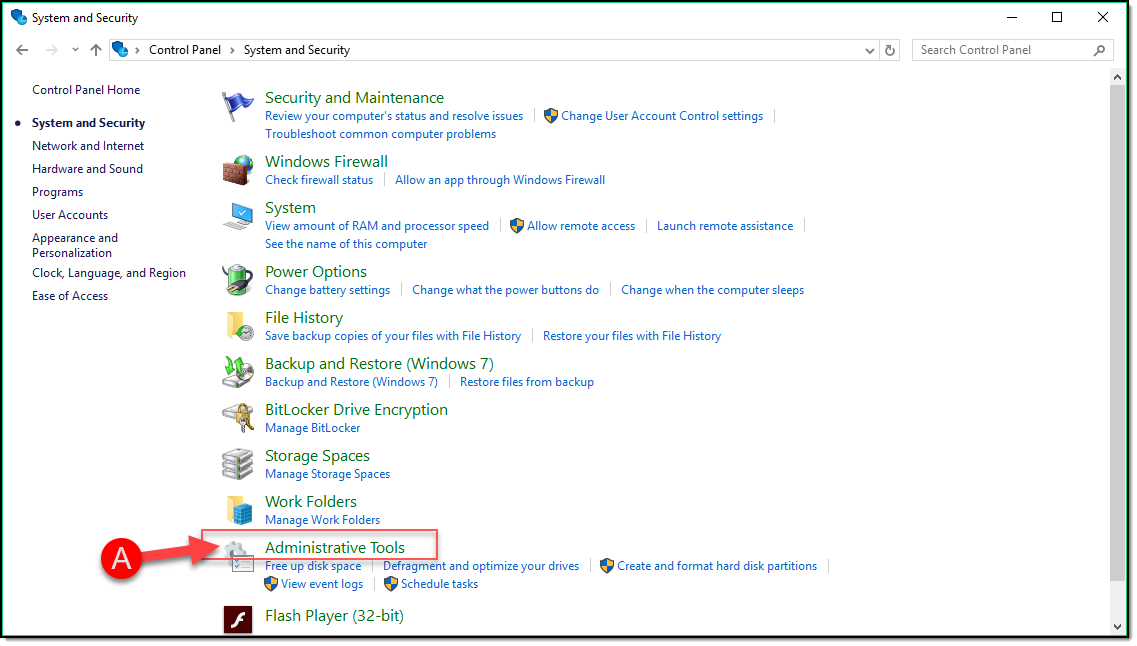
- Select “Administrative Tools” (A).
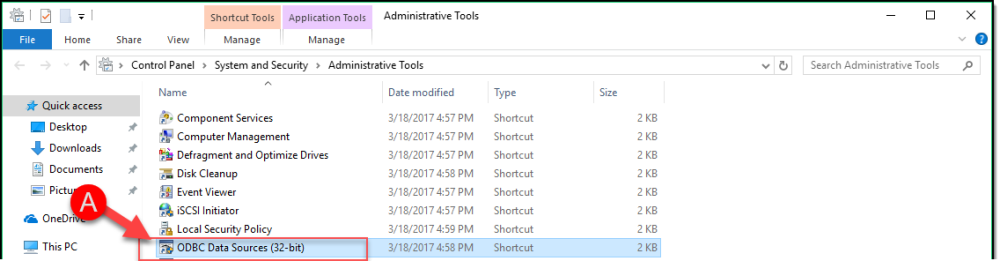
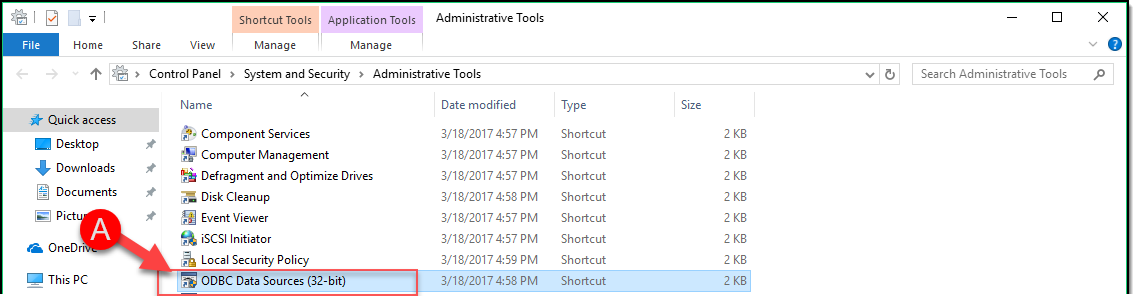
- Double-click “ODBC Data Sources (32-bt) (A).
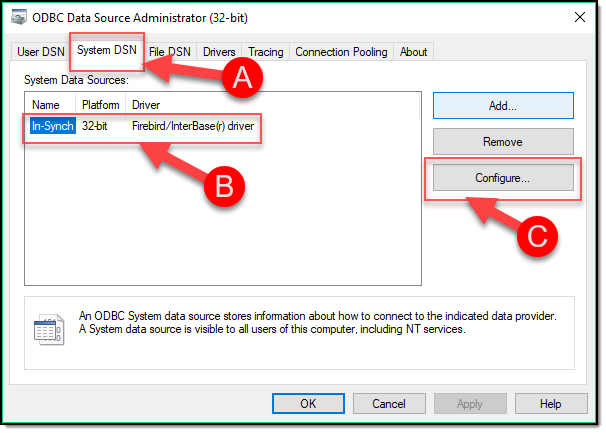
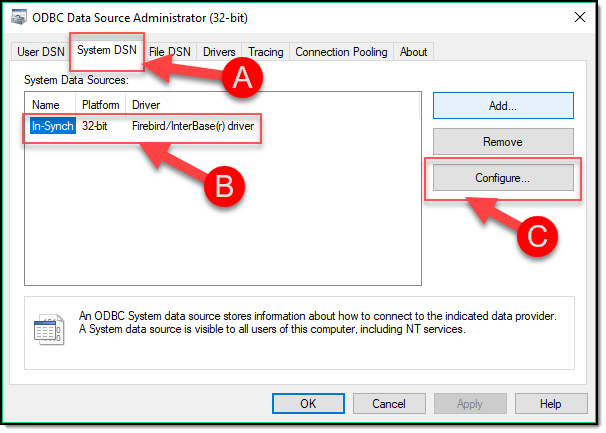
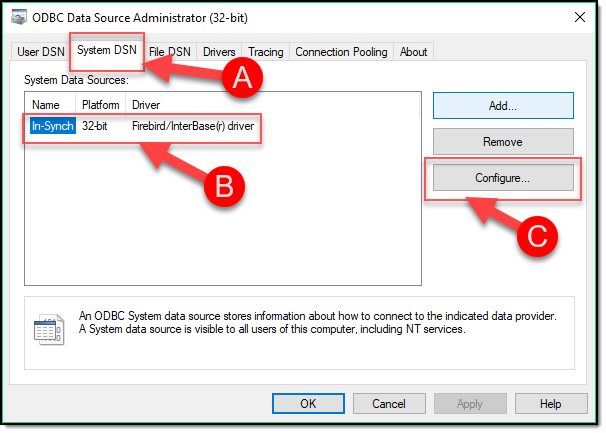
- Select the “System DSN” tab (A), highlight the “In-Synch” listing (B), and then select the “Configure” button ( C ).
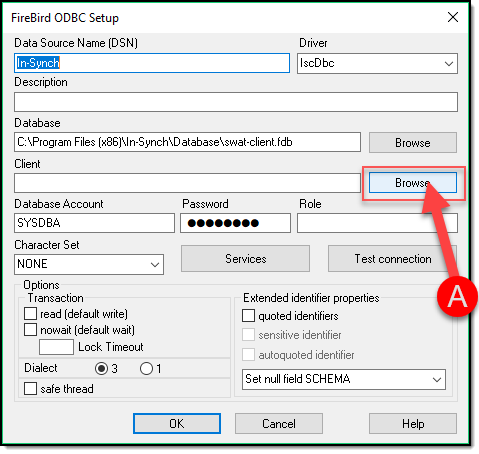
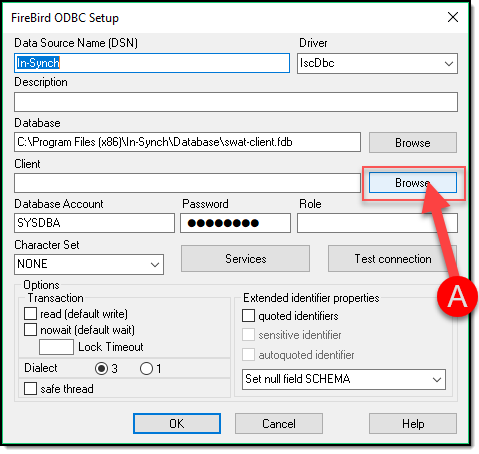
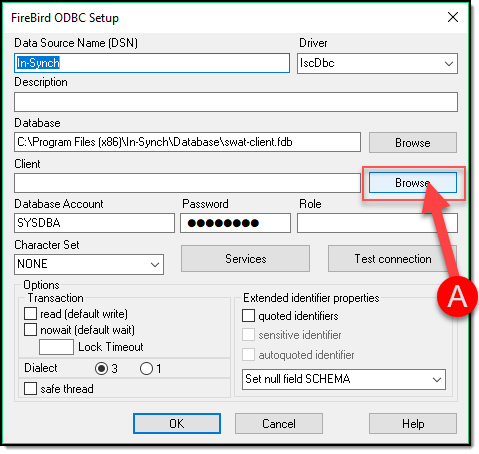
- From the “Firebird ODBC Setup” window, select the “Browse” button (A) located next to the “Client” field.
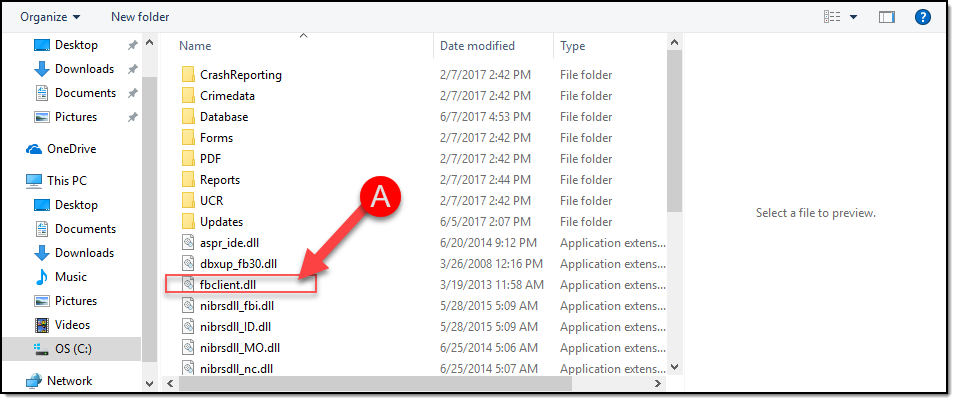
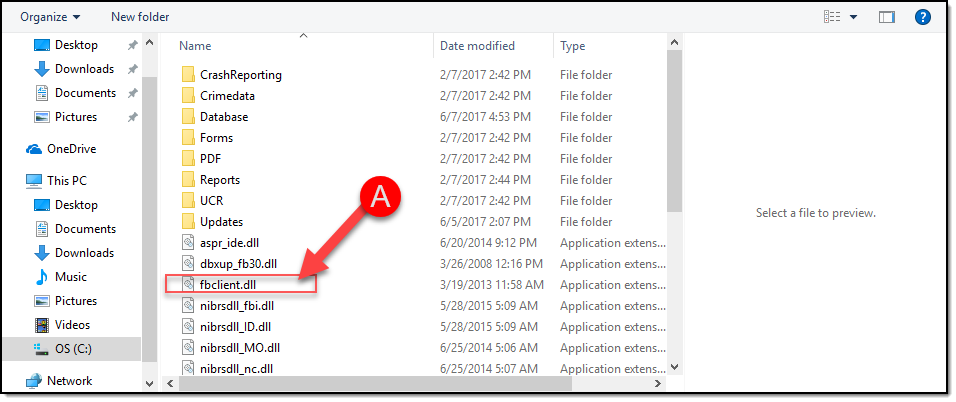
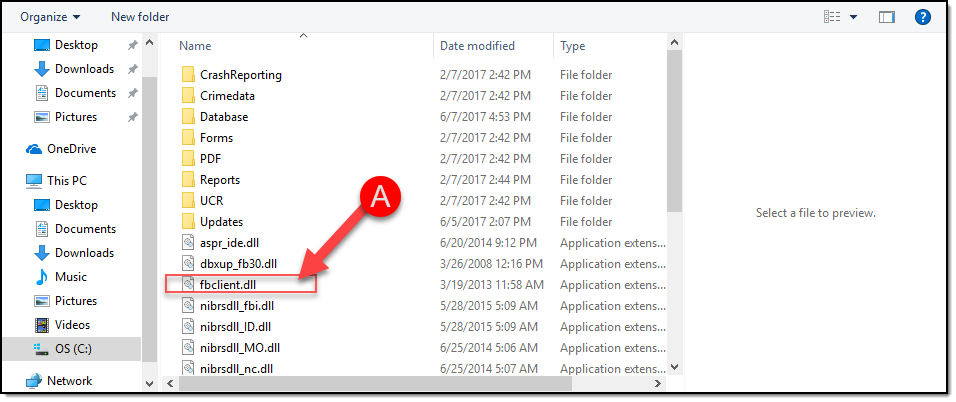
- Browse to “C:\Program Files\In-Synch” and double-click the fbclient.dll (A).
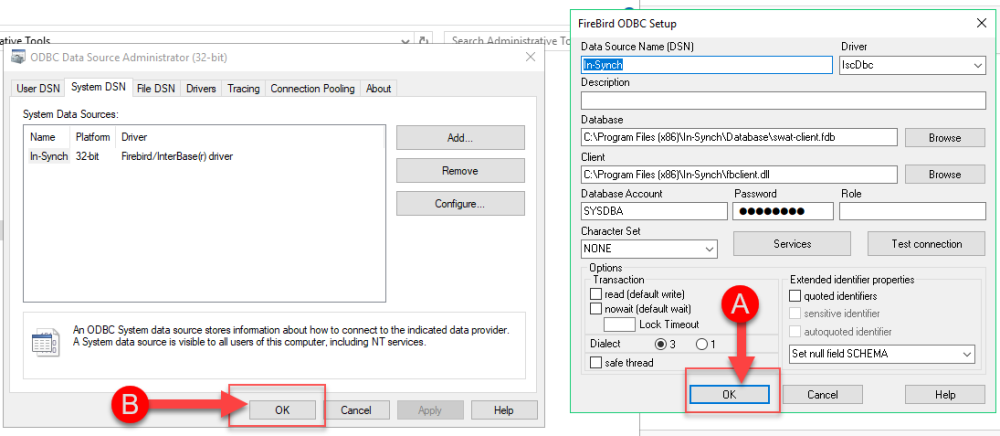
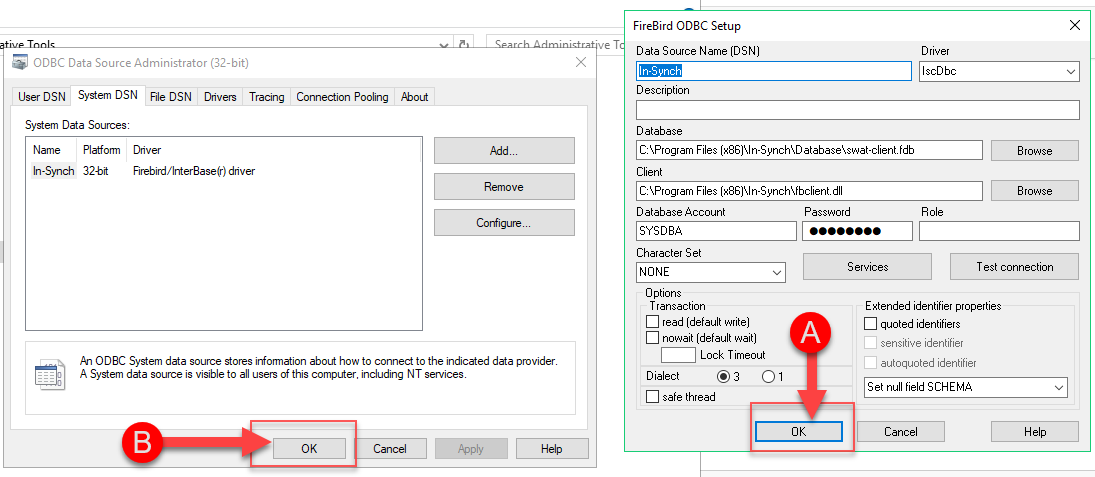
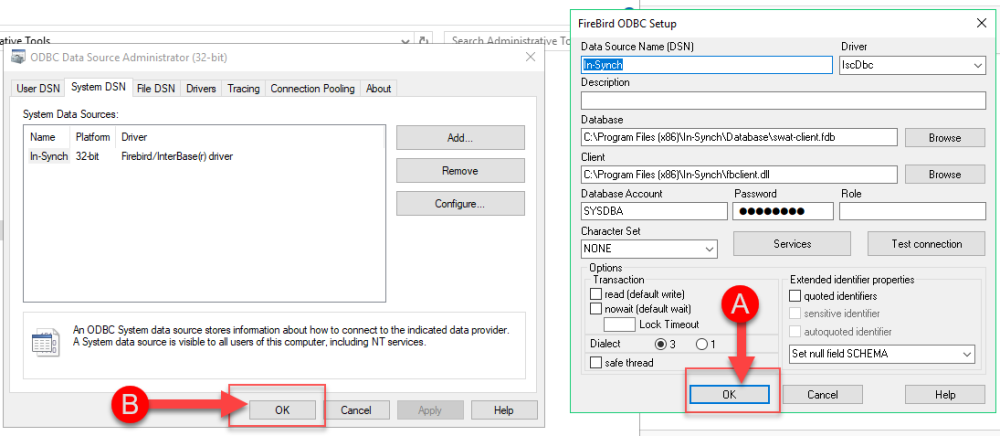
- The path to the fbclient.dll will be added to the “Client” field. Select the “OK” button (A) on the “Firebird ODBC Setup” window and then select the “OK” button (B) on the “ODBC Data Source Administrator (32-bit)” window to save the changes.
- Close any open folders and relaunch the Admin Reports module.
64-Bit Computers
This resolution may require an administrator account or an account with the rights to manipulate the computer’s ODBC connections.
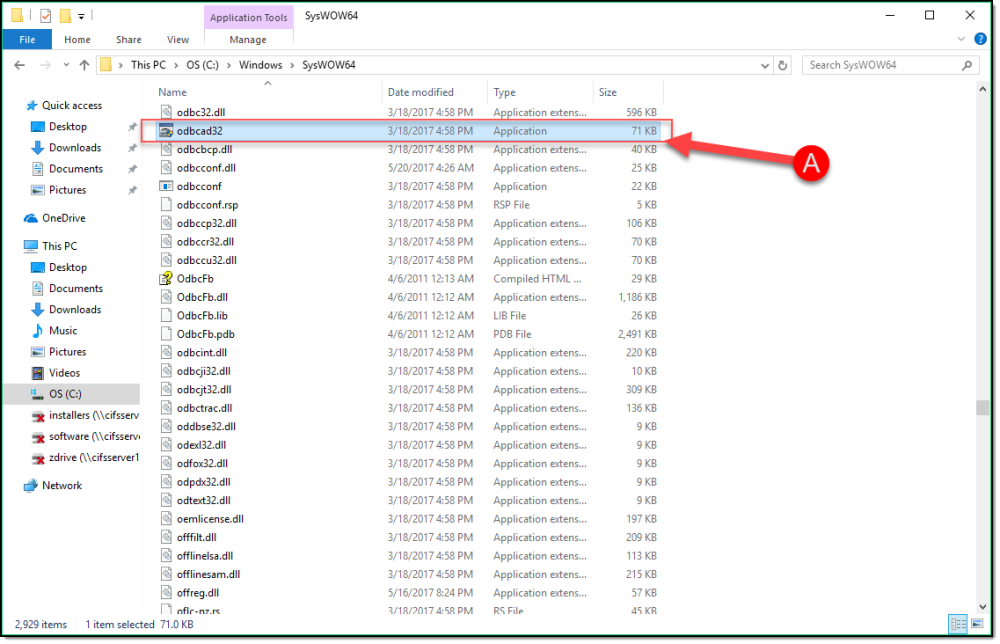
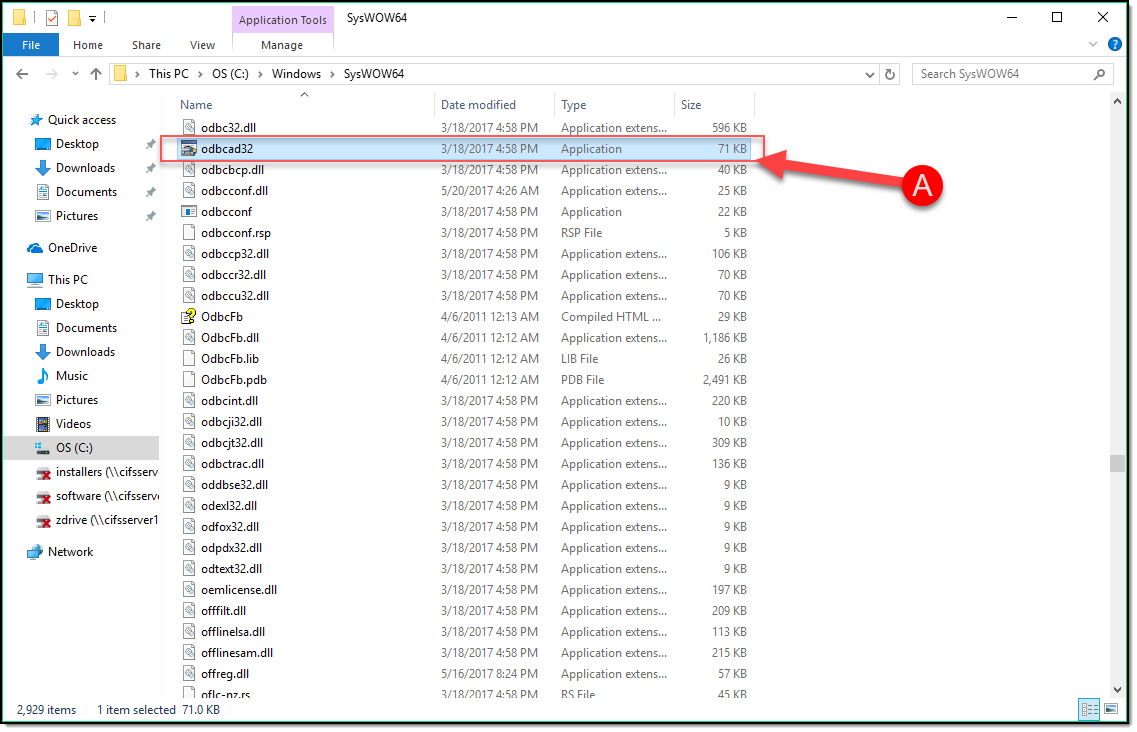
- Through Windows explorer, browse to “C:\Windows\SysWOW64\” and then double-click on “odbcad32” (A).
- Select the “System DSN” tab (A), highlight the “In-Synch” listing (B), and then select the “Configure” button ( C ).
- From the “Firebird ODBC Setup” window, select the “Browse” button (A) located next to the “Client” field.
- Browse to “C:\Program Files (x86)\In-Synch” and double-click the fbclient.dll (A).
- The path to the fbclient.dll will be added to the “Client” field. Select the “OK” button (A) on the “Firebird ODBC Setup” window and then select the “OK” button (B) on the “ODBC Data Source Administrator (32-bit)” window to save the changes.
- Close any open folders and relaunch the Admin Reports module.
Was this article helpful?
That’s Great!
Thank you for your feedback
Sorry! We couldn't be helpful
Thank you for your feedback
Let us know how can we improve this article!
Feedback sent
We appreciate your effort and will try to fix the article
X