
No recent searches
Popular Articles

Sorry! nothing found for
Dauphin County PA Probation Query
Created by Russ Hartle, Modified on Tue, 15 Apr, 2025 at 10:03 AM by Russ Hartle
Dauphin County Probation Query Application
This application allows users to query the current “Probation Status” of a person, given a combination of First Name, Last Name, DOB, and SSN. It is a security controlled app that is granted or denied by an agency’s administrator. The current version of the app was written to be retrofit into the 4.8.1 In-Synch RMS software release. Because of this retrofit, it does require some manual data entry. The version included with our 4.8.2 In-Synch RMS release will have the probation query automatically included when performing a Person Management search.
How to use the current stand-alone client:
- Click on the icon from the main RMS toolbar to run Probation Query (Currently the “CAD Interface” icon is being used)

- The Probation Query app will open to the search screen

- Enter the available person information (First Name, Last Name, DOB, and SSN) and then select the “Run Probation Query” button.
- The results can take a while to return. You will likely receive one of the three following results:
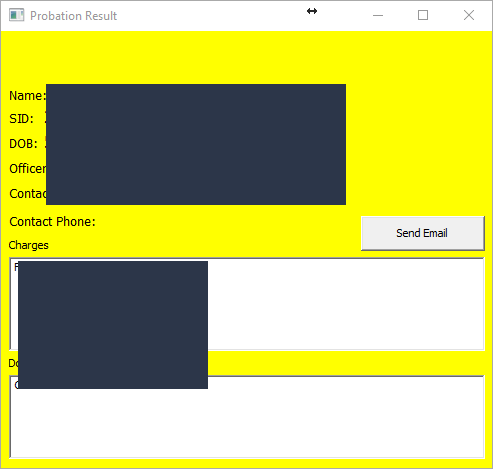
- A successful Hit
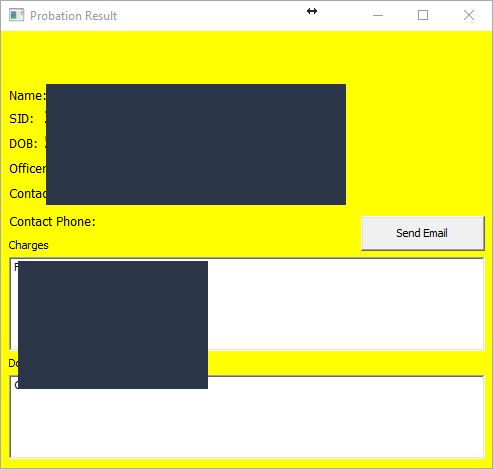
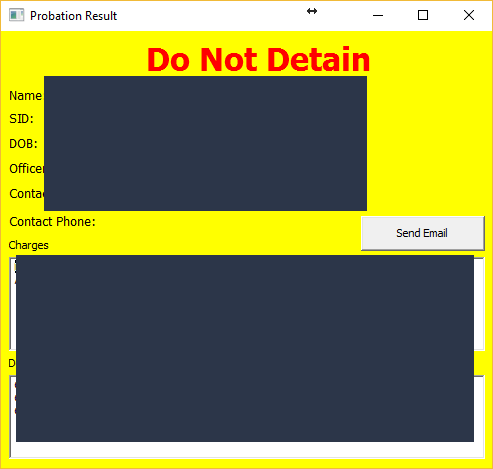
- Or if there is a DO NOT DETAIN status
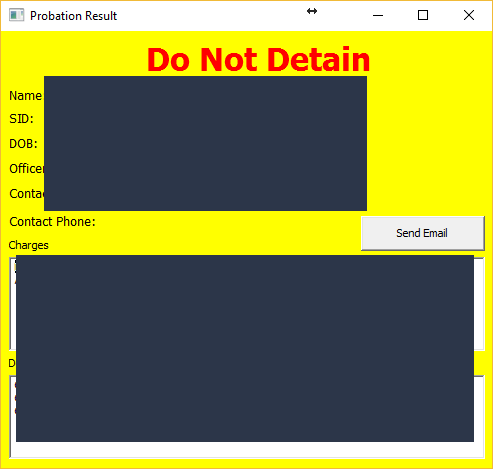
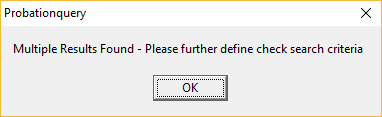
- If you receive the following message, the query found too many potential matches. This means you need to enter additional information to ensure you received the correct response. For example, if you only entered the person’s first and last name, you would need to also enter their DOB and/or SSN and search again, to limit the number of potential matches.
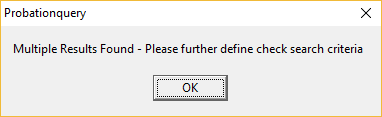
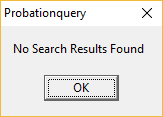
- If the criteria you entered has no matches found
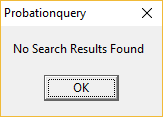
- A successful Hit
- If you get a positive result, it will include any contact info received for the Probation Officer.
- If you have a default email client properly setup on your machine, you can click the “Send Email” button and the application will attempt to start an email from your email address to the Probation Officer. Additional information can be manually typed and/or attached to this email.


Troubleshooting
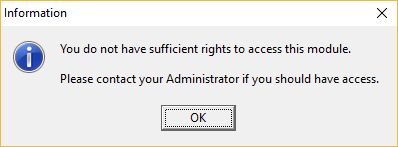
- If you receive the following “Information” window, this means you do not have the RMS.PROBATION_QUERY right, which can be fixed by an Administrator.
- If you receive an error from the app due to internet issues, it may say things like “Unable to Deserialize”, etc. You can retry your query in case it was a network issue, but if this continues please contact In-Synch Support at 1-800-243-6540
- If you receive an error regarding a Top Level node of zero, this can happen due to antivirus or firewalls blocking transmission, such as with NetMotion. You can contact your IT and/or In-Synch Systems at 1-800-243-6540 to help with this issue.
Was this article helpful?
That’s Great!
Thank you for your feedback
Sorry! We couldn't be helpful
Thank you for your feedback
Let us know how can we improve this article!
Feedback sent
We appreciate your effort and will try to fix the article
X