
No recent searches
Popular Articles

Sorry! nothing found for
Detainee Details/Picklist Values
Created by Russ Hartle, Modified on Thu, 3 Apr, 2025 at 3:08 PM by Russ Hartle
Current Location, Reason for Detainment, and Notes/Instructions
You will now need to enter the Detainee’s Current Location (A), the reason for Detainment (B), and any notes/instructions ( C ) relevant to the detainee or his detainment. These are all free text fields so you can type directly into them.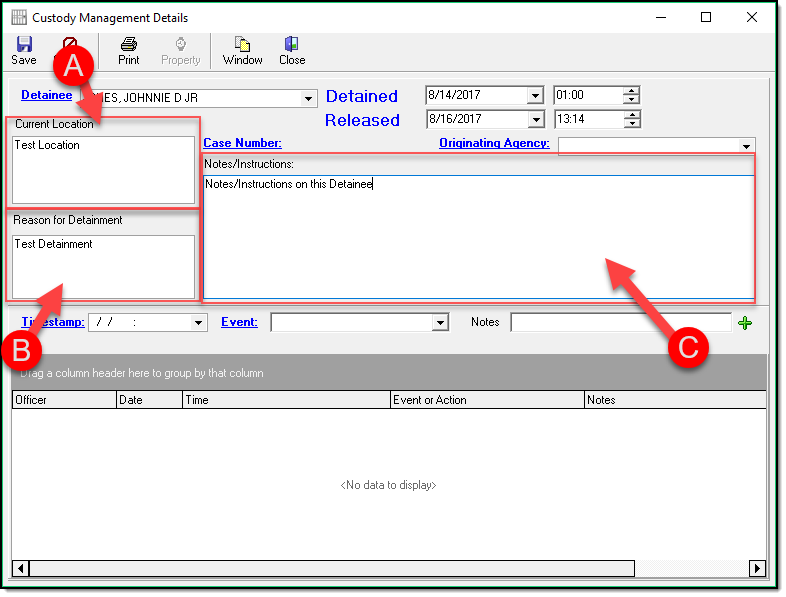
Originating Agency
You can now also set the Originating Agency (A)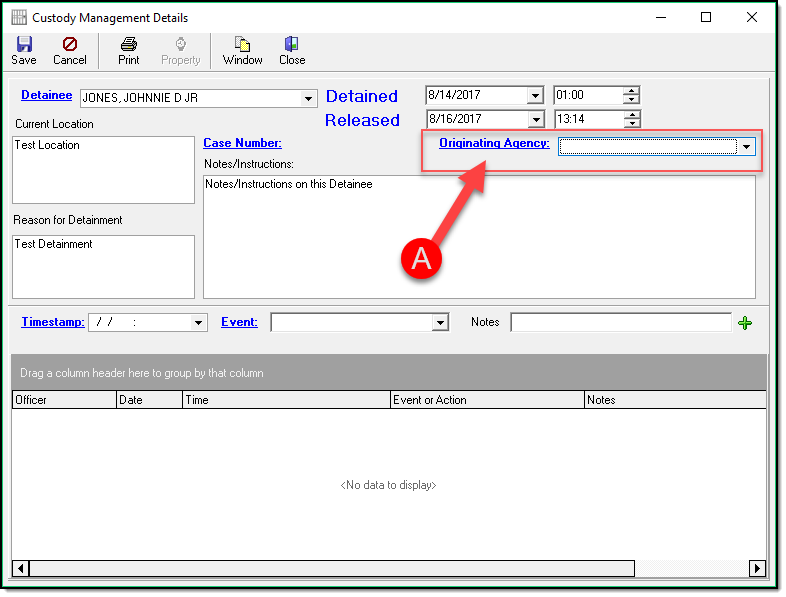
If your Agency has set up Picklist options for this, you will see them appear in the drop down list (A). If not you can follow the steps in the Pick List Values section.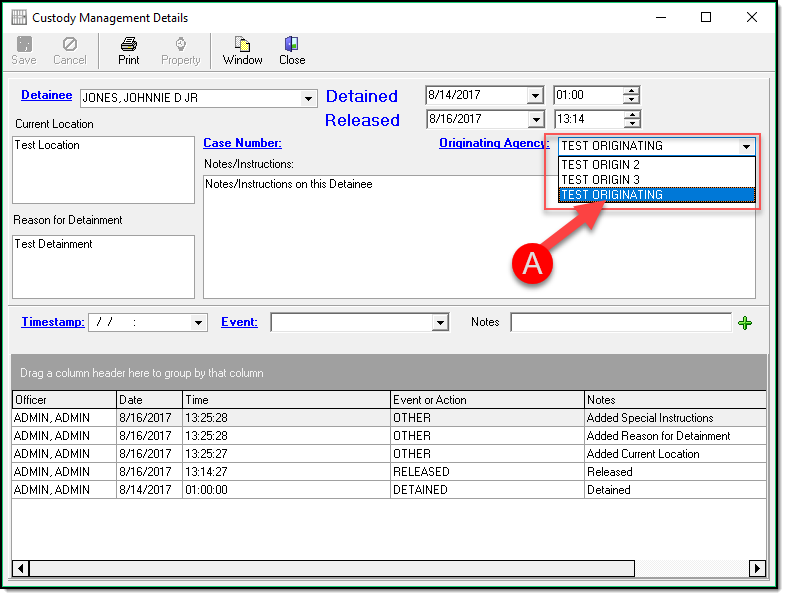
Case Number
Once you have entered your Detainee, Detainee dates/times, location, reason, notes, and originating agency it is now time to ‘Save’ (A).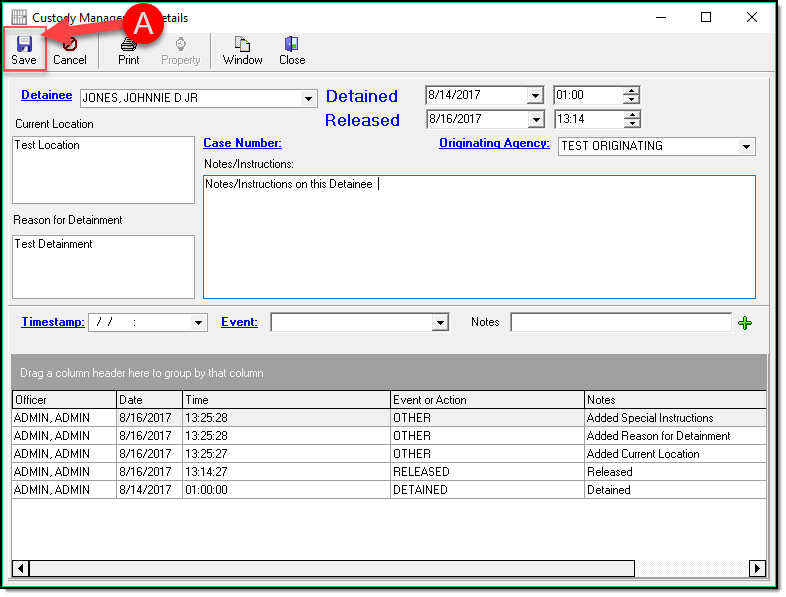
Now that you have saved, you can associate this record to a case by clicking Case Number (A) and then choosing Yes (B)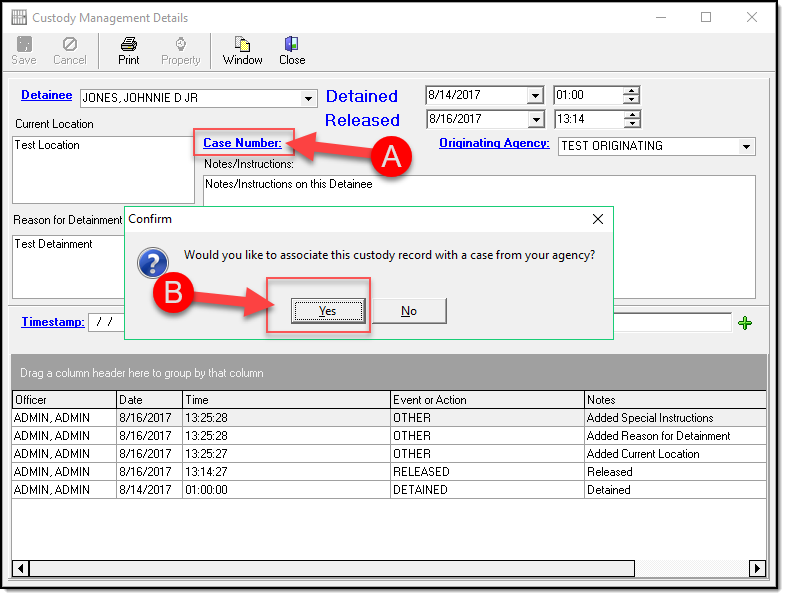
You now have 2 options, you can click OK (A) and create a new Case off of this record or you can type an existing case number in (B) and click Assign ( C ) to assign this record to it.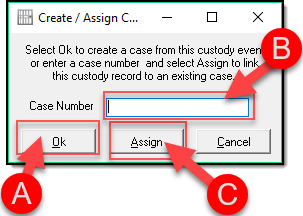
*Tips:
Only certain numbering methods allow the case creation from within Custody Management. The others will receive the following message. We feel it is better, when possible, to have your case work done before you assign the custody record to a case.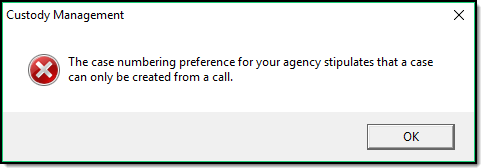
Once you have linked the Custody Record to a case, you will now be able to see the case number on your Custody details screen.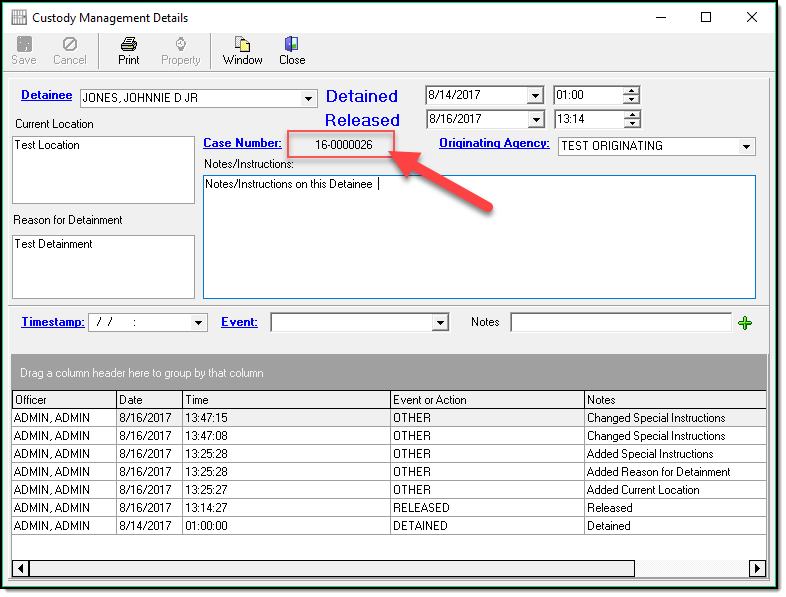
Pick List Values
To assign Pick List Values to be available in the Originating Agency drop-down list. Click the blue words Originating Agency (A) to launch the Picklist editor.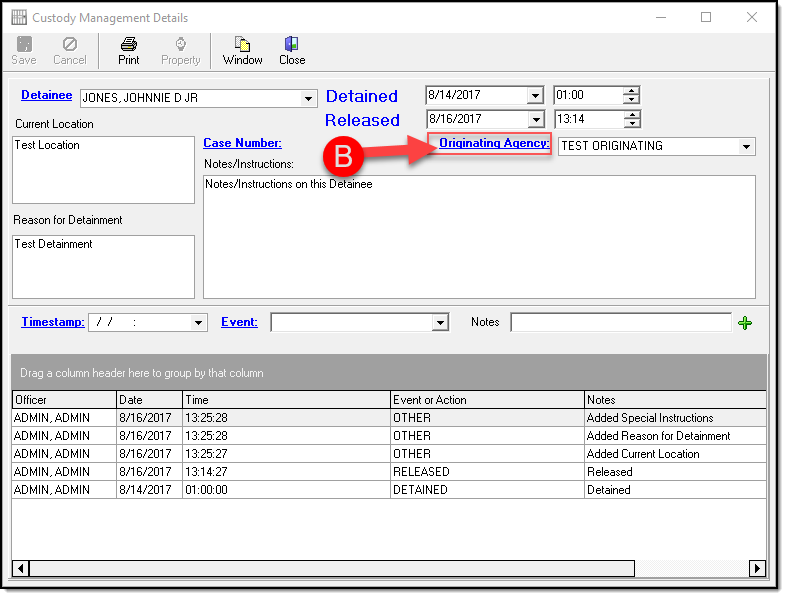
Click Add (A), enter an ID (B), enter a Description ( C ) (this is what will show in the drop down list), and click Save (D). This can be repeated for as many listings as you need for your agency.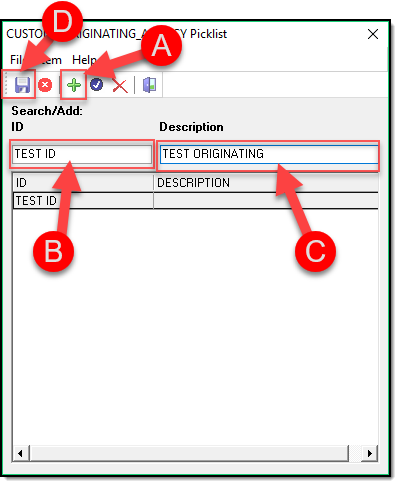
If your dropdown list was blank or you needed to add a new value you can now Highlight the value you want and click Choose (A).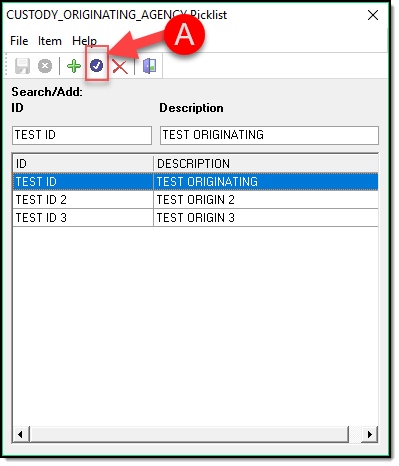
You will now see the Originating Agency Value listed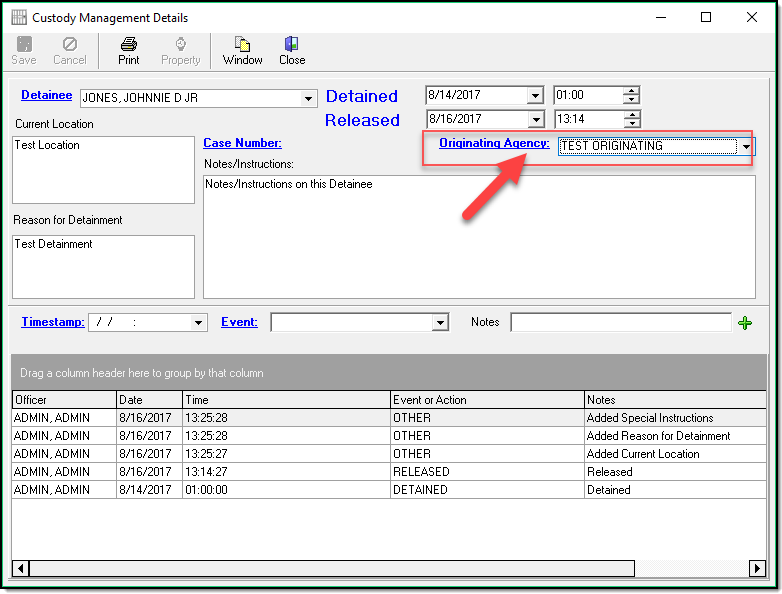
Was this article helpful?
That’s Great!
Thank you for your feedback
Sorry! We couldn't be helpful
Thank you for your feedback
Let us know how can we improve this article!
Feedback sent
We appreciate your effort and will try to fix the article
X